
T10M Pro+
Vortex T10M Pro+ Tablet User Manual
Model: T10M Pro+
1. Introduction
Thank you for choosing the Vortex T10M Pro+ Tablet. This manual will guide you through the features and functions of your new device, ensuring a smooth and enjoyable user experience. Please read this manual carefully before using your tablet.
What's in the Box
Upon unboxing your Vortex T10M Pro+ Tablet, please verify that all the following items are present:
- Vortex T10M Pro+ Tablet
- Charger
- Screen Protector
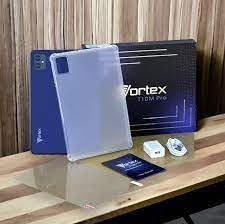
Image: Contents of the Vortex T10M Pro+ Tablet box. This includes the tablet, a clear protective case, the power adapter, and a screen protector, all neatly arranged on a wooden surface.
2. Product Overview
Familiarize yourself with the physical components and key features of your Vortex T10M Pro+ Tablet.
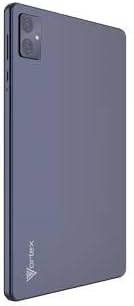
Image: Rear view of the Vortex T10M Pro+ Tablet. The tablet has a sleek, dark finish with the 'Vortex' logo subtly placed at the bottom. The camera module is visible in the upper left corner.

Image: Detailed view of the back of the Vortex T10M Pro+ Tablet, highlighting its specifications. Printed details include '10.1-inch Brilliant Display', '5MP Front Camera', '8MP Rear Camera', 'MTK6766 Processor', 'Quad-Core, 4GB+64GB', '5000mAh Mega Battery', and 'Android 12'.
3. Setup
3.1. Charging the Device
Before first use, fully charge your tablet. Connect the provided charger to the tablet's charging port and plug it into a power outlet. The battery indicator on the screen will show charging progress.
3.2. Inserting SIM/MicroSD Card
The Vortex T10M Pro+ supports 4G LTE connectivity and expandable storage. To insert a SIM card (for mobile data) or a microSD card (for additional storage):
- Locate the SIM/microSD card tray on the side of the tablet.
- Use the provided SIM ejector tool to open the tray.
- Carefully place the SIM card(s) and/or microSD card into the designated slots, ensuring correct orientation.
- Gently push the tray back into the tablet until it clicks into place.
3.3. Initial Power On
Press and hold the Power button located on the side of the tablet until the Vortex logo appears. Follow the on-screen prompts to complete the initial setup, including language selection, Wi-Fi connection, and Google account setup.
4. Operating Instructions
4.1. Basic Navigation
Your tablet runs on Android 13.0. Use touch gestures for navigation:
- Tap: Select an item or open an app.
- Swipe: Scroll through screens or lists.
- Pinch-to-zoom: Zoom in or out on photos and web pages.
- Long press: Access contextual menus or move icons.
4.2. Connecting to Wi-Fi
To connect to a Wi-Fi network:
- Go to Settings > Network & internet > Internet.
- Turn on Wi-Fi.
- Select your desired network from the list and enter the password if prompted.
4.3. Using Mobile Data (4G LTE)
If you have inserted a valid SIM card with an active data plan:
- Go to Settings > Network & internet > SIMs.
- Ensure Mobile data is enabled for your SIM.
4.4. Camera Operation
The tablet features an 8MP rear camera and a 5MP front camera.
- Open the Camera app.
- Tap the shutter button to take a photo.
- Switch between front and rear cameras using the camera toggle icon.
4.5. Managing Storage
Your tablet comes with 64GB of internal storage. You can expand this using a microSD card up to 128GB. To view storage usage, go to Settings > Storage.
5. Maintenance
5.1. Cleaning
Use a soft, lint-free cloth to clean the screen and body of the tablet. Avoid using harsh chemicals or abrasive materials.
5.2. Software Updates
Periodically check for software updates to ensure your tablet has the latest features and security patches. Go to Settings > System > System update.
5.3. Battery Care
To prolong battery life:
- Avoid extreme temperatures.
- Do not let the battery fully discharge frequently.
- Unplug the charger once the battery is full.
6. Troubleshooting
This section addresses common issues you might encounter with your tablet.
| Issue | Possible Solution |
|---|---|
| Tablet does not power on | Ensure the battery is charged. Press and hold the Power button for at least 10-15 seconds to force a restart. |
| Wi-Fi connection issues | Restart the tablet and your Wi-Fi router. Forget the network in settings and reconnect. |
| Apps are slow or crashing | Close background apps. Clear app cache (Settings > Apps > [App Name] > Storage > Clear cache). Restart the tablet. |
| Storage full message | Delete unnecessary files or apps. Move media to a microSD card. |
7. Specifications
Detailed technical specifications for the Vortex T10M Pro+ Tablet.
| Feature | Specification |
|---|---|
| Model Name | T10M Pro+ Tablet (Unlocked) Blue 10.1" 64GB 4GB GSM 4G LTE + Wifi 8MP |
| Display Size | 10.1 Inches |
| Max Screen Resolution | 1280 x 800 Pixels |
| Refresh Rate | 120 Hz |
| Processor | MediaTek, 2 GHz |
| RAM | 4 GB |
| Internal Storage | 64 GB |
| Expandable Storage | MicroSD (up to 128GB) |
| Operating System | Android 13.0 |
| Rear Camera | 8 MP |
| Front Camera | 5 MP |
| Connectivity | 4G LTE, Wi-Fi, Bluetooth, GPS |
| Battery Type | Lithium-Ion |
| Average Battery Life | 18 Hours |
| Product Dimensions | 10.1 x 5 x 3 inches |
| Color | Black |
8. Warranty Information
This product is covered by a manufacturer's warranty. Please refer to the warranty card included with your purchase or visit the manufacturer's official website for detailed terms and conditions regarding warranty coverage, duration, and claims process.
9. Support
For further assistance, technical support, or service inquiries, please contact the manufacturer's customer support. Contact information can typically be found on the product packaging, the manufacturer's website, or the warranty documentation.
Related Documents - T10M Pro+
 |
VNEIMQN Kids Tablet Quick Start Guide and System Update A step-by-step guide to setting up your VNEIMQN Kids Tablet and performing a system update, ensuring optimal performance and access to the latest features. |
 |
Pyle PTB10SL 10.1" Full HD Android Tablet User Guide Comprehensive user guide for the Pyle PTB10SL 10.1-inch Full HD Android Tablet, covering setup, operation, features, technical specifications, and troubleshooting. |
 |
AlldoCube T1011 Tablet PC - User Manual and Specifications Comprehensive user manual and technical specifications for the AlldoCube T1011 tablet PC, featuring a 10.1-inch display, Android 10, 6000mAh battery, and LTE connectivity. Includes FCC compliance information. |
 |
Sincoole SM5 Industrial Tablet PC User Manual Comprehensive user manual for the Sincoole SM5 Industrial Tablet PC, covering overview, operating instructions, maintenance, and troubleshooting. |
 |
BINIZE Android 13 AI Box User Guide: Wireless CarPlay, Android Auto, and Multimedia Features A comprehensive guide to the BINIZE Android 13 AI Box, covering setup, features like Wireless CarPlay and Android Auto, Bluetooth connectivity, SIM card usage, and troubleshooting. |
 |
YUMKEM L211 Tablet User Manual and First Boot Up Guide A comprehensive guide to the YUMKEM L211 tablet, covering initial setup, button functions, connectivity options (Wi-Fi, Bluetooth, Mobile Data, HDMI), screen and audio settings, PC connection, application management, user accounts, location services, security features, language and input, account management, factory reset, date and time settings, and USB OTG functionality. |
Ask a question about this manual
Ask about setup, troubleshooting, compatibility, parts, safety, or missing instructions. Manuals+ will review the question and use this page’s manual context to help answer it.