1. Introduction
Thank you for choosing the Defender Impulse GMC 600 RGB Gaming Stream Microphone. This high-quality wired microphone is designed for clear audio capture, ideal for gaming, streaming, podcasting, and voiceovers. It features vibrant RGB backlighting, an integrated pop filter, a shock mount, and a convenient mute button for enhanced user experience. This manual provides detailed instructions for setup, operation, and maintenance to ensure optimal performance.
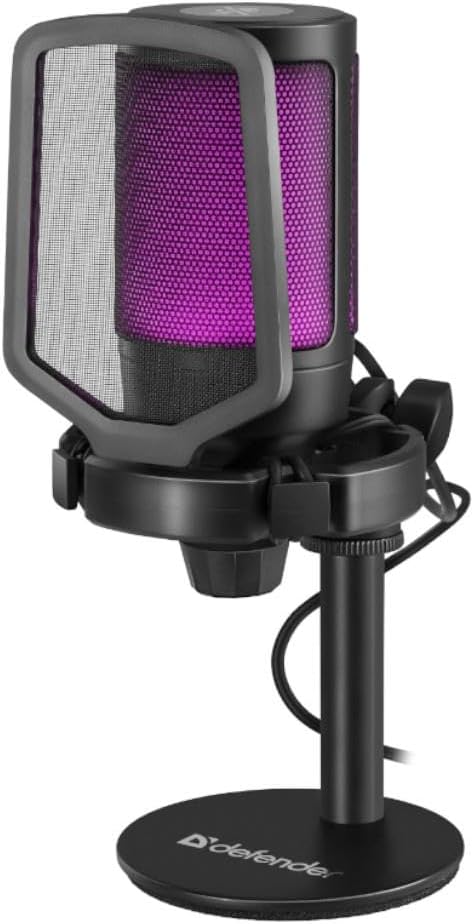
Figure 1.1: The Defender Impulse GMC 600 RGB Microphone, showcasing its integrated pop filter and purple RGB illumination.
2. Package Contents
Please verify that all items are present in the package:
- Defender Impulse GMC 600 RGB Microphone
- Desktop Stand
- Integrated Pop Filter
- USB Cable (1.7m)
- User Manual (this document)

Figure 2.1: The retail packaging of the Defender Impulse GMC 600, indicating compatibility and key features.
3. Setup Instructions
3.1 Connecting the Microphone
- Unpack Components: Carefully remove the microphone, desktop stand, and USB cable from the packaging.
- Assemble Stand: Attach the microphone to the desktop stand. Ensure it is securely fastened. The microphone features an integrated shock mount to reduce vibrations.
- Connect USB Cable: Plug the USB-A end of the provided 1.7m cable into an available USB port on your PC or laptop.
- Connect to Microphone: Insert the other end of the USB cable into the USB port located on the microphone.
- Power On: The microphone will automatically power on and its RGB lighting will illuminate upon successful connection.

Figure 3.1: Side view of the microphone, illustrating the USB connection point.

Figure 3.2: Detail of the integrated shock mount, designed to minimize handling noise and vibrations.
3.2 Initial Software Configuration (Windows/macOS)
The Defender Impulse GMC 600 is a plug-and-play device. No special drivers are typically required.
- Verify Recognition: Your operating system should automatically detect the microphone.
- Access Sound Settings:
- Windows: Right-click the speaker icon in the taskbar, select "Sound Settings" or "Open Sound settings". Navigate to the "Input" section.
- macOS: Go to System Preferences > Sound > Input.
- Select Microphone: Choose "Defender Impulse GMC 600" (or similar name) as your default input device.
- Adjust Input Level: Speak into the microphone and adjust the input level (gain) to an appropriate level, ensuring the meter shows activity without peaking into the red zone.
4. Operating the Microphone
4.1 Microphone Placement
For optimal sound quality, position the microphone approximately 15-30 cm (6-12 inches) from your mouth. The integrated pop filter helps reduce plosive sounds (P's and B's).
4.2 Mute Function
The microphone features a touch-sensitive mute button located on the top of the unit. Tap the button to mute or unmute the microphone. The RGB lighting may change or indicate the mute status (e.g., turn off or change color when muted, depending on the specific model's implementation).

Figure 4.1: Top view of the microphone, highlighting the touch-sensitive mute button.
4.3 RGB Backlighting
The Impulse GMC 600 features dynamic RGB backlighting. The lighting cycles through various colors automatically, enhancing the aesthetic of your setup. There are no user-adjustable controls for the RGB lighting patterns or colors directly on the microphone.

Figure 4.2: Examples of the microphone's RGB backlighting in different colors.
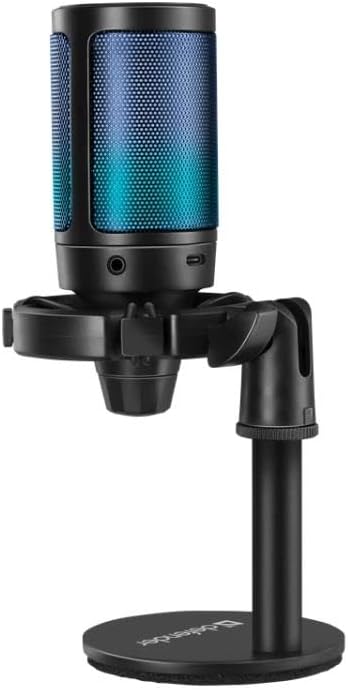
Figure 4.3: The microphone displaying blue RGB lighting, also showing a potential headphone jack for monitoring (if applicable).
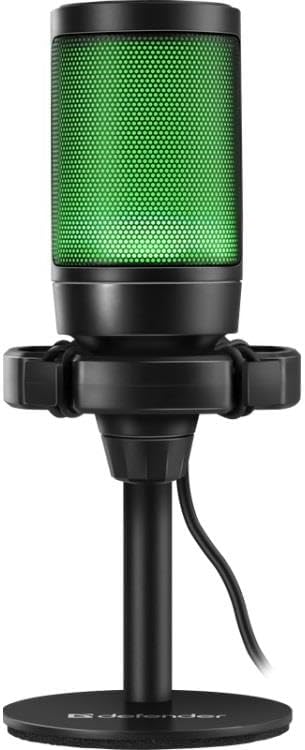
Figure 4.4: The microphone illuminated with green RGB lighting.
5. Maintenance
- Cleaning: Use a soft, dry cloth to wipe the microphone's exterior. Do not use liquid cleaners or abrasive materials.
- Storage: When not in use, store the microphone in a clean, dry place away from direct sunlight and extreme temperatures.
- Cable Care: Avoid bending or twisting the USB cable excessively to prevent damage.
- Pop Filter: The integrated pop filter is not removable for cleaning. Avoid attempting to disassemble the microphone.
6. Troubleshooting
| Problem | Possible Cause | Solution |
|---|---|---|
| Microphone not detected by computer. |
|
|
| No sound or low sound level. |
|
|
| Distorted or unclear audio. |
|
|
| RGB lighting not working. |
|
|
7. Technical Specifications
| Feature | Detail |
|---|---|
| Model Number | S9158326 |
| Connectivity | Wired USB |
| Cable Length | 1.7 meters |
| Dimensions (L x W x H) | 23.5 x 17 x 9.5 cm |
| Signal-to-Noise Ratio (SNR) | 78 dB |
| Number of Channels | 1 |
| Features | RGB Backlight, Integrated Pop Filter, Shock Mount, Mute Button |
| Compatibility | PC, Laptops with USB port |
8. Warranty & Support
Defender products are manufactured to high-quality standards. For warranty information and technical support, please refer to the warranty card included with your purchase or visit the official Defender website. Please retain your proof of purchase for any warranty claims.
For further assistance, you may contact Defender customer support through their official channels. Contact information is typically available on the product packaging or the manufacturer's website.


