
1. Introduction
This manual provides essential information for the installation, operation, maintenance, and troubleshooting of your XFX Speedster QICK319 Radeon RX 7800 XT White CORE Gaming Graphics Card. The XFX AMD Radeon RX 7000 Series graphics cards, featuring the groundbreaking AMD RDNA 3 architecture, are designed to deliver ultra-high frame rates for your favorite games.
2. What's in the Box
Upon opening your product packaging, please ensure all the following items are present:
- XFX Speedster QICK319 Radeon RX 7800 XT White CORE Gaming Graphics Card
- Warranty Card
3. Specifications
| Feature | Detail |
|---|---|
| Chipset | AMD RX 7800 XT |
| Memory | 16GB GDDR6 |
| Cooling Solution | XFX QICK Triple Fan |
| Boost Clock | Up to 2430 MHz |
| Product Dimensions | 13.2 x 5.1 x 0.1 inches |
| Item Weight | 3.3 pounds |
| Video Output Interface | HDMI / DisplayPort |
| Graphics Processor Manufacturer | AMD |
4. Setup
4.1 Physical Installation
Before installing the graphics card, ensure your computer is powered off and unplugged from the wall. Open your computer case and locate an available PCI Express x16 slot on your motherboard. Carefully align the graphics card with the slot and press down firmly until it is securely seated. Secure the card to the case with the appropriate screws.
Due to the size and weight of modern graphics cards, it is highly recommended to use a GPU support bracket to prevent sagging and potential damage to the PCIe slot or the card itself. Ensure your PC case has adequate clearance for the card's dimensions (13.2 x 5.1 x 0.1 inches).

Figure 1: Front view of the XFX Speedster QICK319 Radeon RX 7800 XT Graphics Card.
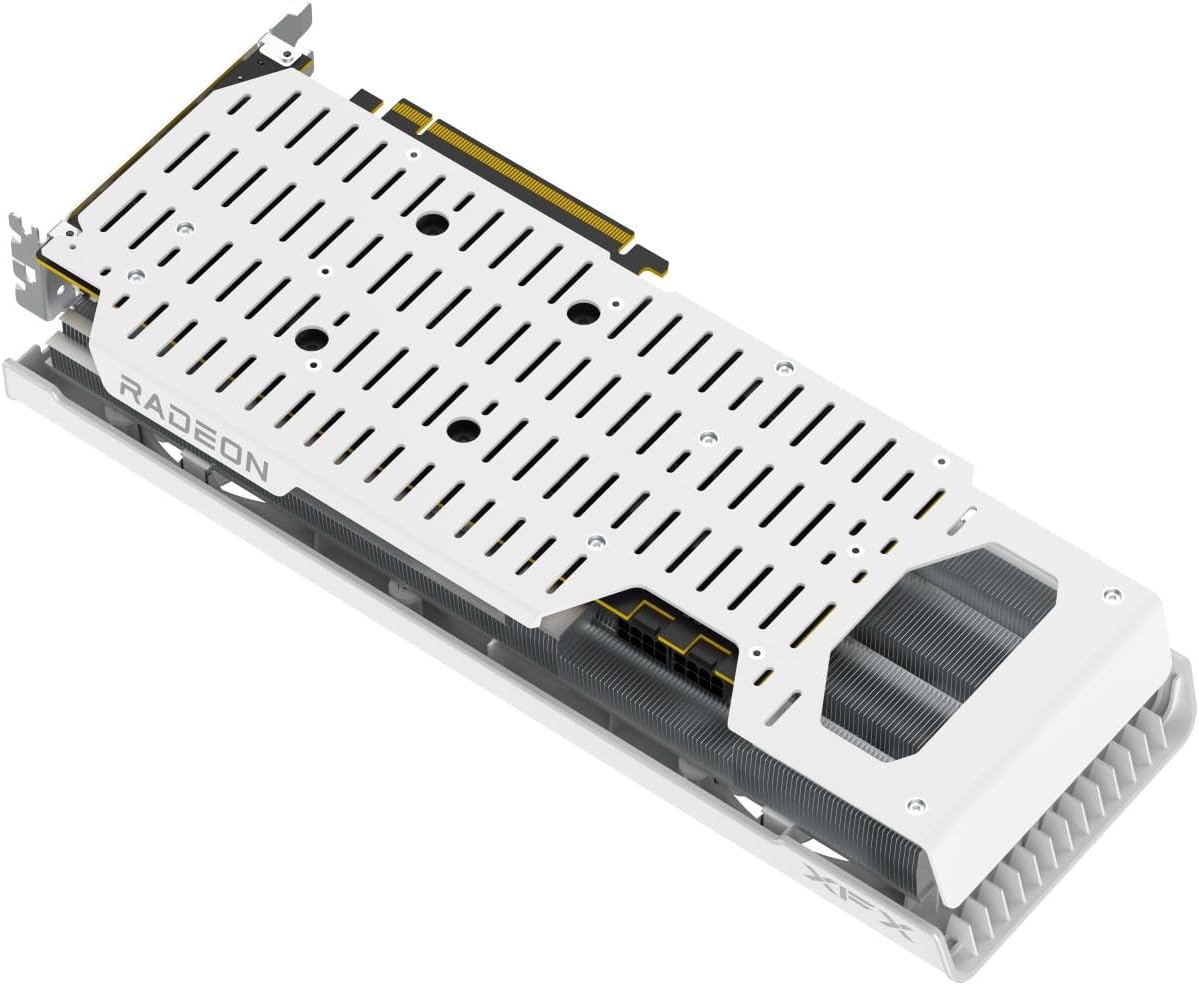
Figure 2: Backplate view of the XFX Speedster QICK319 Radeon RX 7800 XT Graphics Card.
4.2 Power Connections
This graphics card requires dual 8-pin PCIe power connectors. Connect these cables from your power supply unit (PSU) directly to the corresponding ports on the graphics card. A power supply unit with a minimum of 700W is generally recommended for optimal performance and stability with the AMD Radeon RX 7800 XT series.
4.3 Driver Installation
After physical installation, power on your computer. You will need to install the latest AMD Radeon drivers. It is crucial to perform a clean installation, especially if you are switching from a different graphics card brand (e.g., NVIDIA). Tools like Display Driver Uninstaller (DDU) can help remove old drivers completely before installing new ones. Visit the official AMD website to download the most current drivers for your Radeon RX 7800 XT.
5. Operating
5.1 Software Configuration
Once drivers are installed, you can use the AMD Software: Adrenalin Edition to configure your graphics card settings. This software allows for performance tuning, game optimization, and monitoring of GPU metrics such as temperature, clock speed, and power consumption. Explore the various options to customize your gaming and creative experience.
5.2 Performance Expectations
The XFX Speedster QICK319 Radeon RX 7800 XT is designed for high-performance gaming. It excels at 1440p resolution, providing smooth frame rates in most modern titles. For 4K gaming, enabling features like AMD FidelityFX Super Resolution (FSR) or adjusting certain in-game settings may be necessary to achieve optimal performance.
5.3 Display Connections
The graphics card features multiple display output interfaces, including HDMI and DisplayPort. These ports support various monitor configurations, including multi-monitor setups. Ensure you use high-quality cables that support the desired resolution and refresh rate of your displays.

Figure 3: Side view of the graphics card, highlighting the display output ports.
6. Maintenance
To ensure the longevity and optimal performance of your graphics card, regular maintenance is recommended:
- Dust Removal: Periodically clean dust from the fans and heatsink using compressed air. Ensure the computer is powered off and unplugged before cleaning.
- Airflow: Maintain good airflow within your PC case by ensuring case fans are properly installed and free of obstructions.
- Driver Updates: Keep your graphics drivers updated to the latest version from the official AMD website to benefit from performance improvements and bug fixes.

Figure 4: Top view of the graphics card, showing the triple fan cooling system.
7. Troubleshooting
If you encounter issues with your graphics card, consider the following troubleshooting steps:
- No Display/Black Screen: Ensure the graphics card is fully seated in the PCIe slot and all power cables are securely connected. Verify your monitor is connected to the graphics card and not the motherboard's integrated graphics.
- Driver Issues: If you experience crashes or instability, try reinstalling the graphics drivers using a clean installation method (e.g., DDU) as described in Section 4.3.
- Performance Problems: Check in-game settings and AMD Software: Adrenalin Edition for any conflicting settings or outdated profiles. Ensure your CPU and RAM are not bottlenecking the GPU.
- Coil Whine: Some users may experience a high-pitched buzzing sound (coil whine) under heavy load. This is generally not indicative of a fault and can sometimes be mitigated by adjusting power limits or frame rates. Ensure your PSU is sufficient and of good quality.
- Physical Fit/Sagging: If the card appears to be sagging, ensure a GPU support bracket is properly installed to prevent long-term damage.
8. Warranty and Support
Your XFX Speedster QICK319 Radeon RX 7800 XT Graphics Card comes with a warranty. Please refer to the included Warranty Card for detailed terms and conditions. For technical support, driver downloads, and further assistance, please visit the official XFX website.
9. Official Product Videos
No official seller videos specifically for this product model were available for embedding at this time.
