
1. Introduction
This manual provides detailed instructions for the setup, operation, and maintenance of your Aula Monster Design Gaming Keyboard. Designed for an immersive gaming experience, this keyboard features a unique monster-inspired design, a reliable USB connection, and vibrant colorful backlighting.
Please read this manual thoroughly before using the product to ensure proper functionality and longevity.
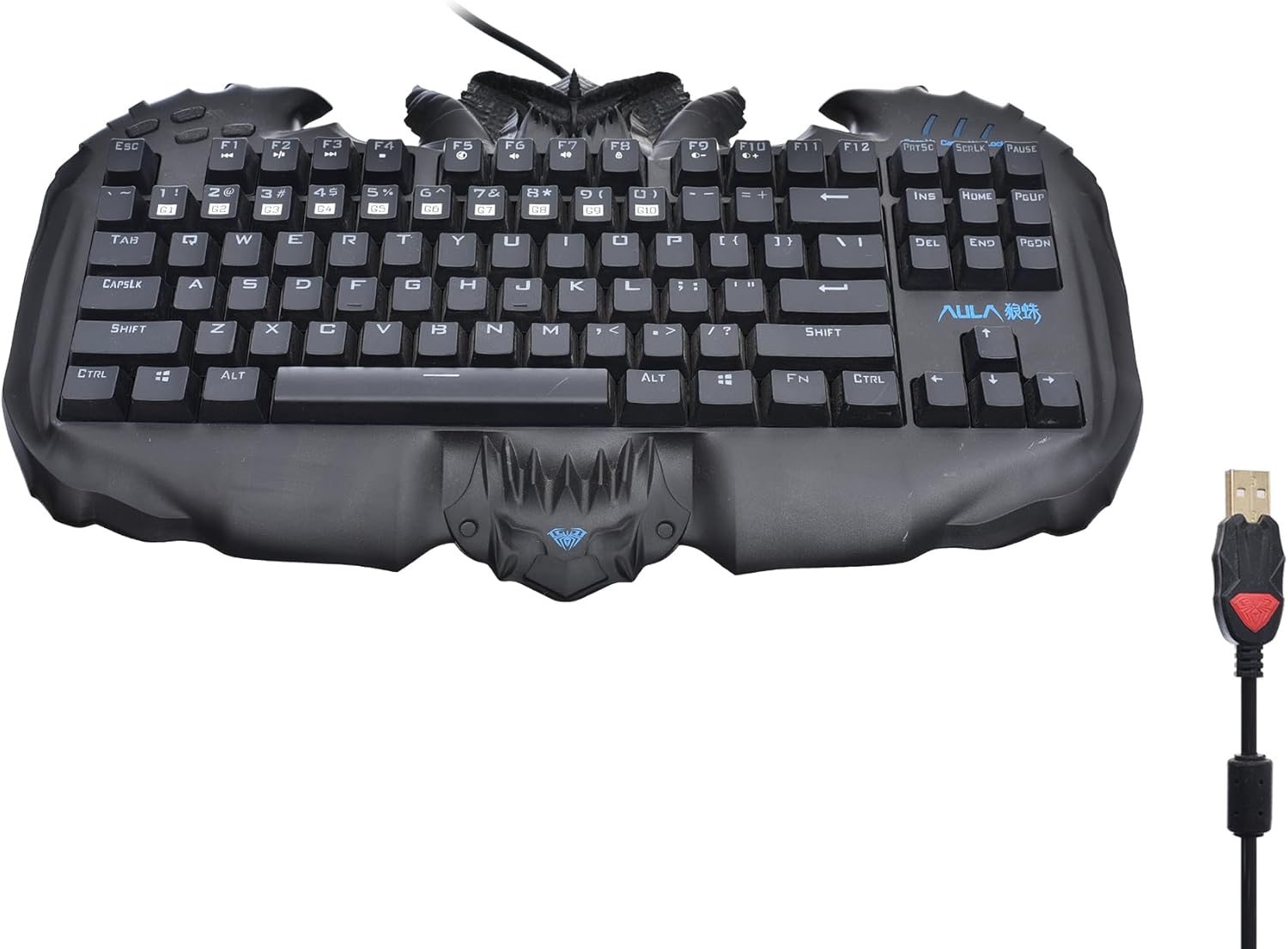
Figure 1.1: Top view of the Aula Monster Design Gaming Keyboard, showcasing its unique shape and key layout.
2. Setup
Setting up your Aula Gaming Keyboard is a straightforward process. Follow the steps below to connect your keyboard to your computer.
- Unpack the Keyboard: Carefully remove the keyboard from its packaging. Ensure all components, including the integrated USB cable, are present and undamaged.
- Identify USB Port: Locate an available USB port on your computer (desktop PC, laptop, or gaming console).
- Connect the USB Cable: Insert the USB connector of the keyboard's cable into the identified USB port on your computer. The keyboard is plug-and-play, meaning it does not require additional driver installation for basic functionality on most operating systems.
- System Recognition: Your operating system should automatically detect and install the necessary drivers for the keyboard. This process usually takes a few seconds.
- Verify Functionality: Once connected, test the keyboard by typing in a text editor or navigating your system to ensure all keys are responsive.

Figure 2.1: Close-up view of the durable USB cable connector, designed for reliable connection.
3. Operating Instructions
The Aula Gaming Keyboard is designed for intuitive use. Here are instructions for its primary functions, including the colorful backlight.
3.1 Basic Keyboard Use
- Typing: Use the standard QWERTY layout for all typing tasks.
- Function Keys (F1-F12): These keys perform various functions depending on the application or operating system. Some may require pressing the Fn key simultaneously.
- Multimedia Keys: Look for dedicated multimedia keys or Fn combinations (e.g., Fn + F1-F12) for volume control, media playback, etc. (Specific combinations may vary).
3.2 Colorful Backlight Control
The keyboard features a vibrant colorful backlight to enhance your gaming and typing experience. Control the backlight using the following methods:
- Toggle Backlight: Press the Scroll Lock key (often labeled SL or with a light bulb icon) to turn the backlight on or off.
- Adjust Brightness: Use Fn + Page Up to increase backlight brightness and Fn + Page Down to decrease brightness.
- Change Lighting Modes/Colors: Some keyboards allow changing lighting modes or colors using specific key combinations, often involving the Fn key and other keys like Home, End, Insert, Delete, or arrow keys. Refer to the keyboard's specific key legends for exact combinations.
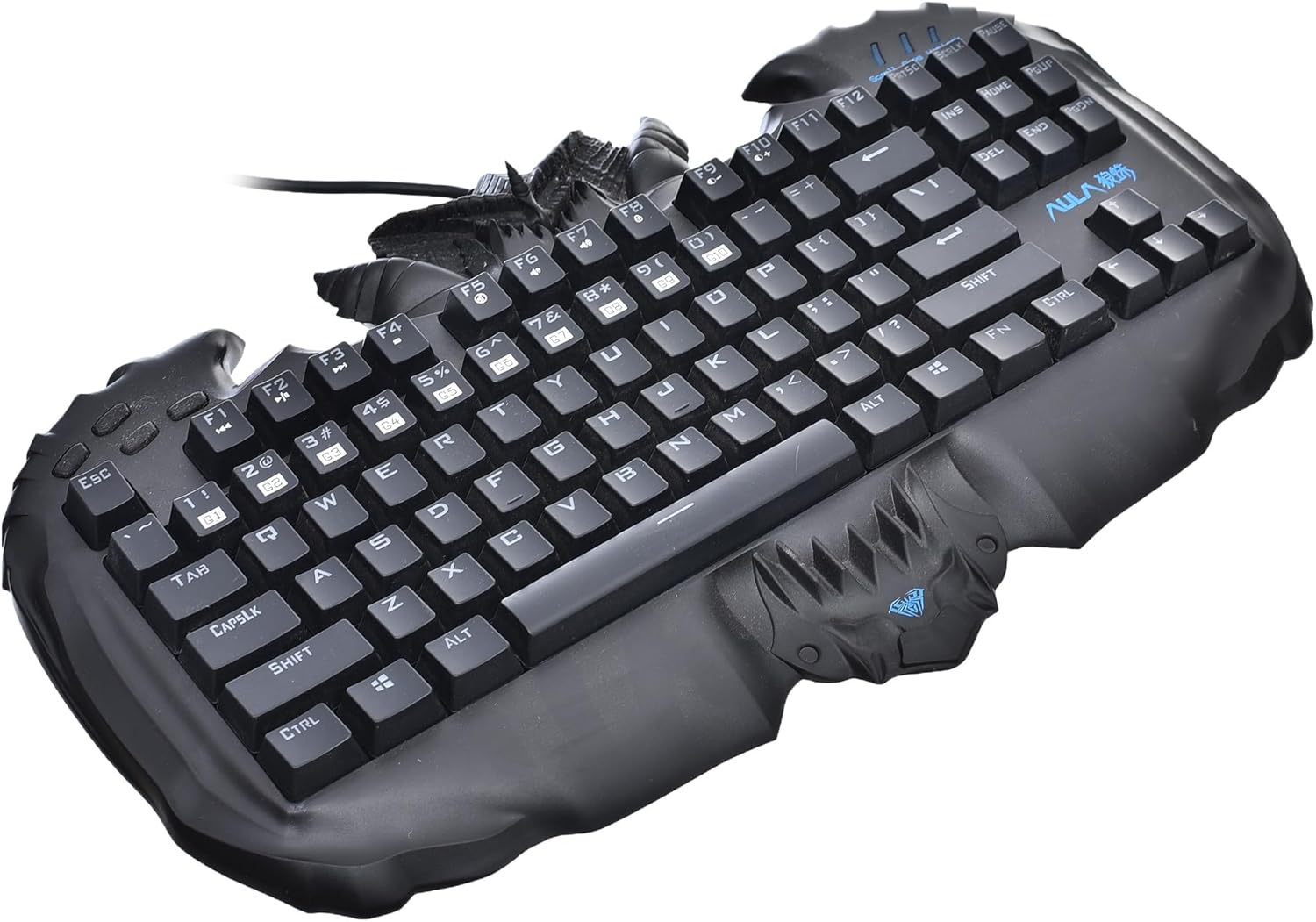
Figure 3.1: Angled view of the keyboard, highlighting the ergonomic design and keycap structure.
4. Maintenance
Proper maintenance will extend the life and performance of your Aula Gaming Keyboard.
4.1 Cleaning
- Disconnect First: Always disconnect the keyboard from your computer before cleaning.
- Dust Removal: Use a can of compressed air to blow away dust and debris from between the keys.
- Surface Cleaning: Wipe the surface of the keyboard and keycaps with a soft, lint-free cloth lightly dampened with water or a mild, non-abrasive cleaning solution. Avoid excessive moisture.
- Avoid Harsh Chemicals: Do not use strong solvents, alcohol, or abrasive cleaners, as these can damage the keyboard's finish or keycap legends.
4.2 Storage
- Store the keyboard in a cool, dry place away from direct sunlight and extreme temperatures.
- Protect the keyboard from spills and physical impact.
5. Troubleshooting
If you encounter issues with your Aula Gaming Keyboard, refer to the following common problems and solutions.
| Problem | Possible Cause | Solution |
|---|---|---|
| Keyboard is not responding. | Loose USB connection, faulty USB port, system driver issue. |
|
| Backlight is not working. | Backlight is turned off, brightness is set to minimum. |
|
| Certain keys are not working. | Debris under keycap, software conflict, physical damage. |
|
6. Specifications
Detailed technical specifications for the Aula Monster Design Gaming Keyboard.
| Brand | Generic |
| Model Name | Monster Design Gaming Keyboard |
| ASIN | B0CV5V6Z9C |
| Connectivity Technology | USB |
| Compatible Devices | PC |
| Keyboard Description | Gaming |
| Special Features | Backlit |
| Color | Black |
| Style | Modern |
| Material | Plastic |
| Included Components | USB Cable |
| Item Weight | 90 g |
| Package Dimensions | 47.6 x 27.2 x 7.9 cm |
| Manufacturer | China |
| Date First Available | 7 February 2024 |
7. Warranty and Support
For warranty information and technical support, please refer to the following guidelines:
- Product Warranty: This product is sold under the brand "Generic". For specific warranty terms and conditions, please contact the retailer or the manufacturer directly. Retain your proof of purchase for any warranty claims.
- Extended Warranty: Extended warranty plans may be available from third-party providers, such as the 1-Year or 2-Year Extended Warranty by Salama Care. These plans are separate from any standard product warranty and offer additional coverage.
- Technical Support: If you encounter issues that cannot be resolved using the troubleshooting guide in this manual, please contact the seller or the manufacturer's customer support for assistance.


