
Lancom 1803VA
LANCOM 1803VA VoIP SD-WAN Gateway
User Manual
Introduction
This manual provides comprehensive instructions for the setup, operation, maintenance, and troubleshooting of your LANCOM 1803VA VoIP SD-WAN Gateway. The LANCOM 1803VA is designed for reliable and secure site networking, featuring an integrated VDSL modem for high-performance internet connectivity and robust VPN capabilities. It integrates seamlessly with the LANCOM Management Cloud (LMC) for simplified network management and automated deployment.
Setup Guide
Follow these steps to set up your LANCOM 1803VA Gateway.
1. Unpacking and Initial Inspection
Carefully remove all components from the packaging. Verify that all items listed in the packing contents are present and undamaged. If any items are missing or damaged, contact your vendor immediately.
2. Device Overview
Familiarize yourself with the front and rear panels of the device.

Front view of the LANCOM 1803VA Gateway, showing the LANCOM SYSTEMS logo on the left, LANCOM 1803VA on the right, and a row of LED indicators for Power, Online, WAN, SFP, DSL, Analog 1, Analog 2, ISDN 1, ISDN 2, ETH 1-4, VoIP, and VPN.
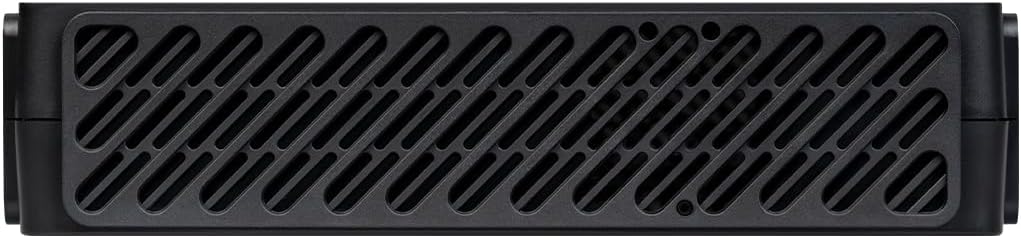
Top view of the LANCOM 1803VA Gateway, featuring a large ventilation grille pattern across its surface for heat dissipation.
3. Connecting the Gateway
- Power Connection: Connect the provided power adapter to the 'POWER' port on the rear of the gateway and then to a power outlet.
- VDSL/DSL Connection: Connect your VDSL/DSL line to the 'DSL' port.
- Ethernet Connections: Connect your local network devices (computers, switches) to the 'ETH 1-4' ports using Ethernet cables.
- VoIP/Analog/ISDN Connections: If utilizing VoIP or traditional telephony features, connect your analog phones, fax machines, or ISDN devices to the respective 'ANALOG' or 'ISDN' ports.
- WAN/Fiber Optic (Optional): For external modems or fiber optic connections (with separate modules), use the 'WAN' or 'SFP' ports.
4. Initial Configuration
Once powered on, the device will perform a self-test. Refer to the LANCOM Management Cloud (LMC) documentation for zero-touch deployment or access the device's web interface via a connected computer for manual configuration. The default IP address and login credentials can be found on the label at the bottom of the device.
Operating Instructions
This section covers the basic operation and key features of your LANCOM 1803VA Gateway.
LED Indicators
Monitor the LED indicators on the front panel for device status:
- POWER: Indicates power status.
- ONLINE: Indicates internet connection status.
- WAN/DSL: Indicates activity on WAN or DSL ports.
- ETH 1-4: Indicate link status and activity for Ethernet ports.
- VoIP/VPN: Indicate status of VoIP services and VPN connections.
Key Features
- Integrated VDSL Supervectoring Modem: Supports speeds up to 300 Mbit/s for high-speed internet access.
- SD-WAN Capabilities: Facilitates zero-touch deployment and automatic VPN setup via the LANCOM Management Cloud.
- IPSec VPN: Includes 5 integrated IPSec VPN channels (expandable to 25) for secure site-to-site and remote access connections.
- Professional Telephony Functions: Features LANCOM VCM (Voice Call Manager) and SBC (Session Border Controller) for advanced VoIP services.
- Legacy Telephony Support: Provides 2 x ISDN S0 (NT) and 2 x analog ports for continuous operation of existing ISDN and analog components.
- Network Virtualization (ARF): Supports up to 16 virtual networks on a single device.
Maintenance
Regular maintenance ensures optimal performance and longevity of your LANCOM 1803VA Gateway.
Cleaning
Periodically clean the device's exterior with a soft, dry cloth. Ensure ventilation grilles are free from dust and debris to prevent overheating. Do not use liquid cleaners or aerosols.
Firmware Updates
It is recommended to keep your device's firmware updated to the latest version. Firmware updates often include performance improvements, security patches, and new features. You can manage firmware updates through the LANCOM Management Cloud or the device's web interface. Always back up your configuration before performing a firmware update.
Troubleshooting
This section addresses common issues you might encounter and provides solutions.
No Power
- Ensure the power adapter is securely connected to the device and a working power outlet.
- Verify the power outlet is functional by plugging in another device.
No Internet Connection
- Check the 'ONLINE' and 'DSL' LEDs. If they are off or blinking irregularly, verify your DSL line connection.
- Contact your Internet Service Provider (ISP) to confirm service status.
- Ensure the gateway's internet settings (VDSL/WAN configuration) are correct.
Cannot Access Web Interface
- Ensure your computer is connected to one of the 'ETH' ports and is configured to obtain an IP address automatically (DHCP).
- Verify you are using the correct IP address for the gateway (default is usually printed on the device label).
- Try clearing your browser's cache or using a different browser.
VoIP Issues
- Check the 'VoIP' LED indicator.
- Verify your VoIP account settings and ensure they are correctly configured in the gateway.
- Ensure sufficient bandwidth for voice traffic.
If problems persist, consult the detailed troubleshooting guide available on the LANCOM support website or contact LANCOM technical support.
Technical Specifications
| Feature | Description |
|---|---|
| Brand | Lancom |
| Model Name | 1803VA |
| Model Number | 62153 |
| Color | Black |
| Operating System | LCOS |
| Connectivity Technology | Ethernet |
| Special Features | Supervectoring VDSL, SD-WAN |
| Compatible Devices | Personal computer, laptop, tablet, smartphone, game console |
| Recommended Uses | Business, Home Office |
| Included Components | Router |
| Wireless Communication Standard | 802.11ax |
| Frequency Band Class | Dual Band |
| ASIN | B0CV5JTD76 |
| Date First Available | February 7, 2024 |
Warranty Information
LANCOM products are engineered in Germany for maximum durability, reliability, and security. For specific warranty terms and conditions, please refer to the warranty card included with your product or visit the official LANCOM website. Keep your proof of purchase for warranty claims.
Support
For technical assistance, product documentation, and software updates, please visit the official LANCOM Systems support portal. You can find FAQs, downloads, and contact information for customer service there.
LANCOM Systems Official Website: www.lancom-systems.com
Related documents1803VA


Ask a question about this manual
Ask about setup, troubleshooting, compatibility, parts, safety, or missing instructions. Manuals+ will review the question and use this page’s manual context to help answer it.