
1. Introduction
This manual provides detailed instructions for the installation, operation, and maintenance of your GIGABYTE NVIDIA GeForce RTX 3050 OC Low Profile 6G Graphics Card. Please read this manual thoroughly before installation and use to ensure proper functionality and to prevent damage.
What's in the Box
- Graphics card
- Installation guide
2. Product Overview
The GIGABYTE NVIDIA GeForce RTX 3050 OC Low Profile 6G Graphics Card is designed for efficient heat dissipation with a custom-designed cooling system, featuring a copper heat pipe that directly contacts the GPU. This design enhances heat transfer to the heatsink, enabling higher performance at lower temperatures. It is ideal for compact PC builds requiring a powerful yet space-efficient graphics solution.
Key Features
- NVIDIA Ampere Streaming Multiprocessors
- 2nd Generation RT Cores
- 3rd Generation Tensor Cores
- Powered by GeForce RTX 3050
- Integrated with 6GB GDDR6 96-bit memory interface

Image: The GIGABYTE GeForce RTX 3050 OC Low Profile 6G Graphics Card shown alongside its retail packaging, highlighting the product's design and branding.
3. Setup
System Requirements
- PCI Express 4.0 x8 or x16 slot on motherboard
- Minimum 300W power supply (recommended)
- Compatible operating system (Windows 10/11 64-bit or Linux 64-bit)
- At least 8GB of system RAM
- Internet connection for driver download
Installation Steps
- Prepare Your System: Power off your computer and disconnect all cables. Open the computer case.
- Locate PCIe Slot: Identify an available PCI Express 4.0 x16 or x8 slot on your motherboard.
- Remove Slot Cover: Remove the metal slot cover from the back of your computer case corresponding to the chosen PCIe slot.
- Insert Graphics Card: Carefully align the graphics card with the PCIe slot and press down firmly until it is securely seated. Ensure the retention clip on the slot locks into place.
- Secure the Card: Use a screw to fasten the graphics card's mounting bracket to the computer case.
- Connect Display Cables: Connect your monitor(s) to the DisplayPort (DP) or HDMI ports on the graphics card. This card features two DP 1.4 and two HDMI 2.1 ports.
- Close Case and Power On: Close your computer case, reconnect all cables, and power on your computer.
- Install Drivers: Proceed to the "Operating Instructions" section for driver installation.
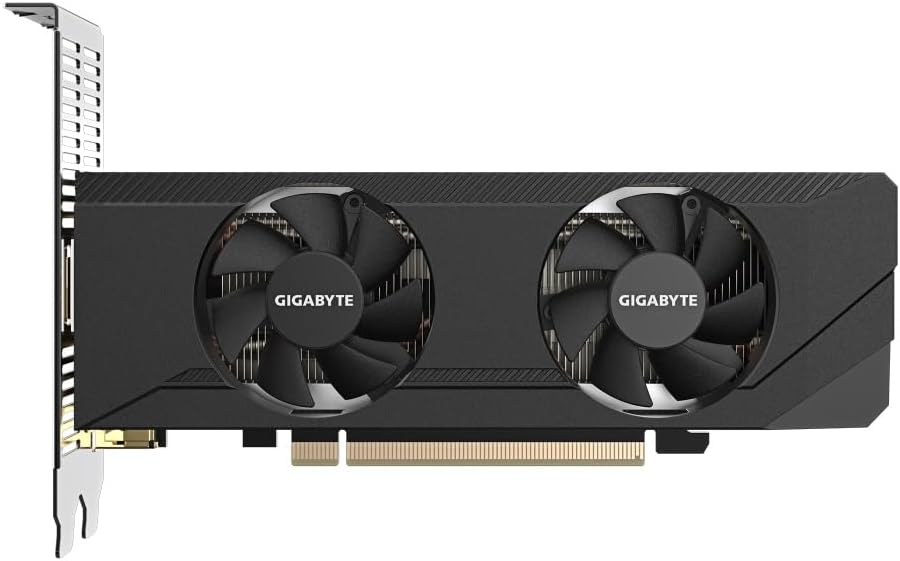
Image: Front view of the GIGABYTE GeForce RTX 3050 OC Low Profile 6G Graphics Card, showcasing its dual-fan cooling system and compact low-profile design.

Image: Rear view of the GIGABYTE GeForce RTX 3050 OC Low Profile 6G Graphics Card, detailing the two DisplayPort 1.4 and two HDMI 2.1 output connectors.

Image: Angled view of the GIGABYTE GeForce RTX 3050 OC Low Profile 6G Graphics Card, illustrating its compact form factor suitable for small chassis.
4. Operating Instructions
Driver Installation
After physical installation, it is crucial to install the latest graphics drivers for optimal performance and stability.
- Download Drivers: Visit the official GIGABYTE website (www.gigabyte.com) or NVIDIA's official website (www.nvidia.com/drivers).
- Select Product: Navigate to the support or download section and select your graphics card model (GeForce RTX 3050).
- Download and Install: Download the latest stable driver package for your operating system. Run the installer and follow the on-screen prompts. A system restart may be required.
Connecting Displays
The graphics card supports multiple display configurations. You can connect up to four displays simultaneously using the available DisplayPort 1.4 and HDMI 2.1 outputs. Ensure your monitors are connected to the graphics card and not the motherboard's integrated graphics ports.
Software Utilities
GIGABYTE may offer utility software, such as GIGABYTE CONTROL CENTER or AORUS Engine, for monitoring, overclocking, and customizing your graphics card. Check the GIGABYTE website for available software downloads specific to your model.
5. Maintenance
Regular maintenance helps ensure the longevity and performance of your graphics card.
- Keep Clean: Periodically clean dust from the fans and heatsink using compressed air. Ensure the computer is powered off and unplugged before cleaning.
- Ensure Airflow: Maintain good airflow within your computer case by ensuring proper cable management and unobstructed vents.
- Driver Updates: Regularly check for and install the latest graphics drivers from NVIDIA or GIGABYTE to benefit from performance improvements and bug fixes.
- Monitor Temperatures: Use monitoring software to keep an eye on GPU temperatures, especially during heavy loads, to prevent overheating.
6. Troubleshooting
If you encounter issues with your graphics card, refer to the following common troubleshooting steps:
- No Display Output:
- Ensure the monitor cable is securely connected to the graphics card and the monitor.
- Verify the monitor is set to the correct input source.
- Confirm the graphics card is fully seated in the PCIe slot.
- Check if your power supply meets the minimum requirements.
- Driver Issues:
- Uninstall existing graphics drivers using Display Driver Uninstaller (DDU) in Safe Mode, then perform a clean installation of the latest drivers.
- Ensure you have downloaded the correct drivers for your operating system and graphics card model.
- Performance Problems (Low FPS, Stuttering):
- Ensure drivers are up to date.
- Check GPU temperatures to rule out thermal throttling.
- Verify that your system meets the recommended specifications for the applications or games you are running.
- Close unnecessary background applications.
- System Instability (Crashes, Freezes):
- Ensure all system components (CPU, RAM, motherboard) are stable and properly cooled.
- Test with default GPU settings (no overclocking).
- Check for BIOS/UEFI updates for your motherboard.
7. Technical Specifications
| Feature | Specification |
|---|---|
| Brand | GIGABYTE |
| Series | Gigabyte GeForce RTX 3050 OC |
| Item Model Number | GV-N3050OC-6GL |
| Graphics Coprocessor | NVIDIA GeForce RTX 3050 |
| Graphics Card Ram Size | 6 GB GDDR6 |
| Memory Speed | 14000 MHz |
| GPU Clock Speed | 1477 MHz |
| Video Output Interface | PCI Express 4.0 |
| Display Outputs | 2x DisplayPort 1.4, 2x HDMI 2.1 |
| Max Screen Resolution | 3840 x 2160 pixels |
| Item Weight | 1.1 pounds |
| Color | Black |
| Date First Available | February 8, 2024 |
8. Warranty and Support
GIGABYTE products are covered by a limited warranty. For detailed warranty terms and conditions, please refer to the warranty information included with your product or visit the official GIGABYTE website.
For technical support, driver downloads, and further assistance, please visit the GIGABYTE support page:
https://www.gigabyte.com/Support
You can also find additional resources and FAQs on the GIGABYTE official website.