
Asus MB166CR
ASUS ZenScreen MB166CR Portable USB Monitor User Manual
Model: MB166CR
Brand: Asus
1. Introduction
Welcome to the user manual for your ASUS ZenScreen MB166CR Portable USB Monitor. This document provides essential information for setting up, operating, maintaining, and troubleshooting your device. Please read this manual thoroughly before using the monitor to ensure proper function and longevity.
The ASUS ZenScreen MB166CR is a 16-inch (15.6-inch viewable) Full HD IPS portable monitor designed for enhanced productivity and versatility. It features a single USB Type-C connection for both power and video, a 360° detachable kickstand, and an anti-glare surface.
2. Package Contents
Verify that all items are present in your package. If any item is missing or damaged, contact your retailer.
- ASUS ZenScreen MB166CR Portable Monitor
- 360° Detachable Kickstand
- USB-C Cable
- Protective Sleeve
- Quick Start Guide
- Warranty Card

This image displays the complete contents of the ASUS ZenScreen MB166CR retail package. It includes the portable monitor, a detachable 360-degree kickstand, a USB-C cable for connectivity, a protective sleeve for transport, a quick start guide for initial setup, and a warranty card.
3. Setup
3.1. Connecting the Monitor
The ASUS ZenScreen MB166CR utilizes a single USB Type-C connection for both power and video transmission.
- Connect one end of the provided USB Type-C cable to the USB Type-C port on your ASUS ZenScreen MB166CR monitor.
- Connect the other end of the USB Type-C cable to a compatible USB Type-C port on your host device (e.g., laptop, smartphone, tablet). Ensure your device's USB-C port supports DisplayPort Alternate Mode (DP Alt Mode) for video output.
For more information on USB-C support, please refer to the official ASUS support page: ASUS USB-C Support FAQ.

This image demonstrates the straightforward connection process of the ASUS ZenScreen MB166CR. A single USB Type-C cable connects the portable monitor to a laptop, indicating that the USB-C port handles both video signal and power transmission. The monitor is shown in portrait mode, displaying data, while the laptop screen shows a graph.
3.2. Attaching the Kickstand
The 360° detachable kickstand allows for flexible viewing angles and orientations.
- Locate the screw-in socket on the rear of the monitor.
- Align the kickstand with the socket and screw it in securely.
- Adjust the kickstand to achieve your desired tilt angle for either portrait or landscape mode.

This diagram illustrates the versatility of the ASUS ZenScreen MB166CR's 360-degree detachable kickstand. It shows how the kickstand can be rotated to support the monitor in portrait mode, landscape mode, and even a wall-mounted mode. The diagram also highlights the ability to tilt the monitor up to 70 degrees for optimal viewing.
4. Operating Instructions
4.1. Power On/Off
The monitor powers on automatically when connected to a compatible device via USB Type-C. To power off, disconnect the USB Type-C cable.
4.2. Display Orientation (Auto Rotate)
The monitor supports auto-rotation for seamless switching between portrait and landscape modes. This feature is enabled via the DisplayWidget Center software (under Windows OS).
4.3. Adjusting Display Settings
Use the physical buttons located on the monitor to access the On-Screen Display (OSD) menu. From the OSD menu, you can adjust settings such as brightness, contrast, color temperature, and other display parameters.
4.4. Usage Scenarios
- Extended Monitor: Connect to your laptop for an expanded workspace, ideal for multitasking.
- Content Sharing: Easily share content with others in small group settings.
- Portrait Mode: Optimize for viewing documents, coding, or web browsing.
- Wall-Mounted Mode: Utilize the tripod socket for space-saving setups.

This image collage showcases the versatile applications of the ASUS ZenScreen MB166CR. It depicts the monitor being used for content sharing on a small table, as an extended display for a laptop to create a more efficient setup, and mounted on a partition to conserve desktop space. These examples highlight its adaptability for optimizing small workspaces.
5. Maintenance
5.1. Cleaning the Monitor
To clean the monitor screen, gently wipe it with a soft, lint-free cloth. For stubborn marks, dampen the cloth slightly with water or a mild, non-abrasive screen cleaner. Avoid using harsh chemicals or abrasive materials.
5.2. Storage
When not in use, store the monitor in its protective sleeve to prevent scratches and dust accumulation.
5.3. Handling
Handle the monitor with care. Avoid dropping it or subjecting it to excessive force, as this can damage internal components or the screen.
6. Troubleshooting
6.1. No Display / Black Screen
- Ensure the USB Type-C cable is securely connected to both the monitor and your host device.
- Verify that your host device's USB-C port supports DisplayPort Alternate Mode (DP Alt Mode).
- Try connecting the monitor to a different USB-C port or another compatible device to rule out port or device issues.
- Check your host device's display settings to ensure the external monitor is detected and enabled.
6.2. Power Issues
- Confirm that the USB Type-C cable is providing sufficient power. Some devices may require an external power source if the USB-C port does not supply enough power.
- If using a USB hub, ensure it is powered and supports power delivery to the monitor.
6.3. Image Quality Issues
- Adjust brightness, contrast, and color settings via the OSD menu.
- Ensure the display resolution on your host device is set to 1920x1080 for optimal clarity.
- Check for any physical damage to the screen or cable.
7. Specifications
| Feature | Detail |
|---|---|
| Standing screen display size | 16 Inches |
| Display Resolution | 1920x1080 |
| Max screen resolution | 1920 x 1080 Pixels |
| Brand | Asus |
| Series | MB166CR |
| Item model number | MB166CR |
| Operating System Compatibility | Window 10/11 |
| Product Dimensions (L x W x H) | 53.34 x 96.52 x 124.46 cm |
| Item Weight | 771.11 g |
| Colour | Black |
| Voltage | 100 Volts |
| Screen size | 16 Inches |
| Resolution | FHD 1080p |
| Aspect ratio | 16:9 |
| Screen surface description | Matte |
| Date First Available | Feb. 19 2024 |
8. Additional Features
8.1. Portable Design
The ASUS ZenScreen MB166CR is designed for portability, featuring an ultra-light weight of 0.78 kg and an ultraslim display of 11.8 mm. It includes a protective sleeve for easy and safe transport.

This image emphasizes the portability of the ASUS ZenScreen MB166CR. It shows a person carrying the monitor, highlighting its ultra-light weight of 0.78 kg and ultra-slim profile of 11.8 mm. The image also mentions the included protective sleeve, making it ideal for travel.
8.2. Vivid Display Quality
Experience enhanced viewing with a vivid display quality, featuring a 178° wide-viewing angle, Full HD 1080p resolution, IPS panel technology, and an anti-glare screen. It is also TÜV Rheinland Certified for Flicker-Free and Low Blue Light technologies, promoting eye comfort.
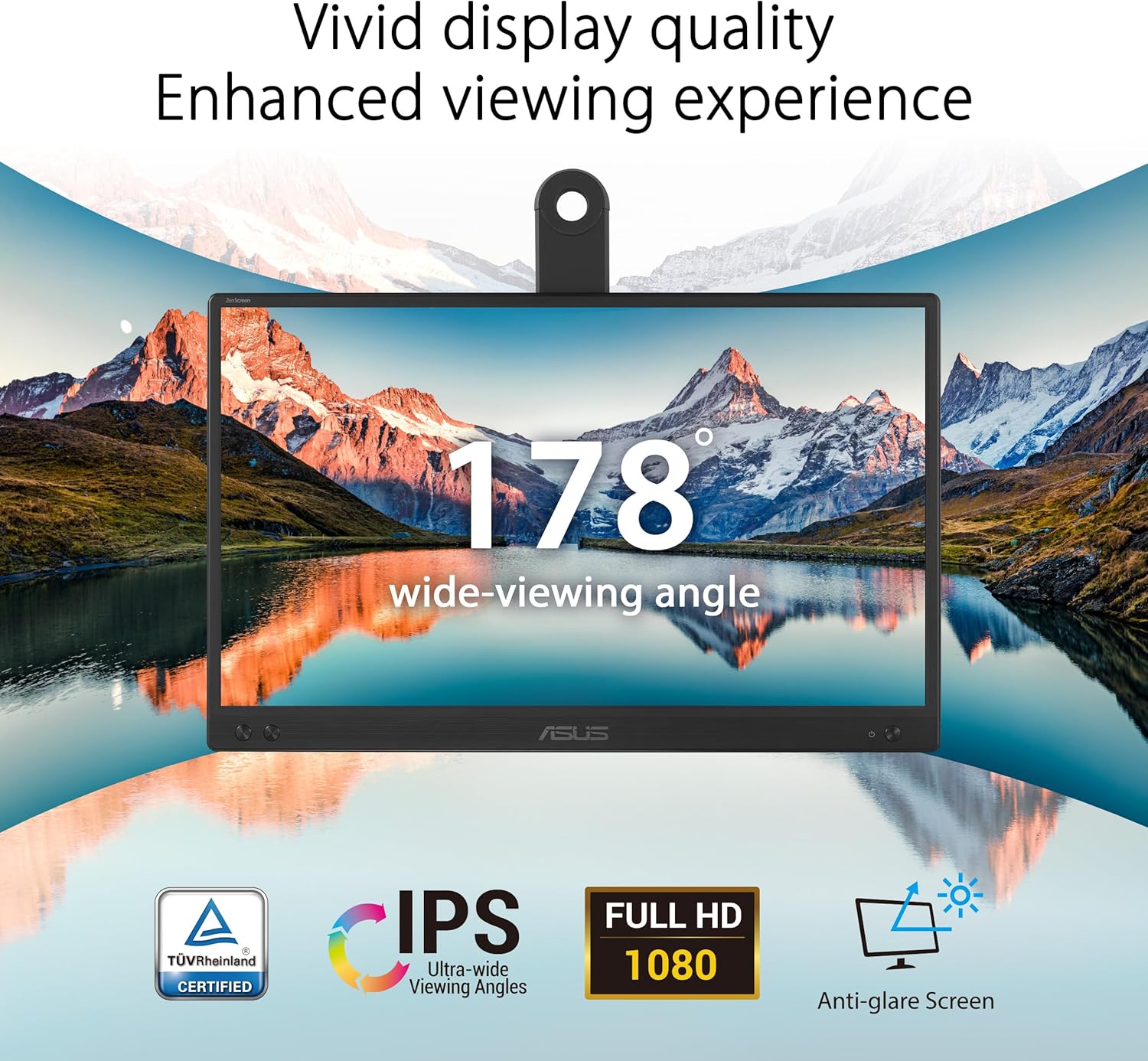
This image highlights the superior display quality of the ASUS ZenScreen MB166CR. It features a vibrant scenic landscape on the monitor screen, emphasizing its 178-degree wide-viewing angle. Icons indicate key features such as IPS technology, Full HD 1080p resolution, an anti-glare screen, and TÜV Rheinland certification for eye care.
9. Warranty and Support
9.1. Warranty Information
This product comes with a 3-year limited warranty. Please refer to the included Warranty Card for detailed terms and conditions. Retain your proof of purchase for warranty claims.
9.2. Customer Support
For technical assistance, product inquiries, or warranty service, please visit the official Asus support website or contact Asus customer service.
Official Asus Support: www.asus.com/support
For USB-C compatibility questions: ASUS USB-C Support FAQ
Related Documents - MB166CR
 |
ASUS MB14AC Portable Monitor Quick Start Guide Quick start guide for the ASUS MB14AC portable USB-C monitor, detailing setup, connections, and basic settings like Splendid modes and Blue Light Filter. |
 |
ASUS MQ16AHE ZenScreen OLED User Guide User guide for the ASUS MQ16AHE ZenScreen OLED portable USB display, covering setup, features, troubleshooting, and specifications. |
 |
ASUS MB16AMT Portable Monitor Quick Start Guide Quick start guide for the ASUS MB16AMT 15.6-inch 1080P portable monitor, covering setup, connections, and basic OSD settings. ASUS is a multinational technology company known for producing a wide range of hardware and electronics. |
 |
راهنمای کاربر ASUS ProArt PA27JCV راهنمای جامع کاربر برای نمایشگر ASUS ProArt PA27JCV، شامل اطلاعات نصب، تنظیمات، مشخصات فنی، و عیب یابی. |
 |
ASUS ZenScreen MB229CF Portable Monitor User Guide: Setup, Features, and Specifications Comprehensive user guide for the ASUS ZenScreen MB229CF Portable Monitor, covering setup, adjustments, OSD menu functions, specifications, and troubleshooting. Learn how to connect, configure, and use your portable display. |
 |
ASUS MB169CK Portable USB Monitor User Guide Comprehensive user guide for the ASUS MB169CK Portable USB Monitor, including setup instructions, OSD menu navigation, troubleshooting, and technical specifications. |
Ask a question about this manual
Ask about setup, troubleshooting, compatibility, parts, safety, or missing instructions. Manuals+ will review the question and use this page’s manual context to help answer it.