
Avylet A8
Avylet 5K 3-Channel Dash Cam Instruction Manual
Model: A8
1. Introduction
Thank you for choosing the Avylet 5K 3-Channel Dash Cam. This advanced car camera system provides comprehensive surveillance for your vehicle, recording the road ahead, the vehicle's interior, and the rear view simultaneously. Equipped with Wi-Fi, GPS, voice control, and enhanced night vision, it ensures reliable evidence collection and a safer driving experience. This manual will guide you through the setup, operation, and maintenance of your new dash cam.
2. What's in the Box
Please verify that all the following components are included in your package:
- Front Camera (1)
- Inside Camera (1)
- Rear Camera (1)
- Car Charger (1)
- 11.8ft Power Cable (1)
- 1.6ft Inside Camera Cable (1)
- 19.7ft Rear Camera Cable (1)
- Adhesive Tape for Front Camera (2)
- Trim Removal Tool (1)
- Cable Clips (6)
- Electrostatic Film (3)
- User Manual (1)
- 64GB Memory Card (1)
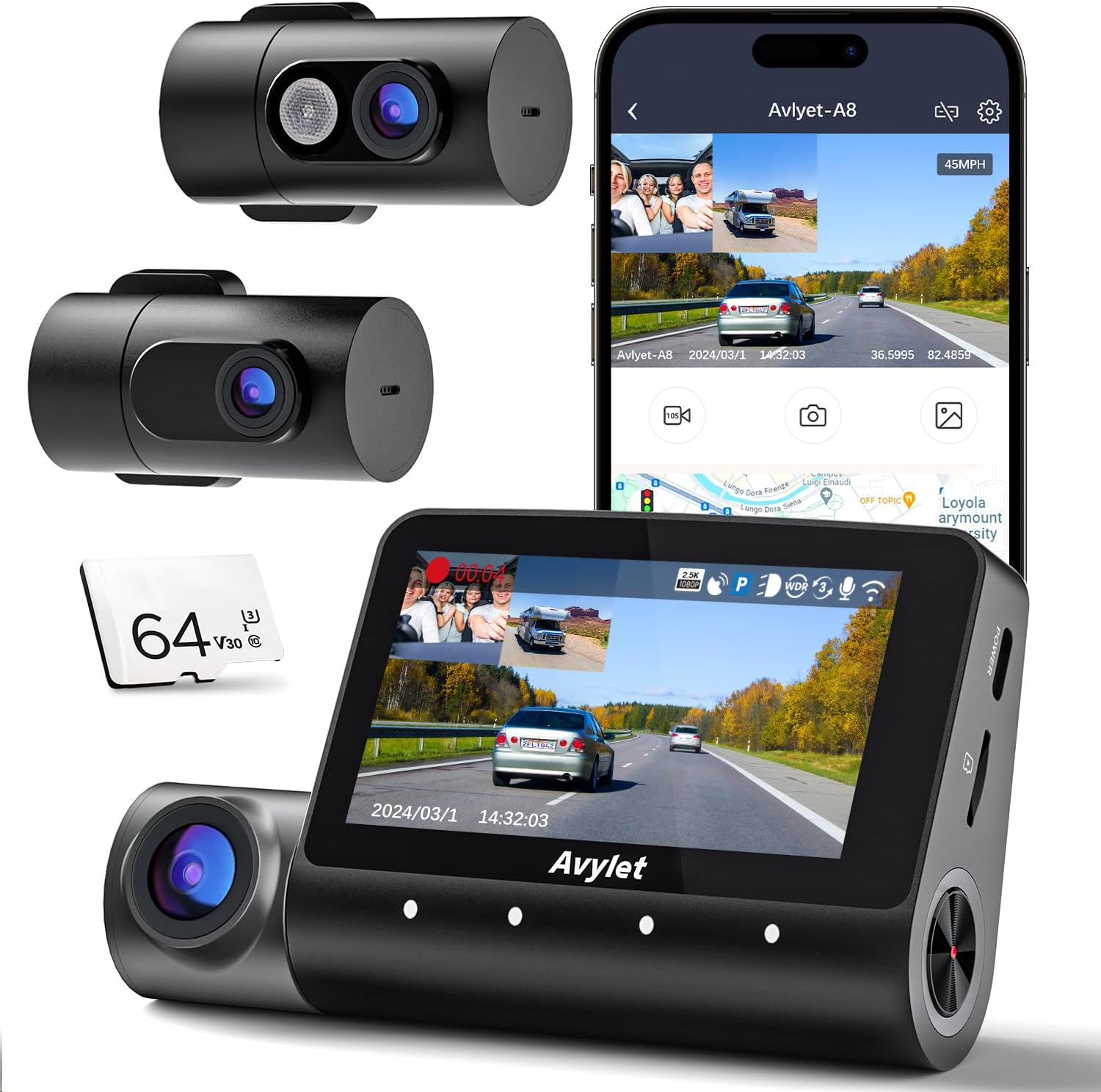
Figure 2.1: Avylet 5K 3-Channel Dash Cam and included accessories.
3. Setup and Installation
3.1 Initial Setup
- Insert Memory Card: Ensure the dash cam is powered off. Insert the provided 64GB memory card (or your own up to 512GB) into the designated slot until it clicks.
- Connect Power: Connect the car charger to your vehicle's cigarette lighter socket. Connect the 11.8ft power cable from the car charger to the main dash cam unit.
3.2 Mounting the Dash Cam
- Clean Windshield: Choose a clean, dry spot on your windshield, ideally behind the rearview mirror, to avoid obstructing your view.
- Apply Electrostatic Film: Apply one of the electrostatic films to the chosen area on the windshield. This helps in easy removal and repositioning without leaving residue.
- Attach Front Camera: Peel off the protective film from one of the adhesive tapes and attach it to the front camera mount. Firmly press the dash cam onto the electrostatic film on your windshield for at least 30 seconds.

Figure 3.1: Front dash cam mounted on the windshield.
3.3 Connecting External Cameras
- Inside Camera: Connect the 1.6ft inside camera cable to the main dash cam unit and mount the inside camera to capture cabin activity.
- Rear Camera: Connect the 19.7ft rear camera cable to the main dash cam unit. Route the cable neatly to the rear windshield and mount the rear camera. Use the trim removal tool and cable clips to hide the cables for a clean installation.

Figure 3.2: Three-channel camera setup.
4. Operating Instructions
4.1 Recording Modes
The Avylet Dash Cam offers versatile recording options to suit your needs:
Three Channel Recording (4K+1080P+1080P)
Capture the road ahead, behind, and inside your vehicle simultaneously. This mode ensures all-around protection and provides clear evidence in case of incidents.
Dual Channel Recording (4K+1080P)
Choose between front and rear or front and interior dual-camera recording modes for crisp 4K front resolution and clear 1080P for the secondary camera. The rear camera's 230-degree rotatable lens can also function as a versatile baby monitor (additional strap required).
Single Front 5K Recording
With the inside and rear cameras turned off, achieve stunning 5K front recordings for effortless license plate readability and maximum detail.

Figure 4.1: Multiple recording modes.
4.2 Wi-Fi & Free APP Control
Manage your dash cam settings, check live views, download, edit, and share videos and photos directly from your smartphone using the SUPEROVE APP. OTA updates are also available through the app to keep your firmware up to date.
Video 4.1: Demonstrates how to record, download, and share videos using the SUPEROVE APP.

Figure 4.2: Wi-Fi connectivity and app interface.
4.3 Built-in GPS
The built-in GPS enhances tracking capabilities, providing precise location data for your journeys. It accurately records and timestamps footage, tracks speed, latitude, longitude, and driving routes. This information can be accessed via the SUPEROVE APP or a dedicated GPS Player (contact customer service for download).

Figure 4.3: GPS route tracking capabilities.
4.4 Hands-free Voice Control
Control the dash cam effortlessly using 8 voice commands. Simply speak commands to lock the video, capture photos, turn the screen on or off, and more. This allows you to maintain focus on the road for safer driving.

Figure 4.4: Voice control commands for the dash cam.
4.5 Super Night Vision
The dash cam utilizes a high-end Novatek chipset and sensor for exceptional low-light performance and unparalleled clarity. With an F1.6 aperture and a 6-layer glass lens, it maximizes light intake. Enhanced WDR technology balances exposure, and the inside camera's invisible IR light ensures clear recording of passenger activities even in pitch-black conditions.

Figure 4.5: Super Night Vision capabilities.
4.6 Parking Monitor Modes (24H Protection)
The dash cam offers three parking monitor modes for continuous 24-hour protection (requires hardwire kit, contact customer service to obtain):
- Motion Detection: Starts a 30-second recording (unlocked) if any motion is detected within the dash cam's field of view.
- Parking Mode: When the G-sensor detects a collision, the dash cam records a 30-second locked video and automatically shuts down if no additional collisions occur.
- Time-Lapse: Continuously records at a low frame rate while parked, conserving storage space.

Figure 4.6: 24-Hour Parking Monitor Modes.
4.7 Loop Recording & Memory Card Support
The dash cam supports loop recording, automatically overwriting the oldest files when the memory card is full to ensure uninterrupted recording (locked files are not overwritten). It supports up to a 512GB memory card, and a 64GB card is included.
4.8 Screen Saver & Screen Off
If the dash cam is not operated within a set period (30 seconds/1 minute), the screen will automatically turn off and display the time and speed. The dash cam continues recording in screen saver mode, minimizing distractions. You can also manually turn off the screen by pressing the button on the right side of the device to avoid glare.
4.9 Image Flip Correction
The adjustable lens with Image Flip Correction ensures correct image or recording orientation, allowing accurate and upright viewing even when the camera is mounted upside down or in unconventional positions. All cameras support image flip correction.
5. Maintenance
- Cleaning: Use a soft, dry cloth to clean the dash cam and lenses. Avoid using abrasive cleaners or solvents.
- Memory Card Formatting: It is recommended to format the memory card regularly (e.g., once a month) to ensure optimal performance and prevent data corruption. This can typically be done through the dash cam's settings menu.
- Firmware Updates: Check for firmware updates via the SUPEROVE APP to ensure your dash cam has the latest features and bug fixes.
6. Troubleshooting
| Problem | Possible Cause | Solution |
|---|---|---|
| Dash cam not powering on. | Loose power connection; faulty car charger. | Check all cable connections. Ensure the car charger is working. Use the original cigarette lighter accessories and power cord. |
| App (SUPEROVE) not connecting or functioning. | Incorrect Wi-Fi connection; app permissions. | Ensure only one Wi-Fi connection is active (dash cam cannot be used with CarPlay/Android Auto simultaneously). Check app permissions on your phone. Reinstall the app if necessary. |
| Video footage is cropped in 5K mode. | Resolution setting. | Adjust the resolution down to 4K for a wider field of view if 5K appears cropped. |
| Inside camera image is mirrored. | Image flip setting. | Access the 'Image Flip Correction' setting in the menu and adjust the inside camera flip option. |
| Rear camera video quality is poor at night. | Low light conditions; glare from headlights. | While the dash cam has super night vision, extreme glare from headlights can affect clarity. Ensure lenses are clean. |
| Parking monitor not working. | Hardwire kit not installed or incompatible. | Parking monitor modes require a specific hardwire kit. Contact customer service to obtain the correct one. |
7. Specifications
| Feature | Detail |
|---|---|
| Product Dimensions | 1.37 x 4 x 2.5 inches |
| Item Weight | 1.76 pounds |
| Item Model Number | A8 |
| Connectivity Technologies | Wi-Fi |
| Special Features | Built-In WiFi, Single Recording Supports up to 5K, 4K + 1080P + 1080P 3-Channel Recording, Parking Monitor; Free 64GB Memory Card, OTA Upgrade; Voice Control, Built-In GPS |
| Color | Black |
| Manufacturer | Avylet |
| Video Capture Resolution | 5K (Single Front Recording), 4K+1080P+1080P Recording |
| Mounting Type | Windshield Mount |
| Power Source | Super Capacitors (connects to car cigarette lighter) |
| Temperature Range | -4°F to 158°F |
8. Warranty and Support
Your Avylet Dash Cam is backed by a comprehensive 1-year warranty and lifelong technical support. For any questions regarding your dash cam, compatibility, or technical assistance, please reach out to us directly using the contact information provided in the instruction manual or visit our official website at Avylet.com. We are committed to responding to your inquiries within 12 hours.