Introduction
This manual provides instructions for the setup, operation, maintenance, and troubleshooting of your Lenovo Go USB-C Essential Wireless Mouse and Lenovo 400 USB-C Compact Wired Mouse. Please read this manual thoroughly before using your devices to ensure proper functionality and longevity.
Product Overview
Lenovo Go USB-C Essential Wireless Mouse
The Lenovo Go USB-C Essential Wireless Mouse is designed for portability and comfort, featuring a blue optical sensor, adjustable DPI, and a rechargeable battery with USB-C charging. It connects via a 2.4 GHz Nano USB-C receiver.

Image: The Lenovo Go USB-C Essential Wireless Mouse (grey) shown with its compact USB-C wireless receiver.
- Connectivity: 2.4 GHz wireless via USB-C Nano Receiver
- Sensor: Blue optical sensor
- DPI: Adjustable (800, 1600, 2400)
- Battery: Rechargeable via USB-C, up to 3 months battery life, 15-minute quick charge for a week of use
- Design: Lightweight, ambidextrous
- Buttons: Left click, right click, scroll click, programmable utility button, DPI switch
Lenovo 400 USB-C Compact Wired Mouse
The Lenovo 400 USB-C Compact Wired Mouse offers a reliable USB-C wired connection, a red optical sensor, and on-the-fly DPI adjustment. It is designed for portability and ease of use with notebooks or larger monitors.

Image: The Lenovo 400 USB-C Compact Wired Mouse (black) with its integrated USB-C cable.
- Connectivity: Wired USB-C
- Sensor: Red optical sensor
- DPI: Adjustable (up to 2400)
- Design: Lightweight, ambidextrous
- Buttons: Left click, right click, scroll click, DPI switch
Setup
Lenovo Go USB-C Essential Wireless Mouse
- Charge the Mouse: Connect the mouse to a USB-C power source using a compatible cable. The LED indicator will show charging status. A full charge takes approximately 90 minutes. A 15-minute charge provides about a week of use.
- Insert Receiver: Plug the USB-C Nano Receiver into an available USB-C port on your computer.
- Power On: Locate the power switch on the bottom of the mouse and slide it to the "On" position.
- Pairing: The mouse should automatically pair with the receiver. If not, ensure the receiver is properly inserted and the mouse is powered on.
Lenovo 400 USB-C Compact Wired Mouse
- Connect to Computer: Plug the USB-C connector of the mouse into an available USB-C port on your computer.
- Driver Installation: Your operating system should automatically detect and install the necessary drivers. No manual driver installation is typically required.
Operating Instructions
General Mouse Functions
- Left Click: Primary selection and activation.
- Right Click: Accesses contextual menus.
- Scroll Wheel: Scrolls content vertically. Can also be clicked for middle-click functionality.
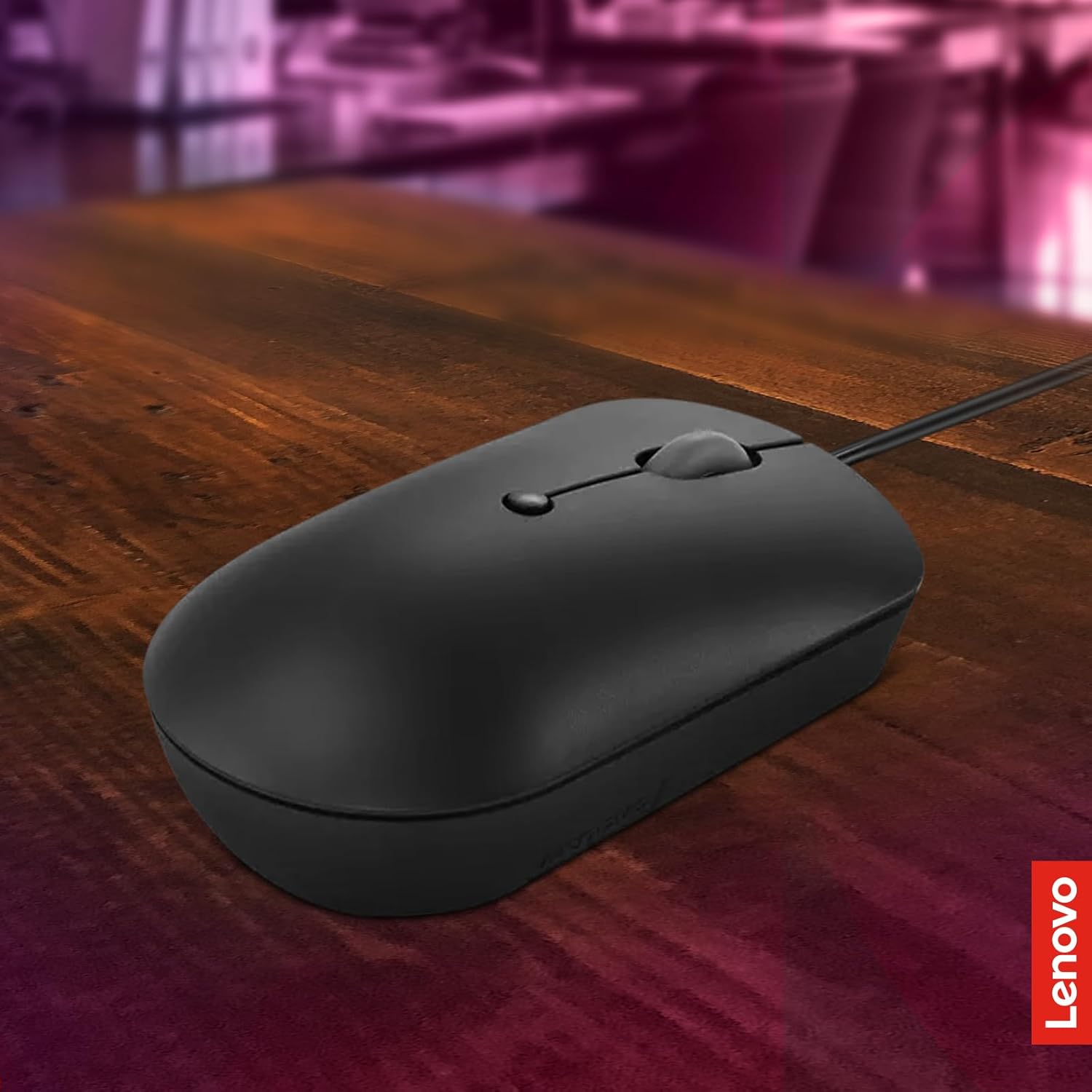
Image: A diagram illustrating the left click, right click, scroll click, and DPI switch buttons on the Lenovo 400 USB-C Compact Wired Mouse.
DPI Adjustment
Both mice feature a DPI (Dots Per Inch) switch button, usually located near the scroll wheel. Press this button to cycle through different sensitivity settings (e.g., 800, 1600, 2400 DPI). Adjust the DPI to match your preference for cursor speed and precision.
Lenovo Go USB-C Essential Wireless Mouse Specifics
- Programmable Utility Button: This button can be configured using the Lenovo Accessory Central software. It can be used for shortcuts, including call mode functions for online meetings.
- Lenovo Accessory Central: Download and install this software from the official Lenovo support website to customize mouse settings and program the utility button.
Maintenance
- Cleaning: Use a soft, dry, lint-free cloth to clean the mouse surface. For stubborn dirt, slightly dampen the cloth with water or a mild cleaning solution. Avoid harsh chemicals or abrasive materials.
- Sensor Cleaning: Gently clean the optical sensor on the bottom of the mouse with a cotton swab to ensure accurate tracking.
- Battery Care (Wireless Mouse):
- Avoid fully discharging the battery frequently.
- Store the mouse in a cool, dry place if not used for extended periods.
- Use the provided or a certified USB-C cable for charging.
Troubleshooting
Mouse Not Responding
- Wireless Mouse:
- Ensure the mouse is powered on.
- Check battery level and charge if necessary.
- Verify the USB-C Nano Receiver is securely plugged into a functional USB-C port.
- Try plugging the receiver into a different USB-C port.
- Restart your computer.
- Wired Mouse:
- Ensure the USB-C cable is securely plugged into a functional USB-C port.
- Try plugging the mouse into a different USB-C port.
- Restart your computer.
Erratic Cursor Movement
- Clean the optical sensor on the bottom of the mouse.
- Ensure you are using the mouse on a suitable surface (non-reflective, non-transparent).
- Adjust the DPI setting to a lower value if the cursor is too sensitive.
Buttons or Scroll Wheel Not Working
- Ensure no debris is obstructing the buttons or scroll wheel.
- For the wireless mouse, check battery level.
- Test the mouse on another computer to rule out software issues.
Specifications
| Feature | Lenovo Go USB-C Essential Wireless Mouse | Lenovo 400 USB-C Compact Wired Mouse |
|---|---|---|
| Connectivity | 2.4 GHz Wireless (USB-C Nano Receiver) | Wired (USB-C) |
| Sensor Type | Blue Optical | Red Optical |
| DPI Settings | 800, 1600, 2400 (Adjustable) | Up to 2400 (Adjustable) |
| Battery | Rechargeable (USB-C), up to 3 months | N/A (Wired) |
| Design | Ambidextrous, Lightweight | Ambidextrous, Lightweight |
| Special Features | Programmable Utility Button, Lenovo Accessory Central support | N/A |
Warranty and Support
Lenovo products are covered by a limited warranty. For detailed warranty information, please refer to the warranty card included with your product or visit the official Lenovo support website. For technical assistance, driver downloads, or further support, please visit support.lenovo.com.