
Vandlion V22-64GB
Vandlion V22-64GB Voice Recorder User Manual
Model: V22-64GB
1. Introduction
Thank you for choosing the Vandlion V22-64GB Voice Recorder. This manual provides detailed instructions on how to set up, operate, and maintain your device to ensure optimal performance. Please read this manual thoroughly before using the product.
The Vandlion V22-64GB is a compact and powerful digital voice recorder designed for clear audio capture in various environments. Key features include:
- Storage Capacity: 64GB of internal storage for extended recording sessions.
- 7-Level Noise Reduction: Enhances audio clarity by minimizing background noise.
- Voice-Activated Recording (VAR): Automatically starts recording when sound is detected, conserving memory and battery.
- One-Key Operation: Simple and quick recording activation.
- Timestamped Recordings: Easy organization and retrieval of audio files.
2. Package Contents
Please check the package for the following items:
- Vandlion V22-64GB Voice Recorder
- Data cable
- Headphones
- OTG adapters
- User Manual (this document)
3. Product Overview
The Vandlion V22-64GB Voice Recorder is designed for portability and ease of use. Its compact metal casing ensures durability while providing a sleek appearance.

Image 3.1: Vandlion V22-64GB Voice Recorder in use. This image shows the compact size of the recorder, suitable for various recording environments like meetings or lectures.
The device features a simple ON/OFF/SAVE toggle switch for intuitive operation and a built-in microphone for 360-degree panoramic sound capture.

Image 3.2: The ON/REC and OFF/SAVE switch on the Vandlion V22-64GB Voice Recorder. This switch allows for quick initiation and saving of recordings.
4. Setup
4.1 Charging the Device
Before first use, fully charge the voice recorder. Connect the device to a computer's USB port or a USB wall adapter (not included) using the provided data cable. The indicator light will show charging status and turn off when fully charged.
- Connect the small end of the data cable to the recorder's charging port.
- Connect the standard USB end to a power source.
- Charging typically takes approximately 2-3 hours.
4.2 Initial Power On
To power on the device, slide the ON/REC switch to the 'ON' position. The device will vibrate briefly or an indicator light will illuminate, indicating it is ready for operation.
5. Operating Instructions
5.1 Basic Recording
The Vandlion V22-64GB features a simple one-key recording function:
- To start recording, slide the switch to the 'ON/REC' position. The device will begin recording within approximately 5 seconds.
- To stop recording and save the file, slide the switch to the 'OFF/SAVE' position. The recording will be saved automatically.
Each audio file is automatically timestamped for easy organization and retrieval when connected to a computer.
5.2 Voice-Activated Recording (VAR)
The voice-activated recording feature helps conserve battery life and memory by only recording when sound is detected. To enable and adjust VAR:
- Connect the recorder to a computer.
- Access the device's settings file (usually a configuration file or through dedicated software, refer to device's internal documentation if available).
- Adjust the sensitivity level for voice activation (typically 7 levels available). A higher sensitivity will trigger recording with softer sounds, while lower sensitivity requires louder sounds.
- Save the settings and disconnect the device. The VAR function will now be active.
5.3 Noise Reduction
The recorder features 7-level noise reduction to improve audio clarity. This function is typically automatic, but its effectiveness can be influenced by recording environment and microphone placement.

Image 5.1: Illustration of the noise reduction capability of the Vandlion V22-64GB Voice Recorder. The image depicts how unwanted noise (red waves) is reduced, resulting in clearer audio (blue waves).
5.4 Playback
You can play back recordings directly from the device using the included headphones:
- Ensure the device is powered on.
- Connect the included headphones to the recorder's headphone jack.
- Use the controls on the headphone cable (if available) or the device's internal controls (if applicable, refer to specific model's internal documentation) to navigate and play audio files.

Image 5.2: The Vandlion V22-64GB Voice Recorder connected to earphones for direct audio playback. This feature allows listening to recordings without needing a computer.
Alternatively, connect the recorder to a computer to play back files using your computer's media player.
5.5 File Management
To manage your recorded files:
- Connect the voice recorder to your computer using the provided data cable.
- The device will appear as a removable disk drive.
- Open the drive to access your recorded audio files (typically in a folder like 'RECORD' or 'VOICE').
- You can copy, move, delete, or rename files as you would with any other files on your computer.
- Always safely eject the device from your computer before disconnecting.
The included OTG adapters allow you to connect the recorder to compatible Android smartphones for file management.
6. Maintenance
- Cleaning: Use a soft, dry cloth to clean the device. Do not use liquid cleaners or solvents.
- Storage: Store the recorder in a cool, dry place away from direct sunlight, extreme temperatures, and humidity.
- Battery Care: To prolong battery life, avoid fully discharging the battery frequently. Charge the device regularly, even if not in use for extended periods.
- Data Backup: Regularly back up important recordings to your computer to prevent data loss.
7. Troubleshooting
| Problem | Possible Cause | Solution |
|---|---|---|
| Device does not power on. | Low battery or device is off. | Charge the device fully. Ensure the ON/REC switch is in the 'ON' position. |
| Cannot record. | Insufficient storage space or device not in recording mode. | Check available memory and delete unnecessary files. Ensure the switch is in the 'ON/REC' position. |
| Poor sound quality during recording. | Microphone obstructed, noisy environment, or incorrect VAR sensitivity. | Ensure the microphone is clear. Record in a quieter environment. Adjust VAR sensitivity if enabled. |
| Device not recognized by computer. | Faulty USB cable, incorrect port, or driver issue. | Try a different USB cable or port. Restart your computer. Ensure the device is powered on when connecting. |
| Cannot hear playback through headphones. | Headphones not properly connected, volume too low, or corrupted file. | Ensure headphones are fully plugged in. Adjust volume. Try playing the file on a computer. |
8. Specifications
| Brand | Vandlion |
| Model | V22-64GB |
| Memory Storage Capacity | 64 GB |
| Product Dimensions | 0.76 x 2.21 x 7.37 cm; 150 g (or 8 x 22 x 74 Millimeters) |
| Hardware Interface | USB 2.0 |
| Compatible Devices | Earphone |
| Microphone Form Factor | Built-In |
| Headphones Jack | 3.5 millimeters |
| Batteries Included | Yes (Lithium Polymer) |
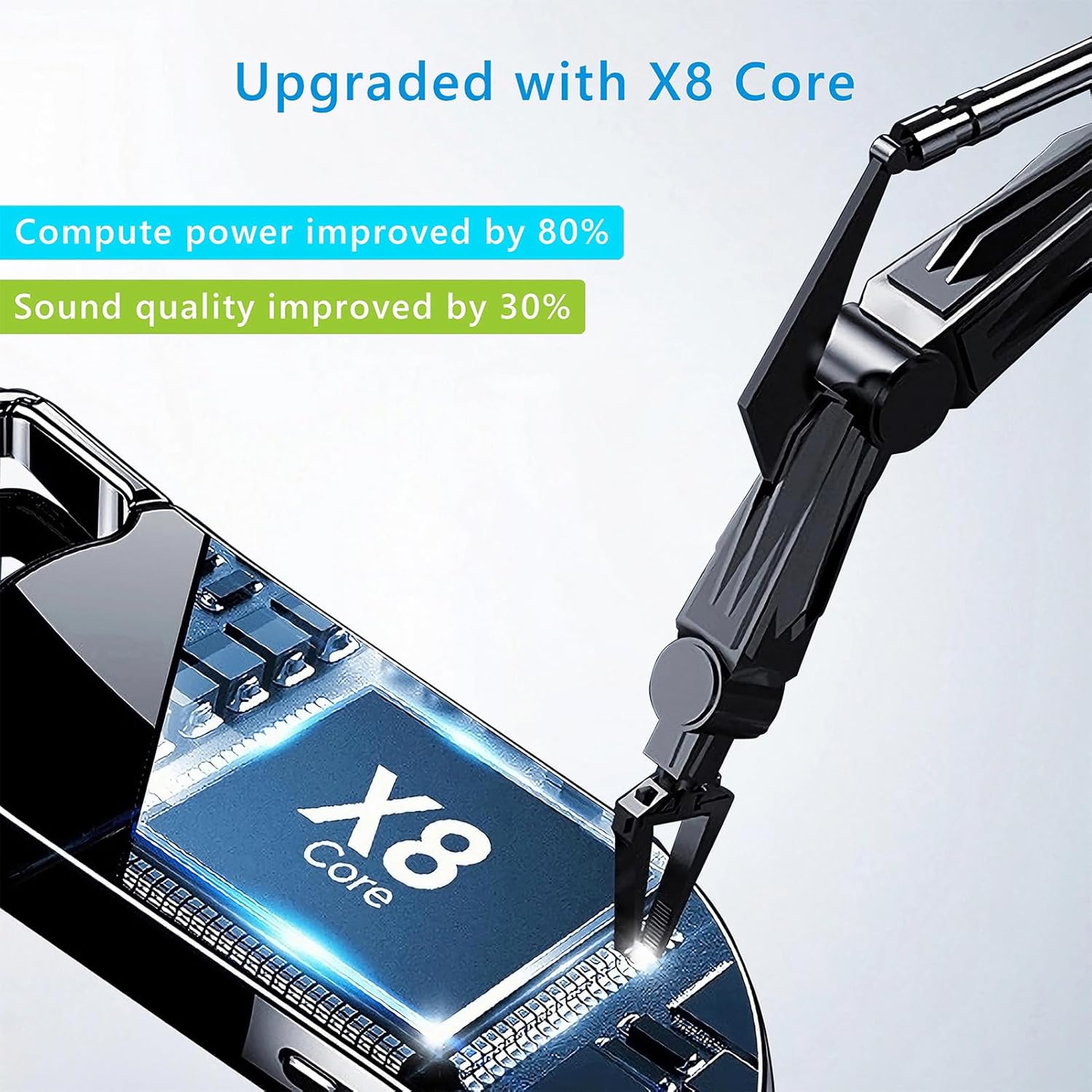
Image 8.1: Internal component view of the Vandlion V22-64GB Voice Recorder, showcasing the X8 Core. This illustrates the advanced processing unit within the device.
9. Warranty and Support
For warranty information and technical support, please refer to the documentation provided with your purchase or contact Vandlion customer service through their official website or the retailer where you purchased the product.
Keep your purchase receipt as proof of purchase for warranty claims.
Related documentsV22-64GB


Ask a question about this manual
Ask about setup, troubleshooting, compatibility, parts, safety, or missing instructions. Manuals+ will review the question and use this page’s manual context to help answer it.