
Introduction
The Studebaker Techmate All-in-One is a versatile device designed for travelers, combining a digital time display, wireless and wired phone charger, Bluetooth speaker, and a power bank. This manual provides instructions for setup, operation, maintenance, and troubleshooting to ensure optimal use of your device.
Package Contents
- Studebaker Techmate All-in-One Device
- Type-C Charging Cable
- USB C PD Wall Charger
- User Manual (this document)
Device Overview
The Techmate features a compact, foldable design. When open, the top panel displays the digital time and acts as a stand for your smartphone during wireless charging. The base unit contains the wireless charging pad, control buttons, and ports.

Image: Studebaker Techmate in open position, showing a smartphone charging wirelessly and the digital time display.
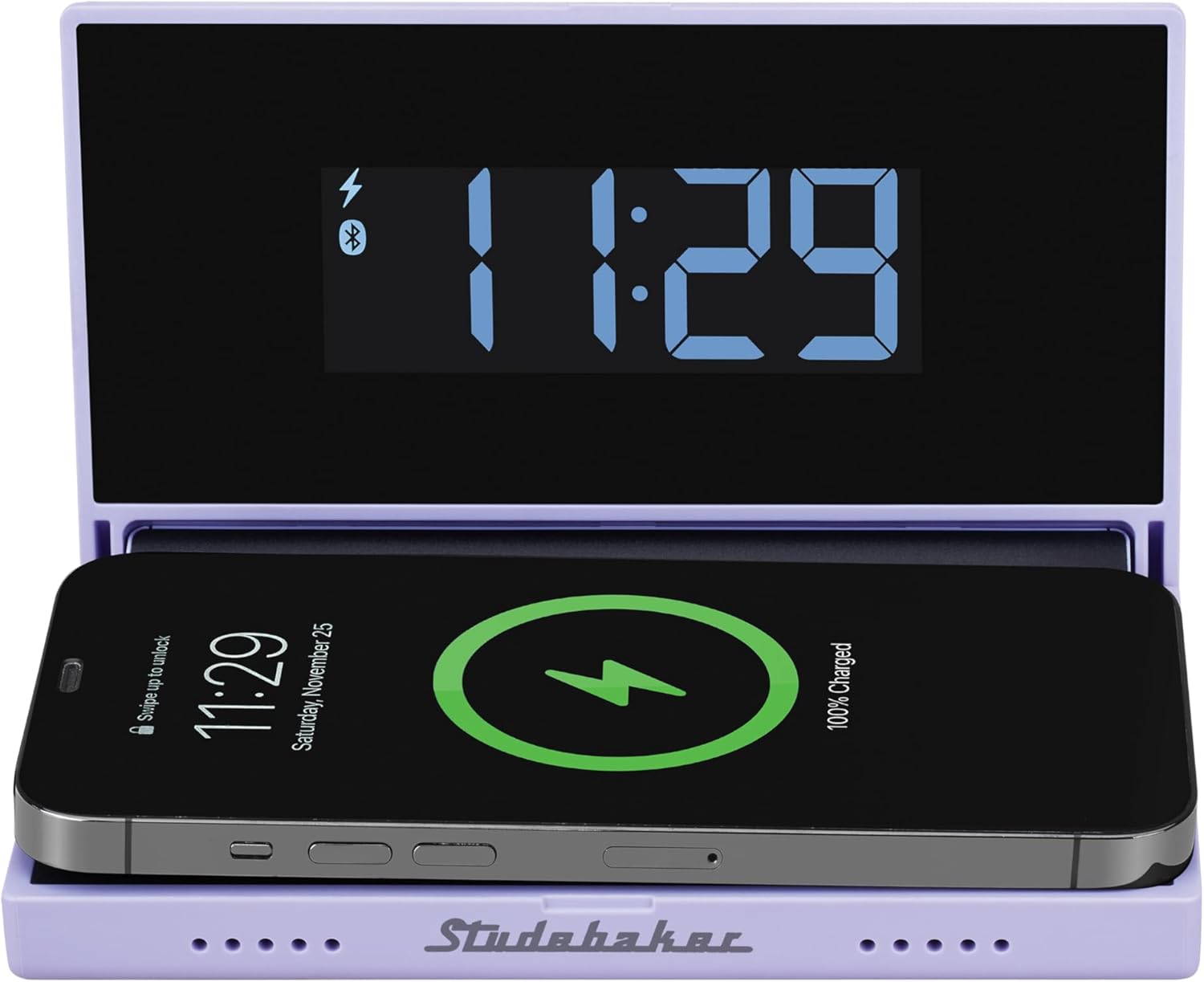
Image: Studebaker Techmate in closed position, highlighting its portable design.
Setup
- Initial Charging: Before first use, fully charge the Techmate using the provided Type-C cable and USB C PD wall charger. Connect the Type-C cable to the device's Type-C port and the other end to the wall charger. The LED battery level indicators will show charging progress.
- Power On: Press and hold the Power On/Off button to turn on the device.
- Bluetooth Pairing (for Time Sync and Speaker):
- Ensure Bluetooth is enabled on your smartphone.
- Press the "PAIR" button on the Techmate. The Bluetooth pairing indication LED will flash.
- On your smartphone, search for "Studebaker Techmate" in the Bluetooth device list and select it to pair.
- Once paired, the digital time display on the Techmate will synchronize with your smartphone's time. The Bluetooth LED will stop flashing and remain solid.
Operating Instructions
1. Digital Time Display
- The LED display shows time in either 12-hour or 24-hour format, synchronized via Bluetooth with your paired smartphone.
- Use the "DIMMER" button to adjust the brightness of the time display.
2. Wireless Charging (15W)
- Open the Techmate device.
- Place your Qi-enabled smartphone on the designated wireless charging pad on the base unit.
- The LED Wireless Charging Status indicator will illuminate to confirm charging is active.
- Ensure the phone is centered on the charging pad for optimal performance.
3. Wired Charging (Power Bank Function)
The Techmate features a 10,000 mAh power bank for charging devices via cable.
- USB-Out Port: Connect your device's charging cable to the USB-Out port on the Techmate.
- Type-C In/Out Port: This port can also be used for charging external devices. Connect your device's Type-C charging cable to this port.
- The LED Battery Level Indicators will show the remaining power in the Techmate's power bank.
4. Bluetooth Speaker
Once paired via Bluetooth (as described in the Setup section), the Techmate can function as a Bluetooth speaker.
- Play audio from your smartphone, and it will stream through the Techmate's integrated speaker.
- Adjust volume directly from your connected smartphone.
Video: Demonstrates the Studebaker Techmate's multi-function capabilities, including power bank and Bluetooth speaker features.
Maintenance
- Cleaning: Use a soft, dry cloth to clean the device. Do not use liquid cleaners or aerosols.
- Storage: Store the device in a cool, dry place away from direct sunlight and extreme temperatures.
- Battery Care: To prolong battery life, avoid fully discharging the device frequently. Recharge it regularly.
Troubleshooting
| Problem | Possible Cause | Solution |
|---|---|---|
| Device does not power on. | Low battery. | Charge the Techmate fully using the provided charger. |
| Wireless charging not working. | Phone not Qi-enabled; phone not centered; foreign objects on pad; device not powered on. | Ensure your phone supports Qi wireless charging. Reposition the phone on the pad. Remove any obstructions. Ensure the Techmate is powered on. |
| Time display is incorrect or not syncing. | Bluetooth not paired or disconnected. | Re-pair the Techmate with your smartphone via Bluetooth. Ensure Bluetooth is active on both devices. |
| Poor Bluetooth speaker sound quality. | Distance from paired device; interference; low battery. | Move your smartphone closer to the Techmate. Avoid obstacles. Ensure the Techmate is sufficiently charged. |
| Wired charging not working. | Cable issue; device not powered on; low Techmate battery. | Try a different charging cable. Ensure the Techmate is powered on and has sufficient charge. |
Specifications
- Model: SB3590L
- Brand: Studebaker
- Power Bank Capacity: 10,000 mAh
- Wireless Charging Output: 15W
- Connectivity: Bluetooth, USB-Out, Type-C In/Out
- Display Type: Digital LED
- Dimensions: 6.3"W x 8.3"H (when open, approximate)
- Weight: 180 g
- Power Source: Corded Electric (for charging Techmate)
- Battery: 1 Nonstandard Battery (included)
- Material: Plastic
Warranty Information
The Studebaker Techmate All-in-One (Model SB3590L) comes with a 1-year limited manufacturer's warranty. This warranty covers defects in materials and workmanship under normal use. It does not cover damage caused by misuse, accident, unauthorized modification, or external causes such as drops or liquid damage. Please retain your proof of purchase for warranty claims.
Customer Support
For technical assistance, troubleshooting beyond this manual, or warranty inquiries, please contact Studebaker customer support. Refer to the product packaging or the official Studebaker website for the most current contact information.
Note: Product specifications and features are subject to change without notice.

