
1. Introduction
This manual provides essential information for the safe and efficient use of your ASUS M3702WFAK-WPE007W 27-inch All-in-One PC. Please read these instructions thoroughly before operating the device and retain them for future reference. This document covers setup, operation, maintenance, and troubleshooting.
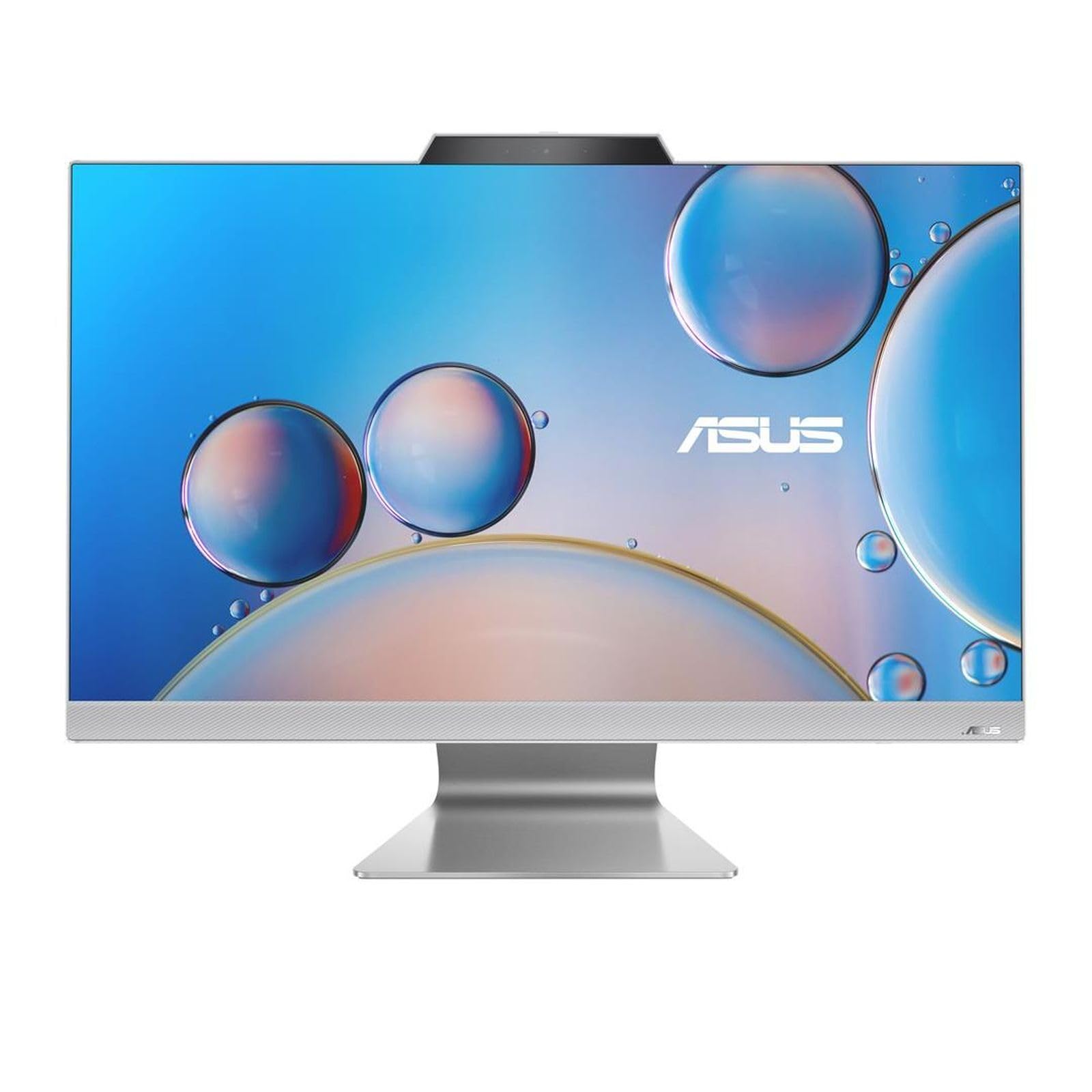
Figure 1: Front view of the ASUS M3702WFAK-WPE007W All-in-One PC, showcasing its 27-inch display and integrated design.
2. Setup
2.1 Unpacking
Carefully remove the All-in-One PC and all accessories from the packaging. Ensure all components listed in the packing list are present. Retain the packaging for future transport or service needs.
2.2 Connecting Peripherals
- Power Connection: Connect the power adapter to the DC-in port on the rear of the PC, then plug the power cord into an electrical outlet.
- Keyboard and Mouse: Connect your USB keyboard and mouse to the available USB ports on the rear or side of the PC. Wireless peripherals may require a USB dongle.
- Network Connection (Optional): For a wired network connection, connect an Ethernet cable from your router or modem to the LAN port on the rear of the PC.
- External Display (Optional): If connecting an external monitor, use an HDMI cable to connect the external display to the HDMI-out port on the PC.

Figure 2: Right side view of the ASUS All-in-One PC, illustrating accessible USB and audio ports for peripheral connections.

Figure 3: Rear view of the ASUS All-in-One PC, highlighting the power input, HDMI output, and Ethernet port for essential connections.
2.3 Initial Power-On and Operating System Setup
- Press the power button, usually located on the side or bottom bezel of the display.
- Follow the on-screen instructions to complete the Windows 11 operating system setup. This includes selecting language, region, accepting terms, and creating a user account.
- Connect to a Wi-Fi network during setup if a wired connection is not used.
3. Operating
3.1 Power Management
- Power On: Press the power button.
- Shut Down: Click the Start button in Windows, then select Power > Shut down.
- Restart: Click the Start button in Windows, then select Power > Restart.
- Sleep Mode: Click the Start button in Windows, then select Power > Sleep. The system will enter a low-power state.
3.2 Display and Audio
- Adjusting Brightness: Use the function keys on your keyboard (if available) or Windows display settings to adjust screen brightness.
- Volume Control: Use the volume keys on your keyboard or the volume icon in the Windows taskbar to adjust audio output.
- Connecting Headphones/Microphone: Use the audio jack(s) on the side of the PC for headphones or an external microphone.
3.3 Network Connectivity
- Wi-Fi: To connect to a wireless network, click the Wi-Fi icon in the Windows taskbar, select your desired network, and enter the password if prompted.
- Ethernet: If an Ethernet cable is connected, the PC will automatically establish a wired network connection.
4. Maintenance
4.1 Cleaning
- Screen: Use a soft, lint-free cloth slightly dampened with water or a non-abrasive screen cleaner. Do not spray liquid directly onto the screen.
- Chassis: Wipe the exterior surfaces with a soft, dry cloth. Avoid using harsh chemicals or abrasive materials.
- Ventilation: Ensure ventilation openings are clear of dust and obstructions to prevent overheating.
4.2 Software Updates
Regularly check for and install operating system updates (Windows Update) and driver updates (via ASUS support website or MyASUS application) to ensure optimal performance and security.
4.3 Data Backup
It is recommended to regularly back up your important data to an external drive or cloud storage to prevent data loss.
5. Troubleshooting
- No Power:
- Ensure the power adapter is securely connected to both the PC and the electrical outlet.
- Verify the electrical outlet is functional by plugging in another device.
- No Display:
- Check if the PC is powered on.
- If an external monitor is connected, ensure it is powered on and set to the correct input source.
- No Internet Connection:
- For Wi-Fi, ensure Wi-Fi is enabled and you are connected to the correct network with the correct password.
- For Ethernet, ensure the cable is securely connected and your router/modem is working correctly.
- Restart your router/modem and the PC.
- System Slowdown:
- Close unnecessary applications.
- Check for and install any pending Windows updates.
- Run a disk cleanup or defragmentation (for HDD, not SSD).
6. Specifications
| Feature | Specification |
|---|---|
| Brand | ASUS |
| Model Number (Item) | 90PT03M1-M00CA0 |
| Number of Cores | 4 |
| RAM | 16 GB |
| Hard Drive Interface | Ethernet |
| Screen Size | 27 Inches |
| Wireless Technology Type | 802.11ac |
| Hardware Interface | HDMI |
| Spare Parts Availability | Information unavailable |
| Software Updates Guaranteed Until | Information unavailable |
| ASIN | B0CTWR22BG |
| Date First Available | April 20, 2024 |
| Manufacturer | ASUS |
| Cache Size | 4 MB |
| Storage Capacity | 512 GB |
| Model Year | 2021 |
| Human Interface Input | Buttons |
7. Warranty and Support
For detailed warranty information, please refer to the warranty card included with your product or visit the official ASUS support website. The ASUS support website also provides drivers, FAQs, and contact information for technical assistance.
You can typically find support resources by visiting www.asus.com/support and searching for your specific model number (M3702WFAK-WPE007W or 90PT03M1-M00CA0).