
1. Introduction
Thank you for choosing the EasySMX T37 Wireless Switch Pro Controller. This manual provides detailed instructions for setting up, operating, maintaining, and troubleshooting your controller. Please read this manual carefully before use to ensure optimal performance and longevity of your device. This controller is compatible with Nintendo Switch, Switch Lite, and Switch OLED consoles.
2. Product Overview
The EasySMX T37 is a wireless gamepad designed for an enhanced gaming experience on Nintendo Switch systems. It features an ergonomic design, dual turbo vibration, and 6-axis gyro motion control.

Image 2.1: Front view of the EasySMX T37 Wireless Switch Pro Controller, showcasing its ergonomic shape and button layout.
3. Setup
3.1 Pairing with Nintendo Switch
- Turn on your Nintendo Switch console.
- From the HOME Menu, select Controllers > Change Grip/Order.
- On the EasySMX T37 controller, press and hold the SYNC button (located on the top edge of the controller) for 3 seconds until the LED indicators start flashing rapidly.
- Once the controller is successfully paired, the player LED(s) on the bottom of the controller will light up solid.
3.2 Charging the Controller
Connect the provided USB-C charging cable to the USB-C port on the controller and the other end to a USB power source (e.g., Switch dock, USB wall adapter, computer USB port). The LED indicators will show charging status and turn off when fully charged.
4. Operating Instructions
4.1 Basic Controls
The controller features standard button layouts for Nintendo Switch compatibility:
- A/B/X/Y Buttons: Action buttons.
- D-Pad: Directional input.
- Left/Right Analog Sticks: Movement and camera control.
- L/R/ZL/ZR Buttons: Shoulder and trigger buttons.
- HOME Button: Returns to the Switch HOME Menu.
- CAPTURE Button: Takes screenshots.
- PLUS (+) / MINUS (-) Buttons: Start/Select functions.

Image 4.1: A user holding the EasySMX T37 controller, demonstrating the comfortable grip and accessible button placement during gameplay.
4.2 Turbo Function
The Turbo function allows for rapid, automatic pressing of a button, useful in action or arcade games.
- Activate Turbo: Press and hold the desired action button (A/B/X/Y/L/R/ZL/ZR), then press the Turbo button (T button). The button will now auto-fire.
- Adjust Turbo Speed: While holding the Turbo button, move the Right Analog Stick Up or Down to cycle through three speeds: 5 shots/s, 12 shots/s, and 20 shots/s.
- Deactivate Turbo: Repeat the activation step (hold the action button, then press the Turbo button) or press and hold the Turbo button for 5 seconds to clear all Turbo settings.
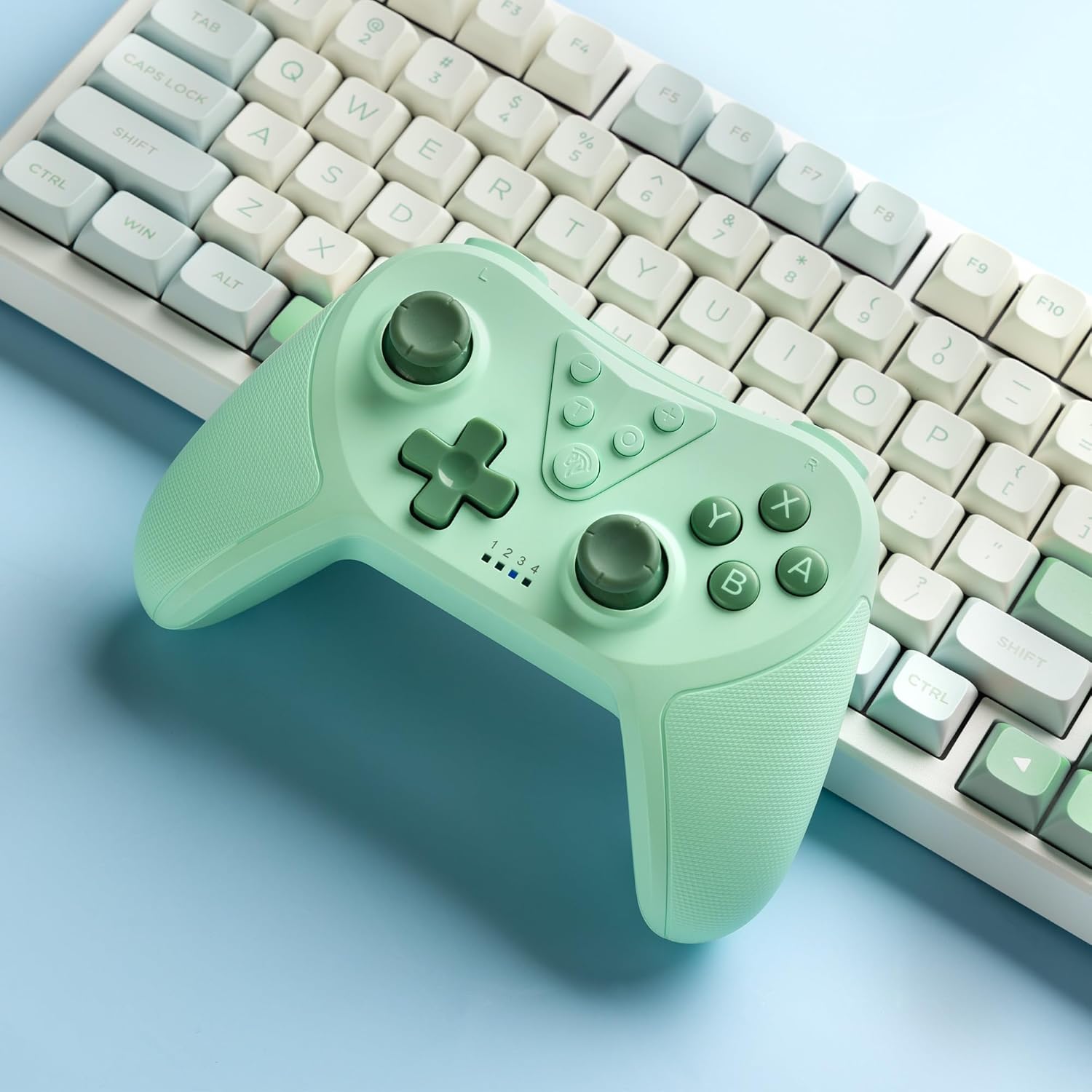
Image 4.2: Illustration of the Turbo function on the EasySMX T37 controller, showing the three adjustable speeds: 5, 12, and 20 shots per second.
4.3 Vibration Adjustment
The controller features dual motors for adjustable vibration feedback, enhancing immersion in games.
- Adjust Vibration Intensity: Press and hold the Turbo button, then move the Left Analog Stick Up or Down to cycle through four vibration levels: 0% (off), 30%, 70%, and 100%.

Image 4.3: Visual representation of the Dual Vibration feature on the EasySMX T37 controller, indicating four intensity levels from 0% to 100%.
4.4 6-Axis Gyro Motion Control
The built-in 6-axis gyroscope provides precise motion sensing, allowing for intuitive control in games that support motion input.

Image 4.4: Illustration depicting the 6-Axis Gyro Motion Control feature of the EasySMX T37 controller, showing how it interacts with a game on the Nintendo Switch screen.
5. Maintenance
- Cleaning: Use a soft, dry cloth to clean the controller. Avoid using harsh chemicals or abrasive materials.
- Storage: Store the controller in a cool, dry place away from direct sunlight and extreme temperatures.
- Battery Care: To prolong battery life, avoid fully discharging the controller frequently. Charge it regularly, even if not in use for extended periods.
- Avoid Drops: Protect the controller from drops and impacts, which can damage internal components.
6. Troubleshooting
6.1 Controller Not Connecting
- Ensure the controller is charged.
- Verify the Switch console is updated to the latest system version.
- Try re-pairing the controller by following the steps in Section 3.1.
- If issues persist, try resetting the controller by inserting a thin object into the small reset hole (if present, usually on the back) for a few seconds.
6.2 Buttons Unresponsive or Lagging
- Ensure the controller is fully charged.
- Move closer to the Switch console to ensure a strong wireless connection.
- Check for any physical obstructions or debris around the buttons.
- Re-pair the controller.
6.3 Controller Not Charging
- Ensure the USB-C cable is securely connected to both the controller and the power source.
- Try using a different USB-C cable or power adapter.
- Ensure the power source is functional.
7. Specifications
- Model: T37
- Connectivity: Wireless (Bluetooth)
- Compatibility: Nintendo Switch, Switch Lite, Switch OLED
- Features: Dual Turbo Function, Adjustable Vibration, 6-Axis Gyro Motion Control, Ergonomic Design
- Product Identifier (ASIN): B0CTTWN84L
8. Warranty and Support
For warranty information, technical support, or further assistance, please refer to the official EasySMX website or contact their customer support directly. Keep your purchase receipt for warranty claims.


