
1. Introduction
This manual provides detailed instructions for the Alltro Voice Remote Control, designed for use with Samsung televisions. This remote control, model BN59-01330B, is also compatible with the BN59-00327G model. It features Bluetooth connectivity for enhanced range and responsiveness, integrated voice control for convenient command input, and dedicated shortcut buttons for popular streaming services like Netflix, Prime Video, and Rakuten TV.
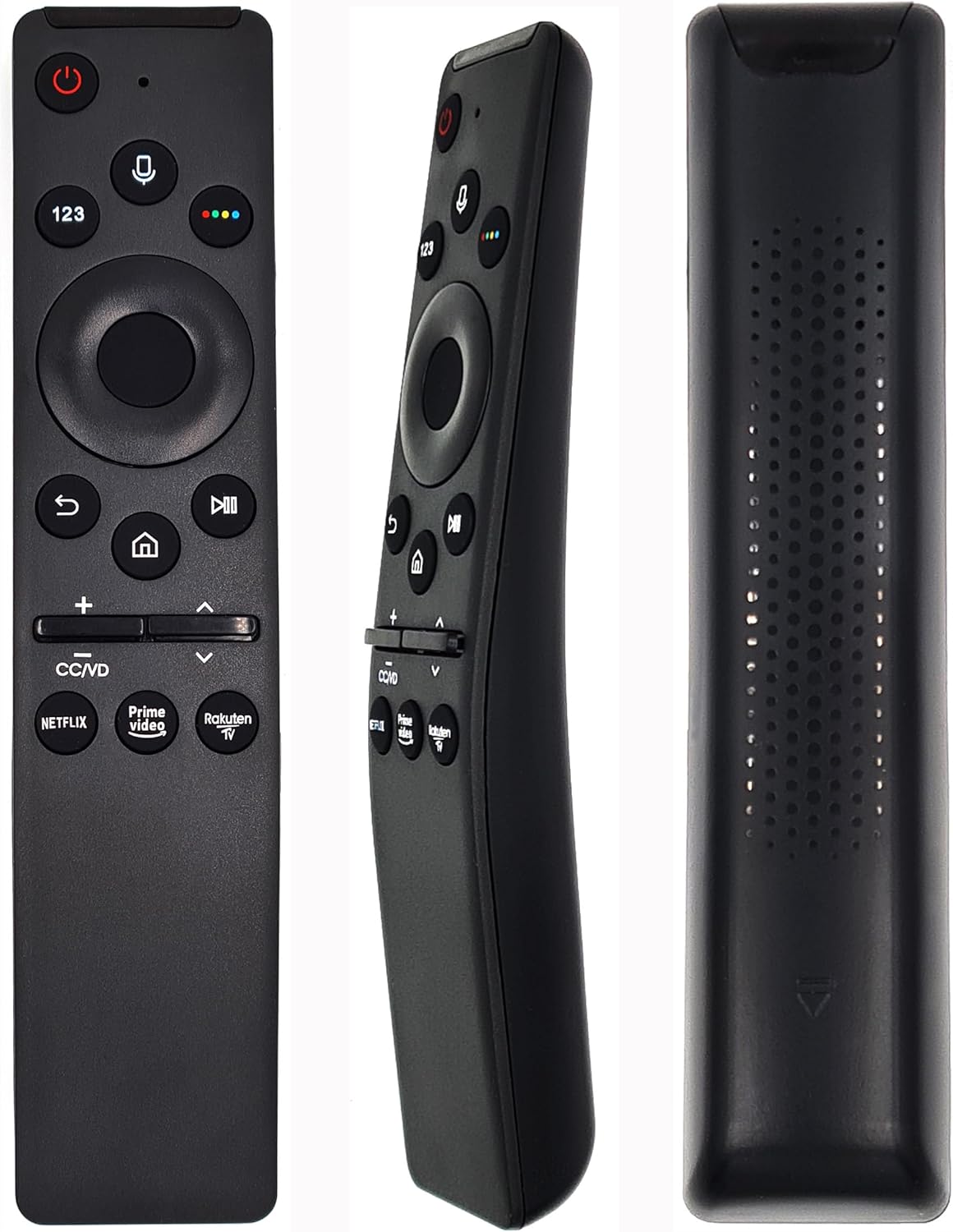
Figure 1: Front view of the Alltro Voice Remote Control. This image displays the full layout of the remote's buttons, including the power button, voice command button, number pad, navigation circle, playback controls, volume and channel rockers, and dedicated app buttons for Netflix, Prime Video, and Rakuten TV.
2. Setup
2.1. Battery Installation
The remote control requires two (2) AA alkaline batteries (not included). Follow these steps to install the batteries:
- Locate the battery compartment on the back of the remote control.
- Slide the battery cover downwards to open it.
- Insert two AA batteries, ensuring the positive (+) and negative (-) terminals align correctly with the indicators inside the compartment.
- Slide the battery cover back into place until it clicks securely.
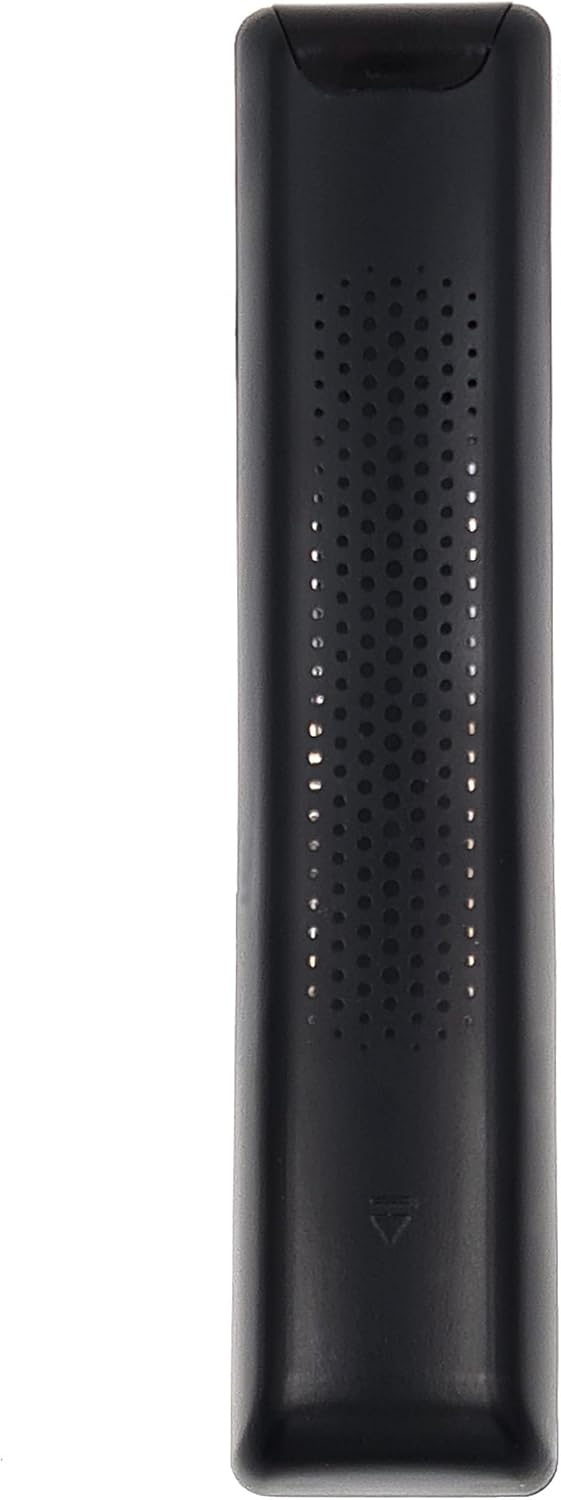
Figure 2: Back view of the Alltro Voice Remote Control. This image shows the textured back surface of the remote, which includes the battery compartment cover at the bottom.
2.2. Pairing with Your Samsung TV
This remote control uses Bluetooth for enhanced functionality, including voice control. It needs to be paired with your Samsung TV for full operation. The remote is designed to be compatible with Samsung TVs that originally came with a BN59-01330B or BN59-00327G remote.
To pair the remote control with your TV:
- Ensure your TV is powered on.
- Point the remote control towards the TV.
- Simultaneously press and hold the Return button (curved arrow) and the Play/Pause button for at least 3 seconds.
- A pairing message should appear on your TV screen, indicating that the remote is connecting.
- Once paired, the message will confirm successful connection.
If pairing is unsuccessful, ensure the batteries are correctly installed and charged, and try the process again. Move closer to the TV if necessary.
3. Operating Instructions
3.1. Button Functions
Familiarize yourself with the functions of each button on your remote control:
- Power Button (⏻): Turns the TV on or off.
- Voice Button (🎙️): Activates the voice control feature. Press and hold to speak commands.
- Number Pad (123): Displays a virtual number pad on the screen for direct channel input or other numerical selections.
- Color Buttons (Red, Green, Yellow, Blue): Used for specific functions within menus or applications, often indicated on-screen.
- Navigation Circle (Up, Down, Left, Right, Enter): Used to navigate through menus, select items, and confirm choices.
- Return Button (↩): Returns to the previous screen or menu.
- Home Button (🏠): Accesses the Smart Hub or Home screen of your TV.
- Play/Pause Button (▶⏸): Controls media playback (play, pause).
- Volume Rocker (+/-): Adjusts the TV volume. Press the center to mute/unmute.
- Channel Rocker (∧/∨): Changes TV channels. Press the center to access the channel list.
- CC/VD Button: Toggles Closed Captions (CC) or Video Description (VD) if available.
- Netflix Button: Direct access to the Netflix application.
- Prime Video Button: Direct access to the Amazon Prime Video application.
- Rakuten TV Button: Direct access to the Rakuten TV application.

Figure 3: Detailed front view of the Alltro Voice Remote Control. This image provides a clearer look at the individual buttons and their icons, including the voice button, navigation pad, and dedicated streaming service buttons.
3.2. Using Voice Control
The voice control feature allows you to issue commands to your TV using your voice. This function requires the remote to be successfully paired via Bluetooth.
- Press and hold the Voice Button (🎙️).
- Speak your command clearly into the microphone located near the top of the remote. Examples include:
- "Open Netflix"
- "Change to Channel 5"
- "Volume up"
- "Search for [movie title]"
- Release the Voice Button when you have finished speaking. The TV will process your command.
Ensure there is no obstruction between the remote and your mouth when using voice control. For best results, speak in a normal tone and pace.
4. Maintenance
4.1. Cleaning the Remote Control
To maintain the remote control's appearance and functionality, clean it regularly:
- Use a soft, dry cloth to wipe the surface of the remote.
- For stubborn dirt, slightly dampen the cloth with water or a mild, non-abrasive cleaner.
- Avoid using harsh chemicals, solvents, or abrasive materials, as these can damage the remote's finish or internal components.
4.2. Battery Replacement
Replace the batteries when the remote's performance degrades (e.g., reduced range, unresponsive buttons, voice control issues). Refer to Section 2.1 for battery installation instructions. Always replace both batteries at the same time with new ones of the same type (AA alkaline).
5. Troubleshooting
If you experience issues with your remote control, try the following troubleshooting steps:
- Remote Not Responding:
- Check if the batteries are correctly installed and have sufficient charge. Replace them if necessary.
- Ensure there are no obstructions between the remote and the TV's infrared receiver (if using IR functions) or that the remote is within Bluetooth range.
- Try re-pairing the remote with the TV (refer to Section 2.2).
- Voice Control Not Working:
- Confirm the remote is successfully paired via Bluetooth. Voice control relies on Bluetooth connectivity.
- Ensure you are pressing and holding the Voice Button while speaking.
- Speak clearly and directly into the microphone.
- Check your TV's settings to ensure voice control is enabled.
- Dedicated App Buttons Not Launching Apps:
- Ensure your TV is connected to the internet.
- Verify that the respective applications (Netflix, Prime Video, Rakuten TV) are installed and updated on your TV.
- Sometimes, a TV software update might be required.
If the issue persists after attempting these steps, consult your Samsung TV's user manual or contact Samsung customer support for further assistance.
6. Specifications
| Feature | Detail |
|---|---|
| Brand | Alltro |
| Model Number | BN59-00327G (Compatible with BN59-01330B) |
| Connectivity Technology | Bluetooth, Infrared |
| Special Features | No programming required, Voice search |
| Compatible Devices | Television (Samsung) |
| Maximum Range | 10 Meters |
| Batteries Required | 2 x AA (Alkaline) |
| Item Weight | 50 Grams |
7. Warranty and Support
This product comes with a manufacturer's warranty of 2 years. For warranty claims or technical support, please refer to the documentation provided with your Samsung television or contact the retailer from whom you purchased this remote control.
For general inquiries or further assistance, you may also visit the official Alltro website or contact their customer service if available.