
1. Introduction
The TNICER T3 Motorcycle Bluetooth Headset is designed to enhance your riding experience with advanced communication and audio features. This manual provides detailed instructions for installation, operation, and maintenance to ensure optimal performance and safety.
Key features include 8-way group intercom, audio multitasking, advanced noise reduction, three EQ sound effects, and universal pairing capabilities.
2. Package Contents
Please check the package for the following items:
- Intercom Unit
- Speaker & Boom Microphone
- Soft Tube Microphone
- Use Manual (this document)
- Mounting Bracket
- Type-C Cable
- 3M Single Sided Silicone Pad
- 3M Double Sided Silicone Pad
- Big Square Velcro
- Button Microphone
- Round Velcro
- Metal Clip

Figure 2.1: Included components in the TNICER T3 package.
3. Product Overview
The TNICER T3 headset features a robust design with intuitive controls for easy operation while riding. It integrates a Qualcomm Bluetooth 5.0 dual chip for stable and efficient performance.

Figure 3.1: Internal view highlighting the Qualcomm Bluetooth 5.0 dual chip architecture.
The dual chip design allows for audio multitasking, enabling simultaneous intercom communication and music or GPS navigation playback without interruption.
4. Setup and Installation
Proper installation is crucial for optimal performance and comfort. The T3 headset offers multiple mounting options to suit various helmet types.
4.1 Mounting the Intercom Unit
Choose between the metal clip or adhesive pads for mounting the intercom unit to your helmet. Ensure the chosen location allows for easy access to controls and does not obstruct helmet functionality.
- Clip Mount: Slide the metal clip between the helmet shell and the inner padding. Secure the intercom unit to the clip.
- Adhesive Mount: Clean the helmet surface thoroughly. Attach the 3M adhesive pad to the mounting bracket, then firmly press the bracket onto the desired location on the helmet. Allow sufficient time for the adhesive to cure before use.
4.2 Installing Speakers and Microphone
Position the speakers inside the helmet's ear pockets. For helmets without dedicated speaker pockets, careful placement is required to ensure comfort and clear audio. Route the microphone towards your mouth, ensuring it is close enough for clear voice pickup but does not interfere with helmet closure or comfort.
- Use the boom microphone for open-face or modular helmets.
- Use the soft tube microphone for full-face helmets.
- Secure all wires within the helmet padding to prevent discomfort or damage.
5. Operating Instructions
5.1 Power On/Off
- Power On: Press and hold the Power button until the indicator light illuminates.
- Power Off: Press and hold the Power button until the indicator light turns off.
5.2 Bluetooth Pairing (Mobile Phone)
To connect your T3 headset to your mobile phone:
- Ensure the T3 headset is powered off.
- Press and hold the Power button until the indicator light flashes red and blue, indicating pairing mode.
- On your mobile phone, enable Bluetooth and search for "TNICER T3".
- Select "TNICER T3" from the list of available devices to connect. The indicator light will turn blue when successfully paired.
5.3 Intercom Communication (8 Riders Group)
The T3 supports real-time intercom for up to 8 riders with a maximum effective communication distance of approximately 1000 meters in obstacle-free environments.

Figure 5.1: 8-way group intercom in action.
One-Click Auto-Pairing: The T3 features simplified pairing for multiple units. Refer to the quick start guide for specific button sequences for group pairing.
5.4 Audio Multitasking
The T3's audio multitasking technology allows you to listen to music or GPS navigation while simultaneously engaging in intercom conversations. Audio sources will overlay for a smooth listening experience without interruptions.
5.5 Noise Reduction and Sound Quality
Equipped with CSR's CVC technology, high-power, high-definition headphones, and a professional wind-noise-proof microphone, the T3 provides clear audio even at speeds up to 120 km/h (75 mph). DSP+CVC noise reduction actively reduces ambient noise while allowing you to hear important environmental sounds for safety.

Figure 5.2: Noise reduction effectiveness.
5.6 Sound Effects (EQ)
Customize your audio experience with three switchable EQ sound effects:
- POP: Optimized for popular music.
- Vocal: Enhances clarity for spoken word and vocals.
- ROCK: Boosts bass and treble for a dynamic rock music experience.
Refer to the quick start guide for instructions on how to switch between EQ modes.
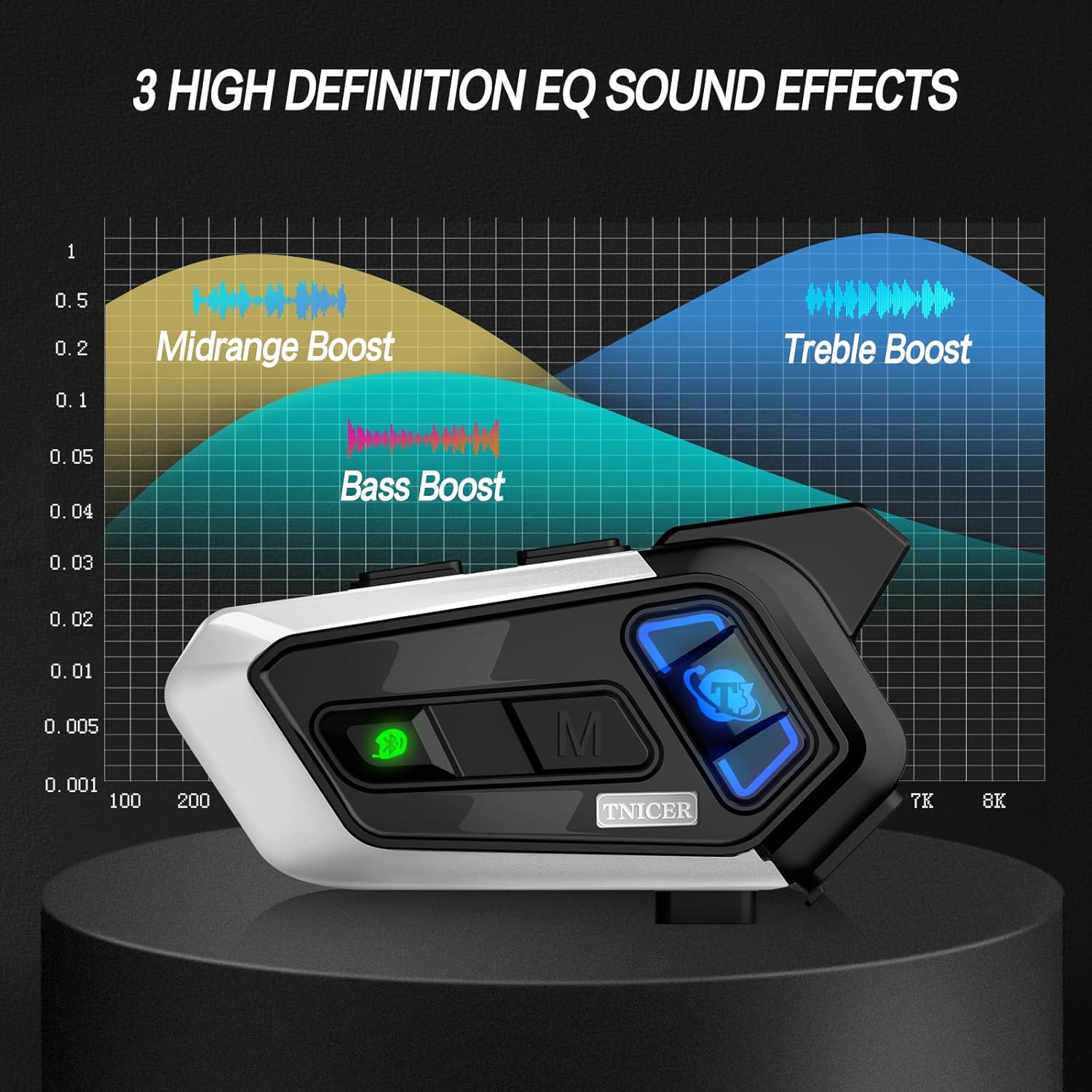
Figure 5.3: Visual representation of EQ sound effects.
5.7 Music Sharing
Share your music with another rider. This feature is ideal for rider-passenger communication over shorter distances.
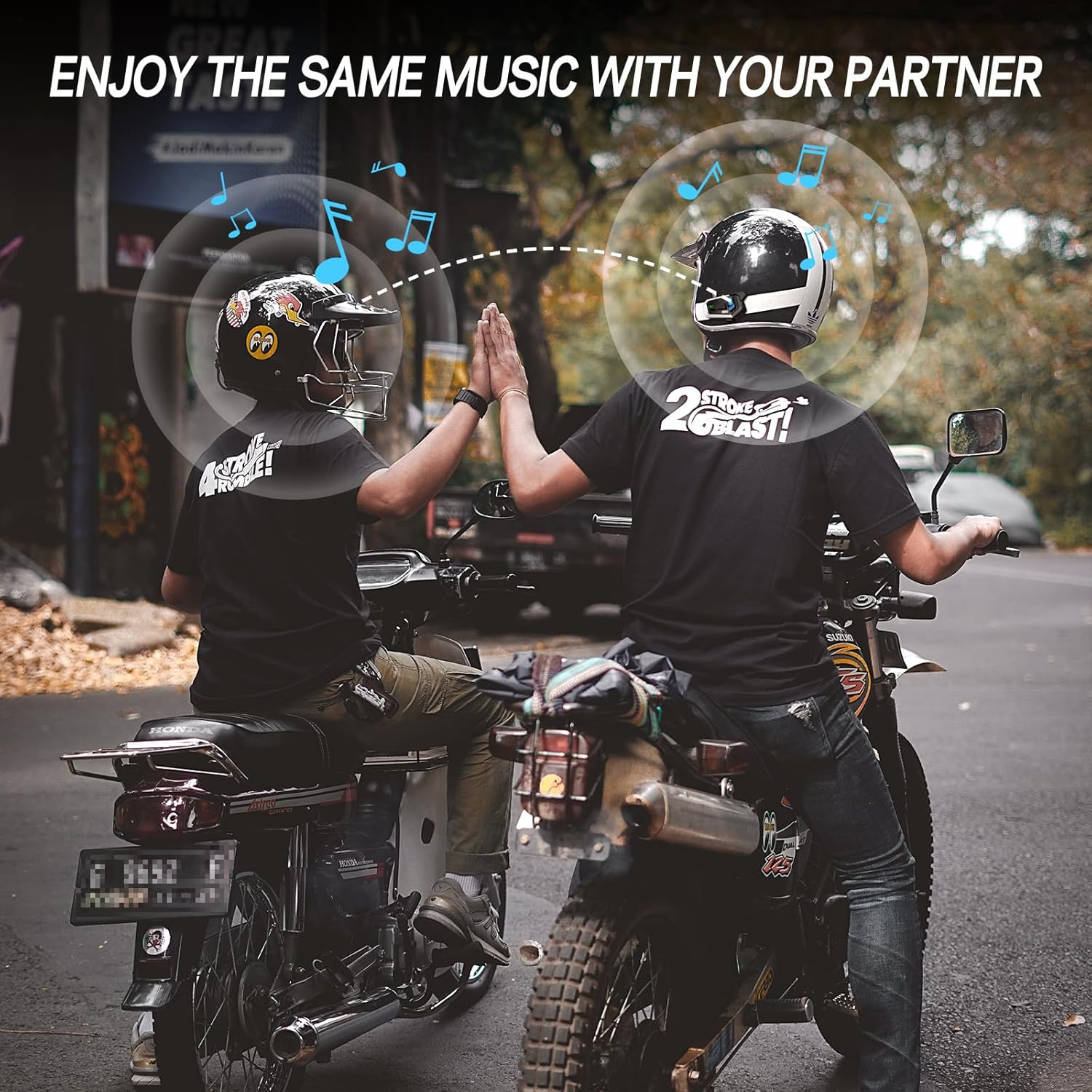
Figure 5.4: Music sharing between two riders.
5.8 Universal Pairing
The T3 headset supports open-source Bluetooth protocols, allowing it to pair with most other brands of helmet Bluetooth devices on the market.
5.9 Phone Calls and Voice Assistant
Once paired with your phone, you can manage calls and activate your phone's voice assistant (e.g., Siri, Google Assistant) directly from the headset. Refer to the quick start guide for specific button controls for these functions.
6. Maintenance
6.1 Charging the Battery
The T3 is equipped with a 1000mAh Li-Polymer battery, providing up to 25 hours of music, 15 hours of intercom, and 350 hours of standby time. A full charge takes approximately 2.5 hours.
- Connect the headset to a power source using the provided Type-C cable.
- The indicator light will show charging status (e.g., red for charging, blue for fully charged).

Figure 6.1: Battery life and charging details.
6.2 Cleaning
Wipe the headset with a soft, damp cloth. Do not use harsh chemicals or abrasive cleaners. Ensure the charging port cover is securely closed to maintain water resistance.
6.3 Water Resistance
The T3 headset is IP67 waterproof, meaning it is protected from dust and can withstand immersion in water up to 1 meter for 30 minutes. It is suitable for use in rainy conditions.

Figure 6.2: IP67 waterproof feature.
6.4 Storage
Store the headset in a cool, dry place away from direct sunlight and extreme temperatures when not in use for extended periods.
7. Troubleshooting
If you encounter issues with your TNICER T3 headset, refer to the following common problems and solutions:
| Problem | Possible Cause | Solution |
|---|---|---|
| No Power | Battery is depleted. | Charge the headset for at least 2.5 hours. |
| Cannot Pair with Phone | Headset not in pairing mode; Bluetooth off on phone; interference. | Ensure headset is in pairing mode (flashing red/blue). Turn phone's Bluetooth off and on. Move away from other Bluetooth devices. |
| Intercom Disconnects | Out of range; obstacles; low battery. | Move closer to other riders. Avoid large obstacles. Ensure sufficient battery charge. The unit should auto-reconnect when back in range. |
| Poor Audio Quality / Noise | Microphone placement; speaker placement; high speed wind noise. | Adjust microphone closer to mouth. Ensure speakers are centered over ears. Check helmet's wind noise reduction. |
| Buttons Unresponsive | Temporary software glitch. | Perform a soft reset by powering off and on. If issue persists, contact support. |
8. Specifications
| Feature | Detail |
|---|---|
| Model Name | T3 |
| Brand | TNICER |
| Connectivity Technology | Wireless (Bluetooth) |
| Bluetooth Version | 5.0 |
| Battery Life (Music) | Up to 25 Hours |
| Battery Life (Intercom) | Up to 15 Hours |
| Standby Time | Up to 350 Hours |
| Charging Time | Approx. 2.5 Hours |
| Battery Capacity | 1000mAh Li-Polymer |
| Intercom Range | Up to 1000 meters (between two motorcycles, obstacle-free) |
| Max Intercom Riders | 8 |
| Noise Control | Passive Noise Cancellation (CVC Technology) |
| Water Resistance Level | IP67 Waterproof |
| Control Type | Media Control, Remote |
| Special Feature | Microphone Included, Audio Multitasking, 3 EQ Sound Effects, Universal Pairing |
| Item Weight | 13.4 ounces |
9. Warranty and Support
For warranty information and technical support, please refer to the official TNICER website or contact their customer service directly. Keep your purchase receipt as proof of purchase for warranty claims.
Online Support: Visit the TNICER Store on Amazon for product information and contact options.


