
LAMTTO RC07B
LAMTTO Wireless CarPlay Android Auto 9-inch Touchscreen Display
Model: RC07B - User Manual
Introduction
This manual provides detailed instructions for the installation, operation, maintenance, and troubleshooting of your LAMTTO RC07B Wireless CarPlay Android Auto 9-inch Touchscreen Display. Please read this manual thoroughly before using the product to ensure proper functionality and safety.

The LAMTTO 9-inch Touchscreen Display, featuring a clear interface for navigation and media playback.
Setup
1. Unboxing and Components
Before installation, ensure all components are present:
- LAMTTO 9-inch Touchscreen Display Unit
- Power Cable (Cigarette Lighter Adapter)
- Suction Cup Holder
- 3M Adhesive Holder
- User Manual
2. Installation
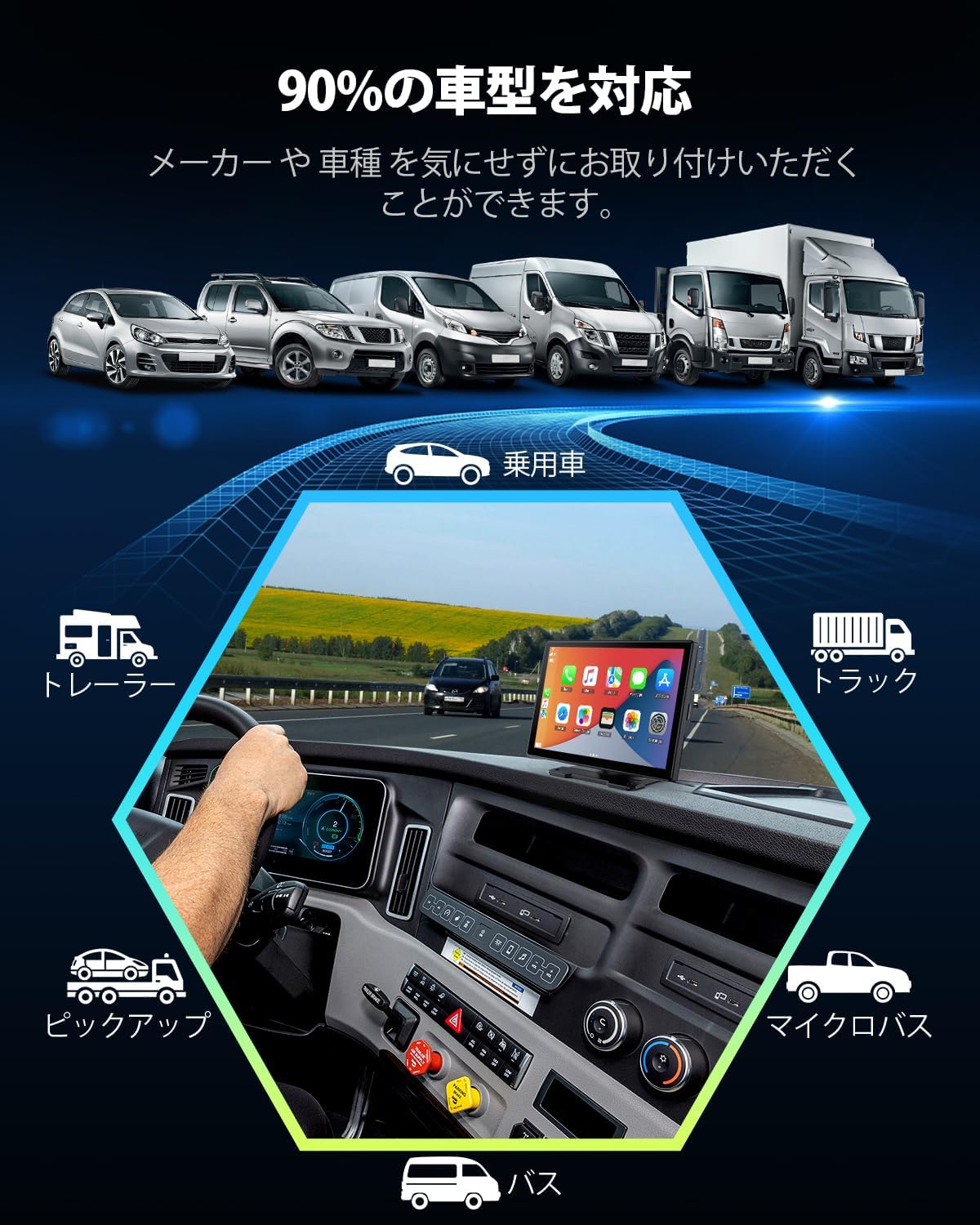
The display unit offers two mounting options: a suction cup holder for windshield or dashboard, and a 3M adhesive holder for a more permanent dashboard installation. Choose the method that best suits your vehicle and viewing preference.
- Attach the Holder: Securely attach either the suction cup holder or the 3M adhesive holder to the back of the display unit.
- Mount the Unit: Place the unit on your desired location on the dashboard or windshield. Ensure it does not obstruct your view or interfere with vehicle controls.
- Connect Power: Plug the power cable into the display unit and then into your vehicle's cigarette lighter socket.

Various installation methods are available to suit different vehicle interiors and user preferences.
3. Initial Connection (Wireless CarPlay/Android Auto)
To enable Wireless CarPlay or Android Auto, follow these steps:
- Power On: Turn on your vehicle's ignition to power on the display unit.
- Enable Phone's WiFi & Bluetooth: On your smartphone, ensure both Wi-Fi and Bluetooth are enabled.
- Pair with Device: On your phone's Bluetooth settings, search for and connect to the device named "t86xxxx" (or similar, as displayed on the unit).
- Confirm Connection: Once paired via Bluetooth, the unit will prompt you to connect via Wi-Fi for CarPlay or Android Auto. Confirm the connection.
- Launch CarPlay/Android Auto: The CarPlay or Android Auto interface should automatically launch on the display.

Detailed steps for establishing a wireless connection with your smartphone for CarPlay or Android Auto.
Operating
1. Wireless CarPlay & Android Auto Features
The LAMTTO display provides seamless integration with your smartphone, allowing access to various applications optimized for in-car use. This includes navigation, music streaming, messaging, and more.
- Navigation: Use your preferred map application (e.g., Google Maps, Apple Maps) directly on the large 9-inch screen for clear, turn-by-turn directions.
- Music & Media: Stream music, podcasts, and audiobooks from your favorite apps.
- Communication: Make calls, send messages, and access your contacts safely while driving.

The display provides access to a range of smartphone applications for enhanced in-car experience.
2. Mirroring Function
The mirroring function allows you to display your smartphone's screen directly onto the LAMTTO unit. This is useful for viewing content not natively supported by CarPlay/Android Auto or for sharing your phone's screen with passengers. Both iPhone and Android devices are supported.

Screen mirroring allows your smartphone's display to be shown on the larger unit, supporting various resolutions.
3. Voice Control (Siri & Google Assistant)
Utilize voice commands through Siri (for iOS) or Google Assistant (for Android) to control the unit and your smartphone hands-free. This enhances safety by allowing you to keep your focus on the road.
- Make Calls: "Hey Siri, call [Contact Name]" or "OK Google, call [Contact Name]".
- Get Directions: "Hey Siri, navigate to [Address]" or "OK Google, take me home".
- Play Music: "Hey Siri, play [Song/Artist]" or "OK Google, play [Song/Artist]".

Voice control features allow for hands-free operation using Siri or Google Assistant.
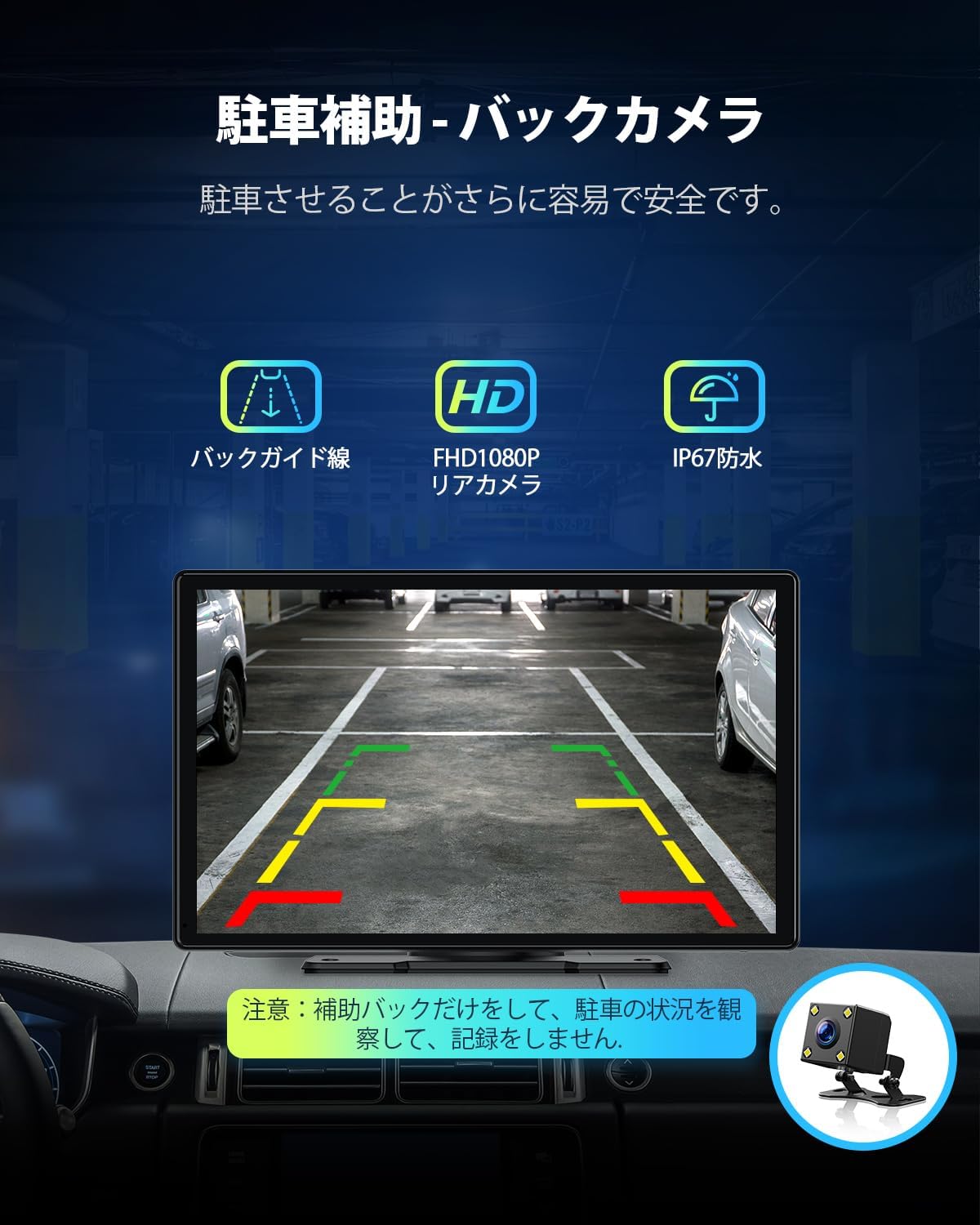
4. Parking Assistance (Rear Camera)
The unit supports a rear camera input, providing parking assistance with dynamic guide lines. This feature makes parking easier and safer by offering a clear view of the area behind your vehicle.
The display provides a clear rear camera view with adjustable guide lines for parking assistance.
5. Audio Output Options
The LAMTTO display offers multiple ways to output audio to your vehicle's sound system:
- AUX Cable: Connect the unit to your car's AUX input using an audio cable for direct sound transmission.
- FM Transmission: Transmit audio wirelessly to your car's FM radio by tuning both the unit and your car radio to the same FM frequency.
- Built-in Speaker: The unit also has a built-in speaker for basic audio output.
Audio can be output via AUX cable or FM transmission to your vehicle's sound system.
Maintenance
Proper maintenance ensures the longevity and optimal performance of your LAMTTO display.
- Cleaning the Screen: Use a soft, lint-free cloth to gently wipe the screen. For stubborn smudges, slightly dampen the cloth with water or a screen cleaner designed for electronics. Avoid harsh chemicals or abrasive materials.
- Cleaning the Unit: Wipe the body of the unit with a dry, soft cloth. Ensure no liquids enter the ports or openings.
- Storage: If the unit will not be used for an extended period, disconnect it from power and store it in a cool, dry place away from direct sunlight and extreme temperatures.
Troubleshooting
If you encounter issues with your LAMTTO display, refer to the following common problems and solutions:
| Problem | Possible Cause | Solution |
|---|---|---|
| No Power | Loose power connection, vehicle's cigarette lighter not working. | Ensure the power cable is securely plugged into both the unit and the cigarette lighter. Check if the cigarette lighter socket is functional with another device. |
| Cannot Connect to CarPlay/Android Auto | Bluetooth/Wi-Fi not enabled on phone, incorrect pairing, phone OS version incompatible. | Ensure your phone's Bluetooth and Wi-Fi are on. Re-pair the device. Verify your phone's operating system (iOS 13+ for iPhone) meets compatibility requirements. |
| Screen Not Visible with Polarized Sunglasses | Screen polarization alignment with sunglasses. | This is a known characteristic of some LCD screens when viewed through polarized lenses. Try adjusting the viewing angle or remove polarized sunglasses for better visibility. |
| Poor Audio Quality (FM Transmission) | Interference from other FM stations, weak signal. | Try a different FM frequency that is clear of other radio stations. Ensure the unit and car radio are tuned to the exact same frequency. Consider using the AUX cable connection for better audio fidelity. |
| Unit Not Sticking Securely | Improper surface preparation, worn adhesive/suction cup. | Clean the mounting surface thoroughly before applying the holder. For suction cups, ensure the surface is smooth and free of dust. If the adhesive is worn, consider replacing the 3M pad or using the suction cup mount. |
Specifications
| Feature | Detail |
|---|---|
| Model Name | RC07B |
| Screen Size | 9.25 inches |
| Display Type | LED |
| Compatible Devices | iPhone (iPhone 5 and later, iOS 13+ required), Android Smartphones |
| Map Type | Asia (utilizes smartphone map applications) |
| Package Dimensions | 26.2 x 16.3 x 9.9 cm |
| Package Weight | 1.21 kg |
| Key Features | Parking Assist, Mirroring Function, Siri & Google Voice Recognition, ISO & Android Compatible, Touchscreen |
| Audio Output Mode | Stereo |
| Mounting Type | Dashboard Mount (Suction Cup & 3M Adhesive) |
| Operating System | iOS, Android |
Warranty and Support
LAMTTO provides a 12-month quality warranty for this product. Additionally, a 1-month full refund is available from the date of purchase.
For any questions, concerns, or technical assistance regarding your LAMTTO RC07B display, please do not hesitate to contact our customer support. Refer to your purchase documentation or the LAMTTO official website for contact details.
Related documentsRC07B


Ask a question about this manual
Ask about setup, troubleshooting, compatibility, parts, safety, or missing instructions. Manuals+ will review the question and use this page’s manual context to help answer it.