
1. Introduction
Thank you for choosing the GEEKOM Mechanical Keyboard and Mouse Set. This manual provides detailed instructions for setting up, operating, and maintaining your new peripheral devices. Please read this manual thoroughly before use to ensure optimal performance and longevity of your product.
2. Package Contents
Please check the package contents upon unboxing. If any items are missing or damaged, please contact GEEKOM customer support.
- GEEKOM Mechanical Keyboard
- GEEKOM Mouse
- USB Receiver (for wireless connection, if applicable)
- USB-C Charging Cable (for keyboard/mouse, if rechargeable)
- User Manual (this document)
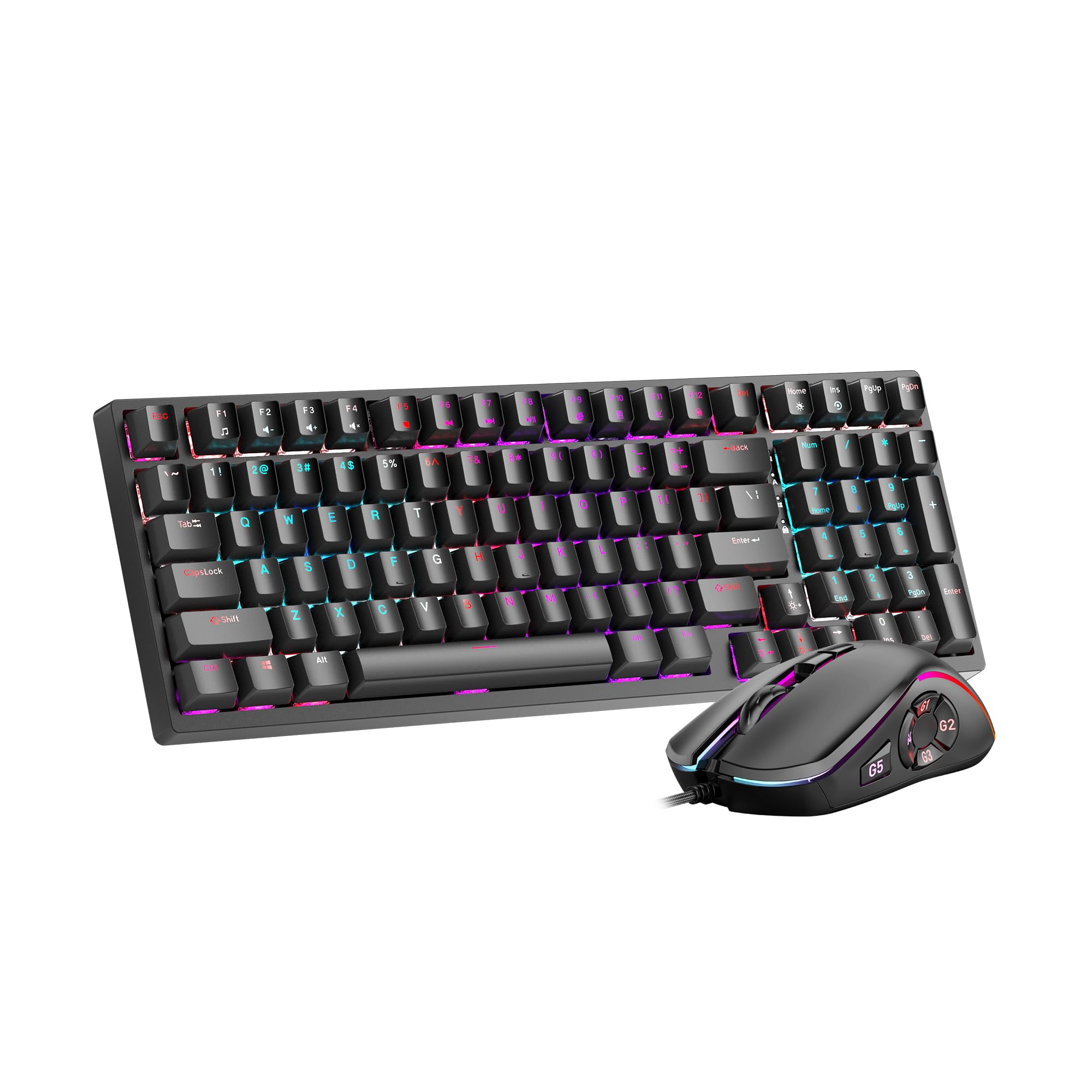
Image 1: GEEKOM Mechanical Keyboard and Mouse Set components.
3. Setup
3.1 Connecting the Keyboard and Mouse
The GEEKOM Mechanical Keyboard and Mouse Set can be connected via a 2.4GHz wireless USB receiver or a wired USB connection, depending on the model variant. Please refer to your specific product's connection type.
3.1.1 Wireless Connection (2.4GHz USB Receiver)
- Locate the USB receiver, usually stored in a compartment on the mouse or keyboard.
- Plug the USB receiver into an available USB port on your computer.
- Turn on the keyboard and mouse using their respective power switches. The devices should automatically connect to the receiver.
- If connection fails, press the pairing button (if available) on the keyboard/mouse and the receiver simultaneously.
3.1.2 Wired Connection (USB Cable)
- Connect the USB-C end of the provided cable to the keyboard/mouse.
- Connect the USB-A end of the cable to an available USB port on your computer.
- The devices will be recognized by your operating system automatically.
3.2 Driver Installation
The GEEKOM Mechanical Keyboard and Mouse Set is typically plug-and-play, requiring no additional driver installation for basic functionality. For advanced features or customization, please visit the official GEEKOM website to download any optional software or drivers.
4. Operating Instructions
4.1 Keyboard Functions
The mechanical keyboard offers a responsive typing experience. Specific functions may vary by model, but common features include:
- Standard Keys: All standard alphanumeric and symbol keys.
- Function Keys (F1-F12): Often combined with the Fn key for multimedia controls (volume, play/pause, etc.) or system shortcuts. Refer to the keycap legends for specific functions.
- Backlighting: Many mechanical keyboards feature adjustable backlighting. Use Fn + [Key] combinations (e.g., Fn + Arrow keys, Fn + Ins/Del/Home/End) to change brightness, mode, or color.
- N-Key Rollover (NKRO): Allows multiple key presses to be registered simultaneously, crucial for fast typing and gaming.
4.2 Mouse Functions
The mouse provides precise tracking and comfortable use. Key features typically include:
- Left/Right Click: Standard primary and secondary click functions.
- Scroll Wheel: For vertical scrolling and often acts as a middle click button.
- DPI Button: (Dots Per Inch) Allows adjustment of mouse sensitivity on the fly. Press to cycle through different DPI settings.
- Side Buttons: Often programmable for forward/backward navigation in web browsers or custom functions in software.
5. Maintenance
Proper maintenance ensures the longevity and performance of your GEEKOM Mechanical Keyboard and Mouse Set.
5.1 Cleaning
- Keyboard:
- Disconnect the keyboard from your computer.
- Use a can of compressed air to blow out dust and debris from between the keycaps.
- Wipe the keycaps and surface with a soft, slightly damp, lint-free cloth. Avoid excessive moisture.
- For deeper cleaning, keycaps can often be carefully removed using a keycap puller (not included) and cleaned separately. Ensure they are completely dry before reattaching.
- Mouse:
- Disconnect the mouse from your computer.
- Wipe the surface with a soft, slightly damp, lint-free cloth.
- Clean the optical sensor on the underside with a dry cotton swab to ensure accurate tracking.
5.2 Storage
When not in use for extended periods, store the keyboard and mouse in a dry, cool place away from direct sunlight and extreme temperatures.
6. Troubleshooting
If you encounter issues with your GEEKOM Mechanical Keyboard and Mouse Set, please refer to the following common solutions:
| Problem | Possible Cause | Solution |
|---|---|---|
| Keyboard/Mouse not responding (Wireless) | Low battery; USB receiver not connected; Pairing issue. | Charge devices; Ensure receiver is firmly plugged in; Re-pair devices (refer to Section 3.1.1). |
| Keyboard/Mouse not responding (Wired) | Loose cable connection; Faulty USB port. | Ensure cable is firmly connected; Try a different USB port; Test with a different cable if possible. |
| Keys not registering or double-typing | Dust/debris under keycap; Switch malfunction. | Clean under keycaps with compressed air (refer to Section 5.1); If issue persists, contact support. |
| Mouse cursor erratic or not moving | Dirty optical sensor; Unsuitable surface; Low battery. | Clean optical sensor (refer to Section 5.1); Use on a clean, opaque mouse pad; Charge mouse. |
| Backlighting not working | Backlight turned off; Software issue. | Adjust backlight settings using Fn key combinations; Check for software updates. |
7. Specifications
The following are general specifications for the GEEKOM Mechanical Keyboard and Mouse Set. Specific details may vary slightly by production batch.
- Brand: GEEKOM
- Model: Mechanical Keyboard and Mouse Set
- Connectivity: 2.4GHz Wireless (via USB Receiver) / Wired USB
- Keyboard Type: Mechanical
- Mouse Sensor: Optical
- DPI Settings (Mouse): Adjustable (e.g., 800/1200/1600/2400 DPI)
- Battery: Rechargeable Lithium-ion (for wireless models)
- Operating System Compatibility: Windows, macOS, Linux (basic functionality)
- Package Dimensions: 50 x 15 x 5 cm
- Package Weight: 1 kg
- ASIN: B0CTSVD82J
- UPC/GTIN: 850055043657
8. Warranty and Support
GEEKOM products are designed for reliability and performance. This product comes with a standard manufacturer's warranty. For detailed warranty terms and conditions, please refer to the warranty card included in your package or visit the official GEEKOM website.
For technical support, troubleshooting assistance, or warranty claims, please contact GEEKOM customer service through their official website or the contact information provided in your product documentation.
Official GEEKOM Website: www.geekom.nl (Note: This is a placeholder URL. Please refer to your product packaging for the correct support website.)