1. Introduction
This manual provides essential information for setting up, operating, and maintaining your ACEMAGIC F2A Mini PC. Please read this guide thoroughly before using the device to ensure optimal performance and safety.

Image: Overview of the Intel Core Ultra 7 155H processor, highlighting its 16 cores, 22 threads, 4.8GHz Turbo Boost, 24MB Cache, and 65W TDP, indicating its advanced Intel 4 process technology.
2. Safety Information
Observe the following safety precautions to prevent damage to the device or injury to yourself:
- Do not expose the device to water, moisture, or extreme temperatures.
- Avoid placing the device near heat sources or in direct sunlight.
- Use only the power adapter provided with the device.
- Do not attempt to open or repair the device yourself. Refer to qualified service personnel.
- Ensure proper ventilation around the device to prevent overheating.
3. Package Contents
Verify that all items are present in the package:
- ACEMAGIC F2A Mini PC
- Power Adapter
- HDMI Cable
- User Manual (this document)
- Mounting Bracket (optional, may vary by package)
4. Setup
4.1 Connecting Peripherals
Before powering on your Mini PC, connect your essential peripherals:
- Monitor: Connect your monitor(s) to the HDMI 2.0 ports or the multifunctional USB-C port using appropriate cables. The device supports triple display output (2x HDMI 2.0 + 1x USB-C DP1.4).
- Keyboard and Mouse: Connect your USB keyboard and mouse to the available USB 3.2 Gen2 ports.
- Audio: Connect speakers or headphones to the audio jack if needed.
- Network: For a wired connection, connect an Ethernet cable to the 2.5Gbps LAN port. For wireless, ensure your Wi-Fi network is available.
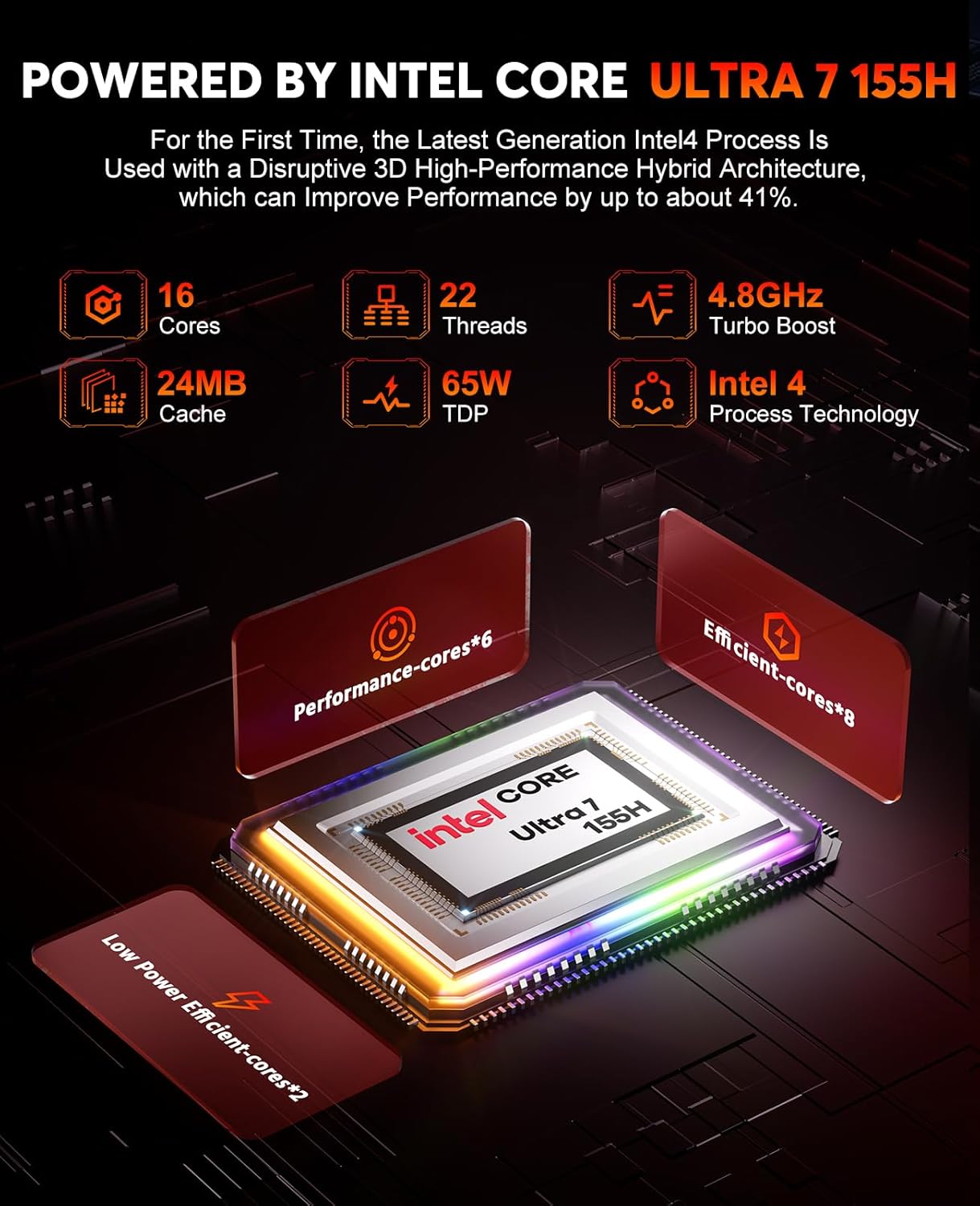
Image: The ACEMAGIC F2A Mini PC's front panel, displaying a Type-C port, two USB ports, and an audio jack, alongside the power button.
4.2 Powering On
Connect the power adapter to the DC-in port on the Mini PC and then plug it into a power outlet. Press the power button located on the front panel to turn on the device.
4.3 Initial Windows Setup
Upon first boot, you will be guided through the Windows operating system setup process. Follow the on-screen instructions to configure language, region, network, and user accounts.
4.4 Network Connectivity
Your F2A Mini PC supports advanced wireless and wired connectivity:
- Wi-Fi 7 (802.11be): Supports 2.4 GHz, 5 GHz, and 6 GHz frequency bands for speeds up to 5.8Gbps. To connect, select your Wi-Fi network from the Windows settings and enter the password.
- Bluetooth 5.4: For connecting wireless peripherals like keyboards, mice, and headphones. Pair devices through Windows Bluetooth settings.
- 2.5Gbps LAN: For high-speed wired network connections.

Image: A visual representation of the ACEMAGIC F2A's wireless capabilities, highlighting Wi-Fi 7 and Bluetooth 5.4, with speed comparisons to older standards.
5. Operating Instructions
5.1 General Usage
The ACEMAGIC F2A Mini PC runs on Windows, providing a familiar desktop experience. Use it for office work, educational training, home theater, programming, and more.
5.2 AI Features with Intel AI Boost NPU
Leverage the integrated Intel AI Boost NPU for enhanced AI applications. This dedicated AI chip supports features such as background blur during video calls and other AI-driven tasks with optimized power consumption.

Image: Demonstrates the AI capabilities of the F2A Mini PC, featuring Intel AI Boost NPU for AI acceleration and intelligent blur in applications like video calls.
5.3 Graphics Performance with Intel Arc GPU
The integrated Intel Arc Graphics provides significant performance for gaming and content creation. It supports technologies like XeSS, Ray Tracing, and DirectX 12, offering a smooth visual experience.

Image: Highlights the Intel Arc GPU's performance, indicating it is up to 2.4 times faster than Intel Iris Xe graphics, suitable for immersive gaming and content creation.
5.4 Gaming and Content Creation
The F2A Mini PC is designed for modern gaming and demanding content creation tasks. Its Intel Ultra 7 155H processor and Intel Arc Graphics deliver strong performance for applications such as 3D games, 3D modeling, rendering, image editing, and video editing.

Image: The ACEMAGIC F2A Mini PC showcasing its gaming capabilities with estimated FPS for popular titles like CS2, Dota 2, Forza Horizon 5, and Dead by Daylight.
6. Maintenance
6.1 Cooling System
The F2A Mini PC features a robust cooling system with dual fans (one centrifugal, one axial) and D8 copper heat pipes to ensure stable performance even under heavy loads. Keep the ventilation openings clear of obstructions.
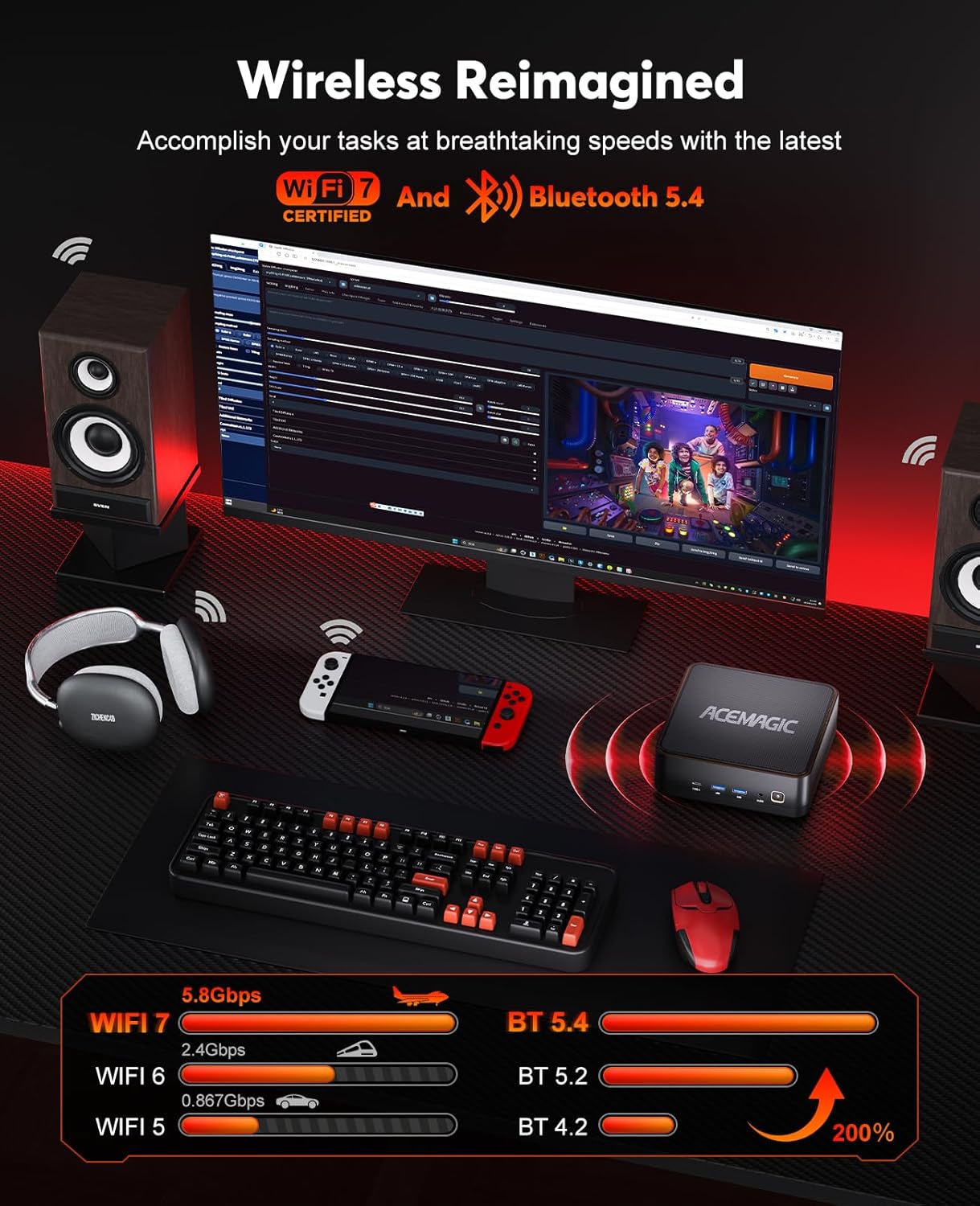
Image: An exploded view illustrating the efficient dual-fan cooling system of the ACEMAGIC F2A, including a large CPU fan, copper heat pipes, and a mini fan for DDR5 and SSD.
6.2 Memory and Storage Upgrades
The Mini PC supports memory and storage upgrades:
- Memory: Features 2 SO-DDR5 DIMM slots, supporting up to 96GB DDR5 5600 MT/s in dual channel.
- Storage: Includes 2 M.2 slots (PCIe 4.0x4) for expanding SSD storage.
To access these components for upgrade, carefully remove the bottom panel by unscrewing the feet. Consult a professional if you are unsure about the upgrade process.

Image: Detailed information on the dual-channel 32GB DDR5 memory and 1TB M.2 NVMe PCIe 4.0x4 SSD, including a comparison table between DDR4 and DDR5 specifications.
7. Troubleshooting
If you encounter issues with your ACEMAGIC F2A Mini PC, refer to the following common problems and solutions:
- No Power: Ensure the power adapter is securely connected to both the Mini PC and a working power outlet. Try a different outlet.
- No Display: Check all HDMI or USB-C display cable connections. Ensure your monitor is set to the correct input source.
- No Internet Connection: For Wi-Fi, verify your network password and router status. For wired, check the Ethernet cable and router connection.
- Device Overheating: Ensure the Mini PC's vents are not blocked. Operate the device in a well-ventilated area.
- Slow Performance: Close unnecessary applications. Check for background updates. Ensure sufficient free storage space.
For persistent issues, contact ACEMAGIC customer support.
8. Specifications
| Feature | Specification |
|---|---|
| Brand | ACEMAGIC |
| Item Model Number | F2A |
| Product Dimensions | 14.7 x 14.7 x 5.2 cm; 2.08 Kilograms |
| Manufacturer | ACEMAGIC |
| Series | f2a-155h |
| Screen Resolution | 2560 x 1440 |
| Resolution | 3840x2160 |
| Processor Brand | Intel |
| Processor Type | Intel Mobile CPU (Intel Core Ultra 7 155H) |
| Processor Speed | 4.8 GHz (Max Turbo Frequency) |
| Processor Socket | FCBGA2049 |
| Number of Processors | 16 (Cores) |
| RAM Size | 32 GB |
| Memory Technology | DDR5 |
| Computer Memory Type | DDR5 SDRAM |
| Max Supported Memory | 96 GB |
| Memory Speed | 5.6 GHz (5600 MT/s) |
| Hard Drive Size | 1 TB |
| Hard Drive Description | SSD (NVMe PCIe 4.0x4) |
| Hard Drive Interface | Solid State |
| Graphics Coprocessor | Intel Arc Graphics |
| Graphics Card Description | Dedicated (Integrated Intel Arc) |
| Graphics RAM Type | DDR5 SDRAM (Shared with system memory) |
| Graphics RAM Size | 32 GB (System Shared) |
| Graphics Card Interface | Integrated |
| Connectivity Type | Wi-Fi 7, Bluetooth 5.4, 2.5Gbps LAN |
| Wireless Type | Bluetooth |
| Number of USB 3.0 Ports | 5 (USB 3.2 Gen2) |
| Number of HDMI Ports | 2 |
| Hardware Platform | PC |
| Operating System | Windows |
| Batteries Included | No |
| Specific Uses For Product | Business, Gaming, Photo Editing |
| Personal Computer Design Type | Mini PC |
9. Warranty and Support
Your ACEMAGIC F2A Mini PC comes with a standard manufacturer's warranty. Please refer to the warranty card included in your package for specific terms and conditions.
For technical support, troubleshooting assistance, or warranty claims, please contact ACEMAGIC customer service through their official website or the contact information provided in your product documentation.


