
Introduction
Welcome to the user manual for your new iTech Jr Kids Smartwatch with On-Ear Bluetooth Headphones. This device is designed to provide children with a fun and interactive experience, featuring a camera, games, music, and more, all while being paired with comfortable, fuzzy headphones for an immersive audio experience. This manual provides essential information on how to set up, operate, and maintain your product.
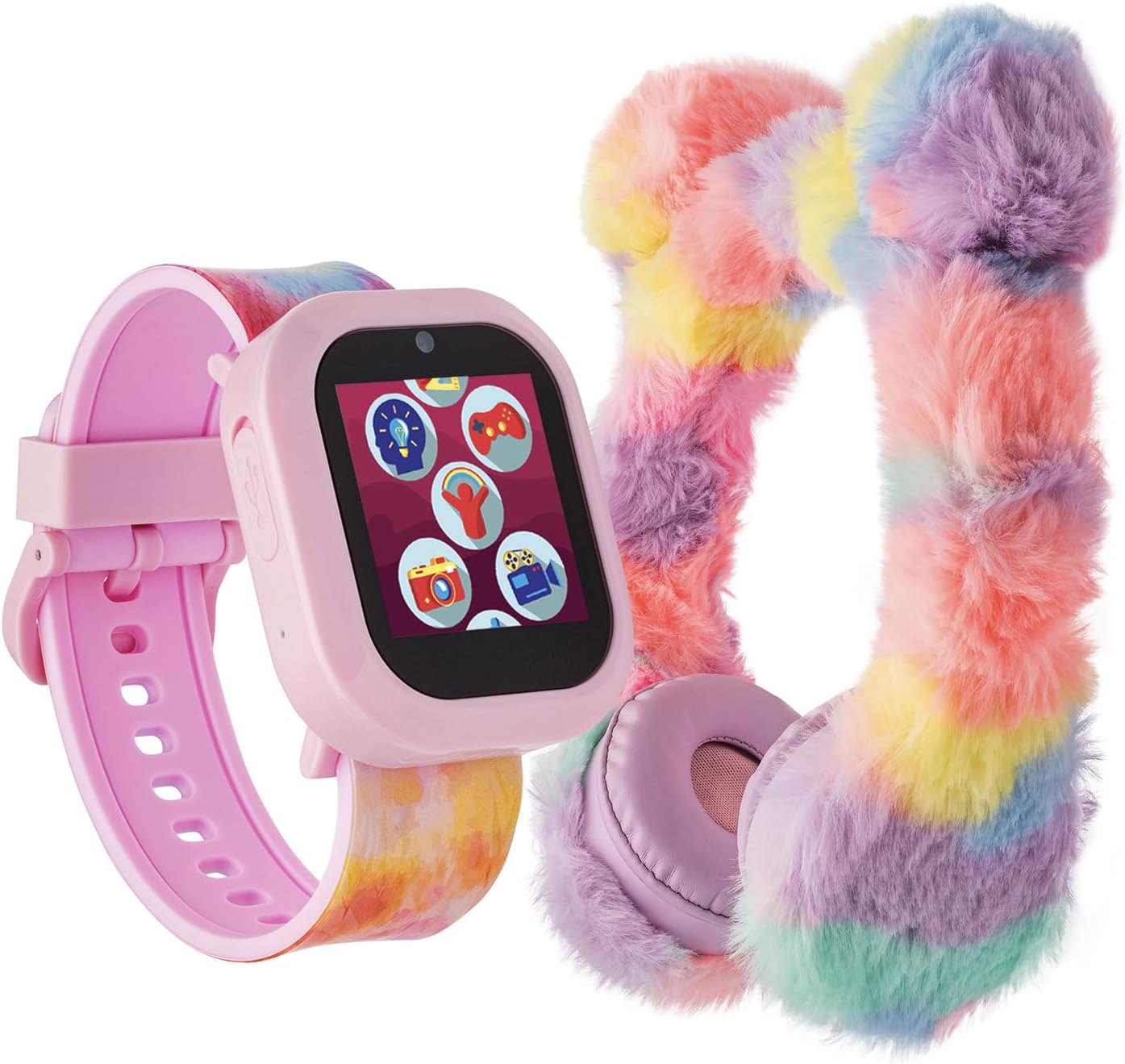
Image: The iTech Jr Kids Smartwatch, featuring a pink casing and a colorful tie-dye strap, displayed alongside the matching fuzzy pastel on-ear Bluetooth headphones. This image illustrates the complete product package.
What's in the Box
- iTech Jr Kids Smartwatch
- On-Ear Bluetooth Headphones
- USB Charging Cable (for smartwatch)
- User Manual (this document)
Product Overview
Familiarize yourself with the key components of your iTech Jr Smartwatch.

Image: A close-up view of the iTech Jr Smartwatch, highlighting its key features. Labels point to the LED Flashlight, Micro USB Port (for charging and data transfer), Camera Button (for capturing photos and videos), and the Home/Power Button.
- LED Flashlight: Located on the side of the watch, provides illumination.
- Micro USB Port: Used for charging the smartwatch, downloading photos, and uploading music.
- Camera Button: Activates the camera function to capture photos and videos.
- Home / Power Button: Used to power the watch on/off and return to the home screen.
- Touch Screen Display: The primary interface for interacting with the watch's features.
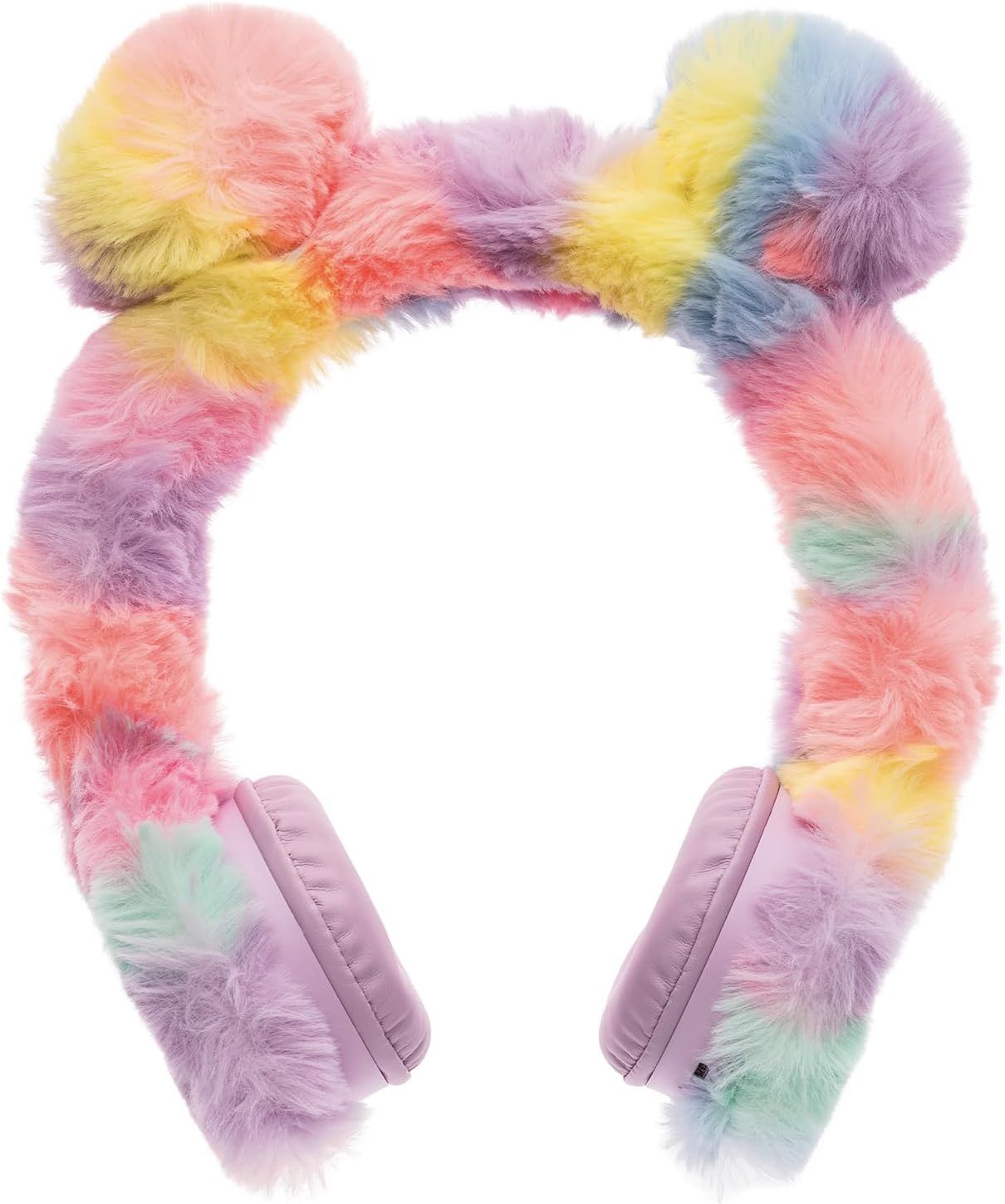
Image: A pair of fuzzy pastel on-ear Bluetooth headphones, featuring a rainbow-colored headband and soft earcups. These headphones are designed for comfortable listening and wireless connectivity.
- Adjustable Headband: For a comfortable fit.
- Soft Earcups: Designed for comfort during extended use.
- Power/Pairing Button: Located on one earcup for turning on/off and initiating Bluetooth pairing.
- Volume Controls: Buttons on the earcup to adjust audio volume.
Setup
1. Charging the Smartwatch
- Locate the Micro USB port on the side of the smartwatch.
- Connect the provided USB charging cable to the smartwatch and a compatible USB power source (e.g., computer USB port, wall adapter).
- The watch display will indicate charging status. Allow approximately 2-3 hours for a full charge before first use.
2. Powering On/Off
- To Power On: Press and hold the Home/Power button until the screen illuminates.
- To Power Off: Press and hold the Home/Power button until a power-off option appears on the screen, then confirm.
3. Connecting Bluetooth Headphones
- Ensure the smartwatch is powered on.
- Power on the Bluetooth headphones by pressing and holding their Power/Pairing button until an indicator light flashes, signaling pairing mode.
- On the smartwatch, navigate to the Bluetooth settings (usually found in the settings menu).
- Select 'Search for Devices' or 'Pair New Device'.
- Once the headphones appear in the list (e.g., 'iTech Jr Headphones'), tap to connect. A confirmation message will appear on both devices upon successful pairing.
Operating the Smartwatch
1. Touch Screen Navigation
Swipe left or right on the screen to browse through different applications and features. Tap an icon to open an application. Tap the Home/Power button to return to the watch face.

Image: The iTech Jr Smartwatch display showing a grid of application icons. These include Camera & Gallery, Fun Activities & Games, Calculator & Measurements, Audio Books & Stories, Time, Alarm & Stopwatch, Voice Recordings, ICE (In Case of Emergency), and Music & Sing-A-Longs.
2. Camera & Video Functions
The smartwatch features a built-in camera for capturing photos and videos.
- Taking Photos: Tap the Camera icon on the home screen. Press the Camera Button on the side of the watch or tap the on-screen shutter button to take a picture.
- Recording Videos: Within the camera app, switch to video mode. Press the Camera Button or tap the record icon to start/stop recording.
- Gallery: Access your captured photos and videos through the Gallery app.
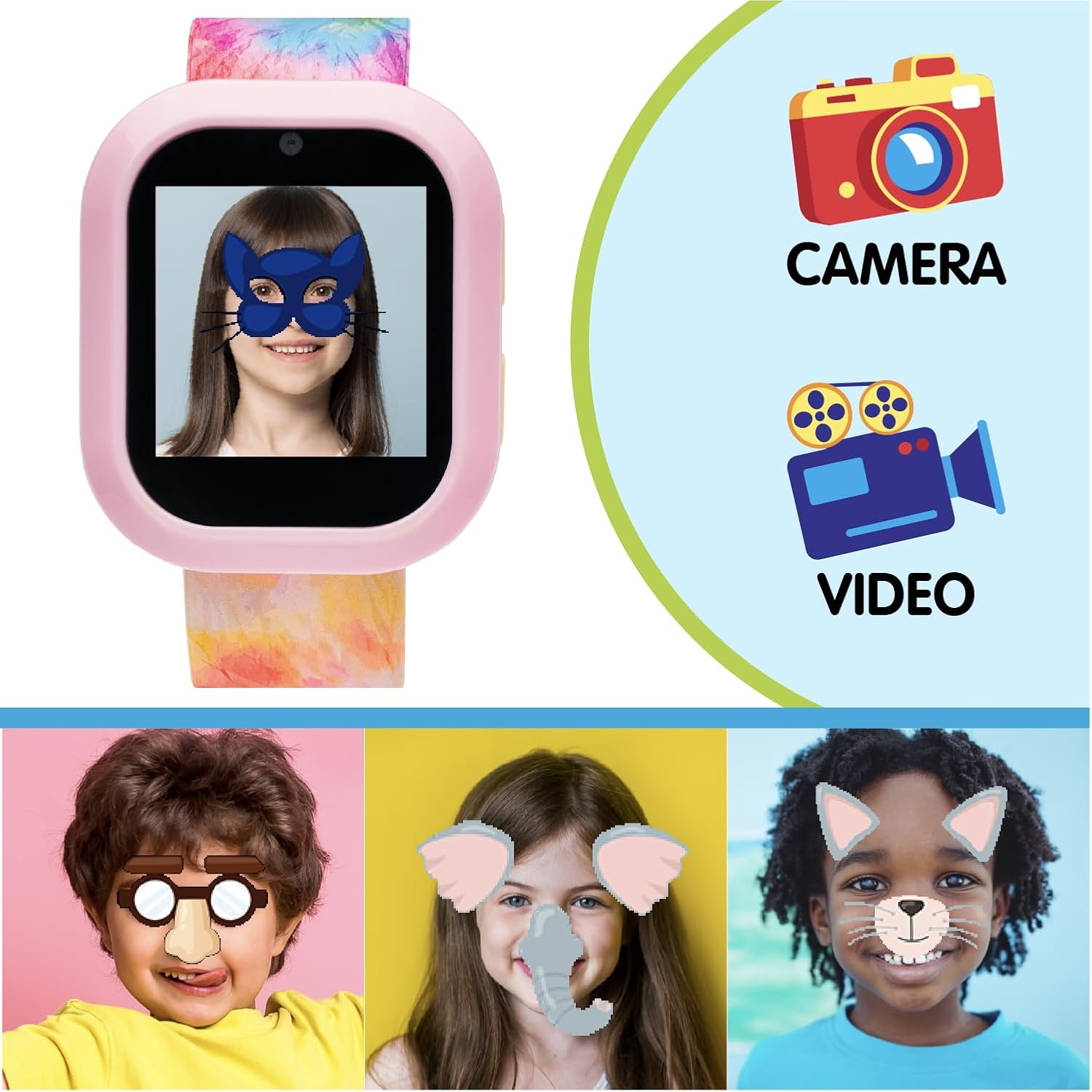
Image: The iTech Jr Smartwatch displaying a child's face with a digital mask, illustrating the camera's fun filter capabilities. Adjacent to the watch are icons for 'Camera' and 'Video', emphasizing these functions. Below, three children's faces are shown with various digital filters applied, demonstrating the interactive photo features.
3. Games & Activities
Engage with a variety of pre-loaded educational and fun games.
- Tap the 'Fun Activities & Games' icon to browse and select games.
- Games include S.T.E.M. challenges, puzzles, and more.
4. Music & Audiobooks
Enjoy pre-loaded audio content or upload your own music.
- Music: Tap the 'Music & Sing-A-Longs' icon to play songs. Connect the Bluetooth headphones for a private listening experience.
- Audiobooks: Access stories and audiobooks via the 'Audio Books & Stories' icon.
- Uploading Music: Connect the smartwatch to a computer using the USB cable. The watch will appear as a removable drive. Drag and drop compatible audio files into the designated music folder.
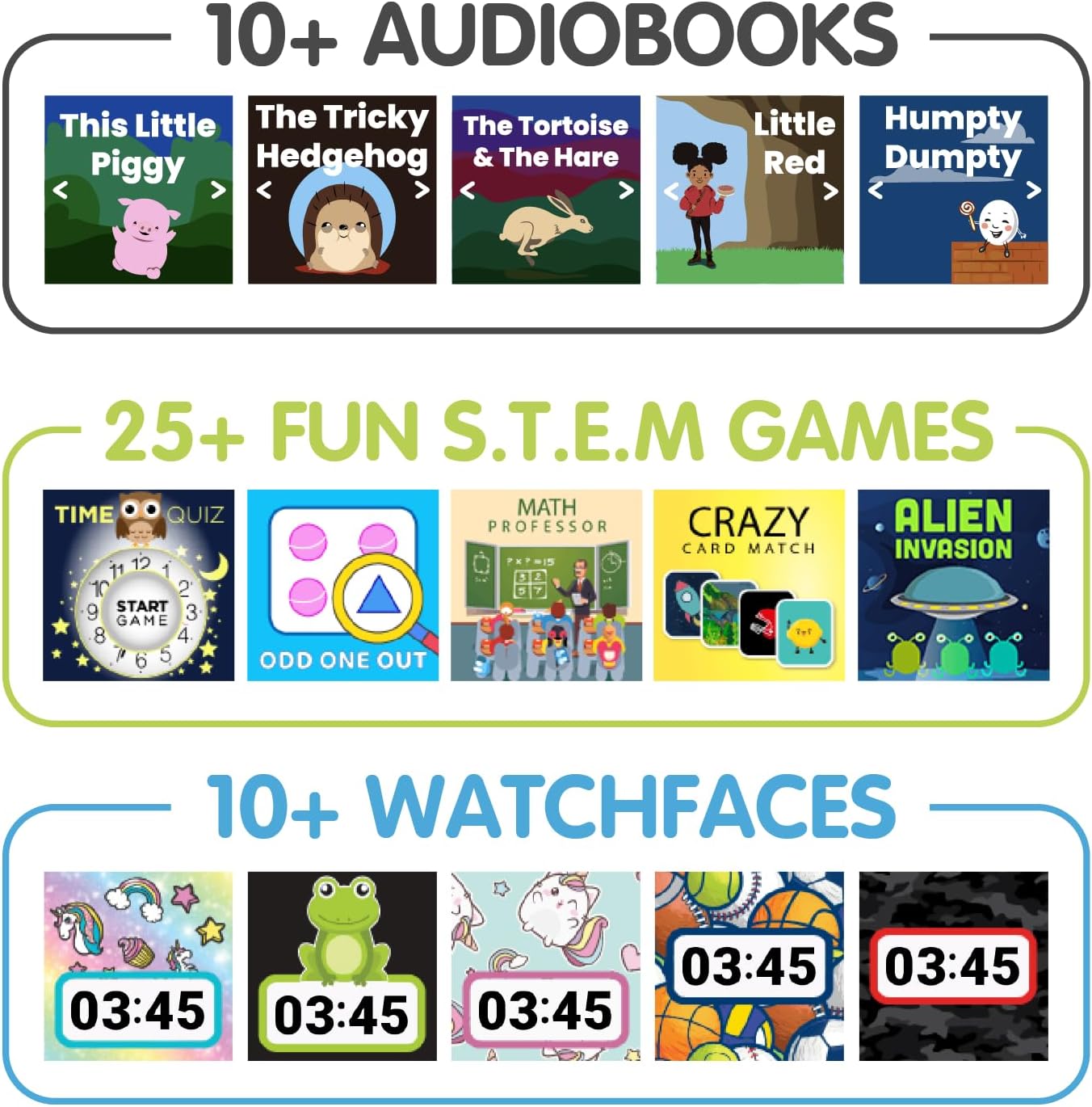
Image: A composite image showcasing various features of the iTech Jr Smartwatch. The top section displays '10+ Audiobooks' with covers of popular children's stories. The middle section highlights '25+ Fun S.T.E.M. Games' with examples like 'Time Quiz' and 'Odd One Out'. The bottom section shows '10+ Watchfaces' with different digital clock designs.
5. Time, Alarm & Stopwatch
- Setting Time: The time can be set manually through the 'Settings' menu.
- Alarm: Tap the 'Time, Alarm & Stopwatch' icon to set multiple alarms.
- Stopwatch: Use the stopwatch function for timing activities.
6. Voice Recordings
Record and play back short voice messages using the 'Voice Recordings' app.
7. LED Flashlight
Activate the LED flashlight from the quick settings menu or a dedicated app icon for a convenient light source.
8. ICE (In Case of Emergency)
Set up emergency contact information in the 'ICE' app. This feature allows quick access to important details in an emergency situation.
9. Watch Faces
Customize the appearance of your smartwatch by changing the watch face. Access this option through the 'Settings' menu or by long-pressing the watch face.
Maintenance
1. Cleaning
- Smartwatch: Wipe the screen and casing with a soft, dry, lint-free cloth. Avoid using harsh chemicals or abrasive materials.
- Headphones: Gently brush the fuzzy exterior to remove dust. Use a slightly damp cloth for the earcups if necessary, ensuring no moisture enters the speaker grilles.
2. Storage
Store the smartwatch and headphones in a cool, dry place away from direct sunlight and extreme temperatures when not in use.
3. Battery Care
- Charge the smartwatch regularly to maintain battery health.
- Avoid completely draining the battery frequently.
- If storing for an extended period, charge the battery to about 50% before storage.
Troubleshooting
- Watch not powering on: Ensure the watch is fully charged. Connect it to a charger for at least 30 minutes, then try powering on again.
- Watch not charging: Check the USB cable and power source. Ensure the cable is securely connected to both the watch and the power adapter. Try a different USB port or adapter.
- Headphones not pairing: Ensure both the watch and headphones are in pairing mode. Make sure they are within close proximity. Turn both devices off and on again, then retry the pairing process.
- Sound issues: Check the volume levels on both the smartwatch and the headphones. Ensure the headphones are properly connected via Bluetooth.
- Screen unresponsive: Try restarting the smartwatch by holding down the Home/Power button. If the issue persists, ensure the screen is clean and dry.
Specifications
| Feature | Detail |
|---|---|
| Product Dimensions | 9 x 1.06 x 0.47 inches |
| Item Weight | 1.23 pounds |
| Model Number | IJ302B-N01 |
| Standing Screen Display Size | 1.06 Inches |
| Special Feature | Camera |
| Connectivity Technology | Bluetooth |
| Wireless Communication Standard | Bluetooth |
| GPS | No GPS |
| Shape | Rectangular |
| Display Type | Digital |
| Compatible Devices | Smartphone (for data transfer/syncing) |
| Manufacturer | iTech |
Warranty and Support
This iTech Jr product comes with a manufacturer's warranty. Please refer to the warranty card included in your product packaging for specific terms and conditions, including warranty period and coverage details.
For technical support, troubleshooting assistance, or warranty claims, please contact iTech customer service. Contact information can typically be found on the manufacturer's official website or on the product packaging.