
1. Product Overview
The MERCUSYS MB130-4G is a powerful 4G LTE router designed to provide high-speed internet access using a SIM card. It supports dual-band Wi-Fi (2.4 GHz and 5 GHz) for flexible connectivity and allows up to 64 devices to connect simultaneously. This manual provides essential information for setting up, operating, maintaining, and troubleshooting your MB130-4G router.

Figure 1.1: The MERCUSYS MB130-4G router alongside its retail packaging, highlighting its key features such as 4G LTE connectivity and AC1200 Wi-Fi.

Figure 1.2: An illustrative diagram detailing the router's capabilities, including 4G LTE Cat 4 speeds up to 150 Mbps, dual-band Wi-Fi up to 1200 Mbps, support for up to 64 connected devices, SIM card plug & play, app management, and WAN connection availability.
2. Setup Guide
Follow these steps to set up your MERCUSYS MB130-4G router and get connected to the internet.
2.1 Package Contents
Before you begin, ensure all items are present in the box:
- AC1200 Wireless Dual Band 4G LTE Router (MB130-4G)
- Power Adapter
- RJ45 Ethernet Cable
- Quick Installation Guide
2.2 Hardware Installation
- Insert SIM Card: Locate the SIM card slot on the router. Gently insert your standard Nano SIM card into the slot until it clicks into place. Ensure the SIM card is inserted correctly according to the diagram on the router or in the Quick Installation Guide.
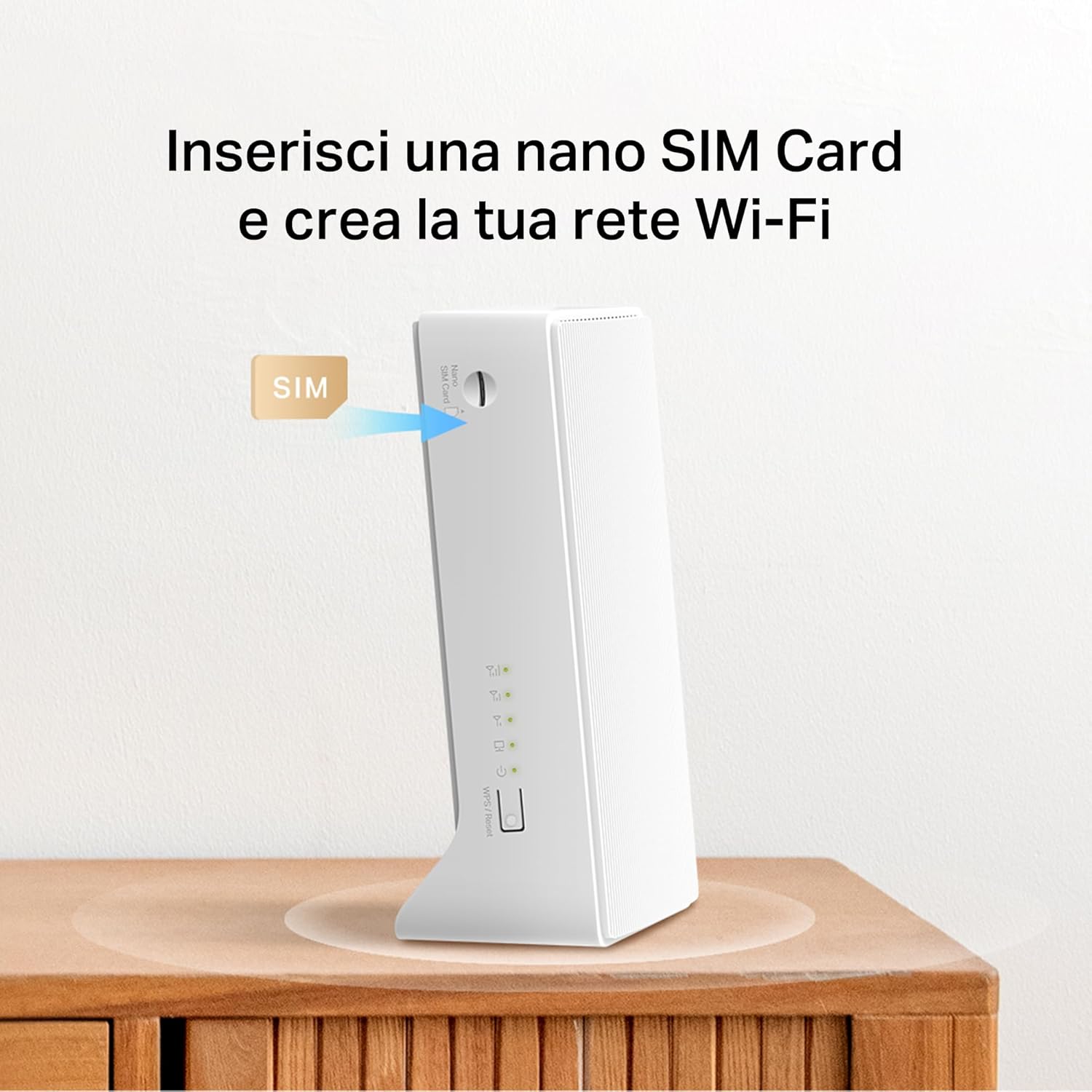
Figure 2.1: Illustration demonstrating the correct method for inserting a Nano SIM card into the designated slot on the MERCUSYS MB130-4G router.
- Connect Power: Connect the provided power adapter to the router's power port and then plug the other end into a standard electrical outlet. The router will power on automatically.
- Optional: Connect External Antennas: If you have external 4G/3G antennas (sold separately), connect them to the antenna connectors on the back of the router to improve signal reception.

Figure 2.2: A detailed view of the rear panel of the MERCUSYS MB130-4G router, showing the LAN/WAN ports, power input, and the two external antenna connectors.
- Wait for Connection: The router will automatically detect the SIM card and attempt to establish a 4G LTE connection. The LED indicators on the front panel will show the status of the connection. Refer to the Quick Installation Guide for specific LED behavior.
3. Operating Instructions
Once your router is set up, you can begin using its features.
3.1 Connecting to Wi-Fi
The router broadcasts two Wi-Fi networks: 2.4 GHz and 5 GHz. You can find the default Wi-Fi name (SSID) and password printed on a label on the bottom of the router.
- On your device (smartphone, tablet, laptop), open your Wi-Fi settings.
- Select the Wi-Fi network name (SSID) corresponding to your router.
- Enter the Wi-Fi password when prompted.
3.2 Internet Speed and Performance
The MB130-4G supports 4G LTE Cat 4, providing download speeds of up to 150 Mbps and upload speeds of up to 50 Mbps. The dual-band Wi-Fi offers up to 300 Mbps on 2.4 GHz and up to 867 Mbps on 5 GHz for a combined AC1200 speed.

Figure 3.1: A visual representation of the router's high-speed capabilities, showing 4G LTE download speeds and the distribution of Wi-Fi bandwidth across 2.4 GHz and 5 GHz bands for various activities like HD streaming and gaming.
3.3 Advanced Features
- MERCUSYS App Management: Download the MERCUSYS app from your device's app store to manage your router settings, monitor connected devices, and set up guest networks from your smartphone.
- Guest Network: The router supports separate 2.4GHz and 5GHz guest networks, allowing visitors secure internet access without sharing your main network password.
- WAN Connection: The router includes a LAN/WAN port, enabling it to function as a traditional Wi-Fi router by connecting to a fixed broadband line (e.g., DSL/Fiber modem) if 4G LTE is not available or preferred.

Figure 3.2: An illustration demonstrating the flexibility of the MB130-4G router, showing its ability to connect to a wired Ethernet WAN source as a backup or primary internet connection.
4. Maintenance
Proper maintenance ensures the longevity and optimal performance of your router.
- Cleaning: Use a soft, dry cloth to clean the router's exterior. Do not use liquid cleaners or aerosols.
- Ventilation: Ensure the router is placed in a well-ventilated area, away from direct sunlight and heat sources, to prevent overheating.
- Firmware Updates: Periodically check the MERCUSYS official website or the MERCUSYS app for available firmware updates. Keeping your firmware up-to-date can improve performance, add new features, and enhance security.
5. Troubleshooting
If you encounter issues with your router, try the following troubleshooting steps:
5.1 No Internet Connection
- Check SIM Card: Ensure the SIM card is correctly inserted and active.
- Check Signal Strength: Verify the 4G LTE signal strength indicated by the router's LEDs. If the signal is weak, try repositioning the router or connecting external antennas.
- Reboot Router: Disconnect the power adapter, wait for 10 seconds, and then reconnect it.
- Check APN Settings: Access the router's web management interface or MERCUSYS app to verify that the APN settings are correct for your mobile network provider.
5.2 Wi-Fi Connection Issues
- Verify Wi-Fi Password: Ensure you are entering the correct Wi-Fi password.
- Check Wi-Fi Signal: Move closer to the router to improve Wi-Fi signal strength.
- Restart Devices: Restart the device you are trying to connect to Wi-Fi.
- Change Wi-Fi Channel: If you experience interference, try changing the Wi-Fi channel in the router's settings.
5.3 Router Not Responding
- Power Cycle: Unplug the power adapter from the router, wait for 30 seconds, and then plug it back in.
- Factory Reset: If the issue persists, you may need to perform a factory reset. Locate the Reset button (usually a small pinhole) on the router. With the router powered on, use a paperclip to press and hold the Reset button for about 5-10 seconds until the LEDs flash. This will restore the router to its default factory settings, and you will need to reconfigure it.
6. Specifications
| Feature | Description |
|---|---|
| Model Name | MB130-4G |
| Product Dimensions | 3.74 x 2.4 x 6.54 inches |
| Item Weight | 7.7 ounces |
| Connectivity Technology | LTE, Wi-Fi |
| Wireless Communication Standard | 802.11ac |
| Frequency Band Class | Dual-Band (2.4 GHz & 5 GHz) |
| 4G LTE Speed | Up to 150 Mbps (Download), 50 Mbps (Upload) |
| Wi-Fi Speed | AC1200 (300 Mbps on 2.4 GHz, 867 Mbps on 5 GHz) |
| Compatible Devices | Personal Computer, Smartphone, Tablet |
| Special Feature | Beamforming |
| Color | White |
7. Warranty and Support
For detailed warranty information and technical support, please refer to the Quick Installation Guide included with your product or visit the official MERCUSYS website. The website typically provides FAQs, driver downloads, and contact information for customer service.
Manufacturer: Mercusys
Date First Available: December 5, 2024


