
Introduction
The MERCUSYS ME60X is a WiFi 6 AX1500Mbps Range Extender designed to expand your existing Wi-Fi coverage and eliminate dead zones. It supports dual-band speeds up to 1201 Mbps on 5 GHz and 300 Mbps on 2.4 GHz, offering improved speed, efficiency, and capacity for your network. This manual provides comprehensive instructions for setting up, operating, and maintaining your ME60X extender.
Product Overview
The ME60X features a compact design with adjustable high-gain antennas and a Gigabit Ethernet port, making it versatile for various networking needs.
Key Features
- Dual Band Speeds up to 1500 Mbps – 1201 Mbps on 5 GHz and 300 Mbps on 2.4 GHz.
- Armed with WiFi 6 – Improves virtually every aspect of your network: speed, efficiency, and capacity.
- Gigabit Wired Connection – Provides speedy wired connections for PCs, IPTVs, and game consoles.
- Works with Any Router – To Extend WiFi to Where You Need It Most.
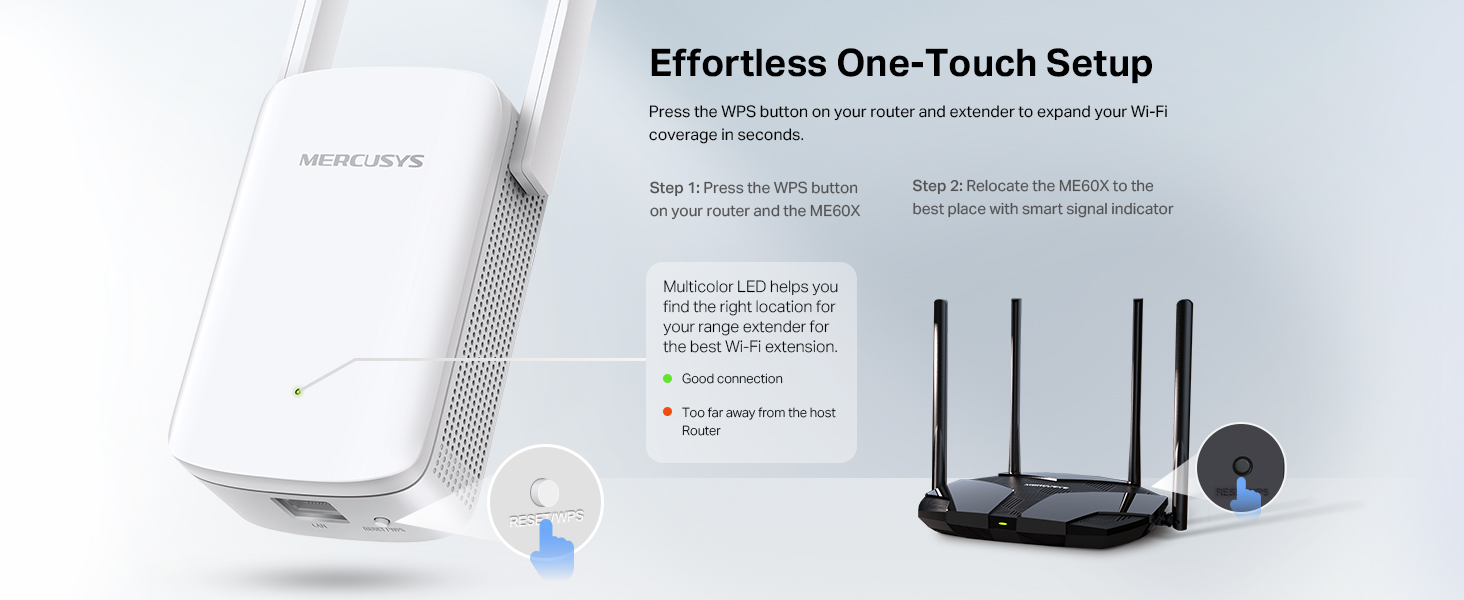
- Easy One-Touch Setup – Press the WPS button to expand your Wi-Fi coverage in seconds.
Package Contents
- ME60X Range Extender

The image shows the ME60X device alongside its packaging, emphasizing its AX1500 WiFi 6 capabilities.
Device Appearance

This image displays the MERCUSYS ME60X device, highlighting its adjustable high-gain antennas, smart signal indicator, Gigabit Ethernet port, and WPS/Reset button.
Setup
The ME60X offers an easy one-touch setup using the WPS button or through the MERCUSYS app.
WPS Button Setup
- Plug the ME60X into an electrical outlet near your router.
- Wait for the Power LED to turn solid green.
- Press the WPS button on your router.
- Within two minutes, press the WPS button on the ME60X.
- The Signal LED on the ME60X will turn solid green or orange, indicating a successful connection.
- Relocate the ME60X to an optimal location between your router and the Wi-Fi dead zone. The Signal LED should remain solid green for the best connection.
This diagram shows the two steps for WPS setup: pressing the WPS button on both the router and the ME60X, and then relocating the ME60X based on the signal indicator. The signal indicator colors (green for good, red for too far) are explained.
Setup via MERCUSYS App
- Download the MERCUSYS app from the App Store or Google Play.
- Plug in the ME60X and connect your smartphone to its Wi-Fi network (e.g., MERCUSYS_Extender).
- Open the MERCUSYS app and follow the on-screen instructions to complete the setup.

This image shows a smartphone with the MERCUSYS app open, demonstrating how users can set up and manage their Wi-Fi extender. QR codes for App Store and Google Play are visible, along with a link to the Mercusys app download page: Download MERCUSYS App.
Operating Modes
The ME60X can operate in two primary modes: Range Extender Mode and Access Point Mode.
Range Extender Mode (Default)
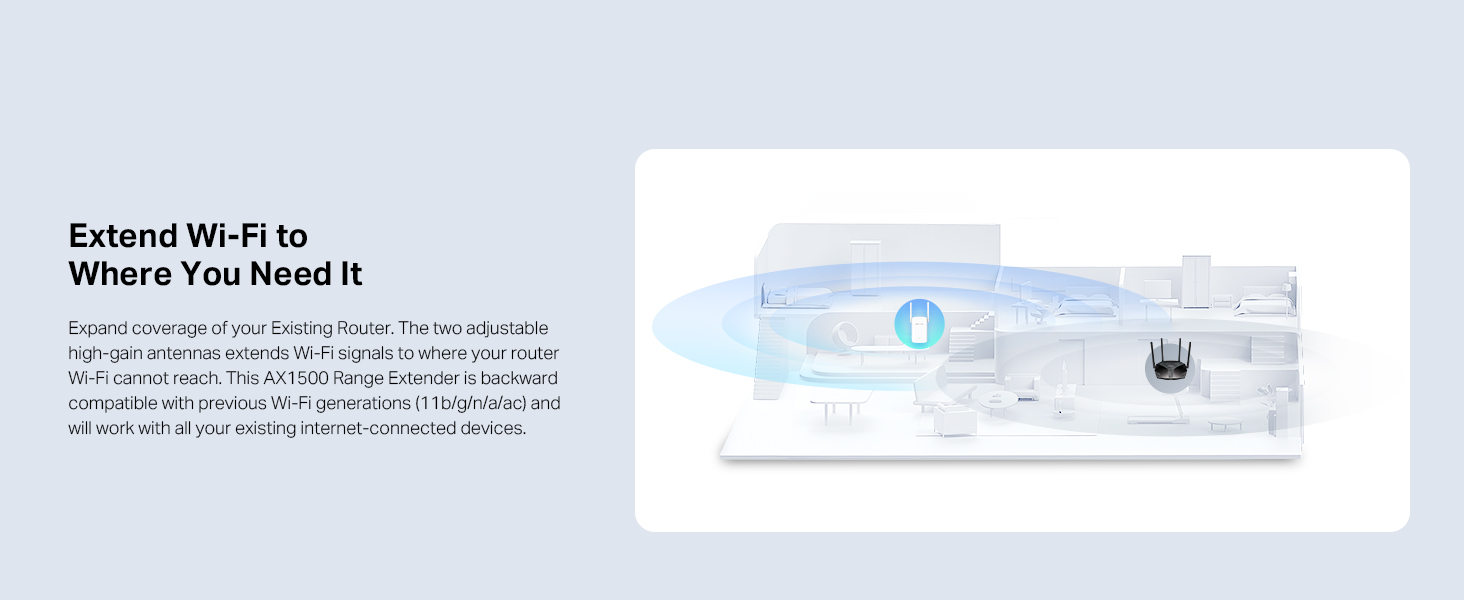
In this mode, the ME60X extends the coverage of your existing Wi-Fi network, eliminating dead zones. It connects wirelessly to your main router and rebroadcasts the signal.
This illustration demonstrates how the ME60X expands the Wi-Fi signal from an existing router to reach areas that previously had no or weak signal, effectively eliminating dead zones.
Access Point Mode
The ME60X can also function as a dual-band Wi-Fi access point. Connect it to your wired internet connection (e.g., from a router or modem) via an Ethernet cable to create a new Wi-Fi network.
- Connect the ME60X to your router's LAN port using an Ethernet cable.
- Configure the ME60X to Access Point mode via the MERCUSYS app or web interface.
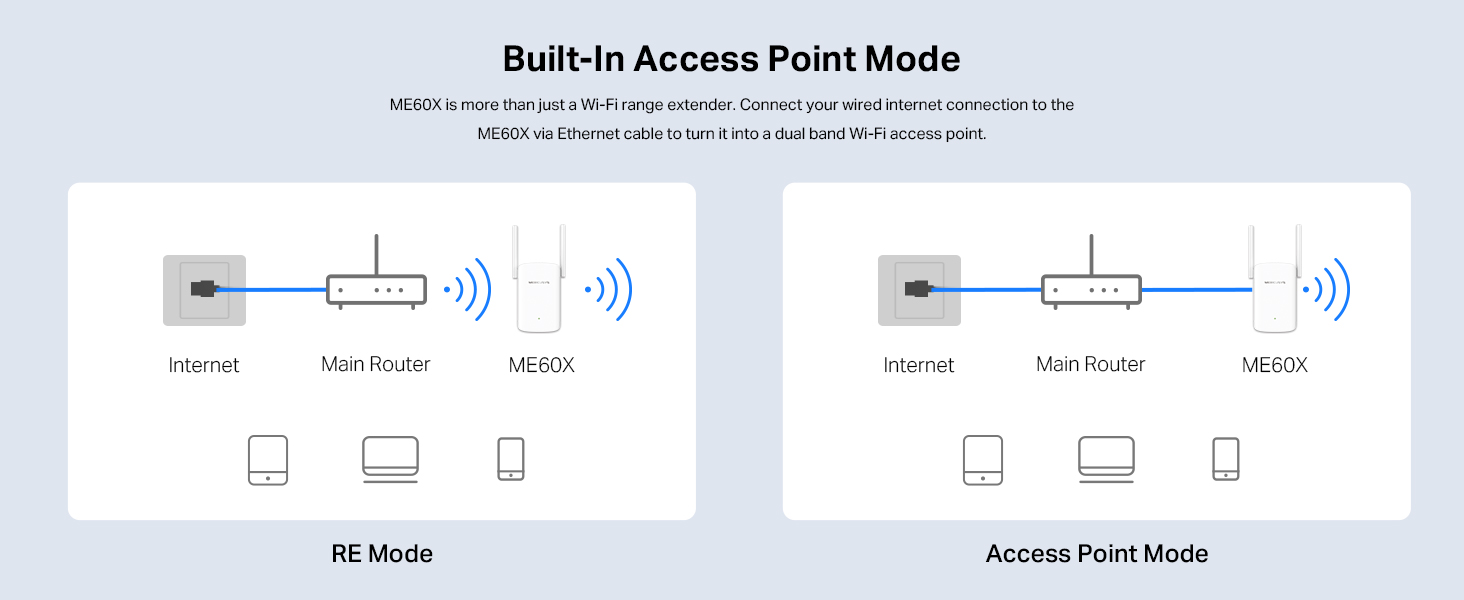
This diagram shows the ME60X in Access Point Mode, where it connects to the main router via an Ethernet cable and then broadcasts a Wi-Fi signal, providing wired internet access to wireless devices.
EasyMesh Compatibility
The ME60X is compatible with EasyMesh, allowing you to set up a whole home mesh network with a single Wi-Fi name and password. This provides flexible, scalable, and seamless Wi-Fi coverage.

This image illustrates how the ME60X, when used with EasyMesh, creates a unified Wi-Fi network throughout a home, allowing devices to seamlessly roam between the main router and the extender.
Maintenance
To ensure optimal performance and longevity of your MERCUSYS ME60X, consider the following maintenance tips:
- Keep the device in a well-ventilated area, away from direct sunlight and heat sources.
- Avoid placing the device near large metallic objects or strong electromagnetic interference.
- Regularly check for firmware updates through the MERCUSYS app or official website to ensure the latest features and security patches.
- Clean the exterior of the device with a soft, dry cloth. Do not use liquid cleaners or aerosols.
Troubleshooting
No Internet Access After Setup
Check Signal LED: Ensure the Signal LED on the ME60X is solid green. If it's red or off, the extender is too far from the router or not connected properly. Relocate it closer to the router.
Verify Router Connection: Ensure your main router is working correctly and has internet access.
Reboot Devices: Try rebooting both your router and the ME60X.
Reconfigure: If issues persist, try reconfiguring the extender using the WPS button or the MERCUSYS app.
Weak Signal or Slow Speed
Relocation: The extender might be too far from your router or too close to a dead zone. Try placing it roughly halfway between your router and the area needing coverage. The Signal LED should be solid green.
Interference: Avoid placing the extender near large electronic devices, metal objects, or thick walls that can cause interference.
Adaptive Path Selection: The ME60X features Adaptive Path Selection to automatically choose the fastest connection path to the router. Ensure this feature is enabled if configurable.
High Speed Mode: For demanding tasks like streaming or gaming, consider enabling High Speed Mode if available, which dedicates one Wi-Fi band for communication with the router and the other for client devices.
This image explains two advanced features: Adaptive Path Selection, which optimizes the connection path between the extender and the router, and High Speed Mode, which dedicates Wi-Fi bands for improved performance, ideal for HD streaming and gaming.
Cannot Connect to Extender's Wi-Fi
Correct Password: Ensure you are entering the correct Wi-Fi password for the extended network. By default, it's the same as your main router's password unless changed during setup.
Reset: If you forget the password or encounter persistent connection issues, perform a factory reset by pressing and holding the Reset button on the ME60X for about 5 seconds until the LEDs flash. Then, reconfigure the device.
Specifications
| Feature | Value |
|---|---|
| Brand | MERCUSYS |
| Product Dimensions | 8.47 x 7.63 x 11.2 cm; 190 g |
| Item model number | ME60X |
| Manufacturer | Mercusys |
| Series | ME60X |
| Colour | white |
| Wireless Type | 802.11a |
| Item Weight | 190 g |
| Guaranteed software updates until | unknown |
| ASIN | B0CTQWQCXW |
| Customer Reviews | 4.2 out of 5 stars (9,336 ratings) |
| Best Sellers Rank | 4,342 in Computers & Accessories; 43 in Network Repeaters |
| Date First Available | 1 Feb. 2024 |
| Wireless communication standard | 802.11a |
| Data transfer rate | 300 Megabits Per Second |
| Frequency band class | Dual-Band |
| Special feature | Dual Band, Access Point Mode |
Warranty and Support
The MERCUSYS ME60X comes with a standard manufacturer's warranty. For detailed warranty information, please refer to the warranty card included in the product packaging or visit the official MERCUSYS website.
For technical support, firmware updates, and frequently asked questions, please visit the MERCUSYS support page: MERCUSYS Support.
You can also find additional resources and community forums on the MERCUSYS website.