1. Introduction
This manual provides essential information for setting up, operating, and maintaining your Beelink SER5 MAX Mini PC. The Beelink SER5 MAX is a compact desktop computer powered by an AMD Ryzen 7 6800U processor, designed for various applications including office work, home entertainment, graphic design, and light gaming. It features high-speed memory, ample storage, and extensive connectivity options to enhance your productivity and multimedia experience.

Image: Overview of the Beelink SER5 MAX Mini PC, showcasing its compact design and key features.
2. What's in the Box
Please check the contents of your package to ensure all items are present:
- 1 x SER5 MAX 6800U Mini PC
- 1 x HDMI Cable (100CM)
- 1 x Power Adapter
- 1 x User Manual
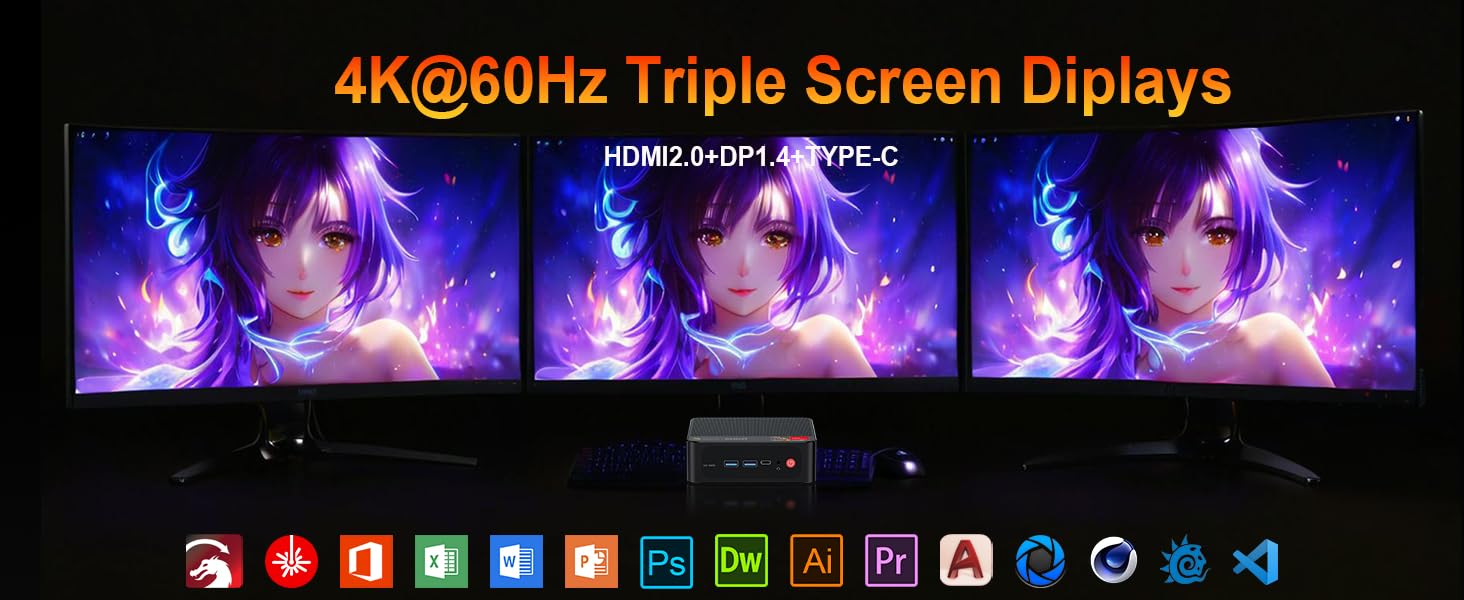
Image: Contents included in the Beelink SER5 MAX Mini PC package, showing the mini PC, power adapter, HDMI cable, and user manual.
3. Product Features
The Beelink SER5 MAX Mini PC is equipped with advanced components for optimal performance:
- Processor: AMD Ryzen 7 6800U (8 Cores/16 Threads, up to 4.7GHz, 16MB L3 Cache, 28W TDP).
- Graphics: Integrated AMD Radeon RDNA 2 Graphics (12 Cores, 2200MHz).
- Memory: 24GB LPDDR5 6300MHz RAM (2x12GB, non-replaceable).
- Storage: 500GB M.2 2280 PCIe 4x4 SSD. Supports dual SSDs up to 8TB total (Max 4TB each SSD).
- Display Output: Supports 4K@60Hz Triple Display via DP1.4, HDMI 2.0, and Type-C.
- Wireless Connectivity: WiFi 6 (802.11ax) for speeds up to 1200Mbps, Bluetooth 5.2.
- Wired Connectivity: Gigabit Ethernet (RJ45 1000Mbps LAN).
- Ports:
- 3 x USB 3.2 Gen2 Type-A (10Gbps)
- 1 x USB 2.0 Type-A
- 1 x Type-C (Data & Video Output)
- 1 x HDMI 2.0
- 1 x DisplayPort (DP1.4)
- 1 x DC Jack (Power Input)
- 1 x 3.5mm Audio Jack (HP&MIC)
- 1 x CLR CMOS Reset button
- Cooling System: MSC2.0 Cooling System with heat pipe, heat sink, and silent fan.
- Dimensions: 4.9 x 4.4 x 1.6 inches (126 x 113 x 42 mm).

Image: Front and rear view of the Beelink SER5 MAX Mini PC, highlighting its various connectivity ports.

Image: A Beelink SER5 MAX Mini PC connected to three monitors, demonstrating its triple display capability for multitasking.
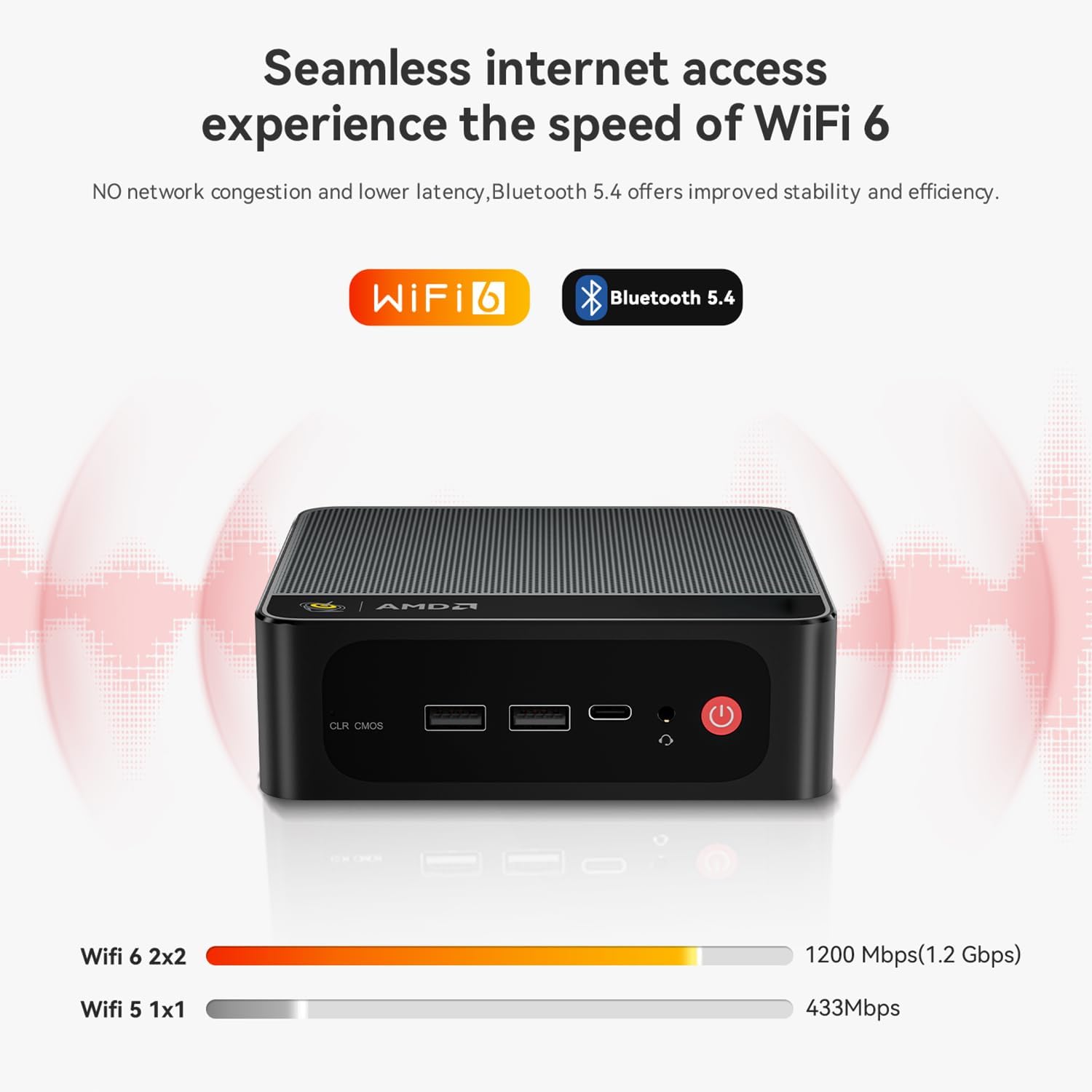
Image: Diagram illustrating the efficient MSC2.0 cooling system of the Beelink SER5 MAX, featuring a heat pipe, heat sink, and silent fan.
Product Video Overview
Video: An official overview of the Beelink SER5 MAX 6800U Mini PC, highlighting its design, features, and performance capabilities.
4. Setup Guide
Follow these steps to set up your Beelink SER5 MAX Mini PC:
- Connect Peripherals: Connect your monitor(s) using the HDMI, DisplayPort, or Type-C ports. Connect your keyboard and mouse to the available USB ports.
- Connect Power: Plug the power adapter into the DC Jack on the back of the Mini PC, then plug the adapter into a power outlet.
- Power On: Press the power button located on the front of the Mini PC. The system will boot up.
- Initial Setup: Follow the on-screen instructions to complete the Windows 11 Pro initial setup, including language, region, network connection, and user account creation.
- Network Connection: For wired internet, connect an Ethernet cable to the LAN port. For wireless internet, select your Wi-Fi network during setup or via Windows settings.
5. Operating Instructions
Your Beelink SER5 MAX Mini PC comes pre-installed with Windows 11 Pro, offering a familiar and intuitive operating environment.
- Basic Usage: Navigate the Windows interface using your mouse and keyboard. Launch applications from the Start Menu or desktop shortcuts.
- Triple Display Setup: To utilize multiple monitors, connect them to the available HDMI, DisplayPort, and Type-C video outputs. Windows will automatically detect the displays. You can configure display settings (e.g., extend, duplicate) via Settings > System > Display.
- Connecting Bluetooth Devices: To pair Bluetooth devices (e.g., headphones, speakers), go to Settings > Bluetooth & devices, turn on Bluetooth, and select 'Add device'.
- USB 3.2 Gen2: Utilize the high-speed USB 3.2 Gen2 ports for fast data transfer with compatible external storage devices. The Type-C port also supports data and video output.
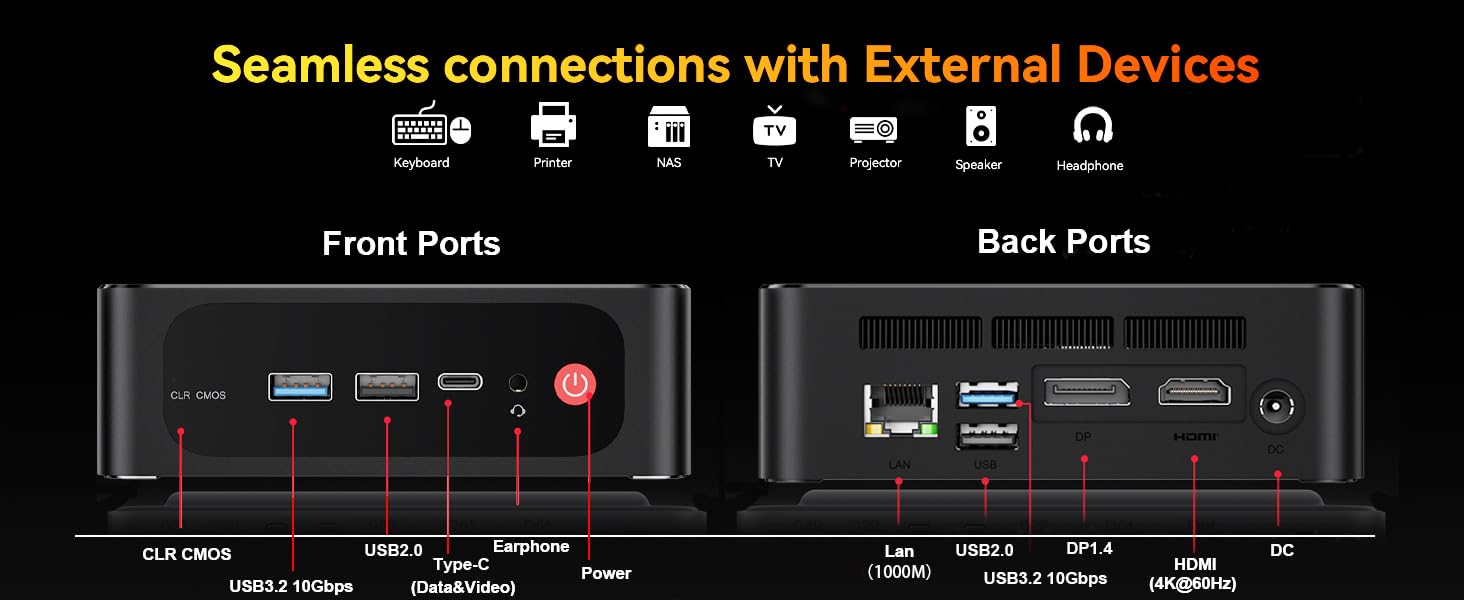
Image: The Beelink SER5 MAX Mini PC running multiple productivity applications simultaneously, demonstrating its multitasking capabilities.
6. Maintenance
Proper maintenance ensures the longevity and optimal performance of your Mini PC:
- Cleaning: Regularly clean the exterior of the Mini PC with a soft, dry cloth. Use compressed air to clear dust from the ventilation grilles to maintain efficient cooling.
- Ventilation: Ensure the Mini PC is placed in a well-ventilated area, away from direct sunlight or heat sources. Do not block the air vents.
- Storage Upgrade: The Mini PC supports dual M.2 2280 PCIe 4x4 SSDs. To upgrade or add storage, carefully open the chassis and install the new SSD. Refer to the detailed instructions provided with your device for specific steps.
- Software Updates: Keep your Windows operating system and drivers updated to ensure security and performance.

Image: Internal view of the Beelink SER5 MAX Mini PC, showing the dual M.2 2280 PCIe 4.0 SSD slots for storage expansion.
7. Troubleshooting
If you encounter issues with your Beelink SER5 MAX Mini PC, refer to the following common solutions:
- No Power:
- Ensure the power adapter is securely connected to both the Mini PC and a working power outlet.
- Verify the power outlet is functional by plugging in another device.
- No Display:
- Check all video cable connections (HDMI, DP, Type-C) between the Mini PC and the monitor(s).
- Ensure the monitor is powered on and set to the correct input source.
- Try connecting to a different monitor or using a different video cable.
- No Internet Connection:
- For Wi-Fi, check if Wi-Fi is enabled in Windows settings and if you are connected to the correct network.
- For wired connection, ensure the Ethernet cable is properly connected and your router is working.
- Restart your router and modem.
- System Slowdown:
- Close unnecessary applications running in the background.
- Check for and install any pending Windows updates.
- Ensure adequate ventilation to prevent overheating.
- CLR CMOS Reset: If the system experiences boot issues or incorrect settings, locate the CLR CMOS button (often a small pinhole) on the front panel and press it with a paperclip for a few seconds while the device is off. This will reset BIOS settings to default.
8. Specifications
Detailed technical specifications for the Beelink SER5 MAX Mini PC:
| Component | Specification |
|---|---|
| Processor | AMD Ryzen 7 6800U (8C/16T, 2.7GHz base, up to 4.7GHz boost) |
| Graphics | AMD Radeon 680M (12 cores, 2200MHz) |
| RAM | 24GB LPDDR5 6300MHz (2x12GB SODIMM) |
| Storage | 500GB M.2 2280 PCIe 4x4 SSD (Expandable up to 8TB total) |
| Operating System | Windows 11 Pro |
| Wireless Connectivity | WiFi 6 (802.11ax), Bluetooth 5.2 |
| Wired Connectivity | Gigabit Ethernet (RJ45 1000Mbps LAN) |
| Video Output | 1x HDMI 2.0 (4K@60Hz), 1x DisplayPort 1.4 (4K@144Hz), 1x Type-C (4K@120Hz) |
| USB Ports | 3x USB 3.2 Gen2 Type-A, 1x USB 2.0 Type-A, 1x Type-C (Data&Video) |
| Audio | 1x 3.5mm Audio Jack (HP&MIC) |
| Power Input | DC Jack (19V-3.42A, 65W) |
| Dimensions | 126 x 113 x 42 mm (4.9 x 4.4 x 1.6 inches) |
| Weight | Approx. 1.94 pounds |
| Other Features | Wake On LAN, Auto Power On, CLR CMOS |

Image: A detailed table summarizing the technical specifications of the Beelink SER5 MAX Mini PC.
9. Warranty and Support
Beelink provides comprehensive support for your Mini PC:
- Lifetime Technical Support: Access to technical assistance for the lifespan of your product.
- Customer Service: 7/24 hours customer service available.
- Warranty: Please refer to your purchase documentation for specific warranty period details.
How to Contact Support:
- Log in to your Amazon account.
- Go to "Your Account".
- Navigate to "Your Orders".
- Select the Beelink SER5 MAX Mini PC and choose "Ask Product Question" to contact Beelink USA directly.

Image: Information on how to contact Beelink USA for after-sales service and support.