Introduction
The NexiGo Meeting 360 Ultra (Next Gen) is an advanced all-in-one conference camera system designed for medium to large meeting rooms. It features a multi-camera setup, a built-in operating system, 8K captured AI-powered framing, and auto-tracking capabilities to enhance your video conferencing experience.
Key Features
- Multi-Camera Solution: Integrates up to four video conferencing cameras for wider area coverage.
- Built-in Operation System: Allows direct video conferencing without an external computer, supporting major apps like Zoom, Google Meet, Skype, and Microsoft Teams.
- Enhanced Audio System: Features eight omnidirectional microphones with 18ft pickup range and Hi-Fi speakers for crystal-clear bi-directional sound.
- Powerful 8K Conference Camera: Captures 360-degree panoramic views at 8K resolution, outputting 1080P images with AI-powered active speaker recognition and auto-tracking.
- Easy Setup & Wide Compatibility: Plug-and-play design compatible with Windows 7+, macOS 10.8+, and various popular platforms.
Setup Guide
Package Contents
Ensure all items are present:
- NexiGo Meeting 360 Ultra Camera
- Remote Control
- Privacy Cover
- Power Adapter
- USB Cable
Connecting Your Device
The NexiGo Meeting 360 Ultra offers multiple connection options for versatile use:

Image: NexiGo Meeting 360 Ultra camera and its remote control.
USB Connection (Webcam Mode)
For use as a webcam with your computer:
- Connect the camera to a power source using the provided power adapter.
- Connect the camera to your laptop or PC using the supplied USB cable.
- Open your preferred video conferencing application (e.g., Zoom, Skype, Microsoft Teams). The camera should be automatically recognized.

Image: Close-up of the USB-C port on the device for computer connection.
HDMI Connection (Independent Terminal)
To use the camera as a standalone video conferencing terminal:
- Connect the camera to a power source.
- Connect the camera to a TV or display screen via an HDMI cable (not included).
- The built-in operating system will launch, allowing you to install and use video conferencing apps directly from the camera's App Store.

Image: The camera connected to a television, demonstrating its built-in operating system.
LAN Connection (NexiGo Meeting Studio Control)
For advanced control and multi-camera integration:
- Connect the camera to your network using an Ethernet cable or Wi-Fi.
- Utilize the NexiGo Meeting Studio app to control the camera and manage multiple units.

Image: Close-up of the LAN port for network connectivity.
Operating Instructions
360° Panoramic View and AI Tracking
The Meeting 360 Ultra captures a complete panoramic view of your meeting space, ensuring everyone is visible. Its AI-powered framing and auto-tracking automatically focus on active speakers.

Image: Diagram illustrating the 360-degree panoramic capture capability of the camera in a meeting setting.
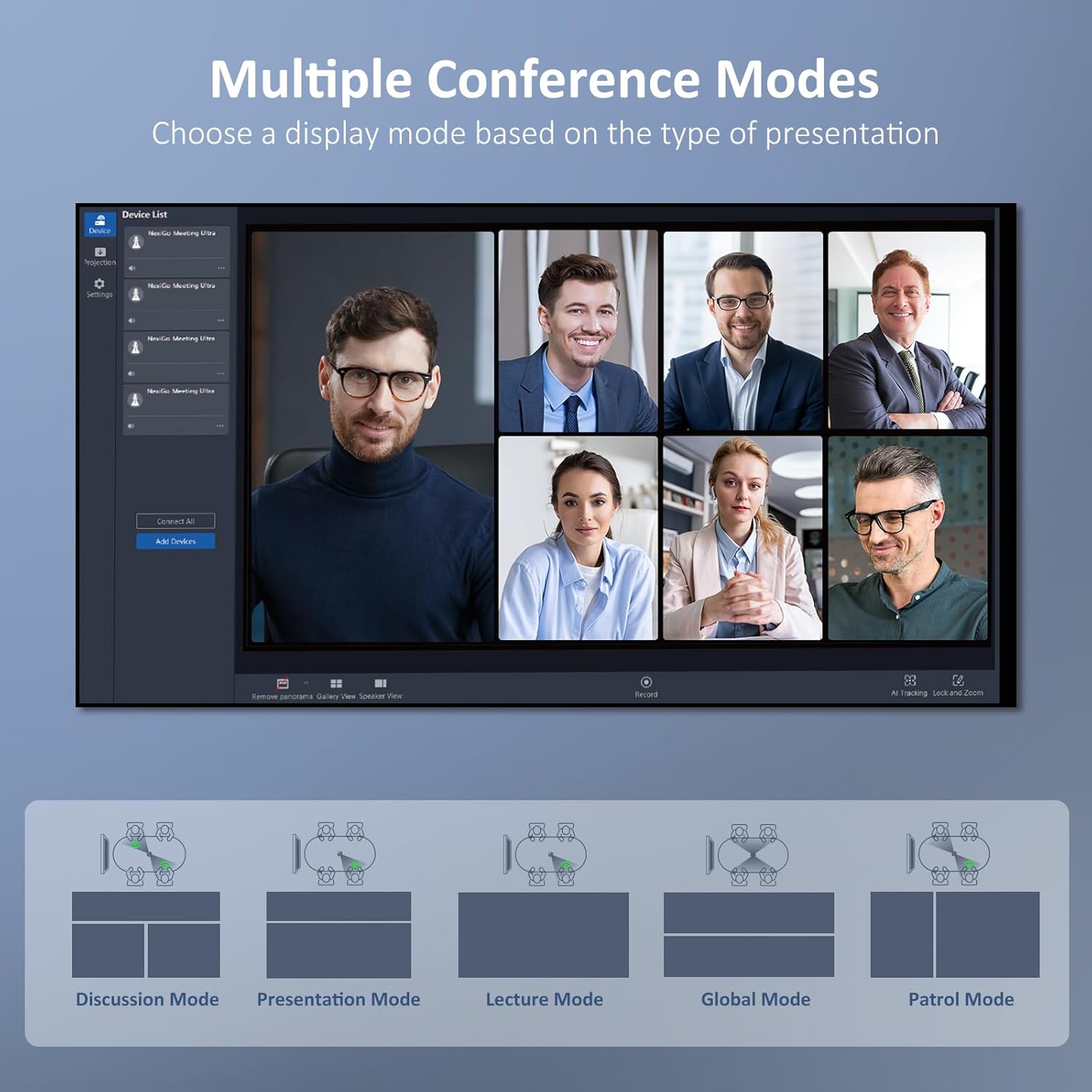
Image: A video conference screen showing the AI active-speaker tracking feature, highlighting the current speaker.
Conference Modes
Switch between various conference modes to optimize the view for different presentation types and meeting dynamics:
- Discussion Mode: Ideal for interactive discussions.
- Presentation Mode: Focuses on the presenter.
- Lecture Mode: Suitable for lecture hall environments.
- Global Mode: Provides an overview of all participants.
- Patrol Mode: Cycles through participants.

Image: Visual representation of different conference display modes available, such as Discussion, Presentation, Lecture, Global, and Patrol Mode.
Using the NexiGo Meeting Studio App
The NexiGo Meeting Studio app provides advanced control over your camera system, especially when integrating multiple units. It allows you to fine-tune camera positions and manage synchronized audio across devices.
Video: An overview of the NexiGo Meeting 360 Ultra, demonstrating its 360-degree panoramic view, multi-camera ecosystem, synchronized audio, and the NexiGo Meeting Studio app for fine-tuning camera positions and switching conference modes.
Maintenance
To ensure the longevity and optimal performance of your NexiGo Meeting 360 Ultra, follow these maintenance guidelines:
- Cleaning: Use a soft, dry cloth to clean the camera body. For the lenses, use a specialized lens cleaning cloth and solution. Avoid abrasive cleaners or solvents.
- Storage: When not in use, store the camera in a cool, dry place, away from direct sunlight and extreme temperatures. Use the provided privacy cover to protect the lenses.
- Handling: Handle the device with care. Avoid dropping or subjecting it to strong impacts.
- Ventilation: Ensure the ventilation holes are not blocked during operation to prevent overheating.
Troubleshooting
If you encounter issues with your NexiGo Meeting 360 Ultra, refer to the following common problems and solutions:
| Problem | Possible Cause | Solution |
|---|---|---|
| Camera not recognized by computer. | Loose USB connection, outdated drivers, incompatible USB port. | Ensure USB cable is securely connected. Try a different USB port. Update your computer's USB drivers. Restart your computer. |
| No audio pickup or distorted sound. | Microphones muted, incorrect audio settings in software, environmental noise. | Check the mute button on the camera. Verify audio input/output settings in your conferencing software. Reduce background noise. |
| Video quality is poor or blurry. | Dirty lens, insufficient lighting, network bandwidth issues. | Clean the camera lens. Ensure adequate lighting in the room. Check your internet connection speed. |
| Remote control not responding. | Low battery, obstruction, out of range. | Replace remote control batteries. Ensure no obstructions between remote and camera. Operate within effective range. |
Specifications
| Feature | Detail |
|---|---|
| Product Dimensions | 2.95 x 2.95 x 11.22 inches |
| Item Weight | 3.78 pounds |
| Model Number | 766214654247 |
| Brand | NexiGo |
| Photo Sensor Technology | CMOS |
| Video Capture Resolution | 1080p, 720p, 8K |
| Video Capture Format | MP4 |
| Supported Audio Format | WAV, AAC, MP3 |
| Screen Size | 2 Inches |
| Connectivity Technology | USB |
| Color | Space Grey |
| Special Feature | Microphone Input |
| Camcorder type | Webcam |
Warranty and Support
NexiGo is committed to providing excellent customer support. For any inquiries or assistance, please refer to the following:
- Technical Support: Lifetime technical support is provided.
- Response Time: Expect quick responses within 24 hours for support inquiries.
- Returns: Products can be returned within 30 days for an exchange or refund.
- Contact: For detailed support, visit the official NexiGo website or refer to the contact information provided in your product packaging.


