
Introduction
This manual provides detailed instructions for the installation, operation, and maintenance of your MSI PRO B760-VC WiFi motherboard. Please read this manual thoroughly before beginning the installation process to ensure proper setup and to prevent any damage to the components.
The MSI PRO B760-VC WiFi motherboard supports 12th and 13th Generation Intel Core processors, offering a robust platform for personal computer builds with DDR5 memory, PCIe 4.0, M.2 storage, 2.5Gbps LAN, USB 3.2 Gen2, and Wi-Fi 5 connectivity.
Safety Information
- Always disconnect the power cord from the wall outlet before touching any component.
- Wear an electrostatic discharge (ESD) wrist strap or touch a grounded metal object to discharge static electricity before handling components.
- Handle components by their edges to avoid touching sensitive parts.
- Ensure proper ventilation within your PC case to prevent overheating.
- Refer to the CPU and cooler manufacturer's instructions for proper installation.
Package Contents
Verify that all items listed below are present in your motherboard package. If any item is damaged or missing, contact your retailer.

Image: The MSI PRO B760-VC WiFi motherboard package contents, including the motherboard, manuals, SATA cables, Wi-Fi antenna, M.2 screws, and I/O shield.
- MSI PRO B760-VC WiFi Motherboard
- Quick Installation Guide
- European Union Regulatory Notice
- SATA Cables
- Wi-Fi Antenna
- M.2 Screw/Standoff Sets
- I/O Shield
Motherboard Layout
Familiarize yourself with the various components and connectors on the motherboard before installation.

Image: Top-down view of the MSI PRO B760-VC WiFi motherboard, showing the CPU socket, DIMM slots, PCIe slots, and various headers.
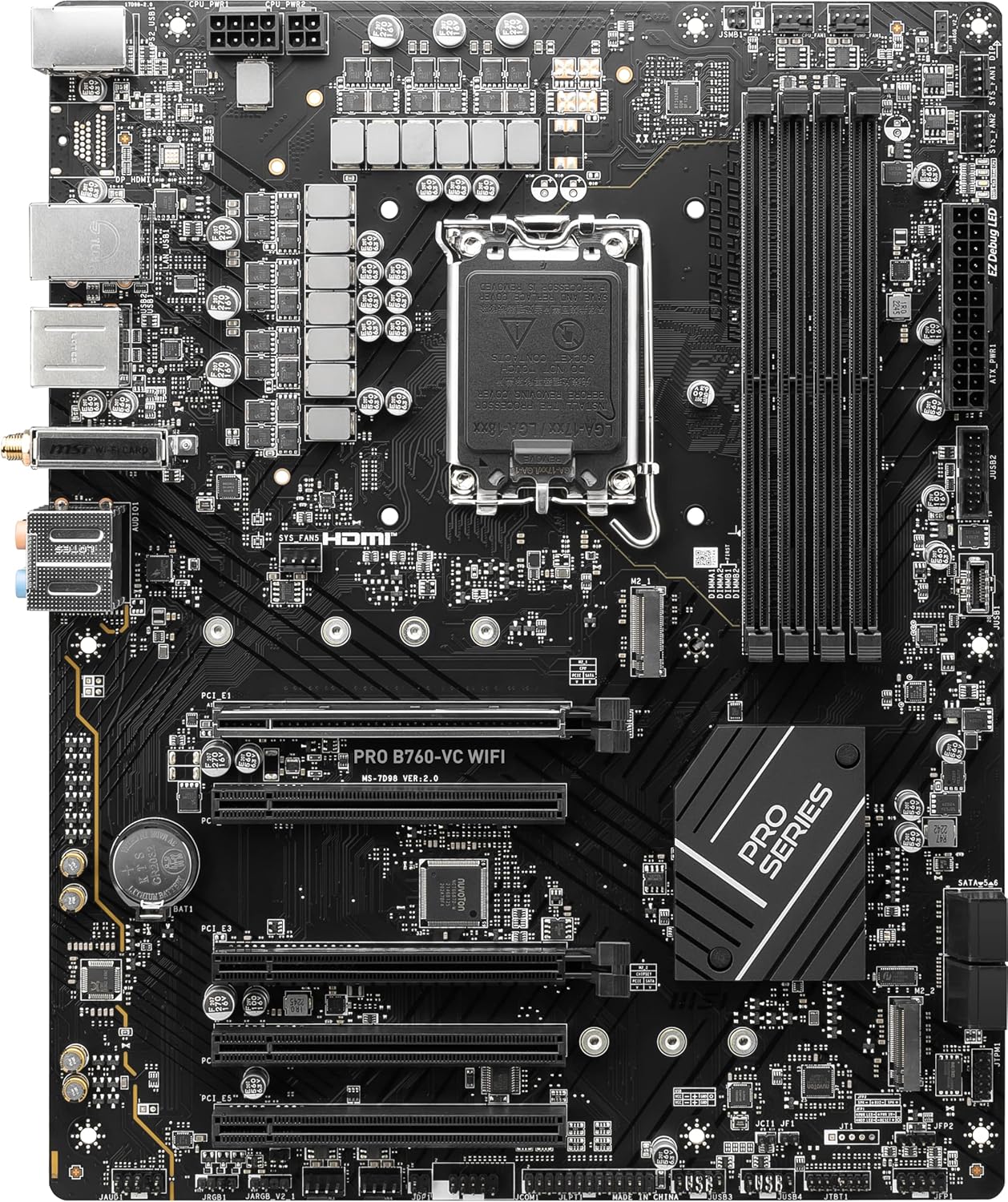
Image: Angled view of the MSI PRO B760-VC WiFi motherboard, highlighting the VRM heatsinks and I/O area.

Image: Close-up view of the rear I/O panel, showing USB ports, LAN port, Wi-Fi antenna connectors, audio jacks, and video output ports.
Key Components:
- LGA 1700 CPU Socket: For Intel 12th/13th Gen Processors.
- DDR5 DIMM Slots: For system memory modules.
- PCIe 4.0 x16 Slots: For graphics cards and expansion cards.
- M.2 Slots: For NVMe SSDs.
- SATA 6Gb/s Ports: For traditional SATA storage devices.
- 2.5Gbps LAN Port: For high-speed wired network connectivity.
- USB 3.2 Gen2 Ports: For high-speed USB devices.
- Wi-Fi 5 Module: For wireless network connectivity.
Setup and Installation
Follow these steps carefully to install your motherboard and other components.
1. CPU Installation
- Open the CPU socket lever.
- Carefully align the CPU with the socket, ensuring the triangular mark on the CPU matches the mark on the socket.
- Gently place the CPU into the socket without forcing it.
- Close the socket lever to secure the CPU.
- Install the CPU cooler according to its manufacturer's instructions.
2. RAM (DDR5) Installation
- Open the clips on both ends of the DIMM slots.
- Align the notch on the DDR5 memory module with the notch in the DIMM slot.
- Press down firmly on both ends of the memory module until the clips snap into place.
3. M.2 SSD Installation
- Locate the M.2 slot(s) on the motherboard.
- Remove the M.2 standoff screw from the desired slot.
- Insert the M.2 SSD into the slot at an angle.
- Gently push down the M.2 SSD and secure it with the standoff screw.
4. Graphics Card (PCIe) Installation
- Open the latch on the PCIe x16 slot.
- Align the graphics card with the slot and press down firmly until it clicks into place.
- Secure the graphics card to the PC case with a screw.
- Connect the necessary PCIe power cables from your power supply to the graphics card.
5. Power Supply Connections
- Connect the 24-pin ATX main power connector to the motherboard.
- Connect the 8-pin (or 4+4 pin) CPU power connector to the motherboard.
- Connect SATA power cables to your storage devices.
6. Front Panel Connections
Connect the front panel headers (power button, reset button, HDD LED, power LED, USB ports, audio jacks) to their corresponding pins on the motherboard. Refer to the motherboard manual for exact pin layouts.
7. Wi-Fi Antenna Installation
Screw the included Wi-Fi antenna onto the connectors on the rear I/O panel for wireless connectivity.
Operating Instructions
1. Initial Boot and BIOS/UEFI Setup
- After assembling your PC, connect a monitor, keyboard, and mouse.
- Power on your system. During startup, repeatedly press the DEL key to enter the BIOS/UEFI setup utility.
- In the BIOS/UEFI, you can configure boot order, enable/disable features, and monitor system status.
- Save changes and exit the BIOS/UEFI to continue with operating system installation.
2. Operating System Installation
Insert your operating system installation media (USB drive or DVD) and follow the on-screen instructions to install your preferred OS (e.g., Windows 10/11).
3. Driver Installation
After OS installation, install the necessary drivers for your motherboard components. These can typically be found on the MSI support website for your specific model. Key drivers include:
- Chipset Drivers
- LAN Drivers
- Wi-Fi Drivers
- Audio Drivers
- Graphics Drivers (for integrated graphics or discrete GPU)
Maintenance
- BIOS/UEFI Updates: Periodically check the MSI website for BIOS/UEFI updates. Updates can improve stability, compatibility, and performance. Follow MSI's instructions carefully when updating the BIOS/UEFI.
- Cleaning: Regularly clean dust from your PC case and motherboard components using compressed air. Ensure the system is powered off and unplugged before cleaning.
- Driver Updates: Keep your drivers updated to ensure optimal performance and compatibility.
Troubleshooting
If you encounter issues, refer to the following common troubleshooting steps:
- No Power:
- Check all power connections (24-pin ATX, 8-pin CPU, GPU power).
- Ensure the power supply switch is in the ON position.
- Test the power supply with another system or a power supply tester.
- No Display:
- Ensure the monitor is connected to the correct video output (either motherboard or discrete GPU).
- Reseat the graphics card and RAM modules.
- Try booting with only one RAM stick.
- System Instability/Crashes:
- Check CPU and GPU temperatures.
- Run memory diagnostic tools to check RAM integrity.
- Ensure all drivers are correctly installed and updated.
- Verify power supply wattage is sufficient for all components.
- Network Connectivity Issues:
- For wired LAN, check the Ethernet cable and ensure LAN drivers are installed.
- For Wi-Fi, ensure the antenna is securely attached and Wi-Fi drivers are installed.
- Check router settings and network configuration.
Specifications
Below are the key specifications for the MSI PRO B760-VC WiFi Motherboard:
| Feature | Specification |
|---|---|
| Brand | MSI |
| Model Name | PRO B760-VC WiFi |
| CPU Socket | LGA 1700 |
| Compatible Processors | Intel 12th Gen, Intel 13th Gen |
| Chipset Type | Intel B760 |
| RAM Memory Technology | DDR5 |
| Memory Storage Capacity (Max) | 64 GB |
| Main Power Connector Type | 24-Pin |
| Product Dimensions | 12 x 9.6 x 2.5 inches (ATX Form Factor) |
| Item Weight | 2.25 pounds |
| Platform | Windows 10 (Compatible with Windows 11) |
Warranty Information
This product is covered by a manufacturer's warranty. For detailed warranty terms and conditions, please refer to the warranty card included in your product package or visit the official MSI website. Keep your proof of purchase for warranty claims.
Note: This specific product is listed as "Renewed." Warranty terms for renewed products may differ from new products. Please consult your retailer or the Amazon Renewed program for specific warranty details regarding renewed items.
Support
For further assistance, technical support, driver downloads, or BIOS updates, please visit the official MSI support website:
You can also contact your retailer for product-related inquiries.


