
Introduction
This manual provides comprehensive instructions for the KICKDOT JC300 Switch Controllers, designed for use with Nintendo Switch and Switch OLED consoles. These controllers feature Hall effect joysticks for precise control, dual vibration motors, adjustable turbo functions, and an ergonomic design for extended gaming comfort. Please read this manual thoroughly before use to ensure proper operation and to maximize your gaming experience.
The KICKDOT JC300 controller is a wired accessory, offering zero-lag connectivity by directly integrating with your console via the USB-C interface. It does not require a separate battery or charging, drawing power directly from the connected Nintendo Switch console.
Product Overview
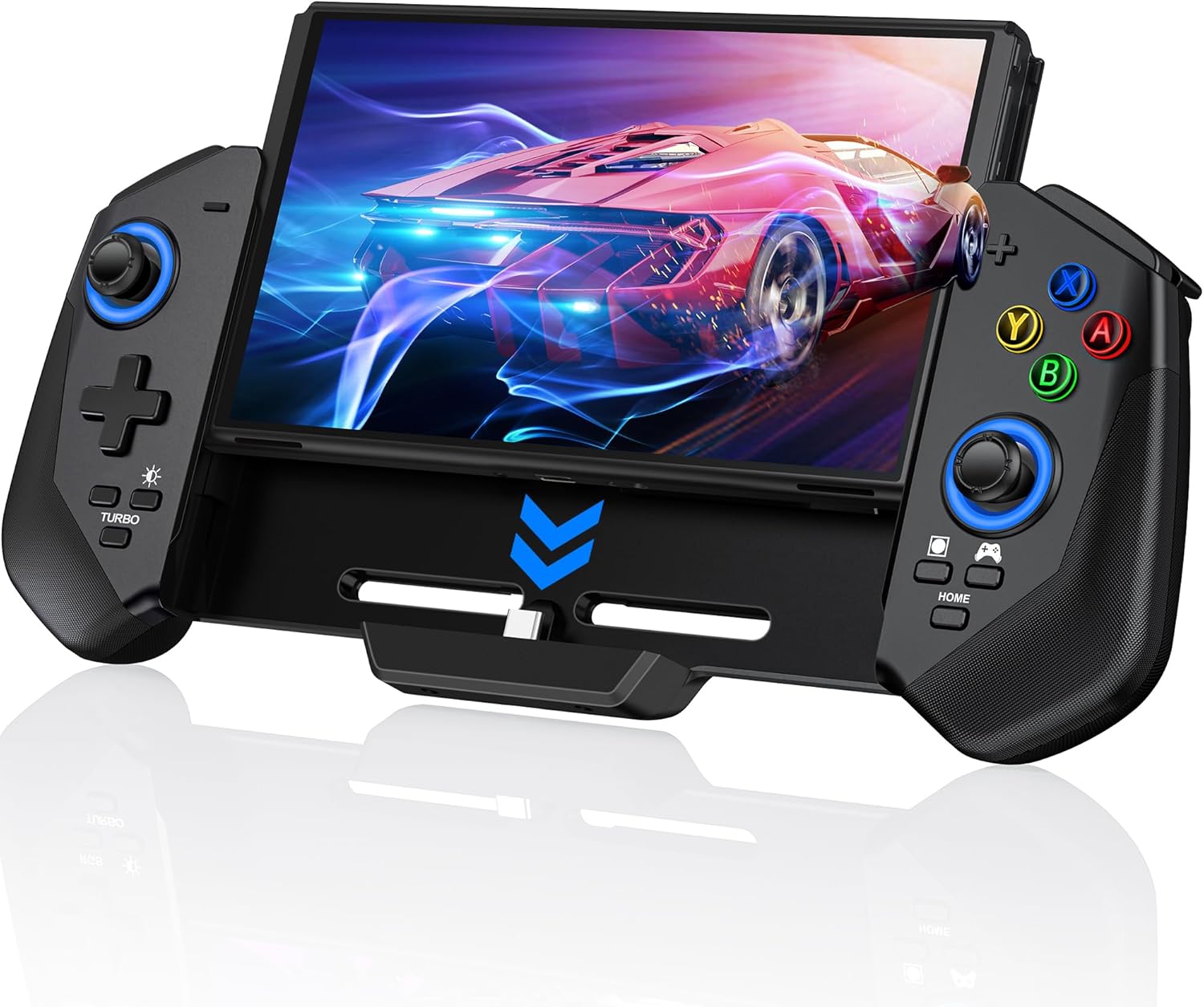
Figure 1: KICKDOT JC300 Switch Controller with Nintendo Switch console.
This image displays the KICKDOT JC300 controller in its full form, attached to a Nintendo Switch console. The controller features ergonomic grips on both sides, with joysticks and buttons illuminated by customizable RGB lighting. The central part of the controller securely holds the Switch console, providing a unified handheld gaming experience.

Figure 2: Compatibility with Nintendo Switch and Switch OLED.
This image visually confirms the KICKDOT JC300 controller's compatibility with both the standard Nintendo Switch and the Nintendo Switch OLED models. It shows how each console type fits into the controller, emphasizing the versatile design.
Key Features:
- Hall Joystick: Provides ultra-precise control with no drift or dead zones.
- 6-Axis Gyro Motion Control: Enhances precision and ease of operation in games.
- Dual Vibration Motors: Offers 4 adjustable levels (Strong/Medium/Weak/None) for immersive feedback.
- Adjustable Turbo Function: A/B/X/Y/L/ZL/R/ZR buttons can be set to auto/manual turbo (5/12/20 shots/s).
- Wired Connection: Zero-lag connectivity via USB-C interface.
- Ergonomic Design: Comfortable grip for prolonged gaming sessions.
- Game Card Slots: Four integrated slots on the back for convenient game storage.
- Screenshot/Recording Function: Dedicated button for capturing gameplay moments.
- Customizable LED Lighting: Rainbow and six single-color LED modes for aesthetic customization.
Setup Instructions
Follow these steps to connect your KICKDOT JC300 controller to your Nintendo Switch/OLED console:
- Enable Pro Controller Wired Communication:
- Step 1: On your Nintendo Switch console, navigate to "System Settings".
- Step 2: Scroll down and select "Controllers and Sensors".
- Step 3: Find and enable the option "Pro Controller Wired Communication". This ensures the console recognizes the wired connection.
- Insert Console: Gently slide your Nintendo Switch or Switch OLED console into the top of the KICKDOT JC300 controller until it securely connects via the USB-C interface at the bottom. Ensure the console is properly aligned and seated.
- Power On: Turn on your Nintendo Switch console. The controller will draw power directly from the console and should be ready for use.

Figure 3: Connection Method for KICKDOT JC300 Controller.
This diagram illustrates the three key steps for connecting the KICKDOT JC300 controller: navigating to System Settings, enabling Pro Controller Wired Communication, and finally, sliding the Nintendo Switch console into the controller's USB-C interface. A note reminds users that the controller does not have a battery and cannot wake a sleeping NS console.
Note: The controller does not have an internal battery. It operates solely via wired connection and draws power from the Nintendo Switch console. It cannot wake up a sleeping console; you must manually turn on the console first.
Operating Instructions
Hall Joystick
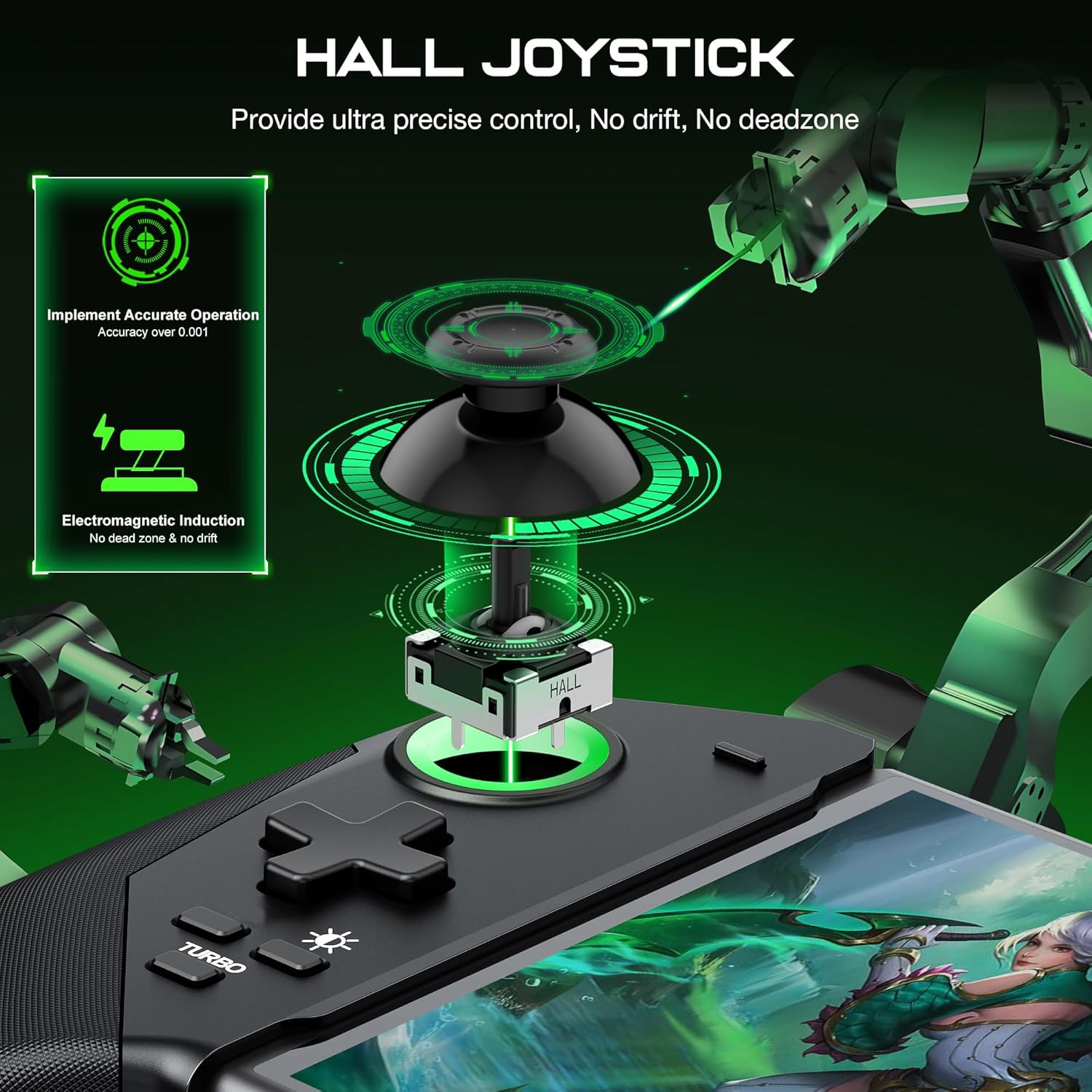
Figure 4: Hall Joystick Technology.
The Hall Joystick utilizes electromagnetic induction for ultra-precise control, eliminating common issues like drift and dead zones. This technology ensures accurate operation with accuracy over 0.001, providing a smooth and responsive gaming experience.
The Hall effect joysticks provide superior precision and durability compared to traditional joysticks. This technology prevents joystick drift and ensures accurate input for enhanced gameplay.
6-Axis Gyro Motion Control & Dual Vibration Motors

Figure 5: Gyro and Vibration Features.
This image highlights the 6-axis gyro sensor, which provides super sensitive and precise motion control for an immersive gaming experience. It also details the dual vibration motors, offering realistic and stimulated gaming feedback with four adjustable levels: None, Weak, Moderate, and Strong.
- Motion Control: The integrated 6-axis gyro sensor allows for precise motion control in compatible games, enhancing the interactive experience.
- Vibration Adjustment: The dual vibration motors offer four levels of intensity: Strong, Medium, Weak, and None. To adjust vibration, refer to the controller's specific button combinations (usually a function button + D-pad up/down or a dedicated vibration button).
Adjustable Turbo Function

Figure 6: Adjustable Turbo Speeds.
This image illustrates the three adjustable turbo speeds available on the KICKDOT JC300 controller: 5 shots/s, 12 shots/s, and 20 shots/s. This feature allows users to free their fingers and gain an advantage in action games by automating rapid button presses.
The A/B/X/Y/L/ZL/R/ZR buttons can be set to auto or manual turbo functions. This allows for rapid, repeated button presses without continuous manual input. The available turbo speeds are 5, 12, and 20 shots per second. Consult the included user manual for specific button combinations to activate and adjust the turbo function.
Ergonomic Design & Game Card Slots

Figure 7: Ergonomic Features and Storage.
This image highlights the comfortable grip of the KICKDOT JC300 controller, designed for extended play without fatigue. It also showcases the four integrated game card slots on the back of the controller, providing convenient storage for your favorite games. Additionally, the image points out the screenshot and recording function, allowing users to capture in-game moments.
- Comfortable Grip: The controller's design ensures a comfortable hold, reducing hand fatigue during long gaming sessions.
- Game Card Storage: Four dedicated slots on the top rear of the controller allow for convenient storage of your Nintendo Switch game cards, keeping your favorite titles readily accessible.
- Screenshot/Recording: A dedicated button is available for capturing screenshots or recording gameplay footage directly to your console.
LED Lighting
The controller features customizable LED lighting around the joysticks and buttons. It supports a rainbow mode and six single-color LED modes. Refer to the included user manual for instructions on how to change the lighting modes and brightness.
Maintenance
To ensure the longevity and optimal performance of your KICKDOT JC300 controller, follow these maintenance guidelines:
- Cleaning: Use a soft, dry cloth to wipe down the controller regularly. For stubborn dirt, slightly dampen the cloth with water or a mild, non-abrasive cleaner. Avoid using harsh chemicals or abrasive materials.
- Storage: When not in use, store the controller in a cool, dry place away from direct sunlight and extreme temperatures.
- Handling: Avoid dropping the controller or subjecting it to strong impacts, as this can damage internal components.
- Connectivity Port: Keep the USB-C port clean and free of dust or debris to ensure a reliable connection.
Troubleshooting
If you encounter issues with your KICKDOT JC300 controller, please refer to the following common troubleshooting steps:
| Issue | Possible Cause | Solution |
|---|---|---|
| Controller not responding. | "Pro Controller Wired Communication" is not enabled on the Switch. | Go to Switch System Settings > Controllers and Sensors > Enable "Pro Controller Wired Communication". |
| Console not fitting securely. | Incorrect console type or improper insertion. | Ensure you are using a Nintendo Switch or Switch OLED. Slide the console firmly and correctly into the USB-C port. (Note: The controller has a buckle design. Slide down to support Switch, slide up to support OLED). |
| Joystick drift or inaccurate input. | Rare occurrence, but can happen with any controller. | The Hall joysticks are designed to prevent drift. If issues persist, ensure the console's firmware is updated. If the problem continues, contact customer support. |
| Vibration not working or too strong/weak. | Vibration settings are off or set to an undesired level. | Adjust the vibration intensity using the controller's dedicated buttons or through the Switch's system settings. |
If these steps do not resolve your issue, please contact KICKDOT customer service for further assistance.
Specifications
| Attribute | Detail |
|---|---|
| Brand | KICKDOT |
| Model Name | JC300 |
| Compatible Devices | Nintendo Switch, PC, PC/Mac (Note: PC/Mac compatibility may require specific drivers or software not covered in this manual). |
| Controller Type | Gamepad |
| Connectivity Technology | Wired |
| Package Dimensions | 11.42 x 4.76 x 2.2 inches |
| Item Weight | 11.3 ounces |
| Date First Available | January 31, 2024 |
| Manufacturer | Kickdot |
Warranty and Support
KICKDOT is committed to providing high-quality products and excellent customer service. Your KICKDOT JC300 controller comes with a standard warranty as per the terms and conditions of purchase. For any product-related issues, technical support, or warranty claims, please contact KICKDOT customer service.
Contact Information: Please refer to the packaging or the official KICKDOT website for the most up-to-date customer service contact details.
We are dedicated to ensuring your satisfaction and are always here to help.