1. Introduction
Welcome to the Canal Toys Photo Creator CLK 017 Pocket Instant Printer user manual. This guide provides essential information for the safe and effective use of your new thermal printer. Please read these instructions carefully before operating the device and retain them for future reference.
The Canal Toys Photo Creator CLK 017 is a compact, ink-free thermal printer designed for instant printing of photos, labels, and creative designs directly from your smartphone. It offers a convenient way to bring digital creations to life in black and white.
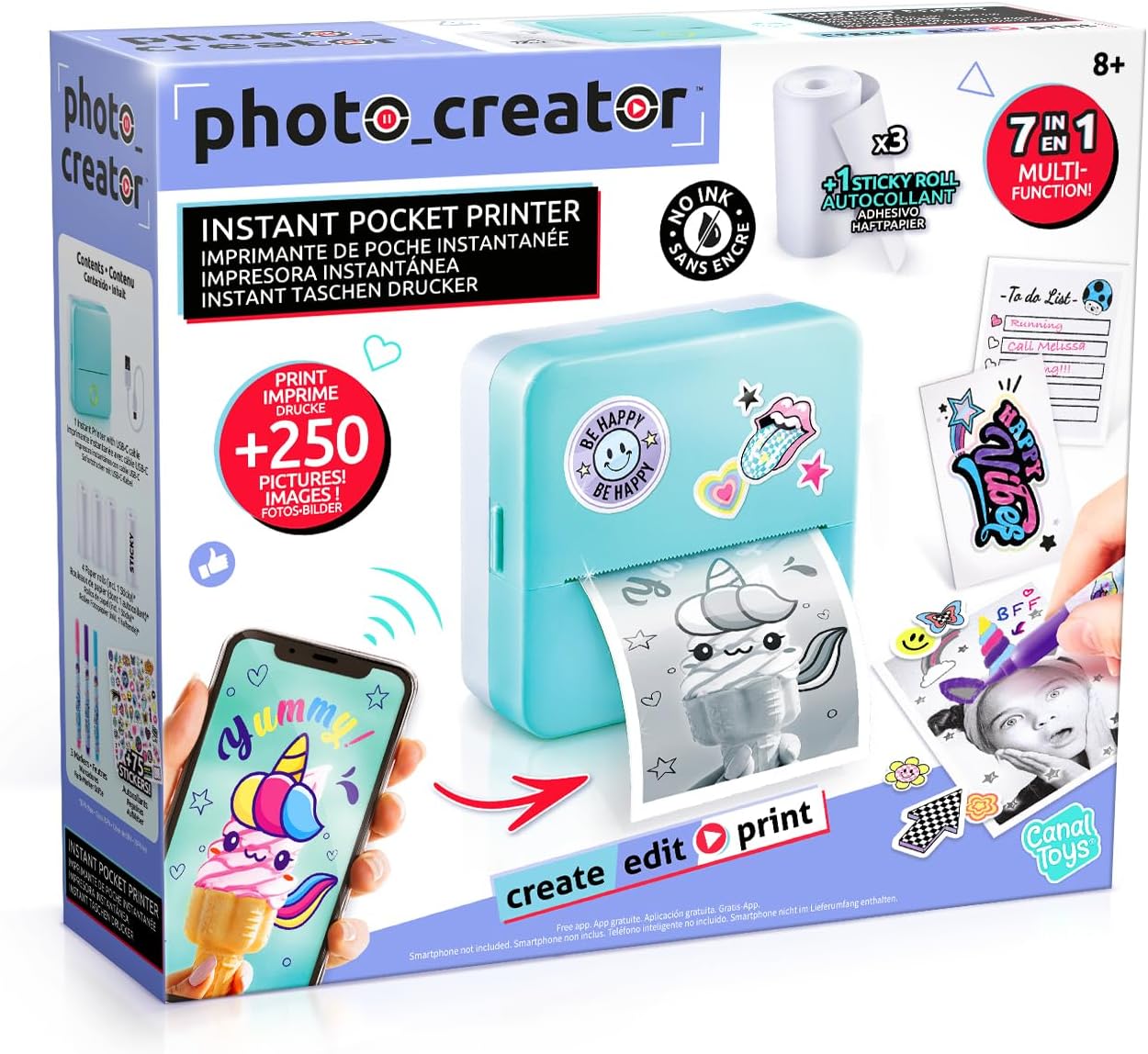
Image 1.1: Front view of the Canal Toys Photo Creator CLK 017 Pocket Instant Printer retail packaging.
2. Safety Information
WARNING!
- Not suitable for children under 8 years. To be used under adult supervision.
- Keep out of reach of children under 8 years old.
- Read the package leaflet before first use.
- WARNING! Functional cutting edges and dangerous sharp functional edges. Exercise caution during paper handling.
- Improper use of the power supply can cause electric shock. Use only the provided USB-C charging cable and a compatible power adapter (not included).
- This toy contains rechargeable batteries that are not replaceable. Do not attempt to remove or replace the battery.
- Rechargeable batteries should only be charged under adult supervision.
- Do not dispose of the product with household waste. Please use the local recycling collection points provided for electronic waste.
3. Package Contents
Verify that all items listed below are present in your package:
- 1 x Canal Toys Photo Creator CLK 017 Pocket Instant Printer
- 1 x USB-C Charging Cable
- 3 x Rolls of Thermal Paper (standard)
- 1 x Roll of Thermal Adhesive Paper (sticky)
- 3 x Felt-tip Pens
- 1 x Sheet of Stickers
- 1 x Instruction Manual

Image 3.1: All included components of the Canal Toys Photo Creator CLK 017 kit.
4. Product Overview
The CLK 017 Pocket Instant Printer utilizes thermal printing technology, eliminating the need for ink cartridges. It connects wirelessly to your smartphone via Bluetooth, allowing you to print various content through a dedicated application. The printer supports black and white output with a resolution of 200 dpi.
Key Features:
- Ink-Free Thermal Printing: Economical and mess-free printing.
- Smartphone Connectivity: Connects via Bluetooth to a dedicated app.
- Versatile Printing: Print photos, drawings, labels, to-do lists, stickers, and AI-generated images.
- High-Quality Output: 200 dpi print resolution for clear black and white images.
- BPA-Free Paper: Safe thermal paper rolls included.
- Compact and Portable: Designed for on-the-go creativity.
5. Setup
5.1 Charging the Printer
- Locate the USB-C charging port on the printer.
- Connect the provided USB-C charging cable to the printer.
- Plug the other end of the USB-C cable into a compatible USB power adapter (e.g., smartphone charger, computer USB port).
- The indicator light on the printer will show charging status (refer to the printer's specific light indicators for details, usually red for charging, green for full).
- Allow the printer to fully charge before first use.
5.2 Loading Thermal Paper
- Gently open the printer cover.
- Insert a roll of thermal paper into the paper compartment, ensuring the printing side faces the print head. The paper should feed smoothly.
- Pull a small length of paper out of the printer slot.
- Close the printer cover securely until it clicks into place.
5.3 App Download and Connection
- Download the official companion app for the Photo Creator printer from your smartphone's app store (e.g., Apple App Store for iOS, Google Play Store for Android). Search for "Photo Creator" or refer to the QR code in the included instruction manual.
- Ensure Bluetooth is enabled on your smartphone.
- Turn on the Photo Creator printer by pressing and holding the power button.
- Open the Photo Creator app on your smartphone.
- Within the app, follow the on-screen instructions to search for and connect to your printer via Bluetooth. The printer will typically appear as "CLK 017" or a similar identifier.
- Once connected, the app will indicate that the printer is ready for use.
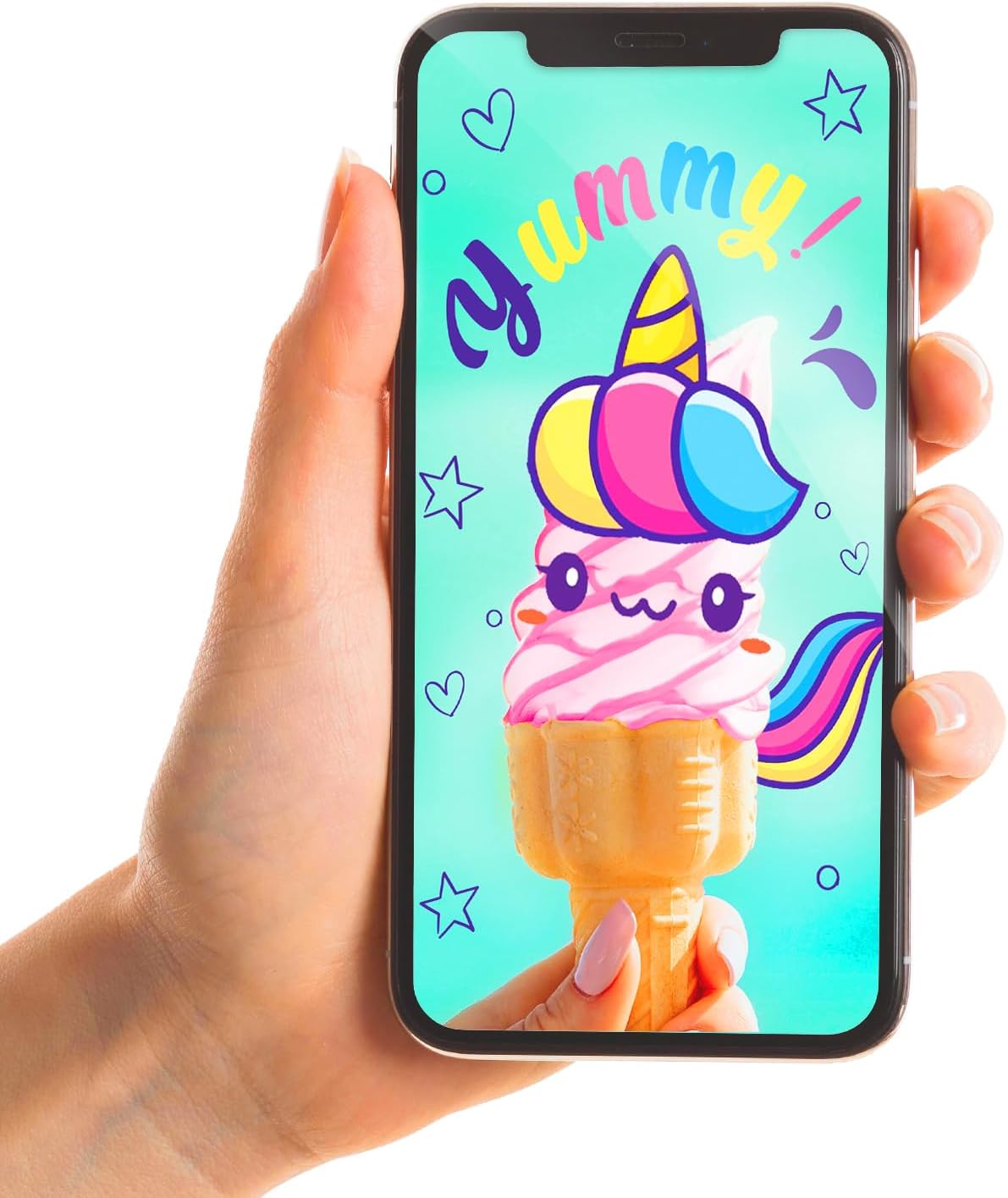
Image 5.1: The Photo Creator app interface on a smartphone, connected to the printer.
6. Operating Instructions
6.1 Printing Photos and Images
- Ensure your printer is charged and connected to the app via Bluetooth.
- Open the Photo Creator app.
- Select the desired function, such as "Photograph" to print an existing photo from your gallery, or explore other options like "AI Painter" for generating images.
- Choose the image you wish to print. The app may offer basic editing options like cropping or filters.
- Confirm your selection and tap the "Print" button within the app.
- The printer will instantly print the image in black and white.

Image 6.1: The printer in operation, producing a black and white print.
6.2 Using AI Generated Images
- Within the Photo Creator app, navigate to the "AI Painter" section.
- Enter a text description of the image you want to create.
- The app will generate an image based on your description.
- Review the generated image and proceed to print as described in Section 6.1.
6.3 Customizing Prints
After printing, you can personalize your creations using the included felt-tip pens and stickers. This allows for unique designs on photos, labels, or scrapbooking projects.

Image 6.2: Examples of customized prints and creative applications.
7. Maintenance
7.1 Cleaning the Printer
- Ensure the printer is turned off and disconnected from the charging cable before cleaning.
- Use a soft, dry cloth to wipe the exterior of the printer.
- Do not use liquid cleaners or abrasive materials, as these can damage the device.
- If the print head appears dirty or print quality degrades, gently wipe the print head with a cotton swab lightly dampened with isopropyl alcohol. Allow it to dry completely before use.
7.2 Paper Storage
- Store thermal paper rolls in a cool, dry place away from direct sunlight and excessive heat to preserve their quality and print longevity.
- Avoid touching the thermal paper surface excessively, as oils from skin can affect print quality.
8. Troubleshooting
If you encounter issues with your Photo Creator printer, refer to the following common problems and solutions:
| Problem | Possible Cause | Solution |
|---|---|---|
| Printer does not turn on | Low battery; Power button not pressed correctly | Charge the printer using the USB-C cable; Press and hold the power button for a few seconds. |
| Cannot connect to app | Bluetooth off; Printer not in pairing mode; App issue | Ensure Bluetooth is enabled on your phone; Restart printer and app; Try pairing again. |
| Poor print quality (faint, lines) | Low battery; Incorrect paper loading; Dirty print head; Faulty paper | Charge printer; Re-load paper correctly; Clean print head (see Section 7.1); Try a new roll of paper. |
| Paper jam | Improper paper loading; Foreign object | Turn off printer, open cover, carefully remove jammed paper; Ensure paper is loaded correctly. |
| Printer not responding | Software glitch; Low battery | Restart the printer and the app; Charge the printer. |
9. Specifications
Detailed technical specifications for the Canal Toys Photo Creator CLK 017 Pocket Instant Printer:
| Feature | Specification |
|---|---|
| Brand | Canal Toys |
| Model | CLK 017 |
| Printing Technology | Thermal |
| Print Resolution | 200 dpi (Monochrome) |
| Max Print Speed | 10 ppm (Monochrome) |
| Ink Color | Black (Ink-free thermal printing) |
| Connectivity | Bluetooth |
| Hardware Interface | USB Type C (for charging) |
| Compatible Devices | Smartphones (iOS and Android via app) |
| Memory Storage Capacity | 64 MB (for internal operations, not user accessible) |
| Battery Type | Lithium Ion (included, non-replaceable) |
| Product Dimensions (L x W x H) | 5 x 10 x 10 cm (approximately) |
| Item Weight | 500 g |
| Material Type | Plastic |
| Recommended Age | 8+ years |

Image 9.1: Technical parameters as displayed on the product packaging.
10. Warranty and Support
10.1 Customer Service
For any questions, technical support, or warranty inquiries regarding your Canal Toys Photo Creator CLK 017 Pocket Instant Printer, please contact Canal Toys customer service:
- Email: sav@canaltoys.fr
- Address: Canal Toys, 18, Rue Curnonsky, 75017 Paris, France
Please retain your proof of purchase for warranty claims.


