
1. Product Overview
The TASCAM BD-MP1MK2 is a professional-grade Blu-ray player designed for a wide range of high-end residential and commercial installations. It supports playback from Blu-ray/DVD/CD discs, USB flash memory, and SD cards.
Key Features:
- Multi-Format Playback: Supports Blu-ray/DVD/CD, SD Card, and USB Flash Memory.
- Power-on Play and Repeat Mode: Allows immediate content playback on power-up and continuous looping.
- Panel Lock for Secure Operation: Prevents accidental changes to settings.
- Hide Menu Function: Provides an elegant, non-distracting visual start-up.
- 7.1 Surround Sound System: Accommodates professional-grade digital audio output formats.
- Balanced and Unbalanced Outputs: Offers XLR balanced stereo analog outputs and RCA unbalanced stereo outputs.
- HDMI Output for Displays and Coaxial Digital Audio Output: Supports HDMI CEC and professional digital audio output.
2. Setup
2.1 Unpacking and Contents
Carefully unpack the BD-MP1MK2 unit and verify that all accessories are present:
- BD-MP1MK2 unit
- Power cord
- Wireless remote control (TASCAM RC-BDMP1MKII)
- AAA batteries x 2
- Rackmount screw kit
2.2 Connecting the Unit
Ensure the unit is powered off before making any connections.
- Power Connection: Connect the supplied power cord to the AC IN port on the rear panel and then to a suitable power outlet.
- HDMI Connection: Connect an HDMI cable (not included) from the HDMI OUTPUT port on the rear panel to the HDMI input on your display device (TV, projector, etc.).
- Audio Connections (Optional):
- For balanced audio, use XLR cables to connect the BALANCED (L/R) outputs to your audio system.
- For unbalanced audio, use RCA cables to connect the UNBALANCED (L/R) outputs to your audio system.
- For 7.1 surround sound, connect the 7.1CH OUT RCA ports to a compatible amplifier or receiver.
- For digital audio, connect a coaxial cable from the COAXIAL DIGITAL OUT port to your audio system.
- Network Connection (Optional): Connect an Ethernet cable to the ETHERNET port for network connectivity and remote control.
- RS-232C Connection (Optional): For external control systems, connect an RS-232C cable to the RS-232C port.
2.3 Rear Panel Connections

This image displays the rear panel of the Tascam BD-MP1MK2. Visible connections include balanced XLR audio outputs (L/R), unbalanced RCA audio outputs (L/R), 7.1 channel RCA outputs (FL, FR, SL, SR, C, SBL, SBR, SW), HDMI OUTPUT, USB port, ETHERNET port, RS-232C port, COAXIAL DIGITAL OUT, and the AC IN power input. Caution labels regarding laser product and electric shock are also present.

This diagram highlights specific features on the rear panel. It points out the 7.1 Surround Sound System outputs, the Balanced and Unbalanced Audio Outputs, and the HDMI Output for displays along with the Coaxial Digital Audio Output. Text descriptions explain that the unit accommodates professional digital audio formats, supports HDMI CEC, and offers versatile audio routing.
3. Operating Instructions
3.1 Front Panel Controls
This image shows the front panel of the Tascam BD-MP1MK2. Key features include the power button, USB port, SD card slot, disc tray, display screen, and various playback control buttons (Play, Stop, Pause, Skip, Home, Menu, Enter, directional arrows). The 'LOCK' button is also visible.

This diagram highlights the Power-on Play and Repeat Mode, Panel Lock for Secure Operation, and Fully Accessible Front Panel Control. It explains that Power-on Play auto-plays content on power-up, Repeat Mode loops content, Panel Lock prevents accidental operation, and front panel buttons provide essential playback controls with an optional locking feature.
3.2 Remote Control

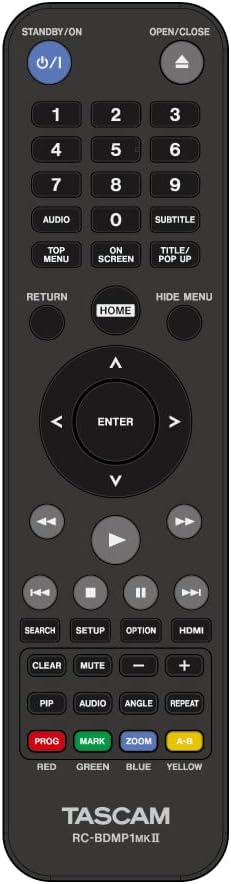
This image displays the Tascam RC-BDMP1MKII wireless remote control. It features buttons for Standby/On, Open/Close, numerical input, Audio, Subtitle, Top Menu, On Screen, Title/Pop Up, Return, Home, Hide Menu, directional navigation with Enter, playback controls (Rewind, Play, Fast Forward, Skip, Pause, Stop), Search, Setup, Option, HDMI, Clear, Mute, Volume, and colored function buttons (Red, Green, Yellow, Blue).
3.3 Media Playback
The BD-MP1MK2 supports various media types:
- Blu-ray/DVD/CD: Insert the disc into the disc tray. The unit will automatically detect and begin playback or display the disc menu.
- USB Flash Memory: Insert a USB flash drive into the front-panel USB port. The unit can play back supported audio/video files.
- SD Card: Insert an SD card into the front-panel SD card slot. The unit can play back supported audio/video files.

This graphic illustrates the versatile media playback capabilities of the BD-MP1MK2, showing icons for Blu-ray, DVD, CD, SD card, and USB flash memory. The accompanying text explains that the unit can automatically play back content in a wide range of file formats from these three front-panel media input slots, eliminating the need for discrete audio/video playback devices.
3.4 Power-on Play and Repeat Mode
The Power-on Play feature allows the BD-MP1MK2 to start playing desired content immediately upon power-up (for disc media only). With Repeat Mode activated, content will automatically loop and play continuously until power is turned off. These features are ideal for continuous playback in commercial environments.
3.5 Panel Lock and Hide Menu Function
The Panel Lock function, along with IR and tray lock features, prevents accidental operation or alteration of pre-set controls, ensuring consistent and reliable performance. The Hide Menu Function allows the monitor display to show a black screen during startup instead of standard factory menus, creating a more elegant visual environment.

This diagram visually compares a typical power-up screen with menu options (Disc, Media, Setting) to an elegant black screen power-up, which is achieved using the 'Hide Menu' function. The remote control is also shown, indicating its role in controlling this feature.
3.6 General Tascam Player Operation (Demonstration with similar model)
The following video demonstrates general operation features common to Tascam media players, including Bluetooth pairing, SD card playback, AM/FM tuner usage, USB media playback, and advanced functions like A-B repeat, panel lock, power-on play, and dubbing. While this video features the Tascam CD-400U, many of the operational principles and menu navigation are similar to the BD-MP1MK2.
This video, titled "Tascam CD-400U CD/Media Player with Integrated AM/FM Receiver," demonstrates various functions of a Tascam media player. It covers connecting and using Bluetooth, SD cards, USB drives, and the AM/FM tuner. It also shows advanced features like setting A-B repeat points, locking the front panel, enabling power-on play, and dubbing content. Although it features a different model (CD-400U), the operational concepts are broadly applicable to other Tascam players like the BD-MP1MK2.
4. Maintenance
To ensure optimal performance and longevity of your Tascam BD-MP1MK2, follow these maintenance guidelines:
- Cleaning: Regularly wipe the unit's exterior with a soft, dry cloth. Avoid using abrasive cleaners, solvents, or chemical sprays, as these can damage the finish.
- Disc Care: Handle discs by their edges to prevent fingerprints and scratches. Store discs in their cases when not in use. Clean dirty discs with a soft, lint-free cloth, wiping from the center outwards.
- Ventilation: Ensure the unit has adequate ventilation. Do not block any ventilation openings. Avoid placing the unit in enclosed spaces that can trap heat.
- Power: Disconnect the power cord from the wall outlet if the unit will not be used for an extended period.
5. Troubleshooting
If you encounter issues with your BD-MP1MK2, refer to the following common troubleshooting steps:
- No Power: Check if the power cord is securely connected to both the unit and the power outlet. Ensure the power outlet is functional.
- No Video Output: Verify that the HDMI cable is correctly connected to both the player and the display. Ensure the correct HDMI input is selected on your display device. Try a different HDMI cable.
- No Audio Output: Check all audio cable connections (HDMI, XLR, RCA, Coaxial). Ensure your audio receiver/amplifier is powered on and set to the correct input. Adjust volume levels on both the player and your audio system.
- Disc Not Playing/Reading: Ensure the disc is clean and free of scratches. Verify that the disc is inserted correctly with the label side up. Try a different disc to rule out a faulty disc.
- Remote Control Not Working: Check the batteries in the remote control and replace them if necessary. Ensure there are no obstructions between the remote and the unit's IR sensor.
- Unit Unresponsive (Panel Lock): If the front panel buttons are unresponsive, check if the Panel Lock function is active. Refer to the operating instructions to disable it.
If the issue persists after trying these steps, consult the full user manual or contact Tascam customer support.
6. Specifications
| Feature | Specification |
|---|---|
| Brand | Tascam |
| Model Name | BD-MP1MK2 |
| Media Type | Blu-Ray Disc, CD, DVD, SD card, USB flash memory |
| Special Feature | Multi-Format Playback |
| Resolution | 1920 x 1080 pixels (Video Output Resolution: 1080p) |
| Connector Type | HDMI |
| Connectivity Technology | HDMI |
| Color | black |
| Item Weight | 4.4 Kilograms |
| Audio Output Mode | Stereo, Surround Sound |
| Controller Type | Remote Control |
| File Format Support | AVI, MP4, GIF, BMP, MP3, JPEG, WAV, WMA, AAC |
| Supported Audio Format | LPCM, Dolby Digital, Dolby Digital Plus, Dolby TrueHD, DTS, DTS-HD Master Audio |
| Surround Sound Channel Configuration | 5.1 |
| Total Number of HDMI Ports | 1 |
| Video Encoding | MPEG-2, MPEG-4, H.264/AVC |
| Compatible Devices | Devices with HDMI inputs |
| Analog Video Format | NTSC |
| Number of Channels | 6 |
| Item Dimensions L x W x H | 11.05"L x 19"W x 1.73"H |
7. Warranty and Support
7.1 Warranty Information
The Tascam BD-MP1MK2 comes with a 1 Year Manufacturer Warranty. Please retain your proof of purchase for warranty claims.
7.2 Customer Support
For technical assistance, troubleshooting beyond this manual, or warranty service, please visit the official Tascam website or contact their customer support directly. Refer to the contact information provided in your product packaging or on the Tascam website.


