
1. Introduction
The XHDATA D608WB is a versatile portable emergency radio designed for various situations, from daily use to outdoor adventures and critical emergencies. It integrates multiple functions including FM/MW/SW radio reception, a powerful 3000mAh rechargeable battery for charging mobile devices, Bluetooth connectivity, TF card playback, a multi-mode flashlight, a reading lamp, and an SOS alarm.
This manual provides detailed instructions on how to set up, operate, and maintain your XHDATA D608WB radio to ensure optimal performance and longevity.
2. Safety Information
- Do not expose the device to extreme temperatures, direct sunlight, or high humidity.
- Avoid dropping or subjecting the radio to strong impacts.
- Keep the device away from water and other liquids.
- Do not attempt to disassemble or modify the radio. This will void the warranty.
- Use only the provided charging cable or a certified equivalent.
- When using the SOS alarm, be aware of its powerful sound output.
3. Package Contents
Please check the package for the following items:
- 1 x XHDATA D608WB Multifunction Radio
- 1 x Rechargeable Battery (3000mAh)
- 1 x USB Charging Cable (80 cm)
- 1 x User Manual (this document)
- 1 x Lanyard

Figure 3.1: Included accessories and product dimensions.
4. Product Overview
Familiarize yourself with the main components and controls of your XHDATA D608WB radio.

Figure 4.1: Front view of the XHDATA D608WB radio with key features indicated.
- Display Screen: Shows frequency, time, battery level, and mode.
- Control Buttons: Power, Mode, Volume, Tuning, Play/Pause, Menu, SOS.
- Telescopic Antenna: For improved radio reception.
- Flashlight: Located on the side.
- Reading Lamp: Integrated into the solar panel cover.
- Solar Panel: For emergency charging.
- Hand Crank: For manual power generation.
- USB Output Port: For charging external devices.
- USB-C Input Port: For charging the radio.
- TF Card Slot: For MP3/WMA/WAV/FLAC playback.
- 3.5mm Headphone Jack: For private listening.
- Microphone: For hands-free Bluetooth calls.
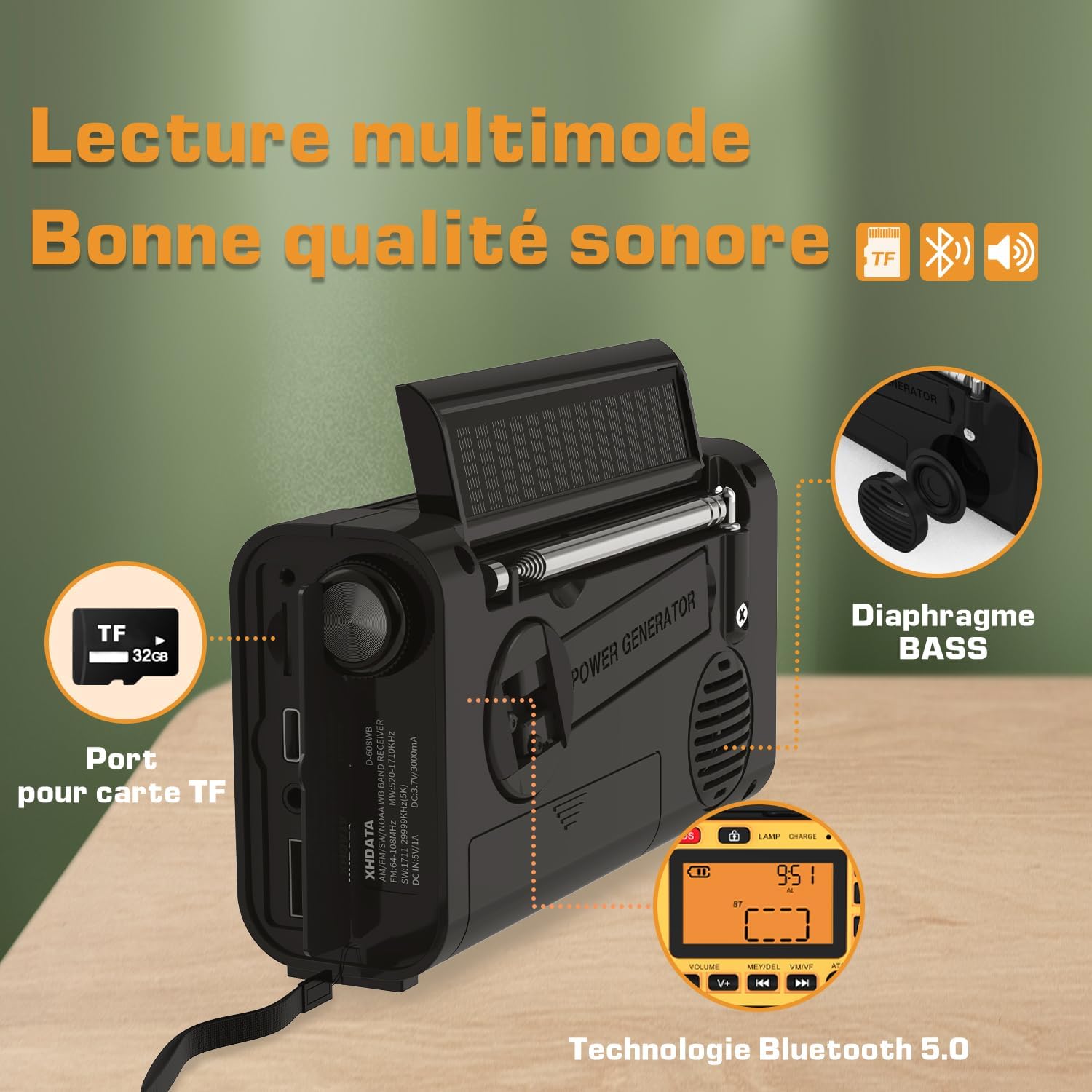
Figure 4.2: Rear and side view showing ports and hand crank.
5. Setup and Powering the Device
5.1 Initial Battery Installation
The XHDATA D608WB comes with a removable 3000mAh 18650 rechargeable battery. Ensure it is correctly installed before first use. Open the battery compartment cover, insert the battery according to the polarity markings, and close the cover securely.
5.2 Charging Methods
The radio offers four ways to charge its internal battery:
- USB Charging: Connect the provided USB-C cable to the radio's USB-C input port and the other end to a USB power adapter (not included) or a computer's USB port. The charging indicator will illuminate.
- Solar Charging: Place the radio with the solar panel facing direct sunlight. This method is primarily for maintaining charge or emergency power and may take longer to fully charge the battery.
- Hand Crank Charging: Extend the hand crank from the back of the radio and rotate it clockwise or counter-clockwise at a steady pace. This method generates power for emergency use.
- Internal Battery: For daily use, the built-in 3000mAh rechargeable battery provides power.

Figure 5.1: Radio with solar panel and flashlight activated.
6. Operating Instructions
6.1 Power On/Off
Press and hold the Power button to turn the radio on or off.
6.2 Radio Function (FM/MW/SW)
- Select Band: Press the Mode button to cycle through FM, MW (AM), and SW bands.
- Automatic Scan (ATS): In radio mode, press and hold the Play/Pause button (often labeled 'ATS' or 'Scan') to automatically scan and save available stations. The radio can store up to 500 stations.
- Manual Tuning: Use the Tuning Up/Down buttons (often labeled 'V+'/'V-' or '▲'/'▼') to manually adjust the frequency.
- Recall Saved Stations: Use the Next/Previous buttons (often labeled '◀◀'/'▶▶') to navigate through saved stations.
- Extend Antenna: For optimal FM and SW reception, fully extend the telescopic antenna.
6.3 Bluetooth Connectivity
- Enter Bluetooth Mode: Press the Mode button until "BT" appears on the display. The radio will enter pairing mode.
- Pairing: On your mobile device, enable Bluetooth and search for "XHDATA D608WB". Select it to pair.
- Music Playback: Once paired, you can stream audio from your device to the radio. Use the radio's control buttons for play/pause, next/previous track, and volume adjustment.
- Hands-Free Calls: When connected via Bluetooth, you can answer or end calls using the radio's controls. The built-in microphone allows for hands-free communication.
6.4 TF Card Playback
- Insert TF Card: Insert a TF (MicroSD) card (up to 32GB) with MP3/WMA/WAV/FLAC audio files into the TF card slot.
- Enter TF Mode: Press the Mode button until the display indicates TF card playback.
- Control Playback: Use the play/pause, next/previous track, and volume buttons to control audio playback.
6.5 Flashlight and Reading Lamp
The radio features a flashlight and a reading lamp, both with three adjustable brightness levels.

Figure 6.1: Using the reading lamp and flashlight in low-light conditions.
- Flashlight: Press the Flashlight button (often labeled 'TORCH') to turn it on. Press again to cycle through brightness levels (Low, Medium, High) and off.
- Reading Lamp: Lift the solar panel cover to reveal the reading lamp. Press the Lamp button to turn it on. Press again to cycle through brightness levels (Low, Medium, High) and off.
6.6 SOS Alarm
In an emergency, activate the SOS alarm to emit a loud siren and flash a red light.
- Activate SOS: Press the SOS button. The radio will emit a powerful siren and flash a red light.
- Deactivate SOS: Press the SOS button again to turn off the alarm.
6.7 Charging External Devices
The radio can act as a power bank to charge your mobile phone or other small USB-powered devices.
- Connect Device: Connect your device's USB charging cable to the radio's standard USB output port.
- Start Charging: The radio will automatically begin charging the connected device.
7. Maintenance
- Cleaning: Wipe the radio with a soft, dry cloth. Do not use abrasive cleaners or solvents.
- Battery Care: For optimal battery life, avoid fully discharging the battery frequently. If storing the radio for an extended period, charge the battery to about 50% and recharge every few months.
- Storage: Store the radio in a cool, dry place away from direct sunlight and extreme temperatures.
8. Troubleshooting
| Problem | Possible Cause | Solution |
|---|---|---|
| Radio does not power on. | Low battery or incorrect battery installation. | Charge the battery using USB, solar, or hand crank. Check battery polarity. |
| Poor radio reception. | Antenna not extended, weak signal, or interference. | Fully extend the telescopic antenna. Try moving to an open area. |
| Bluetooth not connecting. | Radio not in pairing mode, device too far, or already connected to another device. | Ensure radio is in Bluetooth pairing mode. Keep devices within 10 meters. Disconnect from other devices. |
| External device not charging. | Radio battery is low or cable is faulty. | Ensure the radio has sufficient charge. Try a different USB cable. |
9. Specifications
| Feature | Detail |
|---|---|
| Brand | XHDATA |
| Model Number | D-608WB |
| Color | Black |
| Connectivity Technology | Bluetooth |
| Special Feature | Rechargeable |
| Compatible Devices | Headphones, Smartphone |
| Battery Type | Lithium-ion |
| Rechargeable Battery | Yes (3000mAh) |
| Product Dimensions | 16.2L x 5.3W x 9H centimeters |
| Tuner Technology | AM, FM, SW |
| Power Source | Solar Powered, Battery Powered, Hand Crank |
| Supported Radio Bands | FM: 64-108 MHz / 76-108 MHz / 87-108 MHz / 87.5-108 MHz MW: 522-1620 KHz / 520-1710 KHz SW: 1711-29999 KHz |
| Included Components | User Manual |
10. Warranty and Support
10.1 Manufacturer Warranty
The XHDATA D608WB radio comes with a 1-year manufacturer warranty from the date of purchase. This warranty covers defects in materials and workmanship under normal use. It does not cover damage caused by misuse, accidents, unauthorized modifications, or natural disasters.
10.2 Customer Support
For any questions, technical assistance, or warranty claims, please contact XHDATA customer support through the retailer where you purchased the product or visit the official XHDATA website for contact information.


