
EONON A502-US
Eonon Wireless CarPlay & Android Auto Adapter AI Box - A502 User Manual
Model: A502-US
Introduction
This manual provides comprehensive instructions for the safe and effective use of your Eonon Wireless CarPlay & Android Auto Adapter AI Box, Model A502-US. Please read this manual thoroughly before operation and retain it for future reference.
Safety Information
For safe and proper use, keep the device away from sensitive electronic equipment to avoid potential interference. Always use the original charger and battery. Do not expose the device to extreme temperatures or humid conditions.
Product Features
- Wireless CarPlay/Android Auto AI Box: Enables wireless CarPlay and Android Auto functionality. This box is compatible only with car head units that support wired CarPlay/Android Auto.
- Diversified Entertainment: Includes built-in Netflix and YouTube applications. Supports MicroSD card insertion for playing additional music and video files.
- Screen Mirroring: Allows mirroring of your smartphone's display onto the car radio screen for hands-free access to applications.
- Plug and Play Operation: Designed for simple installation without complex setup procedures.
- Bluetooth 5.0 Connectivity: Supports Bluetooth music streaming and hands-free calling for enhanced convenience and safety.
Setup Guide
- Unboxing: Carefully remove the Eonon Wireless CarPlay & Android Auto Adapter AI Box from its packaging.
- Connection: Connect the AI Box to your car's head unit via the USB port that supports wired CarPlay or Android Auto. The device is designed for plug-and-play operation.
- Initial Boot-up: Once connected, the device will power on automatically. Allow a few moments for the system to initialize.
- Wireless CarPlay/Android Auto Setup:
By default, the product is configured for wired CarPlay connection. If your head unit only supports wired Android Auto, please adjust the settings according to the instructions below:
- Navigate to the device settings menu on your car's display.
- Locate the "Connection Type" or similar option.
- Select "Android Auto" if your head unit requires it.
Once the connection type is set, enable Bluetooth and Wi-Fi on your smartphone. Search for the AI Box's Bluetooth signal and pair your phone. Follow the on-screen prompts on your car's display to complete the wireless CarPlay or Android Auto connection.
- MicroSD Card Insertion (Optional): If you wish to use a MicroSD card for media playback, gently insert it into the designated slot on the AI Box. Ensure it is inserted correctly to avoid damage.

Image: The Eonon AI Box facilitates wireless CarPlay and Android Auto connections. Note: The box requires a car head unit with existing wired CarPlay/Android Auto capability.
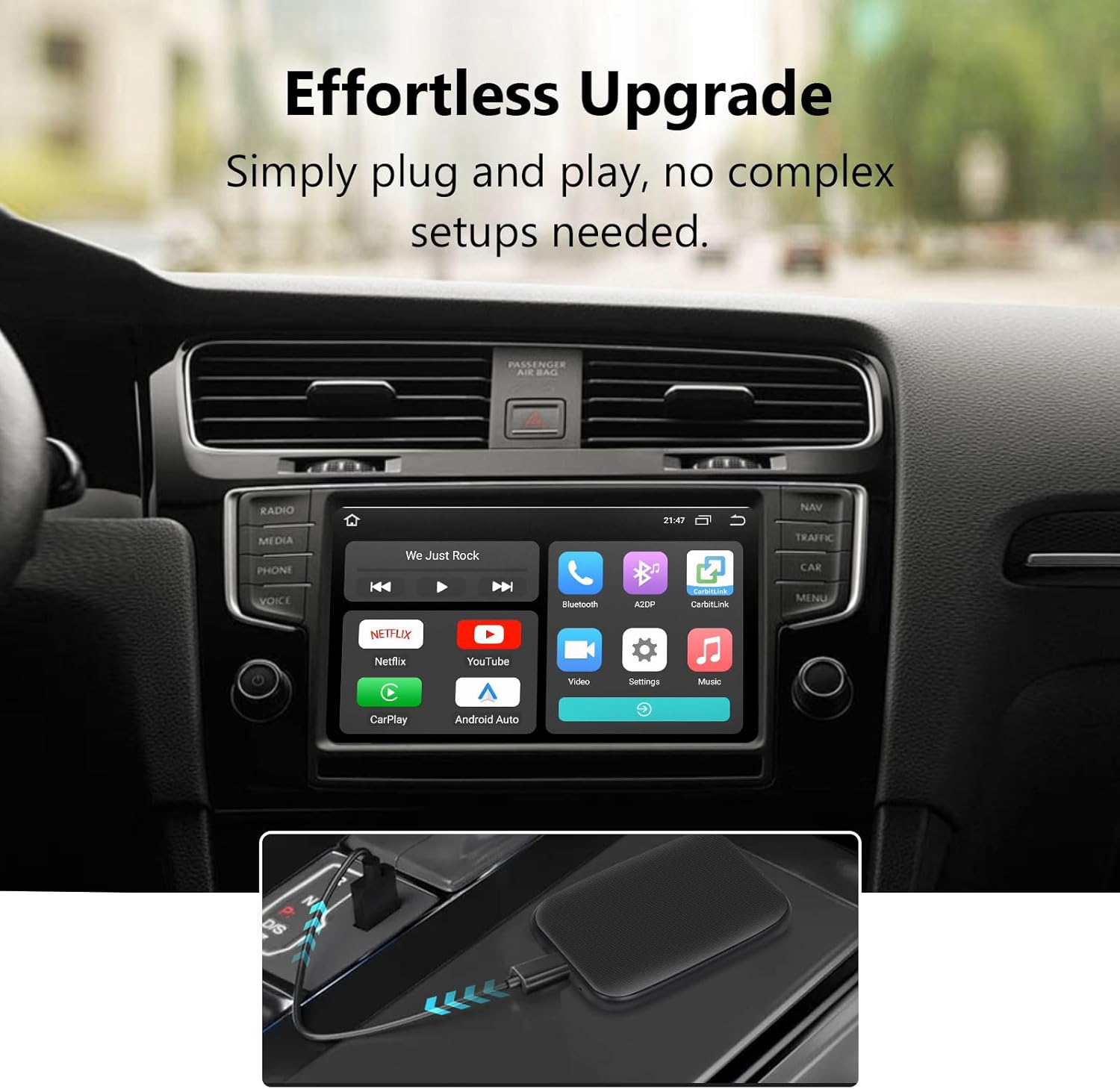
Image: The Eonon AI Box offers an effortless upgrade, requiring only a simple plug-and-play connection to your car's USB port.
Operating Instructions
Using Wireless CarPlay / Android Auto
- Once connected, your car's display will show the CarPlay or Android Auto interface.
- Navigate through apps using your car's touchscreen, steering wheel controls, or voice commands.
- For optimal performance, ensure your smartphone's operating system is up to date.
Accessing Entertainment Apps (Netflix, YouTube)
- From the main interface of the AI Box on your car's screen, select the Netflix or YouTube icon.
- You may need to log in to your respective accounts for these services.
- Ensure the AI Box has an internet connection (e.g., via your phone's hotspot) to stream content.

Image: The Eonon AI Box expands your entertainment options with built-in Netflix and YouTube, and support for MicroSD card media playback.
Screen Mirroring
- Select the "Screen Mirroring" or "CarbitLink" application icon on the AI Box interface.
- Follow the on-screen instructions to connect your smartphone for mirroring. This typically involves scanning a QR code or connecting to a specific Wi-Fi network broadcast by the AI Box.
- Once connected, your phone's screen will be displayed on your car's head unit.

Image: Effortlessly mirror your smartphone's content onto your car's display for convenient access to your favorite applications.
Bluetooth Functions
- Bluetooth Music: Pair your phone via Bluetooth to stream audio directly to your car's speakers through the AI Box.
- Hands-free Calling: Once paired, you can make and receive calls directly from your car's interface, utilizing the car's microphone and speakers.

Image: Bluetooth 5.0 enables seamless music streaming and hands-free calling for a safer and more enjoyable driving experience.
Maintenance
- Cleaning: Use a soft, dry cloth to clean the exterior of the device. Do not use liquid cleaners or aerosols.
- Storage: When not in use for extended periods, store the device in a cool, dry place away from direct sunlight and extreme temperatures.
- Firmware Updates: Periodically check the Eonon official website for any available firmware updates to ensure optimal performance and compatibility.
Troubleshooting
| Problem | Possible Cause | Solution |
|---|---|---|
| Device does not power on. | Incorrect USB connection; insufficient power from USB port. | Ensure the USB cable is securely connected to both the AI Box and a functional USB port in your car. Try a different USB port if available. |
| Wireless CarPlay/Android Auto not connecting. | Incorrect connection type selected; Bluetooth/Wi-Fi issues on phone; car head unit not supporting wired CarPlay/Android Auto. |
|
| No audio or distorted audio. | Volume settings; incorrect audio source selected on car head unit. | Adjust volume on both the AI Box interface and your car's head unit. Ensure the car's audio input is set to the correct source (e.g., USB, Bluetooth). |
| Screen mirroring not working. | Incorrect app or connection method; network issues. | Ensure you are using the correct mirroring application (e.g., CarbitLink) and following its connection instructions. Check for stable Wi-Fi connection between the phone and AI Box. |
| Netflix/YouTube not loading or buffering. | No internet connection; weak signal. | Ensure the AI Box has a stable internet connection (e.g., via your phone's hotspot). Check the strength of the Wi-Fi signal. |
Specifications
| Feature | Detail |
|---|---|
| Model Number | A502-US |
| Connectivity Technology | Wireless (Bluetooth, Wi-Fi) |
| Special Feature | Wireless CarPlay/Android Auto AI Box, Built-in Netflix & YouTube, Screen Mirroring, MicroSD Card Support |
| Power Source | Battery Powered (via USB connection to car) |
| Item Weight | 6.4 ounces (0.18 Kilograms) |
| Package Dimensions | 5.59 x 5.16 x 2.05 inches |
| Manufacturer | EONON |
| Country of Origin | China |

Image: Physical dimensions of the Eonon Wireless CarPlay & Android Auto Adapter AI Box.
Warranty and Support
For warranty information and technical support, please refer to the official EONON website or contact their customer service directly. Details regarding product registration, warranty claims, and troubleshooting assistance can typically be found on the manufacturer's support pages.
EONON Official Website: www.eonon.com
Related documentsA502-US


Ask a question about this manual
Ask about setup, troubleshooting, compatibility, parts, safety, or missing instructions. Manuals+ will review the question and use this page’s manual context to help answer it.