
FrSky TWIN X14
Contents
FrSky Twin X14 Transmitter User Manual
Model: TWIN X14
Brand: FrSky
1. Introduction
This manual provides comprehensive instructions for the setup, operation, and maintenance of your FrSky Twin X14 Transmitter. Please read this manual thoroughly before using the device to ensure proper functionality and safety. Retain this manual for future reference.
2. Product Overview
The FrSky Twin X14 is a robust radio system designed for remote control applications, featuring dual 2.4G frequency capabilities for enhanced reliability and lower latency. It supports TW, ACCST D16, and ACCESS modes, offering broad compatibility with various receivers.
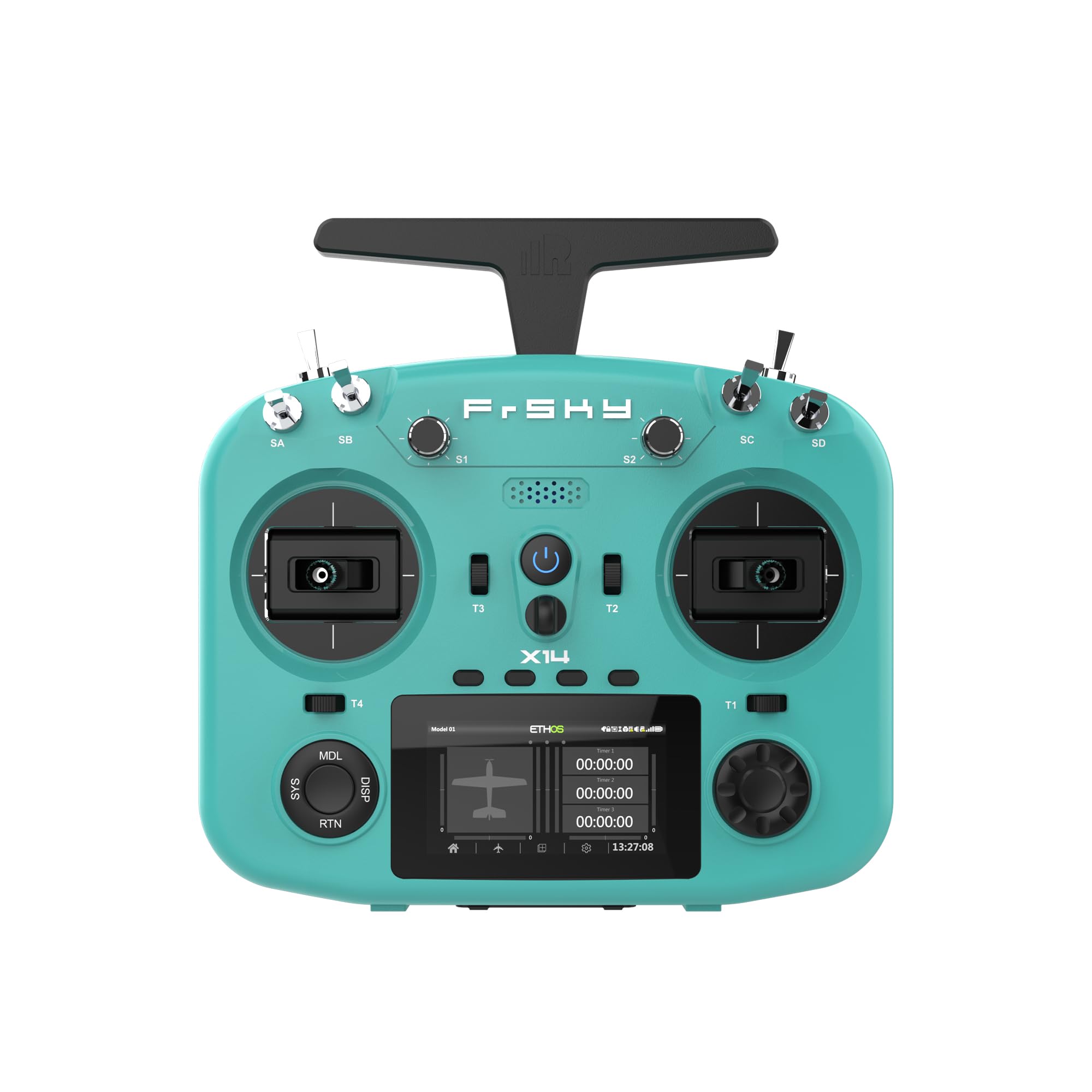
The FrSky Twin X14 Transmitter features a teal-colored body with black gimbals, switches, and a central display. Key controls include four main switches (SA, SB, SC, SD), two rotary potentiometers (S1, S2), and four trim tabs (T1, T2, T3, T4). The central power button is located above the X14 model designation. The display shows model information, timers, and system status indicators.
2.1. What's in the Box
- FrSky Twin X14 Transmitter
3. Setup
3.1. Initial Setup
- Charging the Battery: Connect the provided USB cable to the transmitter's USB port and a suitable USB power adapter. The charging indicator will show the charging status.
- Powering On/Off: Press and hold the power button (located centrally below the FrSky logo) until the screen illuminates to power on. Repeat the process to power off.
- Basic Configuration: Upon first power-on, you may be prompted to set basic parameters such as language, date, and time. Follow the on-screen instructions.
3.2. Binding to a Receiver
The binding process establishes a secure communication link between your Twin X14 transmitter and a compatible FrSky receiver. Ensure both devices are powered on and within close proximity.
- Navigate to the Model Setup menu on your transmitter.
- Select the 'Bind' option for the desired RF mode (e.g., TW Mode, ACCESS, ACCST D16).
- Put your receiver into bind mode (refer to your receiver's manual for specific instructions, typically by pressing a F/S button while powering on).
- The transmitter will indicate successful binding.
4. Operating the Transmitter
4.1. Basic Controls
- Gimbals: Control primary flight surfaces (e.g., aileron, elevator, rudder, throttle).
- Switches (SA, SB, SC, SD): Assignable for various functions such as flight modes, gear, or flaps.
- Rotary Potentiometers (S1, S2): Provide proportional control for functions like camera tilt or gain adjustments.
- Trim Tabs (T1, T2, T3, T4): Used for fine-tuning the neutral position of control surfaces.
4.2. Menu Navigation
The Twin X14 features an intuitive menu system accessed via the buttons located around the display:
- SYS (System): Accesses global system settings, radio calibration, and firmware updates.
- MDL (Model): Manages model-specific settings, including model creation, RF mode, and channel assignments.
- DISP (Display): Configures display settings, telemetry screens, and timer displays.
- RTN (Return): Navigates back to the previous menu or screen.
4.3. Advanced Features
- TW Mode (Dual 2.4G): Utilizes two 2.4G frequencies simultaneously for enhanced signal reliability and reduced latency. This active-active protocol provides superior redundancy compared to standard active-standby systems.
- ACCST D16 & ACCESS Modes: The transmitter supports these widely used FrSky protocols, allowing compatibility with a broad range of existing FrSky receivers.
- Telemetry: Receive real-time data from your model (e.g., battery voltage, RSSI) when paired with a telemetry-enabled receiver.
5. Maintenance
5.1. Battery Care
- Always use the recommended charging method.
- Avoid overcharging or completely discharging the battery.
- Store the transmitter in a cool, dry place when not in use, ideally with the battery at a storage charge level (around 3.8V per cell for LiPo).
5.2. Cleaning
- Use a soft, dry cloth to clean the exterior of the transmitter.
- For stubborn dirt, slightly dampen the cloth with water or a mild, non-abrasive cleaner. Avoid excessive moisture.
- Do not use harsh chemicals or solvents.
5.3. Firmware Updates
FrSky regularly releases firmware updates to improve performance and add new features. Visit the official FrSky website for the latest firmware and detailed update instructions. Typically, updates involve connecting the transmitter to a computer via USB and using specific FrSky software.
6. Troubleshooting
- Transmitter not powering on: Ensure the battery is charged. Check the power button for proper function.
- No signal to receiver: Verify that the transmitter and receiver are properly bound. Check the RF mode settings on the transmitter. Ensure antennas are correctly installed and undamaged.
- Controls unresponsive or erratic: Recalibrate the gimbals and switches in the system settings. Check for physical obstructions or damage to controls.
- Display issues: Restart the transmitter. If the problem persists, check for available firmware updates.
- Short range: Ensure both transmitter and receiver antennas are positioned correctly and not obstructed. Check for local interference.
For more detailed troubleshooting or persistent issues, refer to the official FrSky support resources or community forums.
7. Specifications
| Feature | Specification |
|---|---|
| Product Dimensions | 10 x 8 x 5 inches |
| Item Weight | 1 pounds |
| Item Model Number | TWIN X14 |
| Manufacturer Recommended Age | 14 years and up |
| Brand | FrSky |
| Connectivity Technology | USB |
| Compatible Devices | Smartphone, Speaker |
| Connector Type | USB |
| Audio Output Mode | Stereo, Surround |
| Surround Sound Channel Configuration | 2.0 |
| Video Encoding | RM |
| Color | Black |
| Number of Channels | 24 |
| Audio Output Type | Internal |
8. Warranty and Support
FrSky products are covered by a limited warranty. For detailed warranty information, please refer to the warranty card included with your product or visit the official FrSky website. For technical support, firmware downloads, and FAQs, please visit the FrSky support page or contact their customer service directly. Always purchase from authorized dealers to ensure valid warranty coverage.
Official FrSky Website: www.frsky-rc.com
Documents and downloads
Ask a question about this manual
Ask about setup, troubleshooting, compatibility, parts, safety, or missing instructions. Manuals+ will review the question and use this page’s manual context to help answer it.