
1. Introduction
This manual provides detailed instructions for the installation, operation, and maintenance of your Pomya Video Doorbell Camera. Please read this manual thoroughly before using the product to ensure proper functionality and safety. This device is designed to enhance your home security by providing a clear view of your doorstep, two-way communication, and motion detection capabilities.
2. Product Overview
2.1 Key Features
- 1080P HD Camera: Provides clear and comprehensive viewing with a 120-degree wide-angle lens.
- Two-Way Audio: Enables one-way or two-way intercom with noise reduction for communication with visitors.
- PIR Motion Detection: Automatically detects human movement and triggers push notifications and video recording.
- Wireless Connectivity: Connects to your WiFi router for remote monitoring via smartphone or tablet.
- 4.3-inch TFT Color LCD Display: Provides crisp and vivid visuals for an enhanced viewing experience on the indoor monitor.
- Infrared Night Vision: Ensures clear visibility even in low-light conditions.
- Automatic Snapshot & Video Recording: Captures images and videos of detected activity.
- 5000mAh Lithium Battery: Built-in rechargeable battery for extended operation.
2.2 Package Contents
Please check the package for the following items:
- 1 x Indoor Monitor
- 1 x Wireless Peephole Camera (Outdoor Unit)
- 1 x Installation Bracket
- 8 x Installation Screws (various sizes)
- 2 x Washers
- 1 x Power Cable (Micro USB)
- 2 x User Manuals (this document and possibly a quick start guide)

Image: All components included in the package for the Pomya Video Doorbell Camera.
2.3 Product Components

Image: The indoor monitor and outdoor peephole camera unit.
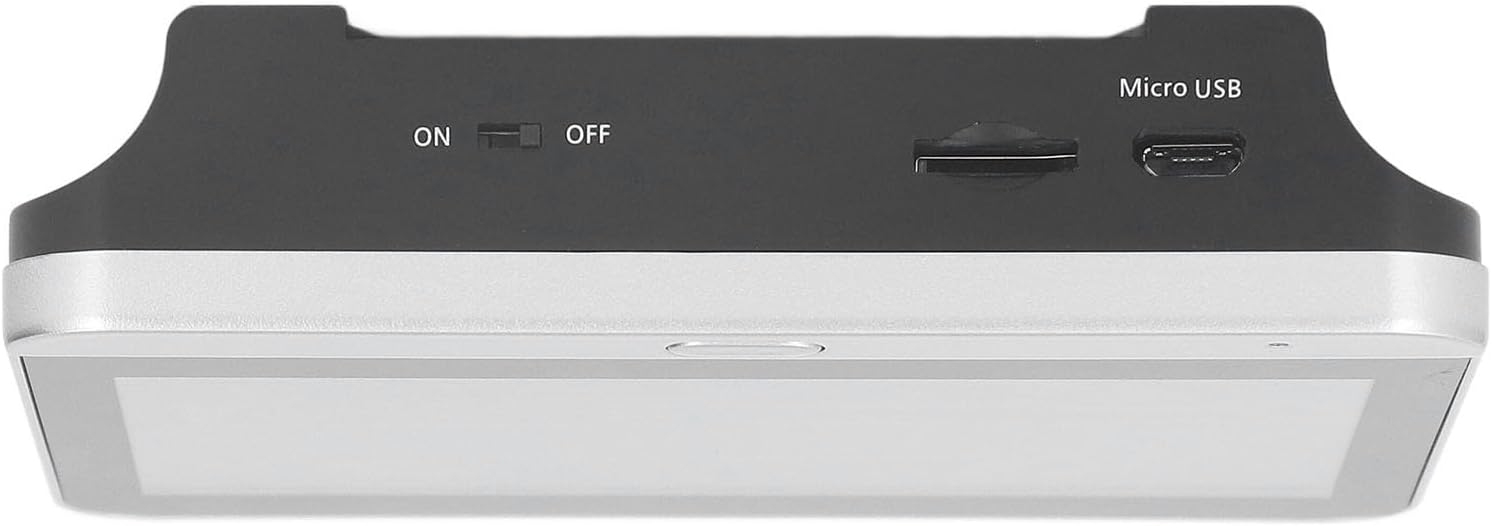
Image: Top view of the indoor monitor, highlighting the Micro USB port, ON/OFF switch, and Micro SD card slot.
3. Setup and Installation
Follow these steps to properly install your video doorbell camera.
3.1 Door Compatibility
- Supported Door Thickness: Approximately 35-120mm (1.38-4.72 inches).
- Suitable Door Hole Diameter: Approximately 14-30mm (0.55-1.18 inches).

Image: Door compatibility specifications for installation.
3.2 Installation Steps
- Prepare the Door: Ensure your door has a peephole within the specified diameter and thickness range. If not, professional installation may be required to drill a suitable hole.
- Install Outdoor Unit: Insert the cable of the outdoor peephole camera through the door hole from the outside. Position the camera flush against the door.
- Attach Mounting Bracket: From the inside of the door, thread the camera's cable through the central hole of the installation bracket. Secure the bracket to the door using the appropriate screws, ensuring the cable is not pinched.
- Connect Indoor Monitor: Connect the cable from the outdoor unit to the corresponding port on the back of the indoor monitor.
- Mount Indoor Monitor: Slide the indoor monitor onto the installation bracket, ensuring it clicks securely into place.
- Power On: Turn on the indoor monitor using the ON/OFF switch located on the top edge.
- Initial Charge: It is recommended to fully charge the device before first use. Connect the power cable to the Micro USB port on the monitor and a suitable USB power adapter (not included).

Image: Example of the video doorbell camera installed on a door, showing both indoor and outdoor units and remote monitoring via smartphone.
4. Operating Instructions
4.1 Basic Operation
- Viewing Live Feed: Press the button on the indoor monitor to view the live feed from the outdoor camera.
- Taking Snapshots/Recording Video: While viewing the live feed, options to take a snapshot or record video may be available on the monitor interface or via the mobile app.
- Two-Way Audio: When a visitor presses the doorbell or motion is detected, you can initiate two-way communication through the indoor monitor or the mobile app.
4.2 Mobile App Connection
To utilize remote monitoring and advanced features, download the dedicated mobile application for your device (compatible with Android and iOS).
- Download App: Scan the QR code provided in the separate quick start guide or search for the app name (if specified) in your device's app store.
- Register Account: Follow the in-app instructions to create a new user account.
- Add Device: In the app, select 'Add Device' and follow the pairing instructions. This typically involves connecting the doorbell to your home Wi-Fi network (2.4GHz only).
- Remote Monitoring: Once connected, you can view live video, receive motion alerts, engage in two-way audio, and access recorded footage from your smartphone or tablet.

Image: PIR Motion Sensor functionality, showing motion detection triggering a notification and live view on a smartphone.

Image: Overview of the doorbell's features including two-way communication, wide-angle view, monitoring, motion detection, user sharing, and battery life.
4.3 Storage
The device supports external storage up to 128GB via a Micro SD card (not included). Insert the Micro SD card into the designated slot on the indoor monitor to enable local recording of events.
5. Maintenance
- Cleaning: Use a soft, dry cloth to clean the indoor monitor and outdoor camera lens. Avoid using abrasive cleaners or solvents.
- Battery Care: The built-in 5000mAh lithium battery should be charged regularly. Avoid letting the battery completely drain for extended periods. Do not use fast chargers, as indicated on the product label (ED-300PD, Power: DC5V1A).
- Firmware Updates: Periodically check the mobile application for any available firmware updates to ensure optimal performance and security.
6. Troubleshooting
- Device Not Powering On: Ensure the battery is charged. Connect the device to a power source using the Micro USB cable and allow it to charge for at least 30 minutes before attempting to power on again. Verify the ON/OFF switch is in the 'ON' position.
- Poor Battery Life: Battery life can vary based on usage, motion detection frequency, and Wi-Fi signal strength. Ensure the device is fully charged. Reduce motion detection sensitivity or frequency if battery drain is excessive.
- Cannot Connect to Wi-Fi/App:
- Ensure your Wi-Fi network is 2.4GHz. This device may not support 5GHz networks.
- Verify your Wi-Fi password is correct.
- Make sure the device is within range of your Wi-Fi router.
- If the QR code for app pairing is not scanning, try adjusting the distance or lighting, or manually enter the device ID if the app allows.
- Distorted Image/Glare: Ensure the camera lens is clean. If glare is an issue from external light sources, consider repositioning the camera if possible, or consult with a professional for alternative solutions.
- No Motion Detection Alerts: Check the motion detection settings in the mobile app. Ensure PIR motion detection is enabled and sensitivity is set appropriately. Verify the device is connected to Wi-Fi and has internet access.
- Ribbon Cable Issues: During installation, ensure the ribbon cable connecting the outdoor unit to the indoor monitor is not crimped, bent sharply, or damaged. A damaged cable can lead to connection issues or device malfunction. Handle with care.
7. Specifications
| Feature | Specification |
|---|---|
| Model | SY-36 (ED-300PD) |
| Operating System | for LiteOS |
| Lens Pixel | 1080P |
| Screen Size | 4.3 inch IPS LCD |
| APP Support | for Android, for iOS |
| Battery Capacity | 5000mAh lithium battery (built-in) |
| Wide Angle | 120 degrees |
| Supported Features | Infrared night vision, automatic snapshot, monitor intercom, motion detection |
| External Storage | Up to 128G micro storage card (not included) |
| Supported Door Thickness | Approx. 35-120mm (1.38-4.72in) |
| Suitable Door Hole Diameter | Approx. 14-30mm (0.55-1.18in) |
| Language | English, Chinese |
| Operating Temperature | -20~55℃ |
| Item Weight | 1.23 pounds |
| Package Dimensions | 8.31 x 7.4 x 2.83 inches |
8. Warranty and Support
For warranty information and customer support, please refer to the documentation included with your purchase or contact Pomya customer service through the retailer where the product was purchased. Keep your purchase receipt as proof of purchase for any warranty claims.