
1. Introduction
Thank you for choosing the DEWIN Digital Electricity Meter. This multifunctional AC energy meter is designed for precise measurement and monitoring of various electrical parameters, including voltage, current, power, energy, frequency, and temperature. With its integrated WiFi and Bluetooth capabilities, it allows for convenient remote control and data access via the Tuya Smart Life application. This manual provides essential information for safe installation, operation, and maintenance of your device.

Figure 1.1: Front view of the DEWIN Digital Electricity Meter, showing the display and terminals.
2. Safety Instructions
Please read and understand all safety instructions before installing or operating this device. Failure to follow these instructions may result in electric shock, fire, or serious injury.
- WARNING: Use Under Adult Supervision Only. This device is not a toy and should be handled by qualified personnel.
- Ensure the power supply is disconnected before any installation, wiring, or maintenance.
- Do not operate the device in wet or damp conditions.
- Do not disassemble or modify the device. Refer all servicing to qualified personnel.
- Ensure all connections are secure and properly insulated.
- Observe all local electrical codes and regulations during installation.

Figure 2.1: Safety warning indicating adult supervision is required for use.
3. Product Features
The DEWIN Digital Electricity Meter offers a comprehensive set of features for advanced power monitoring:
- 8-in-1 Measurement: Simultaneously detects and displays voltage, current, timing, electrical energy, power, power factor, frequency, and temperature.
- Wide Measuring Range: Supports AC 170-300V voltage, 0-63A current, 0-17KW power, 0-9999kWh electrical energy, 0-999H timing, -20-150℃ temperature, 50-60Hz frequency, and 0.01-1.00PF power factor.
- Vivid LED Color Screen: Provides clear and easy-to-read measurement results, enhancing user experience and data interpretation.
- Remote Control & Monitoring: Integrated WiFi and Bluetooth for online rail meter functionality, allowing mobile phone remote control via the Tuya Smart Life APP without distance limitations.
- External Temperature Sensor Interface: Includes a dedicated port for the external temperature sensor.
- Multiple Protection Functions: Features power-off memory, low voltage protection, and surge protection.

Figure 3.1: The meter's display showing various electrical parameters and connectivity features.
4. Package Contents
Verify that all items are present in the package:
- 1 x WiFi Tuya Multifunctional Meter (Model: KWS-302WF)
- 1 x Temperature Sensor

Figure 4.1: The DEWIN meter alongside its external temperature sensor.
5. Product Specifications
| Parameter | Value |
|---|---|
| Material | ABS |
| Voltage Range | AC 170-300V |
| Current Range | 0-63A |
| Power Range | 0-17KW |
| Electrical Energy Range | 0-9999 kWh |
| Timing Range | 0-999H |
| Temperature Range | -20 - 150 °C |
| Frequency | 50-60Hz |
| Power Factor | 0.01-1.00PF |
| Dimensions (L x W x H) | 8.9 x 8.6 x 7.4 cm (approx.) |
| Item Weight | 216 g |
| Model Number | IYXQDXQRI-109918 |

Figure 5.1: Product dimensions and a summary of technical specifications.
6. Installation Guide
The DEWIN Digital Electricity Meter is designed for DIN rail mounting. Follow these steps for proper installation:
- Power Disconnection: Before starting, ensure that the main power supply to the circuit where the meter will be installed is completely disconnected. Use appropriate lockout/tagout procedures.
- Mounting: Snap the meter onto a standard 35mm DIN rail. Ensure it is securely fastened.
- Wiring: Connect the input (IN) and output (OUT) terminals according to the wiring diagram provided below. The 'N' terminal is for Neutral, and 'L' is for Live. Ensure correct polarity.
- Temperature Sensor Connection: Plug the external temperature sensor into the 'NTC' port located on the bottom of the meter.
- Power Restoration: Once all connections are secure and verified, restore power to the circuit. The meter display should illuminate.

Figure 6.1: Product wiring diagram illustrating connections for typical loads.

Figure 6.2: Bottom view of the meter, highlighting the DIN rail mounting mechanism and NTC port for the temperature sensor.
7. Operation Guide
7.1 Display Overview
The meter's color display shows various parameters simultaneously. The main display areas include:
- Voltage (V): Current AC voltage.
- Current (A): Current flowing through the circuit.
- Power (KW): Real-time power consumption.
- Electrical Energy (Kwh): Accumulated energy consumption.
- Timing (H): Operating time.
- Temperature (℃): Temperature measured by the external sensor.
- Frequency (Hz): Power supply frequency.
- Power Factor (PF): Power factor of the load.
7.2 Button Functions
The meter features several buttons on its side for navigation and settings:
- 'M' Button: Used to cycle through different display modes or menu options.
- '+' Button: Used to increase values or navigate up in menus.
- '-' Button: Used to decrease values or navigate down in menus.
- 'SET' Button (often combined with 'M' or other buttons): Press and hold for 3 seconds to enter the setting display.
- Power Switch (开/关): Toggles the power output of the meter.
7.3 Setting Protection Parameters
To configure protection settings (e.g., overvoltage, undervoltage, overcurrent), press and hold the 'SET' button for 3 seconds to enter the setting display. Use the '+' and '-' buttons to adjust values and 'M' or 'SET' to confirm or move to the next setting.

Figure 7.1: Examples of display screens for configuring protection settings.
7.4 Remote Control via Tuya Smart Life APP
The meter can be controlled and monitored remotely using the Tuya Smart Life application. Follow these steps to connect:
- Download APP: Download the 'Tuya Smart' or 'Smart Life' app from your mobile app store or scan the QR code on the device/packaging. You can also find it at https://smartapp.tuya.com/smartlife.
- Register/Login: Create an account or log in to the app.
- Add Device: Follow the in-app instructions to add a new device. Ensure your phone's Bluetooth and WiFi are enabled. The meter should be in pairing mode (refer to the meter's display or manual for pairing instructions, often indicated by a blinking WiFi icon).
- Monitor & Control: Once connected, you can view real-time data, set protection parameters, and control the meter's output remotely from your smartphone.
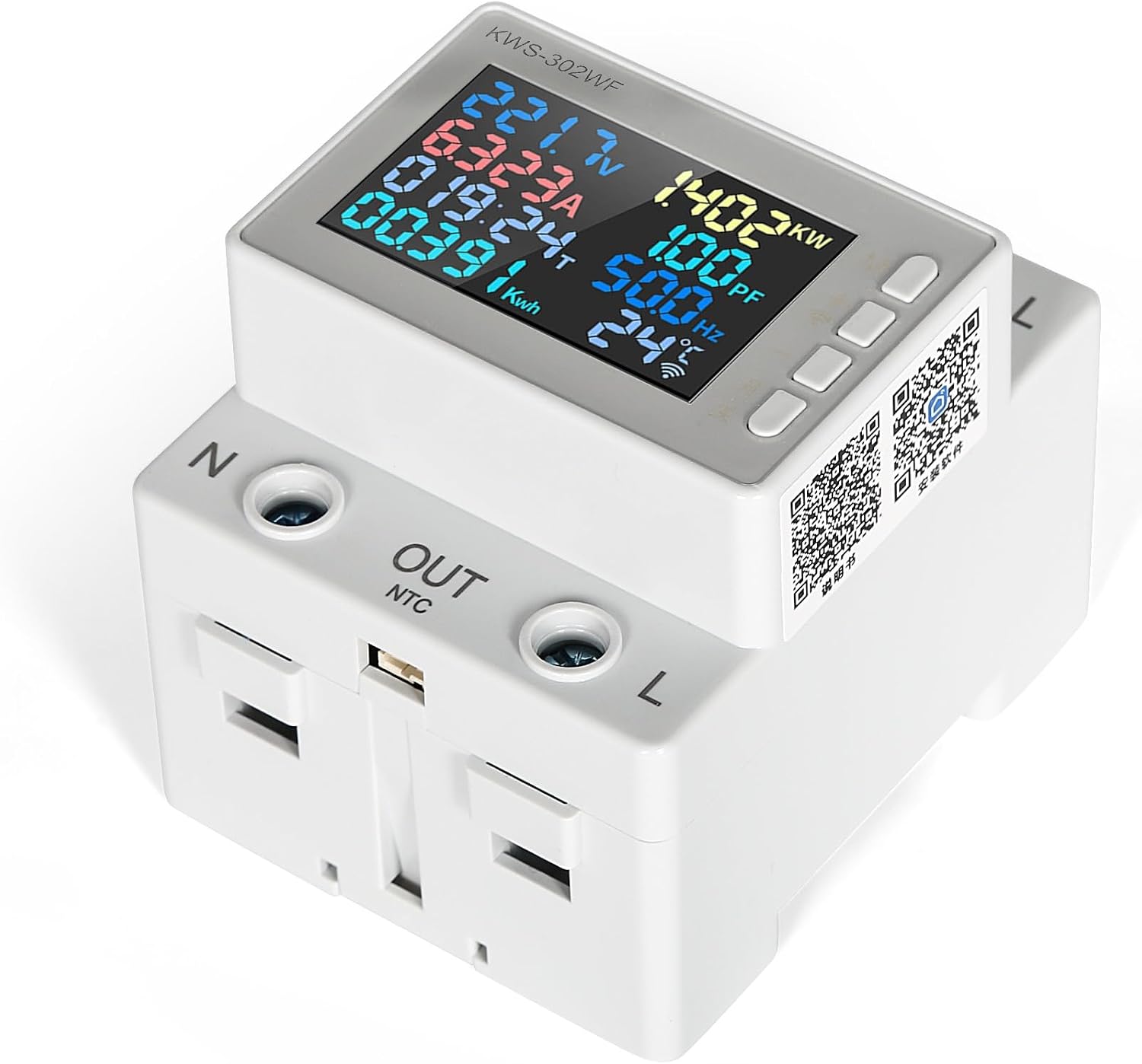
Figure 7.2: Side view of the meter with QR codes for app download and additional information.
8. Maintenance
To ensure the longevity and accurate performance of your DEWIN Digital Electricity Meter, follow these maintenance guidelines:
- Cleaning: Use a soft, dry cloth to clean the meter's surface. Do not use abrasive cleaners or solvents.
- Inspection: Periodically inspect the wiring connections to ensure they are tight and free from corrosion.
- Environment: Operate the meter within its specified temperature and humidity ranges to prevent damage.
- Storage: If storing the device for an extended period, keep it in a cool, dry place away from direct sunlight and extreme temperatures.
9. Troubleshooting
If you encounter issues with your DEWIN Digital Electricity Meter, refer to the following common problems and solutions:
- No Display/Power:
- Check the main power supply to the circuit.
- Verify that the input 'IN' terminals are correctly wired and receiving power.
- Incorrect Readings:
- Ensure the wiring is correct (Live and Neutral connections).
- Confirm the load is within the meter's specified measuring range.
- Cannot Connect to APP:
- Ensure your smartphone's WiFi and Bluetooth are enabled.
- Verify the meter is in pairing mode (refer to the meter's display for indicators).
- Check your WiFi network stability and signal strength.
- Restart the meter and try pairing again.
- Temperature Sensor Not Working:
- Ensure the temperature sensor is securely plugged into the 'NTC' port.
- Check for any visible damage to the sensor cable.
10. Applications
The DEWIN Digital Electricity Meter is versatile and can be widely used in various settings for power measurement and monitoring:
- Power Measurement Systems: For comprehensive energy monitoring in industrial or commercial setups.
- Schools & Laboratories: For educational purposes or experimental setups requiring precise electrical measurements.
- Markets & Commercial Spaces: To monitor energy consumption of specific sections or equipment.
- Household Appliances: To track the energy usage of individual appliances or entire home circuits.
- Industry: For monitoring machinery, production lines, and distribution boxes.
- Apartments & Offices: For sub-metering or general energy management.

Figure 10.1: Examples of wide-ranging applications for the DEWIN Digital Electricity Meter.
11. Warranty and Support
For warranty information, technical support, or service inquiries, please refer to the documentation provided with your purchase or contact your retailer. Additional resources, including a detailed manual, may be available from the manufacturer's website: