
1. Introduction
This manual provides essential information for the setup, operation, and maintenance of your JAPANNEXT JN-IPS27UHDR-C65W-HSP-W 27-inch 4K UHD IPS monitor. Please read this manual thoroughly before using the product to ensure proper functionality and safety.
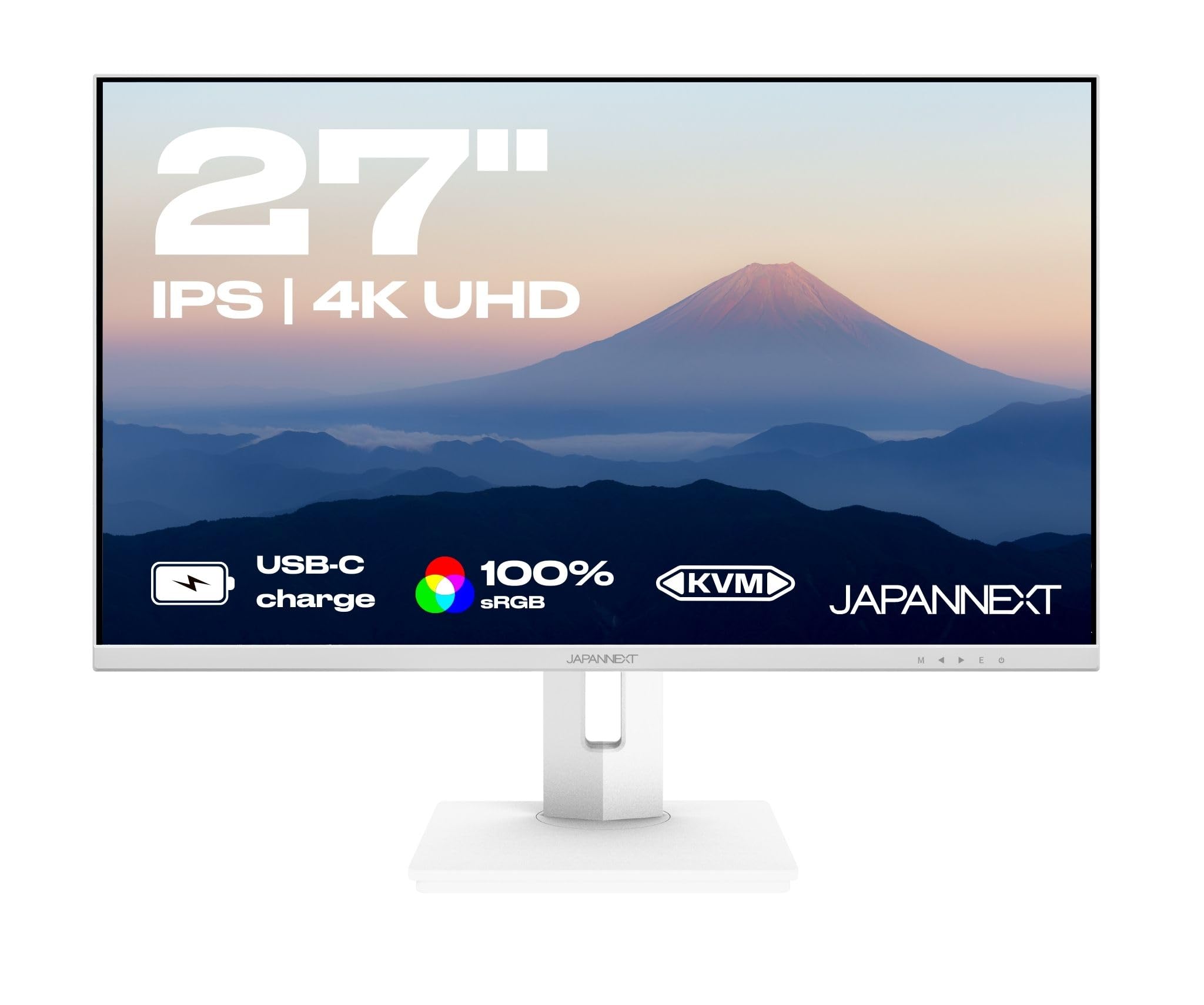
Image: Front view of the JAPANNEXT 27-inch 4K UHD IPS monitor.
2. Package Contents
Verify that all items listed below are included in your package. If any items are missing or damaged, contact customer support.
- JAPANNEXT JN-IPS27UHDR-C65W-HSP-W Monitor
- HDMI Cable
- USB-C Cable
- USB Cable (Type-B to Type-A)
- Power Adapter (European Standard)
- Power Cable (European Standard)
- Operating Manual
- VESA Spacers

Image: All included accessories for the monitor.
3. Setup
3.1 Monitor Assembly
Carefully remove the monitor and stand components from the packaging. Attach the stand base to the stand arm, then secure the assembled stand to the back of the monitor. Ensure all screws are tightened appropriately.
3.2 Physical Adjustments
The monitor offers various ergonomic adjustments for optimal viewing comfort:
- Height Adjustment: Adjust the monitor's height to eye level.
- Tilt: Tilt the screen from -5° to +20° to find your preferred viewing angle.
- Swivel: Swivel the monitor 30° left or right.
- Pivot: Rotate the screen 90° for portrait mode viewing.

Image: Ergonomic adjustment capabilities of the monitor.
3.3 VESA Mounting
The monitor is compatible with VESA 100x100mm mounting standards. Use the provided VESA spacers if necessary when attaching to a VESA-compatible arm or wall mount.
3.4 Connecting to Devices
Connect your computer or other devices to the monitor using the appropriate cables. The monitor features the following ports:
- 1 x HDMI port
- 1 x DisplayPort
- 1 x USB Type-C port (65W Power Delivery)
- 1 x USB Type-B port (for KVM/USB Hub)
- 2 x USB 3.0 Type-A ports
- 3 x USB 2.0 Type-A ports
- 1 x Audio Out (3.5mm jack)

Image: Rear view of the monitor showing port layout and dimensions.
For USB-C Power Delivery, connect a compatible laptop to the monitor's USB-C port using the provided USB-C cable. This allows video signal transmission and laptop charging simultaneously.

Image: USB-C connection for video and 65W power delivery to a laptop.
4. Operating the Monitor
4.1 Power On/Off
Press the power button located on the monitor to turn it on or off. The power indicator light will illuminate when the monitor is active.
4.2 On-Screen Display (OSD) Menu
Use the control buttons on the monitor to navigate and adjust settings in the OSD menu. The OSD menu allows you to configure display parameters such as brightness, contrast, color modes, input source, and advanced features. Language options for the OSD menu include English, French, and Japanese.
4.3 KVM Functionality
The integrated KVM (Keyboard, Video, Mouse) switch allows you to control two different computer systems (e.g., a desktop PC and a laptop) using a single keyboard and mouse connected to the monitor's USB hub. Connect the monitor's USB-B port to your primary computer and the USB-C port to your secondary computer. Switch between systems via the OSD menu.

Image: KVM feature enabling control of multiple devices with one set of peripherals.
4.4 Picture-in-Picture (PIP) and Picture-by-Picture (PBP)
The monitor supports PIP and PBP modes, allowing you to display content from multiple input sources simultaneously. PIP displays one source in a smaller window over another, while PBP divides the screen to show two sources side-by-side.
5. Key Features
5.1 Display Quality
The 27-inch IPS panel offers a 4K UHD resolution (3840x2160 pixels), providing sharp and detailed images. It supports HDR10, 100% sRGB, and 97% DCI-P3 color gamut for accurate and vibrant color reproduction. The display features a brightness of 400 cd/m² and a contrast ratio of 1200:1.

Image: Illustration of 4K UHD resolution (3840x2160).

Image: Visual difference between SDR and HDR content.

Image: Color accuracy and wide color gamut support.
5.2 Smooth Visuals
With a 60Hz refresh rate and 5ms response time, the monitor delivers smooth visuals suitable for various applications. It also supports G-Sync/FreeSync technologies to reduce screen tearing and stuttering when connected to compatible graphics cards.

Image: Comparison of screen tearing without and with FreeSync technology.
5.3 Eye Care Technologies
The monitor incorporates Flicker-Free technology to reduce screen flickering and Low Blue Light mode to minimize harmful blue light emissions, enhancing viewing comfort during extended use.

Image: Visual representation of Flicker-Free technology reducing eye strain.
6. Maintenance
To maintain the performance and longevity of your monitor, follow these guidelines:
- Cleaning the Screen: Use a soft, lint-free cloth lightly dampened with a non-abrasive screen cleaner. Do not spray cleaner directly onto the screen.
- Cleaning the Casing: Wipe the monitor casing with a soft, dry cloth. Avoid using strong detergents or solvents.
- Ventilation: Ensure the monitor's ventilation openings are clear and unobstructed to prevent overheating.
- Power Off: Always power off the monitor and unplug it from the power outlet before cleaning or if it will be unused for an extended period.
7. Troubleshooting
If you encounter issues with your monitor, refer to the following common solutions:
- No Power: Check if the power cable is securely connected to both the monitor and the power outlet. Ensure the power adapter is functioning correctly.
- No Signal: Verify that the video cable (HDMI, DisplayPort, or USB-C) is properly connected to both the monitor and your computer. Select the correct input source via the OSD menu.
- Flickering Screen: Ensure the video cable is securely connected. Try adjusting the refresh rate in your computer's display settings. Enable Flicker-Free mode in the OSD if available.
- Incorrect Resolution: Adjust the display resolution in your computer's operating system settings to 3840x2160 for optimal 4K UHD display.
- KVM Not Working: Ensure the USB-B cable is connected from the monitor to your primary computer, and the USB-C cable is connected to your secondary computer. Verify KVM settings in the OSD menu.
For further assistance, consult the full operating manual or contact JAPANNEXT customer support.
8. Specifications
| Feature | Specification |
|---|---|
| Brand | JAPANNEXT |
| Model Number | JN-IPS27UHDR-C65W-HSP-W |
| Screen Size | 27 Inches |
| Panel Type | IPS |
| Resolution | 3840 x 2160 Pixels (4K UHD) |
| Aspect Ratio | 16:9 |
| Refresh Rate | 60 Hz |
| Response Time | 8 milliseconds |
| Contrast Ratio | 1200:1 |
| Brightness | 400 cd/m² |
| Color Gamut | 100% sRGB, 97% DCI-P3 |
| HDR Support | HDR10 |
| Connectivity | 1x HDMI, 1x DisplayPort, 1x USB Type-C (65W PD), 1x USB Type-B, 2x USB 3.0, 3x USB 2.0, Audio Out |
| USB-C Power Delivery | 65W |
| Ergonomics | Height, Tilt, Swivel, Pivot adjustable |
| VESA Compatibility | 100 x 100 mm |
| Integrated Speakers | Yes |
| Power Consumption | 23 Watt |
| Dimensions (L x W x H) | 22 x 61.4 x 66.5 cm |
| Product Weight | 5.8 Kilograms |
9. Warranty and Support
JAPANNEXT monitors come with a 2-year manufacturer's warranty. For any questions or support needs, please contact JAPANNEXT customer service via email at contact@japannext.com.
The right of withdrawal is 14 days, in accordance with applicable distance selling legislation.


