
Veise G1
Veise G1 Gateway User Manual
Model: G1
Introduction
The Veise G1 Gateway is a smart Wi-Fi bridge designed to enhance the functionality of your Veise smart locks. It enables remote control, voice control via Alexa and Google Assistant, and real-time monitoring through the KK Home App, providing a secure and convenient smart home experience. This manual provides detailed instructions for setting up, operating, and maintaining your G1 Gateway.

Image: The Veise G1 Gateway, a compact white smart plug, shown next to a smartphone displaying the KK Home App login screen. This illustrates the gateway's integration with the mobile application for smart home control.
Setup Guide
Follow these steps to set up your Veise G1 Gateway and connect it to your smart lock.
1. Download and Register the KK Home App
- Download the KK Home App from your device's app store.
- Register for a new account or log in if you already have one.
- Important Note: Please add the G1 gateway in the KK Home App first, and then add your smart lock.
2. Power On the Device and Scan QR Code
- Plug the Veise G1 Gateway into a power outlet. Ensure it is within 20 meters (approximately 65 feet) of your home router for optimal connection.
- Open the KK Home App and select the option to add a new device.
- Scan the QR code located on the G1 Gateway device using the app's scanner. The app should automatically detect the gateway.

Image: The Veise G1 Gateway plugged into a wall outlet, with text indicating that it requires a 2.4GHz Wi-Fi connection within 49ft (15 meters) of the router and the smart lock should be within 32ft (10 meters) of the gateway. Gateway working voltage and power specifications are also displayed.
3. Reset and Connect to Wi-Fi
- Find the RES (Reset) button on the device. Press and hold it for approximately 5 seconds until the blue indicator light starts to slowly flash. This indicates it's ready for pairing.
- Important Note: The G1 Gateway only works with a 2.4G Wi-Fi network. It is not compatible with 5G Wi-Fi networks.
- In the app, confirm that you see the blue light flashing and proceed to set up the Wi-Fi connection. Enter your 2.4G Wi-Fi network name and password.
- Once connected, the app will confirm "Wi-Fi connection succeeded."
4. Add Smart Lock to the App
After successfully adding the G1 Gateway, you can now add your compatible Veise smart locks to the KK Home App. Refer to the specific app guide for your smart lock model for detailed instructions on adding the lock.
Note: One G1 Gateway can connect to up to 3 smart locks.
G1 Gateway Pairing Video
Video: A step-by-step guide demonstrating how to pair the Veise G1 Gateway with the KK Home App, including downloading the app, powering on the device, scanning the QR code, and connecting to a 2.4G Wi-Fi network.
Operating Instructions
Remote Control via KK Home App
With the Veise G1 Gateway, you can manage your smart locks remotely from anywhere using the KK Home App. This includes:
- Unlock/Lock Doors: Remotely control the locking and unlocking of your smart doors.
- Real-time Messages: Receive instant notifications and alerts regarding your lock's status.
- View Records: Access real-time activity logs to see who entered or exited and when.
- Monitor Status: Check the current status of your smart lock and its battery level.
- Instant Password Management: Easily manage and share access passwords.

Image: A smartphone screen showing the KK Home App interface with icons representing convenient remote access, instant password management, real-time alerts, and live lock monitoring, highlighting the comprehensive control features.

Image: A smartphone held in hands, displaying multiple real-time notifications from the KK Home App, such as "Front Door is auto-locked" and "Garage Door is unlocked manually," demonstrating the real-time alert feature.
Voice Control with Alexa and Google Assistant
Once paired with your smart lock, the G1 Gateway enables voice control functionality through Amazon Alexa and Google Assistant. You can use voice commands to lock and unlock your doors, adding another layer of convenience to your smart home setup.
- Ensure your Alexa or Google Assistant device is properly set up and linked to your KK Home account.
- Use commands such as "Alexa, unlock the front door" or "Hey Google, lock the back door."
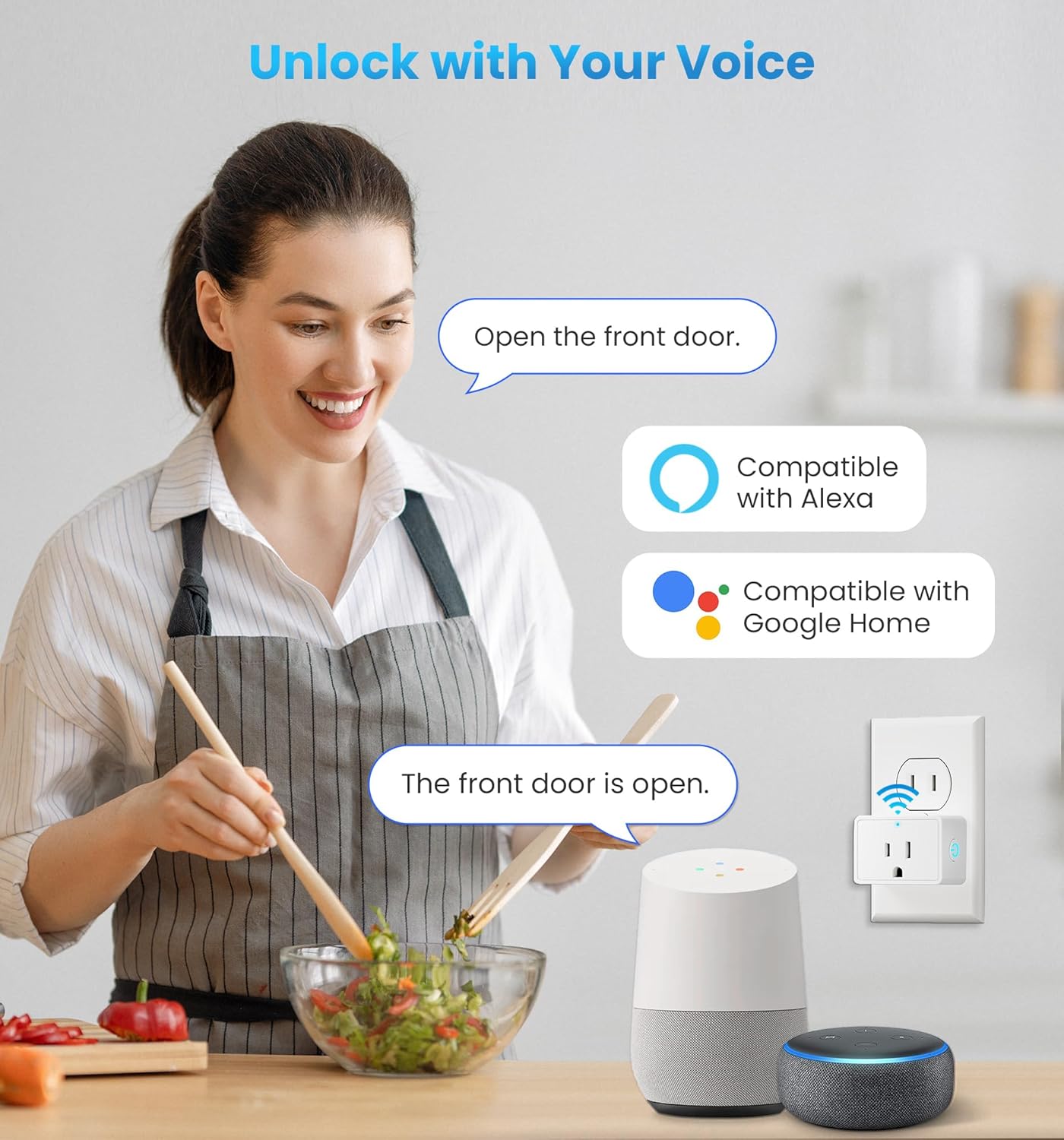
Image: A woman in a kitchen interacting with smart speakers (Google Home and Amazon Echo Dot), with speech bubbles indicating voice commands like "Open the front door" and the response "The front door is open," illustrating the voice control feature for smart locks.
Compatibility
The Veise G1 Gateway is specifically designed to be compatible with Veise smart locks that utilize the KK Home App. Compatible models include:
- VE017
- VE017-H
- VE017-L
- VE018
- VE019
- VE33A
One G1 Gateway can connect and control up to three compatible smart locks simultaneously.
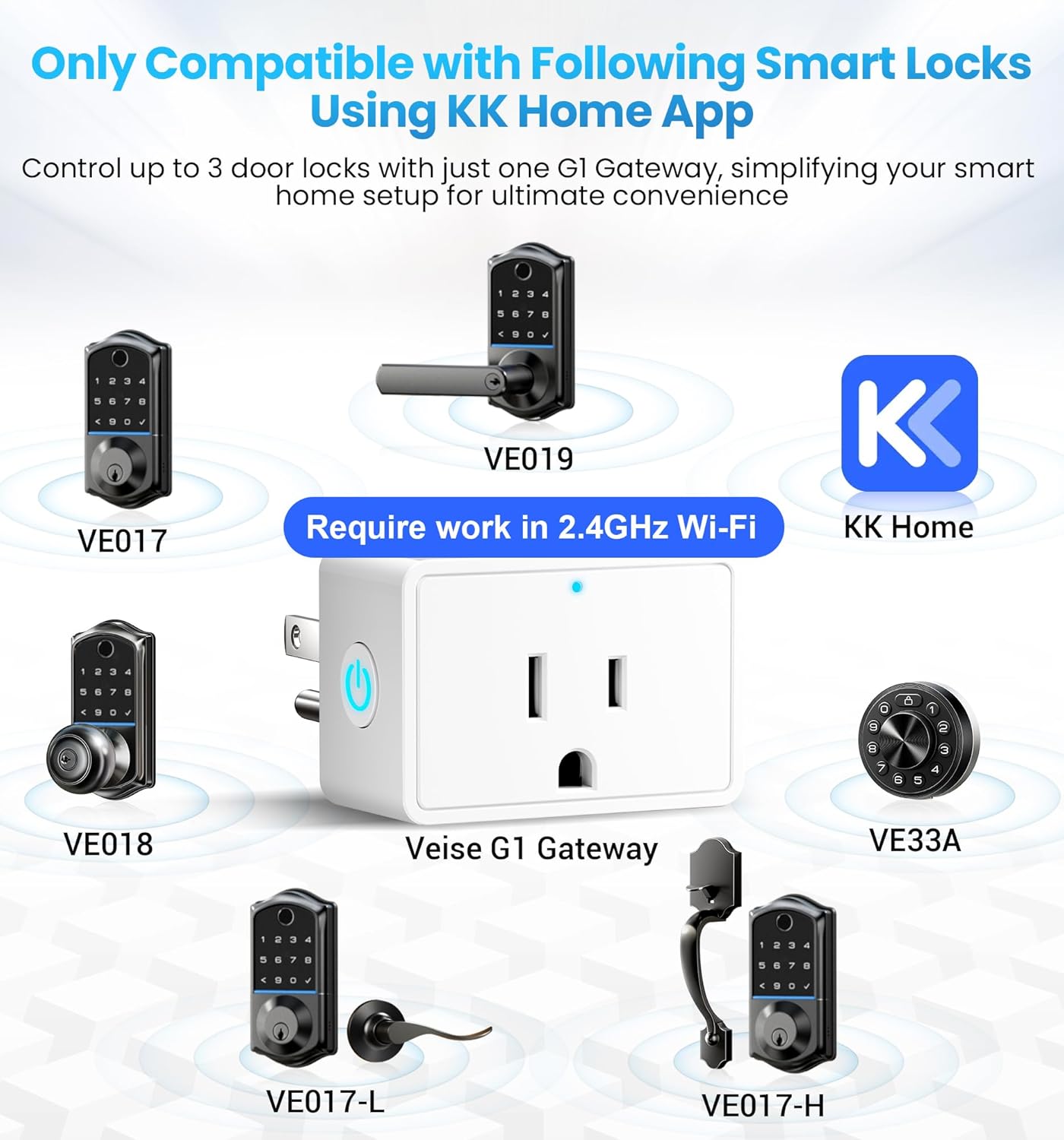
Image: A central image of the Veise G1 Gateway surrounded by images of various Veise smart lock models (VE017, VE019, VE018, VE33A, VE017-L, VE017-H), indicating their compatibility with the gateway and the KK Home App, and noting the requirement for 2.4GHz Wi-Fi.
Versatile Smart Plug Functionality
Beyond its gateway capabilities, the Veise G1 also functions as a versatile smart plug, allowing you to control connected devices remotely. This feature helps maximize your space and provides effortless control over various electronics.
- Wide Voltage Compatibility: Supports 100V-240V, 10A.
- Maximum Power: Up to 2200W.
- Compact Design: Small and portable size (2.3 x 2.3 x 2.3 inches) ensures it won't obstruct other outlets.
- Applications: Suitable for powering cell phones, tablets, chargers, lamps, printers, and more.
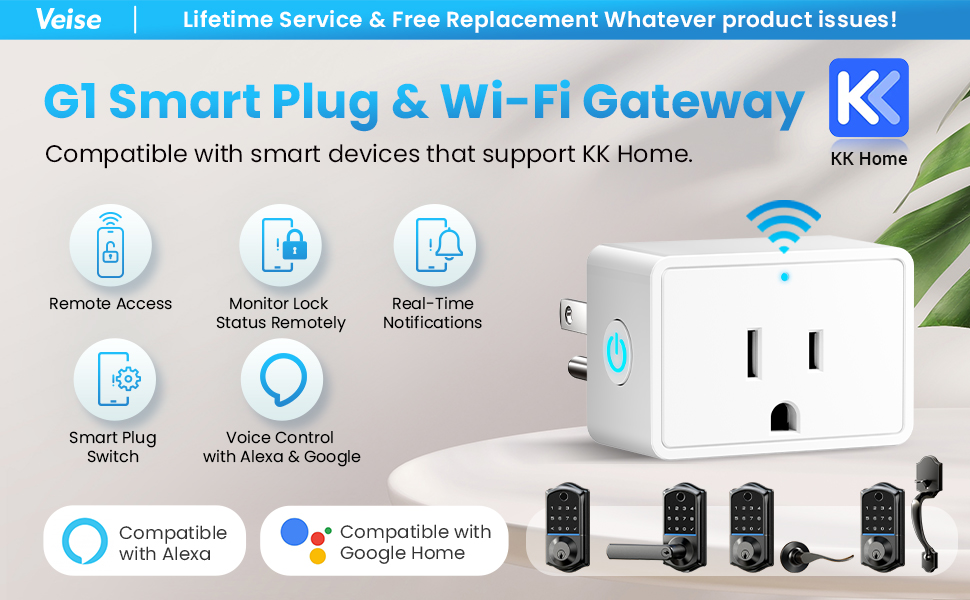
Image: The Veise G1 Gateway plugged into a wall outlet, powering a lamp. A smartphone screen next to it displays the KK Home App with a "Plug switch" option, demonstrating the remote control capability of the smart plug function. Load capacity details are also visible.
Maintenance
To ensure optimal performance and longevity of your Veise G1 Gateway, consider the following maintenance tips:
- Keep Clean: Regularly wipe the device with a dry, soft cloth to remove dust. Avoid using liquid cleaners.
- Optimal Placement: Ensure the gateway remains within the recommended distance of your Wi-Fi router (within 20 meters) and smart locks (within 10 meters) for stable connectivity.
- Firmware Updates: Periodically check the KK Home App for any available firmware updates for the gateway and install them to ensure the latest features and security enhancements.
- Avoid Overloading: Do not exceed the maximum power rating of 2200W when using the smart plug functionality.
Troubleshooting
If you encounter issues with your Veise G1 Gateway, refer to the following common problems and solutions:
| Problem | Possible Cause | Solution |
|---|---|---|
| Gateway not connecting to Wi-Fi. | Incorrect Wi-Fi band (using 5G instead of 2.4G). Incorrect Wi-Fi password. Gateway too far from router. | Ensure your router is broadcasting a 2.4G Wi-Fi network and connect to it. The G1 Gateway is not compatible with 5G Wi-Fi. Double-check your Wi-Fi password. Move the gateway closer to your Wi-Fi router (within 20 meters). |
| Smart lock not connecting to gateway. | Smart lock too far from gateway. Gateway not successfully added to app first. | Ensure the smart lock is within 10 meters (32 ft) of the G1 Gateway. Verify that the G1 Gateway has been successfully added and is online in the KK Home App before attempting to add the smart lock. |
| Voice control not working. | Alexa/Google Assistant not linked to KK Home App. Incorrect voice commands. | Ensure your Alexa or Google Assistant account is properly linked with your KK Home App account. Refer to the app for correct voice commands. |
| Gateway indicator light status. | Understanding light behavior. |
|
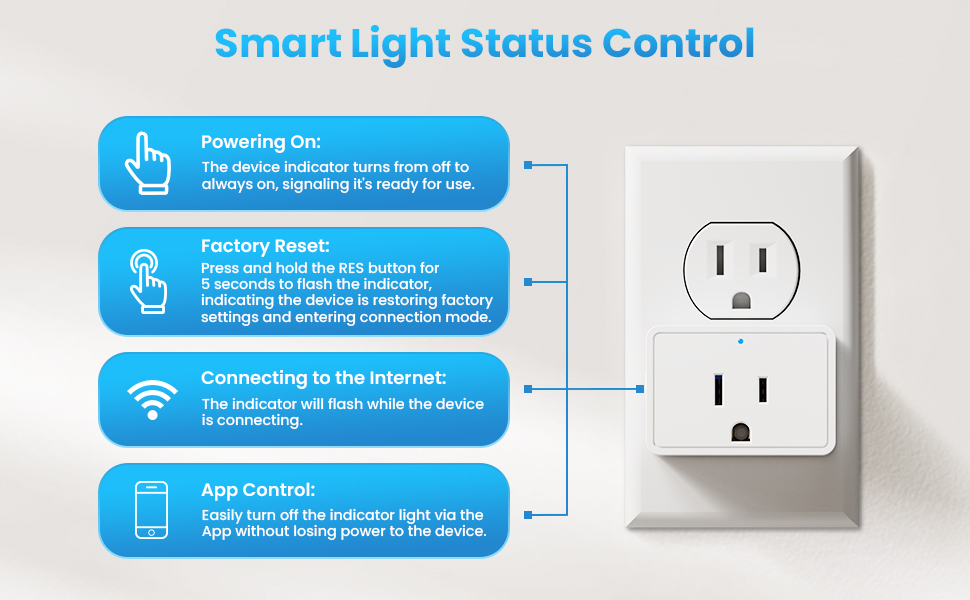
Image: A diagram illustrating the smart light status control of the Veise G1 Gateway, detailing what each light behavior (powering on, factory reset, connecting to the internet, app control) signifies.
Specifications
| Feature | Detail |
|---|---|
| Model Name | G1 |
| Brand | Veise |
| Lock Type | Connect Bridge |
| Connectivity Protocol | Wi-Fi (2.4G only) |
| Controller Type | Compatible with Amazon Alexa, Google Assistant |
| Control Method | App (KK Home) |
| Item Dimensions (L x W x H) | 2.36 x 2.36 x 2.36 inches |
| Item Weight | 5 ounces |
| Material | Plastic |
| Color | White |
| Number of Pieces | 1 |
| Included Components | User Manual, Smart lock Gateway |
| Voltage Compatibility | 100V-240V, 10A |
| Maximum Power | 2200W |
Warranty and Support
Veise is committed to providing high-quality products and excellent customer service.
- Warranty: Veise offers at least a 1-year product warranty from the date of purchase.
- Customer Support:
- Lifetime online phone support from Monday to Friday, 9 AM to 5 PM PST.
- 24/7 after-sales email service.
For any product issues or support inquiries, please contact Veise customer service.
Related documentsG1


Ask a question about this manual
Ask about setup, troubleshooting, compatibility, parts, safety, or missing instructions. Manuals+ will review the question and use this page’s manual context to help answer it.