1. Introduction
This manual provides comprehensive instructions for the VODESON Smart Wallet Tracker Card, designed to help you locate your valuables using Apple's Find My network. This ultra-thin, wireless charging, and IP68 waterproof device offers features such as real-time location tracking, left-behind alerts, and item sharing, ensuring your personal items are always within reach.

Image 1.1: The VODESON Smart Wallet Tracker Card, highlighting its compact design and Apple Find My compatibility.
2. Setup
2.1 Initial Charging
Before first use, fully charge your VODESON Smart Wallet Tracker Card. The device supports wireless charging.
- Place the tracker card on a compatible wireless charging pad.
- A dynamic, color-changing LED indicator will show the charging status.
- A full charge can provide up to 5 months of power.
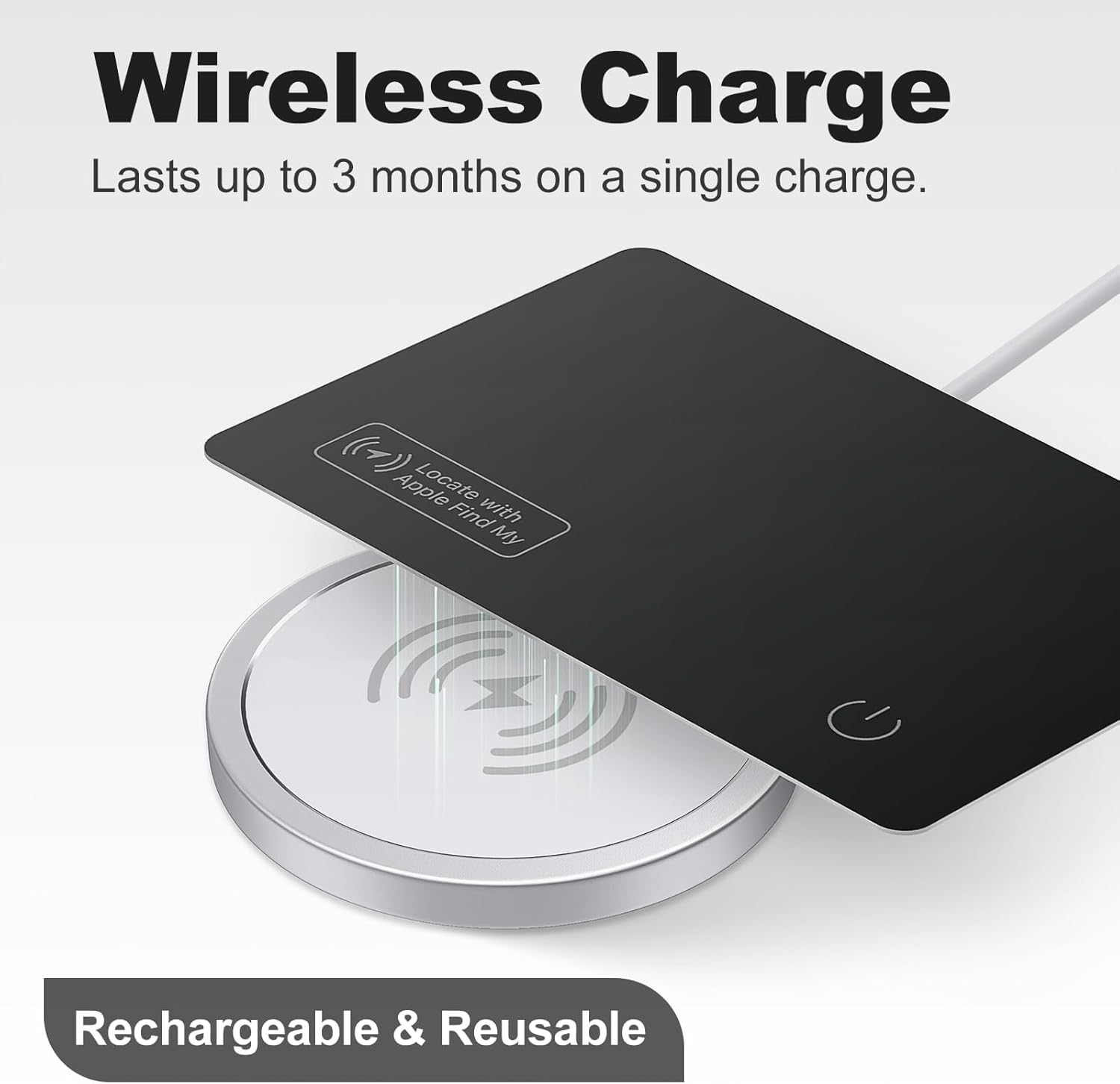
Image 2.1: The tracker card being charged wirelessly on a charging pad.

Image 2.2: Ensure correct placement on the wireless charging pad for optimal charging.
2.2 Pairing with Apple Find My
The VODESON Smart Wallet Tracker Card is exclusively compatible with Apple devices and integrates with the Find My app.
- Ensure your Apple device (iPhone, iPad, or Mac) has the latest iOS/iPadOS/macOS version installed.
- Open the Find My app on your Apple device.
- Navigate to the Items tab.
- Tap the + icon and select Add Other Item.
- Follow the on-screen instructions to pair your VODESON Smart Wallet Tracker Card. You may need to press and hold the power button on the card to activate pairing mode.
- If connection issues occur, try resetting the card before attempting to connect again.
Note: Android devices are not supported.
3. Operating Instructions
3.1 Locating Your Items
To find your tracker card and the item it's attached to:
- Open the Find My app on your Apple device.
- Select your VODESON Smart Wallet Tracker Card from the Items list.
- If within Bluetooth range (up to 164 feet / 50 meters), tap Play Sound to activate the built-in speaker on the tracker card, helping you pinpoint its exact location.
- If outside Bluetooth range, the app will display the last known location on a map.
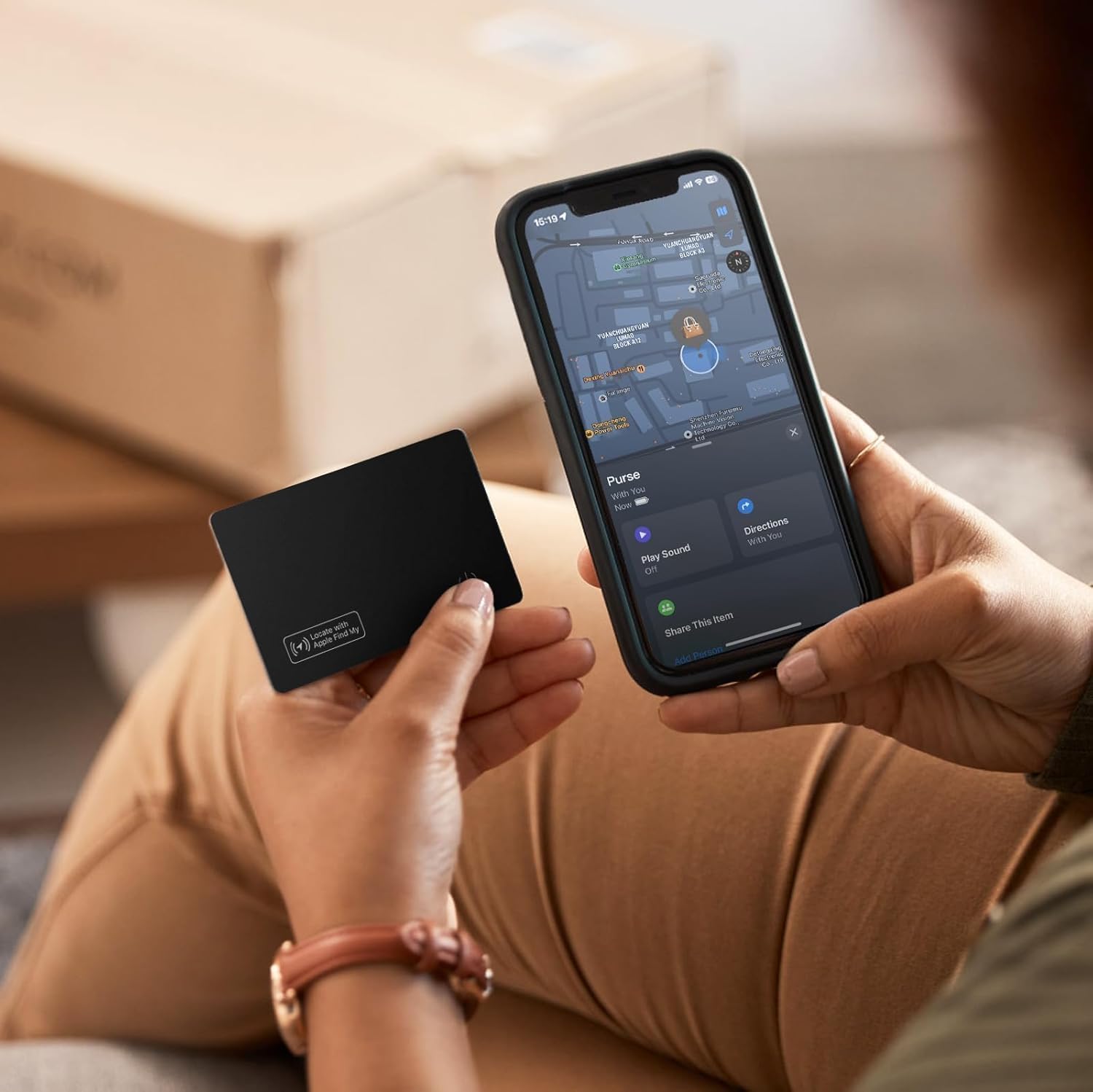
Image 3.1: Using the Find My app to locate your tracker card.
3.2 Left-Behind Alerts
The Left-Behind Alert system notifies you if you leave your tracker card behind:
- Your iPhone will send a notification the moment your SmartTrack Card moves beyond Bluetooth range.
- You can view the last known location of the card directly in the Find My app.
- This feature provides peace of mind without any subscription fees.

Image 3.2: An example of a Left-Behind Alert notification on an iPhone.
3.3 Enhanced Lost Mode
If your item is truly lost, activate Lost Mode:
- In the Find My app, select your tracker card and enable Lost Mode.
- This utilizes the extensive Apple Find My network, comprising millions of Apple devices, to help locate your item.
- You will receive instant alerts when your item is detected by another device in the network.
3.4 Item Sharing (iOS 17 and above)
For users with iOS 17 or newer, you can share your tracker card's location:
- You can share your item with up to 5 designated borrowers.
- Each borrower can view the item's location on their own Find My map.
- Borrowers will not receive movement notifications.
- Ensure your device is upgraded to iOS 17 to utilize this feature.
4. Maintenance
4.1 Recharging
Recharge the VODESON Smart Wallet Tracker Card when the battery level is low. The LED indicator will signal low battery status. Use a compatible wireless charging pad for recharging.
4.2 Water Resistance
The tracker card has an IP68 rating, meaning it is resistant to dust and can withstand submersion in up to 3 feet (1 meter) of water for up to 30 minutes. While durable, avoid prolonged submersion or exposure to high-pressure water jets.

Image 4.1: The tracker card's IP68 waterproof design.
4.3 Privacy Protection
VODESON prioritizes your privacy. Your location data and history are safeguarded by anonymous and encrypted protocols and are never stored publicly.
5. Troubleshooting
| Issue | Possible Cause | Solution |
|---|---|---|
| Device not pairing with Find My app. |
|
|
| Card not charging wirelessly. |
|
|
| Sound alert is not loud enough. |
|
|
6. Specifications
- Model: B0CTJGRQR8
- Dimensions: 0.07"L x 0.07"W x 0.06"Th (approximately 1.8mm thick)
- Item Weight: 0.634 ounces
- Connectivity: Bluetooth
- Compatibility: Apple Find My network (iOS devices only)
- Battery: 1 Lithium Polymer battery (included)
- Charging: Wireless charging
- Battery Life: Up to 5 months on a single charge
- Water Resistance: IP68 (up to 3 feet for 30 minutes)
- Material: Metal
- Manufacturer: Vodeson
7. Warranty and Support
For warranty information or technical support, please contact Vodeson customer service through the retailer where the product was purchased or visit the official Vodeson website. Please retain your proof of purchase for warranty claims.