
Introduction
Welcome to the user manual for your Logitech MX Mechanical Mini Bluetooth Keyboard. This compact, low-profile mechanical keyboard is designed for precision and comfort, featuring Tactile Quiet switches, smart illumination, and multi-device connectivity. This guide will assist you with setup, operation, maintenance, and troubleshooting to ensure optimal performance.

Image: Logitech MX Mechanical Mini Keyboard being used for typing.
Setup
1. What's in the Box
- Logitech MX Mechanical Mini Wireless Illuminated Performance Keyboard
- Logi Bolt Receiver
- USB-C Charging Cable
- User Documentation
2. Charging the Keyboard
Before first use, fully charge your keyboard using the provided USB-C cable. Connect the USB-C end to the keyboard's charging port and the USB-A end to a power source (e.g., computer USB port, USB wall adapter). The LED indicator will show charging status.
3. Connectivity Options
Your MX Mechanical Mini keyboard offers two primary connection methods: Bluetooth Low Energy and the Logi Bolt USB Receiver.
Bluetooth Low Energy Connection
- Ensure your device (PC, macOS, iOS, iPadOS, Android, Linux, ChromeOS) has Bluetooth Low Energy enabled.
- Turn on the keyboard using the On/Off switch located on the top edge.
- Press and hold one of the Easy-Switch keys (1, 2, or 3) for three seconds until the LED indicator on the key starts blinking rapidly. This indicates pairing mode.
- On your device, go to Bluetooth settings and select "MX Mechanical Mini" from the list of available devices to pair.
- The LED on the Easy-Switch key will glow solid for 5 seconds, confirming a successful connection.
Logi Bolt USB Receiver Connection
- Plug the Logi Bolt USB Receiver into an available USB-A port on your computer.
- Turn on the keyboard.
- The keyboard should automatically connect to the Logi Bolt receiver. If not, press and hold an Easy-Switch key (1, 2, or 3) for three seconds to enter pairing mode, then follow on-screen prompts if any, or use Logi Options+ software to manage connections.
4. Software Installation (Logi Options+)
For advanced customization and features, download and install the Logi Options+ software from the official Logitech website. This software allows you to customize Fn keys, assign backlighting effects, and enable Flow cross-computer control.

Image: System requirements for Bluetooth and Logi Bolt connectivity, including supported operating systems.
Operating Instructions
1. Basic Typing and Key Features
The MX Mechanical Mini features low-profile mechanical keys designed for a comfortable and precise typing experience. The specific model you have features Linear switches for smooth typing. Other switch types like Tactile Quiet and Clicky are also available in the MX Mechanical series.
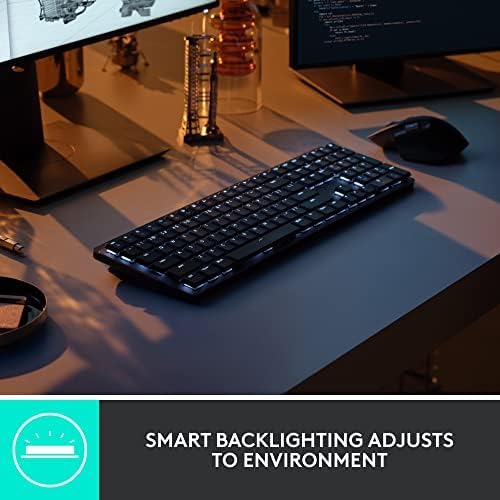
Image: Illustration of different mechanical key switch types: Linear (smooth), Tactile Quiet (satisfying bump), and Clicky (audible click).
2. Smart Illumination
The keyboard features smart backlighting that adjusts automatically to ambient lighting conditions. Keys light up when your hands approach the keyboard and dim when not in use to conserve battery. You can customize backlighting effects and brightness levels using the Logi Options+ software.

Image: The keyboard's smart backlighting feature, showing illuminated keys in a dim environment.
3. Multi-Device Switching (Easy-Switch)
The keyboard can be paired with up to three devices. Use the Easy-Switch keys (1, 2, 3) to seamlessly switch between connected devices. A short press on an Easy-Switch key will switch the keyboard's connection to the corresponding paired device.
4. Customization with Logi Options+
The Logi Options+ software unlocks the full potential of your keyboard. You can:
- Reassign Fn keys to perform custom actions.
- Adjust backlighting patterns and brightness.
- Enable Flow for cross-computer control (requires compatible Logitech mouse).
- Check battery status and receive low battery notifications.

Image: Screenshot of the Logi Options+ software showing advanced customization options for the MX Mechanical keyboard.
5. Battery Life and Charging
The keyboard features a rechargeable battery. A full charge can last up to 15 days with backlighting enabled, or up to 10 months with backlighting turned off. Use the provided USB-C cable for charging. The LED indicator will signal low battery status.
Maintenance
1. Cleaning the Keyboard
To clean your keyboard, power it off. Use a soft, lint-free cloth slightly dampened with water or a mild cleaning solution. Avoid harsh chemicals or abrasive materials. For cleaning between keys, use compressed air or a soft brush.
2. Battery Care
To prolong battery life, avoid exposing the keyboard to extreme temperatures. If storing for an extended period, ensure the keyboard is partially charged (around 50%) and powered off.
Troubleshooting
1. Keyboard Not Connecting
- Check Power: Ensure the keyboard is turned on and sufficiently charged.
- Re-pair: Try re-pairing the keyboard via Bluetooth or Logi Bolt receiver.
- Device Compatibility: Verify your device meets the system requirements for Bluetooth Low Energy or Logi Bolt.
- Interference: Move the keyboard closer to your device and away from other wireless devices that might cause interference.
2. Backlighting Not Working or Dim
- Battery Level: Low battery can affect backlighting performance. Charge the keyboard.
- Ambient Light Sensor: The smart illumination adjusts to ambient light. In bright environments, backlighting may appear dim or off.
- Logi Options+: Check backlighting settings in the Logi Options+ software.
3. Keys Not Responding
- Connectivity: Ensure the keyboard is properly connected to your device.
- Restart: Try restarting your computer and the keyboard.
- Cleanliness: Check for any debris under the keys that might be obstructing movement.
Specifications

Image: Diagram highlighting key features of the MX Mechanical Mini Keyboard, including low-profile keys, customization, switch types, Easy-Switch, USB-C charging, smart backlighting, dual color keycaps, and low-carbon aluminum.
| Feature | Detail |
|---|---|
| Brand | Logitech |
| Model Name | MX Mechanical Mini Master |
| Connectivity Technology | Bluetooth Low Energy, USB (via Logi Bolt Receiver) |
| Keyboard Description | Mechanical, Low-Profile |
| Switch Type | Tactile Quiet (Linear for this specific model) |
| Keyboard Layout | QWERTY |
| Number of Keys | 104 |
| Special Features | Ambient Light Sensor, Hand Proximity Detection, Illuminated, LED Indicator, Low-Profile Key, Multi-host Support, On/Off Switch, Rechargeable |
| Keyboard Backlighting | Single Color (White) |
| Power Source | Battery Powered (USB-C rechargeable) |
| Material | Plastic (with certified post-consumer recycled plastic content), Low-carbon aluminum top plate |
| Item Weight | 1.65 Pounds |
| Compatible Devices | PC (Windows 10/11 or later), macOS 10.15 or later, iOS 14 or later, iPadOS 14 or later, Linux, ChromeOS, Android |
Warranty Information
This Logitech MX Mechanical Mini Keyboard comes with a 90-day limited warranty from the date of purchase. For renewed products, this item is also eligible for replacement or refund under the Amazon Renewed Guarantee if you are not satisfied with your purchase.
Please retain your proof of purchase for warranty claims. For detailed warranty terms and conditions, refer to the documentation included with your product or visit the official Logitech support website.
Support
For further assistance, technical support, or to download the latest version of Logi Options+ software, please visit the official Logitech support website:
You can also find FAQs and community forums on the support website for common issues and tips.


