
1. Introduction
The Colorlight A200 is a professional-grade 4K LED display controller and digital signage player designed for high-performance environments. It offers exceptional flexibility, resolution, and network control in a compact device, suitable for managing video walls, multi-screen retail signage, and various commercial display applications. This manual will guide you through the installation, configuration, and daily operation of your A200 device.
2. What's in the Box
Upon opening the Colorlight A200 package, please verify that all the following items are included:
- 1 × Colorlight A200 Media Player
- 1 × Power Adapter
- 1 × HDMI Cable
- 1 × Ethernet Cable
- 1 × User Manual

Image: All components included in the Colorlight A200 package, including the media player, power adapter, cables, and user manual.
3. Key Features
The Colorlight A200 offers a robust set of features designed for versatile and reliable digital signage:
- 4K LED Display Controller with Multi-Format Video Playback: Supports 4K, HD, HEVC, MP4, VP9 formats. Ideal for LED video wall panels, digital signage screens, and commercial LED displays. Built-in HDMI, USB, and DVI for flexible input options.
- Digital Signage Player for Commercial Multimedia Display: Designed for public information screens, restaurant menu boards, and retail display signage. Provides reliable 1080p and 4K digital video output with scheduled playback, loop video features, and media player integration.
- Smart Control Box with Ethernet and Cloud Connectivity: Includes Ethernet port and cloud control features for real-time digital signage management. Compatible with remote display updates, webpage display playback, and scheduled content distribution.
- Compatible with Transparent LED Screens and Flexible LED Panels: Engineered for flexible installations, including transparent film displays and multi-format LED display configurations. Controls up to 2.3 million pixels with asynchronous and synchronous playback support.
- High-Performance LED Display Control System for 24/7 Operation: Built for harsh environments with wide temperature support, remote monitoring, automatic brightness adjustment, and motion sensor input. Supports multi-window playback and chain store display synchronization.
4. Product Overview
Familiarize yourself with the physical components and ports of the Colorlight A200.

Image: Front view of the Colorlight A200, showcasing its compact design and single antenna.
4.1 Rear Panel Connections
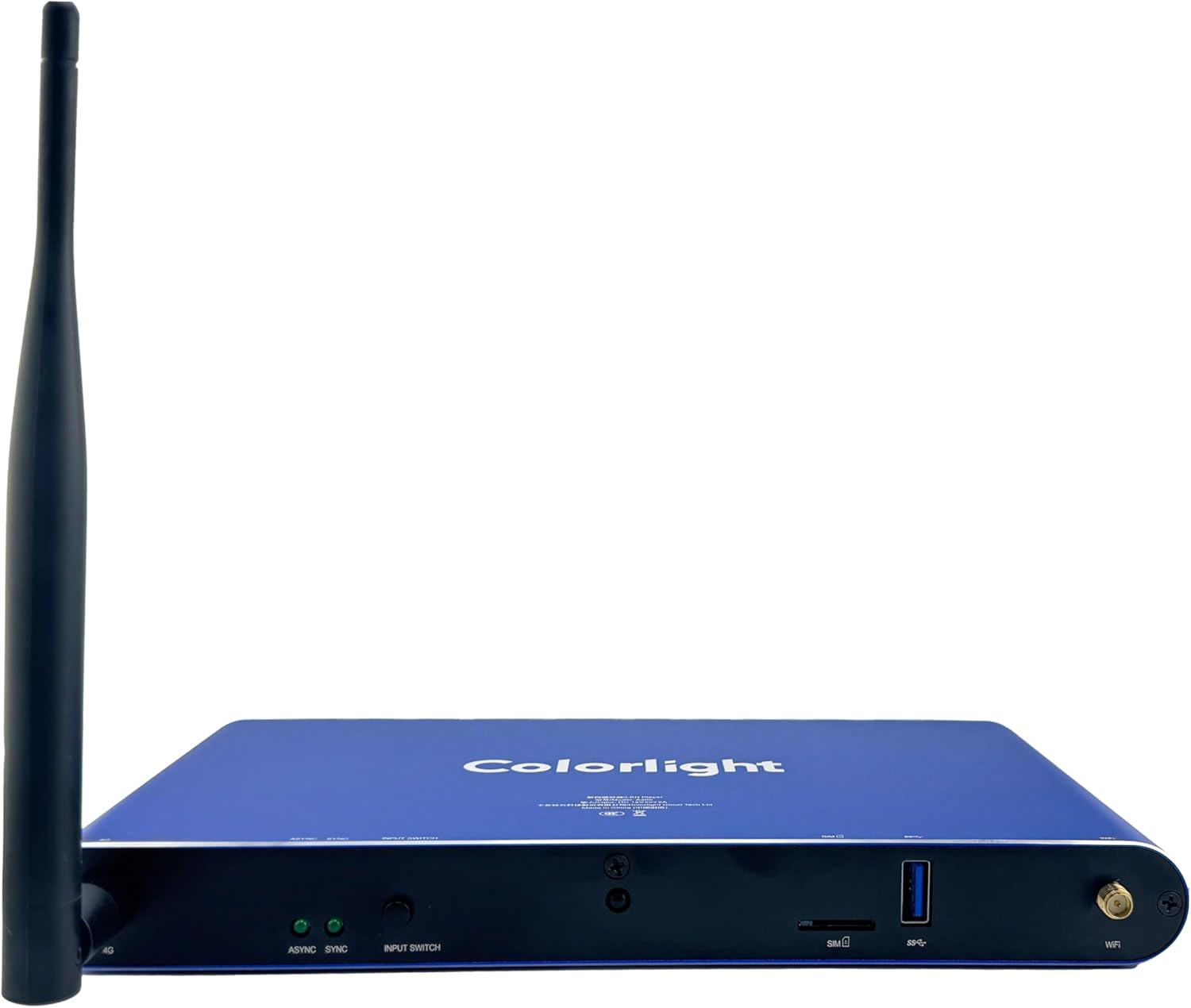
Image: Rear panel of the Colorlight A200, detailing the power input, sensor ports, configuration port, LAN, audio, HDMI, and LED output ports.
- 12V === 2A: DC power input port.
- SENSOR 1 / SENSOR 2: Ports for connecting external sensors (e.g., brightness, temperature, motion).
- CONFIG: USB port for configuration and firmware updates.
- LAN: Ethernet port for network connection and cloud management.
- AUDIO OUT: 3.5mm audio output jack.
- HDMI IN: HDMI input port for external video sources.
- HDMI OUT: HDMI output port for connecting to a display or monitor.
- PORT 1 - PORT 4: RJ45 output ports for connecting to LED receiving cards.
4.2 Front Panel Features

Image: Front panel of the Colorlight A200, showing the 4G antenna, status indicators, input switch, SIM card slot, USB port, and WiFi antenna.
- 4G Antenna Port: Connector for the optional 4G antenna.
- ASYNC / SYNC Indicators: LEDs indicating asynchronous or synchronous playback mode.
- INPUT SWITCH: Button to switch between input sources.
- SIM: SIM card slot for 4G connectivity.
- USB: USB 3.0 port for media playback from USB drives.
- WiFi Antenna Port: Connector for the WiFi antenna.
5. Setup Guide
Follow these steps to set up your Colorlight A200 for initial use.
5.1 Connecting Power
- Connect the provided power adapter to the 12V === 2A port on the rear panel of the A200.
- Plug the power adapter into a suitable electrical outlet. The device will power on automatically.
5.2 Network Connection
The A200 supports multiple network connectivity options:
- Ethernet (LAN): Connect an Ethernet cable from your network router or switch to the LAN port on the A200. This is the recommended method for stable connectivity.
- Wi-Fi: Attach the WiFi antenna to the designated port on the front panel. Configure Wi-Fi settings through the device's interface or cloud platform.
- 4G (Optional): Insert a valid SIM card into the SIM slot on the front panel and attach the 4G antenna to the designated port.
5.3 Display Connection
Connect the A200 to your LED display or monitor:
- LED Display: Connect Ethernet cables from the PORT 1-4 outputs on the A200 to the input ports of your LED receiving cards. Ensure correct cabling order for your specific LED display configuration.
- Monitoring Display (Optional): Use an HDMI cable to connect the HDMI OUT port on the A200 to an HDMI input on a monitor for real-time content preview or system monitoring.
5.4 Input Devices and Sensors
- USB Media: Insert a USB flash drive containing media files into the USB port on the front panel for local playback.
- External Sensors: Connect compatible sensors (e.g., light sensors for automatic brightness adjustment) to the SENSOR 1 or SENSOR 2 ports.
- HDMI Input: If using an external HDMI source, connect it to the HDMI IN port.
6. Operating Instructions
This section covers the basic operation and content management for the Colorlight A200.
6.1 Basic Operation
- Power On/Off: The device powers on automatically when connected to power. To power off, disconnect the power adapter.
- Input Switching: Press the INPUT SWITCH button on the front panel to cycle through available input sources (e.g., internal player, HDMI IN).
- Status Indicators: Observe the ASYNC and SYNC LEDs on the front panel to determine the current playback mode.
6.2 Content Management
Content can be managed via the cloud platform or local USB:
- Cloud Platform: For remote management, scheduling, and real-time updates, access the Colorlight cloud platform via a web browser. Refer to the platform's specific documentation for detailed instructions on uploading content, creating playlists, and setting schedules.
- USB Playback: Insert a USB drive with supported media files (4K, HD, HEVC, MP4, VP9). The A200 can be configured to automatically play content from the USB drive.
- Multi-Window Layout: The A200 supports creating complex multi-window layouts for displaying various content types simultaneously. This feature is typically configured through the cloud management software.
6.3 Remote Control (Optional)
If your A200 package includes a remote control, it can be used for basic navigation and playback control. Ensure the remote control's batteries are installed correctly.
7. Maintenance
Proper maintenance ensures the longevity and optimal performance of your Colorlight A200.
- Cleaning: Regularly clean the exterior of the device with a soft, dry cloth. Do not use liquid cleaners or aerosols. Ensure ventilation openings are free from dust and debris.
- Firmware Updates: Periodically check the Colorlight official website or your cloud platform for available firmware updates. Keeping the firmware updated ensures access to the latest features and performance improvements. Follow the provided instructions carefully during updates.
- Environmental Conditions: Operate the device within its specified temperature and humidity ranges. Avoid exposing the A200 to extreme temperatures, direct sunlight, or high moisture environments.
- Cable Management: Ensure all cables are securely connected and not under strain. Loose connections can lead to intermittent issues.
8. Troubleshooting
This section addresses common issues you might encounter with the Colorlight A200.
| Problem | Possible Cause | Solution |
|---|---|---|
| No display output on LED screen. | Incorrect cabling; LED receiving card issue; A200 not configured correctly. | Check Ethernet cables to LED receiving cards. Verify LED display configuration in software. Ensure A200 is powered on. |
| No network connection. | Loose Ethernet cable; Incorrect Wi-Fi settings; 4G signal issue. | Ensure Ethernet cable is securely connected. Reconfigure Wi-Fi settings. Check SIM card and 4G antenna for 4G connectivity. |
| Content not playing or freezing. | Unsupported media format; Corrupted file; Insufficient storage; Network latency. | Ensure media format is supported (HEVC, MP4, VP9). Re-upload content. Check available storage. Verify network stability for cloud content. |
| Device unresponsive. | Software glitch; Power issue. | Disconnect and reconnect power to restart the device. If issue persists, contact technical support. |
9. Technical Specifications
Detailed specifications for the Colorlight A200 LED Display Cloud Media Player.
| Attribute | Value |
|---|---|
| Brand Name | Colorlight |
| Model Name | Colorlight A200 |
| Item Model Number | A200 |
| Color | A200 |
| Item Weight | 1.83 pounds |
| Product Dimensions | 5.41 x 1.02 x 9.24 inches |
| Connectivity Technology | LAN, Optional 4G, Wi-Fi, Wired, Wireless |
| Connector Type | HDMI, USB, Ethernet, RJ11 Sensor Port |
| Resolution | 4K |
| Supported Internet Services | LAN Network Access, Web-based Cloud Platform |
| Controller Type | App Control, Remote Control |
| Form Factor | TV Box |
| Special Features | 4K Video Playback, Automatic Brightness Adjustment, Real-Time Monitoring, Cloud Management, Multi-Window Layout, USB Plug-and-Play, Multi-Network Support (WiFi, LAN, optional 4G), Scheduled Program Playback, Multi-Screen Sync |
| Date First Available | February 13, 2024 |
10. Warranty and Support
The Colorlight A200 comes with a standard manufacturer's warranty. For specific warranty terms and conditions, please refer to the warranty card included in your product packaging or visit the official Colorlight website. For technical support, troubleshooting assistance beyond this manual, or service inquiries, please contact Colorlight customer support through their official channels. Keep your purchase receipt or proof of purchase handy when contacting support.


