
1. Introduction
The OMTech Polar Lite CO2 Laser Engraver is a versatile desktop machine designed for engraving, cutting, and shaping various materials. This manual provides essential information for the safe and effective operation of your laser engraver, including setup, operational procedures, maintenance, and troubleshooting.
This machine is capable of processing materials such as wood (up to 0.61 inches), acrylic (up to 1 inch), leather, fabric, cardboard, and coated metals. It features a 20"x12" work area and includes a rotary axis for engraving cylindrical objects.

Image: The OMTech Polar Lite laser engraver in use, demonstrating its ability to create various engraved and cut items.
2. Safety Information
WARNING: This product contains a Class 2 laser with 0.827 mW output power. Always follow safety guidelines to prevent injury.
Your OMTech Polar Lite laser engraver is equipped with several safety features:
- Cover Protection & E-Stop: Operation halts automatically when the cover is opened or the emergency stop button is activated.
- Fully Enclosed Design: Helps contain dust, laser emissions, and smoke for safer operation.
- Secure Safety Lock: Prevents accidental activation and unauthorized use.
- Water Temperature Alert: Notifies you if the water temperature exceeds 107°F (41.6°C) to prevent overheating.
Ensure proper ventilation during operation. The machine includes a 18.8 cfm air pump and 282.5 cfm built-in exhaust fans to manage smoke and debris. Always operate the machine in a well-ventilated area or with an external exhaust system.

Image: Visual representation of the four key safety features integrated into the laser engraver.
3. Package Contents
Upon receiving your OMTech Polar Lite, please verify that all components are present. Note that the laser engraver and the rotary axis may arrive in separate packages.
The package typically includes:
- Desktop Laser Engraver
- Rotary Axis (separate package)
- 1.5 m USB Cables
- 1.5 m Power Cable
- 5m Ethernet Cable
- 10V/20A Fuses
- Laser Keys
- Exhaust Pipe
- 3 Wood Blanks
- 3 Acrylic Blanks
- 3 Cardboard Blanks
- Flat Head Screws
- Hex Wrenches
- Pipe Holder
- USB Drive with Engraving Software
- Hose Clamps

Image: Overview of the items included in the product package.
4. Setup
- Unpacking and Placement: Carefully remove the engraver and all accessories from their packaging. Place the machine on a stable, level surface in a well-ventilated area.
- Connect Power: Plug the power cable into the engraver and a suitable power outlet.
- Connect Exhaust System: Attach the provided exhaust pipe and hose clamps to the machine's exhaust port. Route the exhaust pipe to an outdoor vent or a dedicated fume extractor to ensure proper removal of smoke and fumes.
- Fill Water Tank: The machine features a 0.5-gallon water tank for cooling. Fill the tank with distilled water according to the instructions in the detailed user manual. Ensure the water level is adequate before operation.
- Software Installation: Install the engraving software from the provided USB drive. The OMTech Polar Lite is compatible with LightBurn, CorelLaser, and AutoCAD. Refer to the software-specific instructions for installation and initial setup.
- Rotary Axis Installation (Optional): If using the rotary axis, follow the separate instructions for its installation and connection to the engraver.
Video: An overview of the OMTech Laser Engraver, demonstrating its general use and setup.
5. Operating Instructions
5.1 Automatic Focusing
The OMTech Polar Lite features a one-click autofocus function to simplify setup and ensure precise engraving. This eliminates the need for manual adjustments.
- Place your material on the workbed.
- In the engraving software, select the autofocus option.
- The laser head will automatically adjust its height to achieve optimal focus for your material.

Image: Illustration of the automatic focusing mechanism.
5.2 Material Handling and Work Area
The engraver offers a spacious 20"x12" work area. For larger materials, utilize the front and back pass-through doors, which accommodate materials up to 0.28" thick and 15.75" wide.
- Open the front or back pass-through doors as needed.
- Carefully slide the oversized material through the machine, ensuring it is stable and properly aligned.
- Secure the material if necessary to prevent movement during engraving.
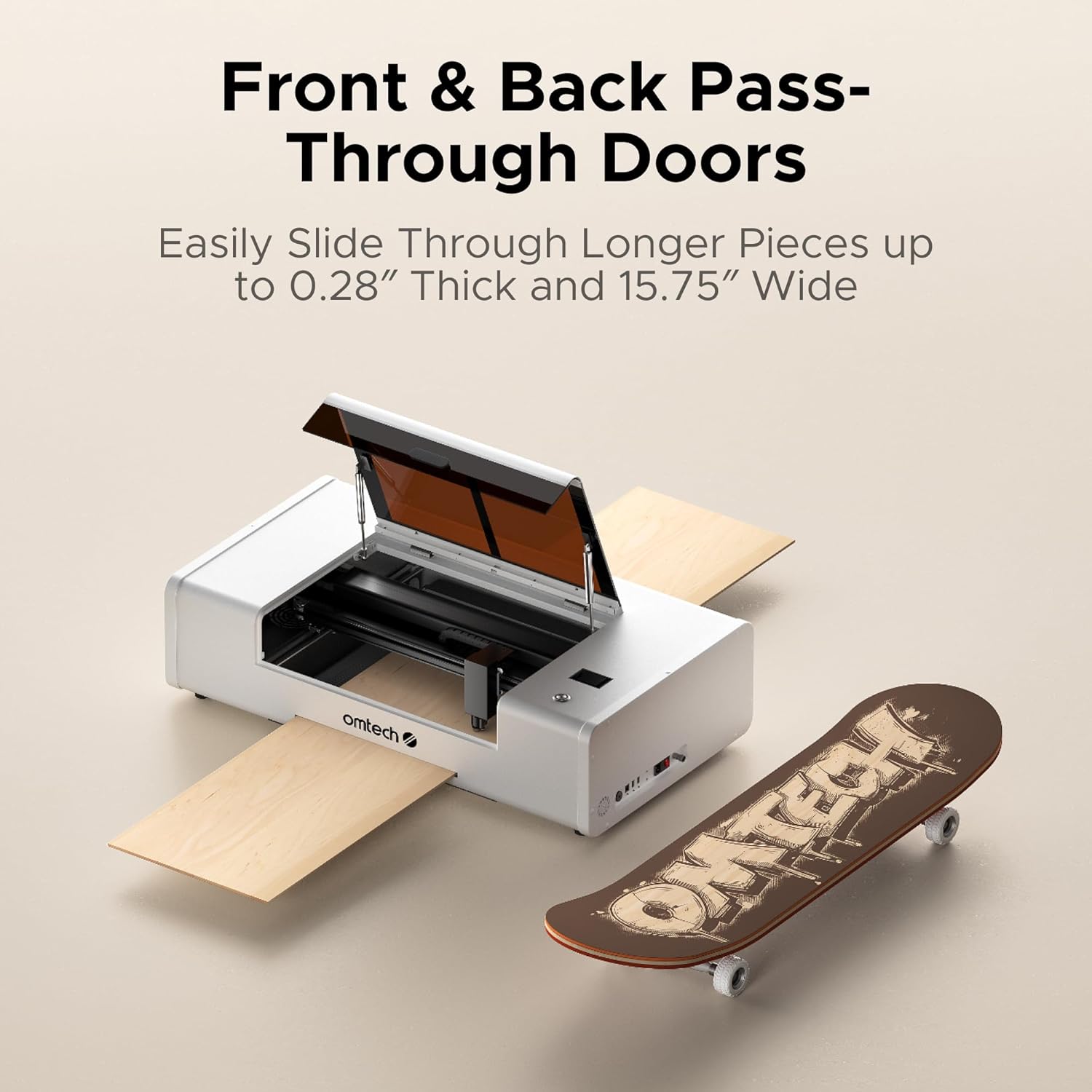
Image: The laser engraver with pass-through doors open for larger materials.
5.3 Using the Rotary Axis
The included rotary axis allows for 360° rotating engraving on cylindrical objects such as tumblers, bottles, or pens.
- Install the rotary axis onto the workbed according to its specific instructions.
- Place the cylindrical object securely onto the rotary axis.
- Adjust software settings to enable rotary engraving and input the object's dimensions.
- Proceed with your engraving job as usual.

Image: The rotary axis in operation, engraving a cylindrical item.
5.4 Engraving and Cutting Examples
The OMTech Polar Lite can engrave and cut various materials. Here are some examples:
Video: Demonstration of laser engraving and cutting on acrylic mirror material.
Video: Tutorial on how to laser engrave a photo using a CO2 laser engraver.
6. Maintenance
Regular maintenance ensures the longevity and optimal performance of your laser engraver.
- Clean Optics: Periodically clean the laser lens and mirrors with appropriate optical cleaning solutions and wipes to maintain laser beam quality.
- Water Cooling System: Monitor the water level in the 0.5-gallon tank and replenish with distilled water as needed. Ensure the cooling system is free of blockages and operating efficiently to prevent the laser tube from overheating.
- Exhaust System: Inspect and clean the exhaust pipe and fans regularly to prevent buildup of debris and ensure effective fume extraction.
- Workbed: Keep the workbed clean from debris and residue to ensure proper material placement and consistent results.
- General Cleaning: Wipe down the exterior of the machine with a soft, damp cloth. Avoid using harsh chemicals.
7. Troubleshooting
If you encounter issues with your OMTech Polar Lite, refer to the following common troubleshooting steps:
- Poor Engraving/Cutting Quality:
- Verify that the autofocus function has correctly set the focal distance.
- Check material settings (power, speed) in your software; they may need adjustment for different materials.
- Ensure the laser lens and mirrors are clean and free of dust or residue.
- Machine Not Starting/Responding:
- Confirm the power cable is securely connected and the machine is switched on.
- Check if the emergency stop button is disengaged.
- Ensure all safety locks (e.g., cover interlock) are properly engaged.
- Overheating Warnings:
- Check the water level in the cooling tank and refill if low.
- Ensure the water pump is functioning and circulating water effectively.
- Verify that the ambient temperature is within the recommended operating range.
- Excessive Smoke/Fumes:
- Ensure the exhaust fan is running and the exhaust pipe is properly connected and vented.
- Check for blockages in the exhaust system.
- Confirm that the air pump is active to assist with smoke removal.
For persistent issues, please contact OMTech customer support.
8. Specifications
| Feature | Specification |
|---|---|
| Model Number | RYGEL-0503 |
| Product Dimensions | 38.2 x 22.3 x 9.2 inches |
| Laser Power | 55W |
| Work Area | 20" x 12" |
| Maximum Speed | 500 mm/s |
| Engraving Accuracy | ±0.02 mm |
| Weight | 90.4 lb. |
| Air Pump Flow Rate | 18.8 cfm |
| Exhaust Fan Flow Rate | 282.5 cfm |
| Water Tank Capacity | 0.5 gal. |
| Laser Class | Class 2 (0.827 mW output power) |
| Wood Cutting (Single-Pass) | Up to 0.61 inches |
| Acrylic Cutting (Single-Pass) | Up to 1 inch |
| Pass-Through Material Thickness | Up to 0.28 inches |
| Pass-Through Material Width | Up to 15.75 inches |
9. Warranty and Support
OMTech provides comprehensive support for your laser engraver:
- Warranty: Enjoy 2 years of comprehensive service from the date of purchase.
- Customer Support: Access 24/7 global support for technical guidance and assistance.
- Local Demos: Local demonstrations are available by appointment.
For support, please visit the official OMTech website or contact their customer service department directly.


