
1. Introduction
The PAINTAUDIO MIDI Captain ONE is a versatile MIDI foot controller designed for musicians and producers. It offers extensive control over multi-effects processors, keyboards, synthesizers, DAW software, and other MIDI-compatible devices. Its compact and durable design makes it suitable for various setups, from studio to stage.
Key features include:
- Single Multi-function Switch: Programmable to send single or multiple MIDI commands per press.
- Mixed Command Sending: Supports various MIDI channels and command types (PC/CC/NOTE).
- Versatile Switch Trigger Timings: Commands can be sent on press, release, hold, or at multiple timings.
- USB-MIDI Support: Enables control of DAW software, synthesizers, and effects software on a computer.
- USB-HID Support: Configurable to simulate keyboard keys or mouse clicks for mixed control.
- Multi-state Switch Cycling: Allows sending different commands or sets of commands with multiple presses, enabling complex functions with one switch.
- Multiple Configurations with Mode Select: Four predefined button function configurations can be switched using dedicated MODE switches.
- Multiple Power Supply Methods: Can be powered via USB cable or a standard pedal power adapter.
2. Product Overview
The MIDI Captain ONE features a robust metal casing and a single programmable footswitch. Below is an overview of its physical components and interfaces.
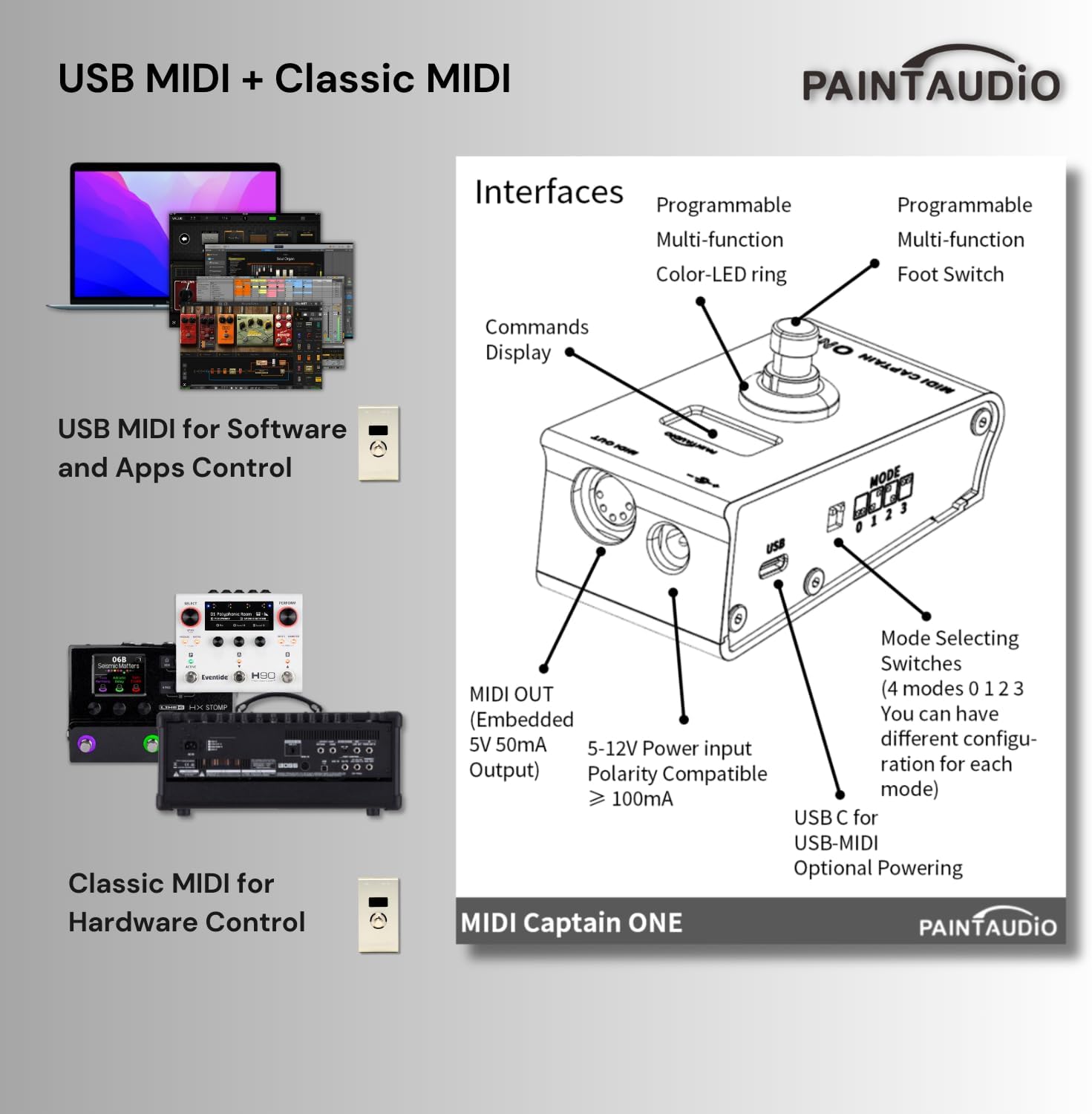
Figure 2.1: Interfaces of the MIDI Captain ONE. This diagram shows the MIDI OUT port, 5-12V power input, USB-C port, programmable multi-function foot switch, color-LED ring, commands display, and mode selecting switches (0, 1, 2, 3).

Figure 2.2: Various views of the MIDI Captain ONE. This image displays the top, bottom, and side views, clearly showing the USB port, power input, MIDI Out, and the Mode Select Switch.
2.1 Components
- Programmable Multi-function Foot Switch: The primary control for sending commands.
- Color-LED Ring: Provides visual feedback on the switch status.
- Commands Display: Small screen for displaying current commands or status.
- Mode Selecting Switches (0, 1, 2, 3): Allows switching between four different configuration modes.
- MIDI OUT (Embedded 5V 50mA Output): For connecting to external MIDI hardware.
- 5-12V Power Input: For external power supply (polarity compatible, ≥100mA).
- USB-C Port: For USB-MIDI connectivity and optional powering.
3. Setup
3.1 Powering the Device
The MIDI Captain ONE can be powered in two ways:
- USB Power: Connect the included USB-C cable to the USB-C port on the device and to a computer or a USB power adapter.
- External Power Adapter: Connect a standard 5-12V DC power adapter (center-negative, ≥100mA) to the dedicated power input port.
3.2 Connecting to Devices
- USB-MIDI Connection: Use the USB-C cable to connect the MIDI Captain ONE to your computer (Windows or Mac). This enables control of DAW software, virtual instruments, and other applications that support USB-MIDI.
- Classic MIDI Connection: Use a standard MIDI cable to connect the MIDI OUT port of the MIDI Captain ONE to the MIDI IN port of your external MIDI hardware (e.g., synthesizers, effects processors).
3.3 Initial Configuration (USB Setup Mode)
To configure the MIDI Captain ONE, you need to access its internal storage via USB Setup Mode:
- Ensure the device is powered off or disconnected from USB.
- Hold down the footswitch (labeled 'key0' in the diagram).
- While holding the footswitch, connect the USB-C cable to your computer.
- A disk named "MIDICAPTAIN" will appear on your computer (Windows or Mac).
- Open the "MIDICAPTAIN" disk. You will find configuration files, typically `key0.txt` and `Global Setup and Comments in key0.txt`.
- Edit the `key0.txt` file using a plain text editor to customize the footswitch behavior. Refer to the examples within the file and the detailed configuration instructions.

Figure 3.1: USB Setup Mode. This image demonstrates how to enter USB Setup Mode by holding the footswitch and connecting the USB cable, and how to locate the MIDICAPTAIN disk and configuration files on a computer.
For detailed configuration instructions, scan the QR code below or visit the official documentation: Super Mode V1.2 Configuration Guide (PDF)
4. Operating Instructions
4.1 Basic Footswitch Operation
The single footswitch can be programmed for various actions. In its simplest form, a single press can send a specific MIDI or HID command.
4.2 Advanced Footswitch Functionality (Super Mode)
The MIDI Captain ONE supports advanced control modes, often referred to as "Super Mode," which allows for highly customizable interactions.

Figure 4.1: Redefining Footswitch Capabilities. This image illustrates how the single footswitch can send PC/CC/NOTE/USB HID commands, multi-combination commands, commands at four different timings (Pressing, Release, Long, Long Release), and different command sets through multi-state cycling (up to 9 times).

Figure 4.2: Super Mode Control. This diagram details the four action types (Short Pressing down, Short Releasing up, Still Holding, Long Releasing up) and the keytimes loop, allowing for different commands based on the number of presses and hold duration. Super Mode integrates multi-state buttons, multi-command MIDI control combinations, and USB-HID simulation.
- Trigger Timings: Configure commands to be sent when the switch is:
- Pressed: Immediately upon pressing.
- Released: Upon releasing the switch.
- Held Down (Long Press): After holding the switch for a specified duration (e.g., 1s, 1.5s, 2s, 2.5s).
- Long Release: Upon releasing after a long press.
- Multi-state Cycling: Program the footswitch to send different commands or command sets with successive presses. For example, the first press sends command A, the second press sends command B, and so on, cycling through a sequence. This is useful for switching between presets or states.
4.3 Mode Selection
The MIDI Captain ONE features four mode selecting switches (0, 1, 2, 3). Each mode can store a completely different set of configurations for the footswitch. This allows you to quickly switch between different setups for various instruments or performance scenarios.
- To change the active mode, use the physical mode switches on the device.
- Each mode corresponds to a specific configuration file (e.g., `key0.txt` for mode 0, `key1.txt` for mode 1, etc.) that you can edit in USB Setup Mode.
4.4 USB-HID Functionality
The MIDI Captain ONE can simulate common keyboard keys or mouse clicks, allowing for mixed control of USB HID and MIDI devices simultaneously.

Figure 4.3: USB-HID Support. This chart lists various keyboard keys and mouse clicks that can be simulated, enabling control for applications like play/pause, gaming, and navigation.
- Configure USB-HID commands within the `keyX.txt` configuration files.
- This feature is useful for controlling computer applications that do not support MIDI directly, such as media players, presentation software, or specific gaming functions.
5. Maintenance
To ensure the longevity and optimal performance of your MIDI Captain ONE, follow these maintenance guidelines:
- Cleaning: Use a soft, dry cloth to clean the exterior of the device. Avoid using abrasive cleaners, solvents, or excessive moisture, as these can damage the finish or internal components.
- Storage: Store the device in a cool, dry place away from direct sunlight, extreme temperatures, and high humidity.
- Handling: While the device features a sturdy metal body, avoid dropping it or subjecting it to strong impacts.
- Cable Management: Ensure all cables are connected securely and are not under undue strain. Avoid sharp bends or kinks in cables.
6. Troubleshooting
If you encounter issues with your MIDI Captain ONE, refer to the following troubleshooting steps:
6.1 Device Not Responding / No Output
- Check Power: Ensure the device is properly powered via USB or an external adapter. Verify that the power source is active.
- USB Connection: If using USB-MIDI, ensure the USB-C cable is securely connected to both the device and your computer. Try a different USB port or cable.
- MIDI Cable: If using classic MIDI, ensure the MIDI cable is correctly connected from MIDI OUT on the Captain ONE to MIDI IN on your target device.
- Driver/Recognition: For computer connections, ensure your operating system recognizes the MIDI Captain ONE as a MIDI device. No specific drivers are usually required for standard USB-MIDI.
6.2 Configuration Issues / Unexpected Behavior
- Configuration File Errors: The device's functionality is determined by the `keyX.txt` configuration files. Errors in these files can lead to unexpected behavior or non-functional commands.
- Access USB Setup Mode: Re-enter USB Setup Mode (Section 3.3) and carefully review your `keyX.txt` files for syntax errors, typos, or incorrect command values.
- Refer to Documentation: Consult the detailed configuration guide (PDF link in Section 3.3) for correct syntax and examples.
- Firmware Update: Occasionally, firmware updates may resolve bugs or introduce new features. Check the PAINTAUDIO official website for the latest firmware and update instructions.
- Reset to Default: If configuration becomes too complex or problematic, you may be able to revert to a default configuration by deleting or renaming your custom `keyX.txt` files and restarting the device. Consult the official documentation for specific reset procedures.
6.3 Difficulty Understanding Configuration
The configuration process involves editing text files, which can be challenging for users unfamiliar with code-like structures. It is recommended to:
- Start with simple commands and gradually build up complexity.
- Make small changes and test them frequently.
- Utilize the example configurations provided within the `keyX.txt` files.
- Seek assistance from online communities or forums dedicated to MIDI controllers and programming.
7. Specifications
| Feature | Detail |
|---|---|
| Brand | PAINTAUDIO |
| Model Name | MIDI Captain ONE |
| Model Number | PA-02MCP1S2S |
| Connectivity Technology | USB |
| Number of Keys | 1 (Multi-function Footswitch) |
| Special Features | Keyboard Controller, Compact, Portable, USB-MIDI, USB-HID, Multi-state Cycling |
| Compatible Devices | USB-MIDI compatible devices, MIDI hardware |
| Supported Software | Ableton Live, FL Studio, other DAW software |
| Power Input | USB-C, 5-12V DC (≥100mA) |
| Material | Metal (Outer Material: Bronze) |
| Platform Compatibility | Windows 10, Windows 7, macOS |
| Included Components | USB Cable (possible) |
8. Warranty
The PAINTAUDIO MIDI Captain ONE comes with a 1-year warranty from the date of purchase. This warranty covers manufacturing defects and malfunctions under normal use. Please retain your proof of purchase for warranty claims. The warranty does not cover damage caused by misuse, accidents, unauthorized modifications, or improper power supply.
9. Support
For further assistance, technical support, or to inquire about firmware updates, please visit the official PAINTAUDIO website. The website typically provides updated documentation, FAQs, and contact information for customer service.
It is recommended to check the manufacturer's website regularly for the latest information and support resources, especially regarding advanced configuration and troubleshooting.

