
1. Introduction
This manual provides comprehensive instructions for the setup, operation, and maintenance of your Landtek Bluetooth Tracker. Please read this manual carefully before using the device to ensure optimal performance and longevity.

Image 1.1: The Landtek Bluetooth Tracker shown alongside an iPhone displaying the "Find My" application interface, illustrating its compatibility and functionality.
The Landtek Bluetooth Tracker is designed to help you locate your valuable items using Apple's Find My network. It is compatible exclusively with iOS devices.
- Long Battery Life & Easy Replacement: Equipped with a replaceable CR2032 button battery, offering an estimated battery life of up to 365 days.
- Easy to Use: Integrates directly with the "Find My" app on iOS, requiring no additional app installation.
- Sound Reminder & Lost Mode: Features an audible alert for nearby item location and a Lost Mode for tracking items within the Find My network.
- Durable Construction: Made from ABS plastic for durability and a lightweight design.
- Versatile & Reliable: Suitable for tracking backpacks, suitcases, keys, pets, and more.
2. Product Dimensions and Components
Understand the physical characteristics and key components of your tracker.

Image 2.1: Detailed diagram showing the dimensions of the Landtek Bluetooth Tracker (3.6cm x 3.6cm x 0.78cm) and highlighting the location of the Function Key.
The tracker measures approximately 3.6 cm (1.42 inches) in length and width, and 0.78 cm (0.31 inches) in thickness, weighing 11g. It features a single function key for activation and pairing.
3. Setup and Pairing
Follow these steps to connect your Landtek Bluetooth Tracker to your iOS device using the "Find My" app.

Image 3.1: A visual nine-step guide demonstrating the process of connecting the Landtek Bluetooth Tracker to an iOS device via the "Find My" application, from opening the app to completing registration.
- Open the "Find My" app on your iOS device.
- Navigate to the "Items" tab and select "Add Other Item".
- The app will begin searching for nearby items.
- Once "iTAG03" (or similar identifier) appears, tap "Connect".
- Name your item (e.g., "Keys", "Wallet").
- Select an emoji to represent your item.
- Agree to link the item to your Apple ID.
- Complete the registration process.
- Your tracker is now visible in the "Find My" app.
Note: The key locator is only compatible with iOS devices running iOS 14.5 or later.
4. Operating Your Tracker
4.1. Playing a Sound to Locate Items
If your tracker is misplaced nearby, you can activate an audible alert to help you find it.
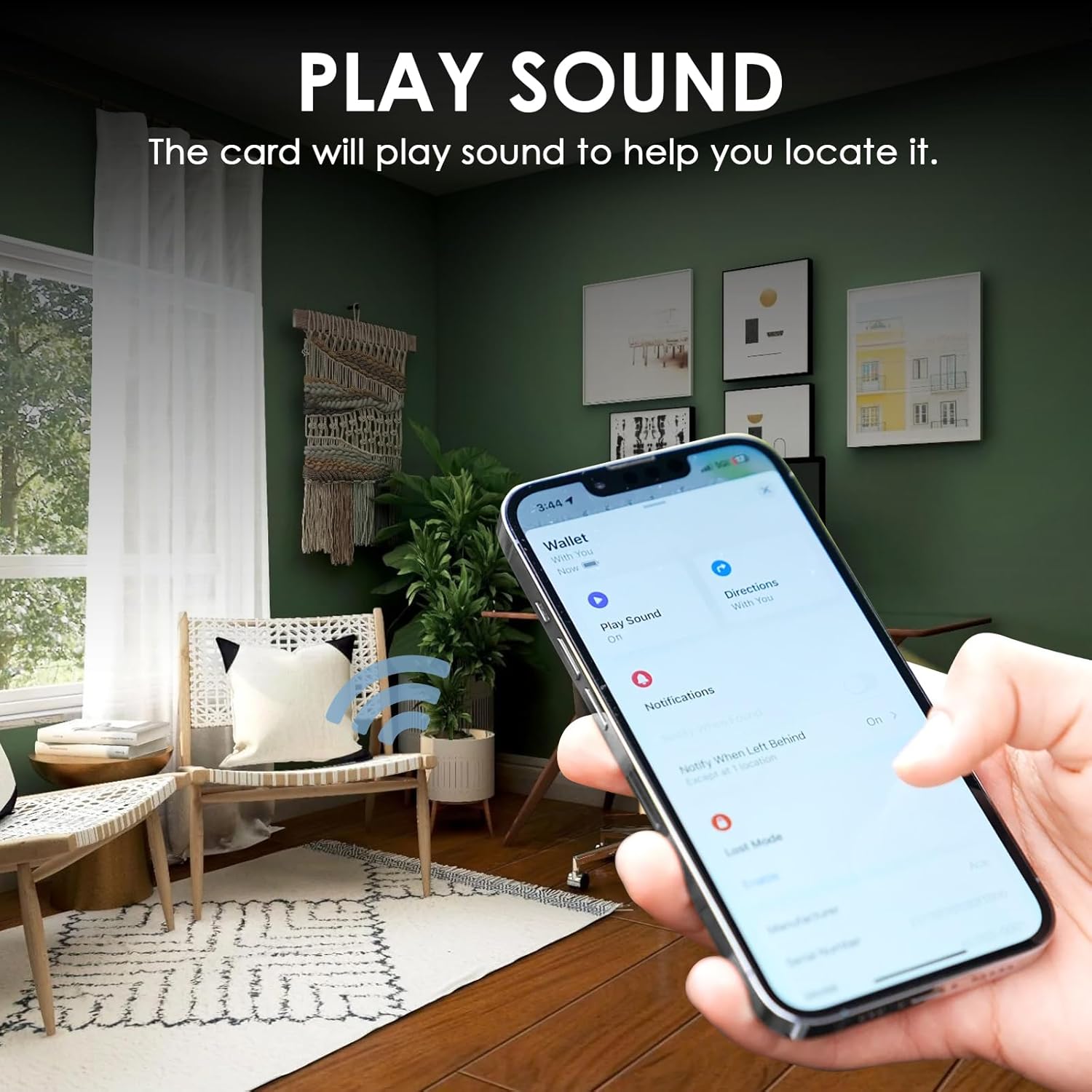
Image 4.1: An iPhone displaying the "Play Sound" feature within the "Find My" app, indicating that the tracker will emit a sound to assist in its location.
- Open the "Find My" app.
- Select the item you wish to locate.
- Tap the "Play Sound" option. The tracker will emit a sound until you stop it or find the item.
4.2. Receiving Left Behind Notifications
The tracker can notify you if you leave an item behind at an unfamiliar location.

Image 4.2: An iPhone displaying a notification alert, "Wallet left behind," indicating that the tracked item is no longer detected near the user, accompanied by an image of the tracker attached to a wallet.
- In the "Find My" app, select your item.
- Under "Notifications," enable "Notify When Left Behind."
- You will receive an alert on your iOS device if the tracker is separated from you.
4.3. Activating Lost Mode and Real-time Tracking
If an item is lost, activate Lost Mode to receive location updates when it's detected by the Find My network.

Image 4.3: An iPhone screen showing the "Find My" app with a map displaying the real-time location of an item, alongside a hand holding keys with the attached tracker.
- In the "Find My" app, select your lost item.
- Scroll down to "Lost Mode" and tap "Enable."
- Follow the prompts to enter a contact number or message.
- When your tracker is detected by another Apple device in the Find My network, you will receive a location update.
Important: An Apple device nearby is required for signal searching and location updates.
5. Maintenance
5.1. Battery Replacement
The Landtek Bluetooth Tracker uses a replaceable CR2032 button cell battery. When the battery level is low, you will be notified via the "Find My" app.
- Locate the battery compartment on the tracker.
- Carefully open the compartment (refer to the product diagram for assistance if needed).
- Remove the old CR2032 battery.
- Insert a new CR2032 battery with the positive (+) side facing up.
- Close the battery compartment securely.

Image 5.1: Visual representation highlighting the tracker's compact size, lightweight nature, and an illustration of its long battery life, indicating the CR2032 battery capacity.
Caution: Dispose of used batteries responsibly according to local regulations.
6. Troubleshooting
If you encounter issues with your Landtek Bluetooth Tracker, refer to the following common solutions:
| Problem | Solution |
|---|---|
| Tracker not connecting to "Find My" app. |
|
| "Play Sound" feature not working. |
|
| Inaccurate location tracking. |
|
7. Specifications
| Feature | Detail |
|---|---|
| Brand | Landtek |
| Model | Bluetooth Tracker |
| Compatibility | iOS devices (iOS 14.5 or later) |
| Battery Type | 1 x CR2032 (included, replaceable) |
| Estimated Battery Life | Up to 365 days |
| Material | Acrylonitrile Butadiene Styrene (ABS) |
| Weight | 11g (approximate) |
| Dimensions | 3.6cm x 3.6cm x 0.78cm (approximate) |

Image 7.1: An infographic summarizing key features of the Landtek Smart Finder Tracker, including Apple Find My compatibility, no app download required, privacy protection, CR2032 battery, Siri integration, and Smart Alarm.
8. Warranty and Support
For warranty information and customer support, please refer to the documentation included with your purchase or visit the official Landtek website. Keep your proof of purchase for warranty claims.

Image 8.1: The Landtek Smart Tag product packaging, showing the tracker, a lanyard, and the included instruction manual.