
Gvyugke Captain 100
Gvyugke Captain 100 Gaming Headset User Manual
Model: Captain 100
Introduction
Thank you for choosing the Gvyugke Captain 100 Gaming Headset. This manual provides detailed instructions for setting up, operating, and maintaining your new headset to ensure optimal performance and longevity. The Captain 100 offers versatile connectivity, superior sound quality, and comfortable design for an immersive gaming experience across multiple platforms.
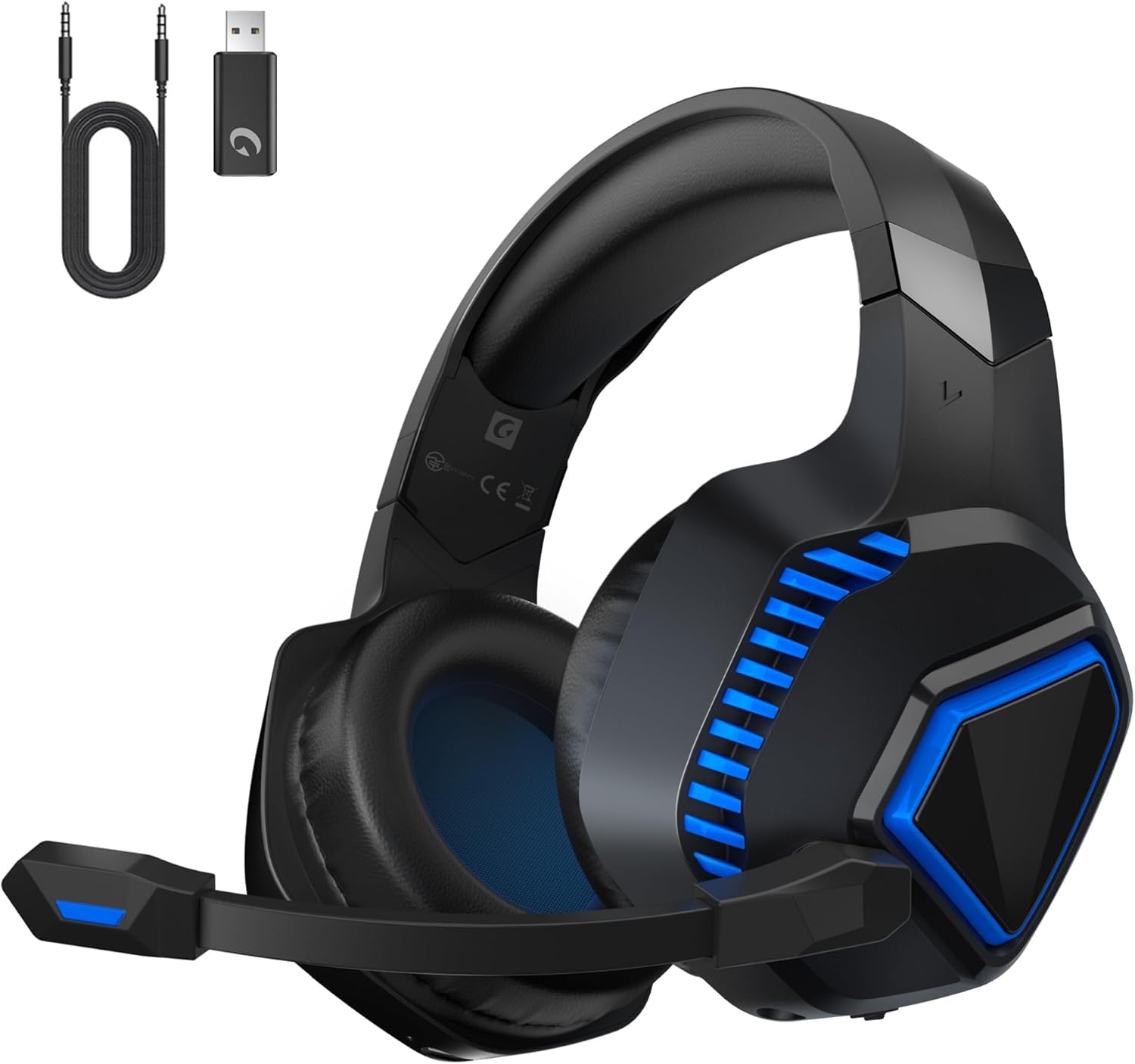
Image: The Gvyugke Captain 100 Gaming Headset, showcasing its sleek blue and black design, along with the included 2.4GHz USB dongle and 3.5mm audio cable.
Package Contents
Please ensure all items are present in the package:
- Gvyugke Captain 100 Gaming Headset
- 2.4GHz USB Wireless Dongle
- 3.5mm Audio Cable
- USB Charging Cable
- User Manual (this document)
Setup
1. Charging the Headset
Before first use, fully charge the headset.
- Connect the USB charging cable to the charging port on the headset.
- Connect the other end of the USB cable to a USB power source (e.g., computer USB port, USB wall adapter).
- The LED indicator on the headset will show charging status (refer to LED indicator section for details). A full charge takes approximately 3 hours.

Image: Visual representation of the headset's battery life, indicating over 40 hours of gaming time, a low battery voice alert at less than 3% charge, and a 3-hour charging time.
2. Connecting the Headset
The Captain 100 offers three connectivity options:
2.1. 2.4GHz Wireless Connection (Recommended for Gaming)
This mode provides low-latency wireless audio for PS4/PS5, PC, Mac, and Switch (audio only).
- Plug the 2.4GHz USB wireless dongle into an available USB port on your gaming console (PS4/PS5), PC, Mac, or Nintendo Switch dock.
- Power on the headset. It will automatically attempt to connect to the dongle.
- Once connected, the LED indicator on the headset will show a steady blue light.
- On your device, ensure the audio output is set to the "Gvyugke Captain 100" or "USB Headset".
Note: Wireless mode is not compatible with Xbox series consoles for full functionality. Switch does not support external microphone functionality in wireless mode.

Image: Diagram illustrating the 2.4GHz wireless connection, highlighting low delay (≤20ms) and extended range (≤49ft) for stable data transmission, with the USB dongle plugged into a computer.
2.2. Bluetooth 5.2 Connection
Ideal for mobile devices, tablets, laptops, and other Bluetooth-enabled devices.
- With the headset powered on, press and hold the Bluetooth pairing button (refer to controls section) until the LED indicator flashes rapidly, indicating pairing mode.
- On your device, enable Bluetooth and search for "Gvyugke Captain 100" in the list of available devices.
- Select the headset to pair. Once connected, the LED indicator will show a steady blue light.
Note: Wireless (Bluetooth) mode is not compatible with Xbox series consoles.
2.3. 3.5mm Wired Connection
For universal compatibility with any device featuring a 3.5mm audio jack, including Xbox series consoles.
- Connect one end of the included 3.5mm audio cable to the headset's 3.5mm port.
- Connect the other end to the 3.5mm audio jack on your device (e.g., controller, PC, mobile phone).
- The headset will function in passive wired mode. Power is not required for basic audio, but features like ENC may require power.

Image: A comprehensive diagram illustrating the three connectivity modes: 2.4GHz Wireless (USB Type-A dongle for PS4/5, Switch, PC), Bluetooth 5.2 (for phones, pads, laptops), and 3.5mm Wired (for all platforms, including Xbox series consoles).
Operating the Headset
Controls Overview
The Captain 100 headset features intuitive controls located on the earcups.
- Power Button: Press and hold to power on/off. Short press to switch between 2.4GHz and Bluetooth modes.
- Volume Wheel: Rotate up or down to adjust audio volume.
- Microphone Mute Button: Press to mute/unmute the microphone.
- ENC Button: Press to activate/deactivate Environmental Noise Cancellation for the microphone.
Microphone Usage
The headset features an adjustable, flexible microphone with Environmental Noise Cancellation (ENC) technology.
- Position the microphone approximately 1-2 inches from your mouth for optimal voice pickup.
- Press the Microphone Mute button to toggle mute on/off.
- Activate ENC for clearer communication by reducing background noise.

Image: A visual representation of the headset's adjustable microphone, highlighting its flexibility and the integrated "ENC" (Environmental Noise Cancellation) technology for clear voice capture.
Audio Quality
The Captain 100 is equipped with 50MM drivers and a PET-grade diaphragm, delivering rich bass and immersive 3D surround sound.

Image: An exploded view diagram showcasing the internal components of the headset, including protein leather ear cushions, PET shockproof protector, ring transducer, and neodymium magnet, all contributing to premium audio performance.
Maintenance
Proper care will extend the life of your headset.
- Cleaning: Use a soft, dry cloth to wipe down the headset. For ear cushions, a slightly damp cloth can be used, but ensure they are completely dry before use. Do not use harsh chemicals or abrasive cleaners.
- Storage: Store the headset in a cool, dry place away from direct sunlight and extreme temperatures. Avoid placing heavy objects on top of the headset.
- Battery Care: To maintain battery health, avoid fully discharging the headset frequently. If storing for an extended period, charge the headset to about 50% every few months.
Troubleshooting
If you encounter issues, please refer to the following common solutions:
| Problem | Possible Solution |
|---|---|
| No sound from headset |
|
| Microphone not working |
|
| Headset not connecting wirelessly |
|
Specifications
| Feature | Detail |
|---|---|
| Model Name | Captain 100 |
| Brand | Gvyugke |
| Connectivity Technology | 2.4GHz Wireless, Bluetooth 5.2, 3.5mm Wired |
| Headphones Jack | 3.5 mm Jack |
| Audio Driver Type | Dynamic Driver, 50MM |
| Noise Control | Environmental Noise Cancellation (ENC) |
| Charging Time | Approximately 3 Hours |
| Battery Life | Over 40 Hours (Gaming Times) |
| Material | Metal, Acrylonitrile Butadiene Styrene (ABS) |
| Ear Placement | Over Ear |
| Compatible Devices | PS5, PS4, Mac, Switch, PC, Computer, Mobile Devices, Xbox Series (wired only) |
| Item Weight | 1.12 pounds |
| Package Dimensions | 8.39 x 7.48 x 4.53 inches |
| UPC | 850060631047 |
Image: Diagram showing the approximate dimensions of the Gvyugke Captain 100 headset, including height (6.96 in), microphone length (7.71 in), and base width (4.09 in) when placed on a stand.
Warranty and Support
Gvyugke is committed to providing high-quality products and excellent customer service. For any technical assistance or inquiries, please contact our professional technical support team.
Our factory annually produces a large volume of high-quality gaming headphones worldwide, backed by a decade of industry experience.
Please refer to the product packaging or the official Gvyugke website for specific warranty details and contact information.
Related documentsCaptain 100


Ask a question about this manual
Ask about setup, troubleshooting, compatibility, parts, safety, or missing instructions. Manuals+ will review the question and use this page’s manual context to help answer it.