
1. Product Overview
The ATOMSTACK X12 Pro 2nd Generation Laser Engraver is a high-performance engraving and cutting machine designed for various materials. It features a 12000mW (12W) optical power laser, a robust one-piece aluminum alloy frame, and advanced motion control for precise and efficient operation.

Image 1.1: The ATOMSTACK X12 Pro Laser Engraver actively engraving a detailed tiger image onto a wooden surface. The red laser module is visible, positioned over the material.
2. Safety Information
WARNING: This product contains a Class 4 laser. Improper use can result in serious injury, including eye damage and skin burns. Always follow safety guidelines.
- Eye Protection: Always wear the provided eye protection shields or glasses when operating the laser engraver. Never look directly at the laser beam.
- Ventilation: Operate the machine in a well-ventilated area to dissipate fumes and smoke produced during engraving and cutting.
- Material Safety: Ensure the material being processed is safe for laser engraving/cutting and does not produce toxic fumes or flammable byproducts.
- Tilt Detection: The machine is equipped with a gyroscope detection system. If the tilt angle exceeds 15°, an alarm will be triggered to enhance operational safety.
- Supervision: Never leave the laser engraver unattended during operation.
- Emergency Stop: Familiarize yourself with the location and operation of the emergency stop button.
3. Setup
The ATOMSTACK X12 Pro features a one-piece frame design, minimizing assembly requirements. The machine is calibrated prior to shipping, allowing for immediate use after connecting necessary components.
- Unpacking: Carefully remove the laser engraver and all accessories from the packaging.
- Placement: Place the machine on a stable, level, and heat-resistant surface in a well-ventilated area.
- Cable Connections: Connect all necessary cables, including the power cable and USB cable to your computer.
- Software Installation: Download and install the recommended software (Lightburn, LaserGRBL, or the ATOMSTACK phone App) on your computer or mobile device. Follow the software-specific instructions for installation and initial setup.
- Eye Protection: Put on your safety glasses before powering on the device.
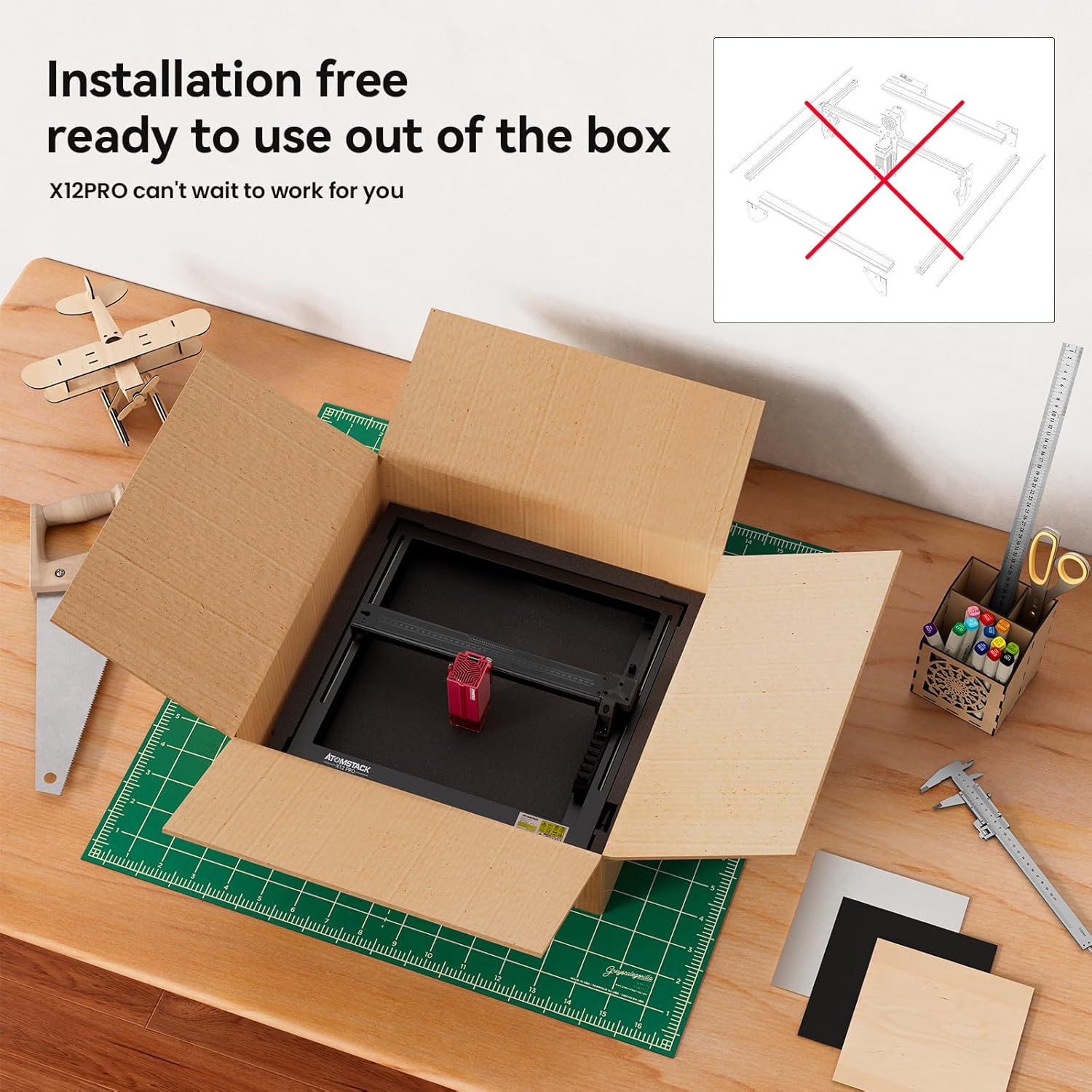
Image 3.1: The ATOMSTACK X12 Pro Laser Engraver shown being unboxed, highlighting its pre-assembled, installation-free design, ready for immediate use.
4. Operating Instructions
4.1 General Operation
- Power On: Connect the power adapter and turn on the machine.
- Software Connection: Launch your chosen software (Lightburn, LaserGRBL, or ATOMSTACK App) and establish a connection with the engraver.
- Material Placement: Place your material within the 365x305mm engraving area. Utilize the precise X and Y axis scales for accurate positioning.
- Focus Adjustment: Adjust the laser focus according to the material thickness and desired effect.
- Cross Laser Positioning: Use the cross laser positioning feature for clear visibility of the laser's location and precise alignment of your project.
- Load Design: Import or create your design within the software.
- Parameter Settings: Configure engraving or cutting parameters (speed, power, passes) based on the material type and desired outcome. Refer to material testing guides for optimal settings.
- Start Operation: Initiate the engraving or cutting process from the software. Monitor the operation closely.
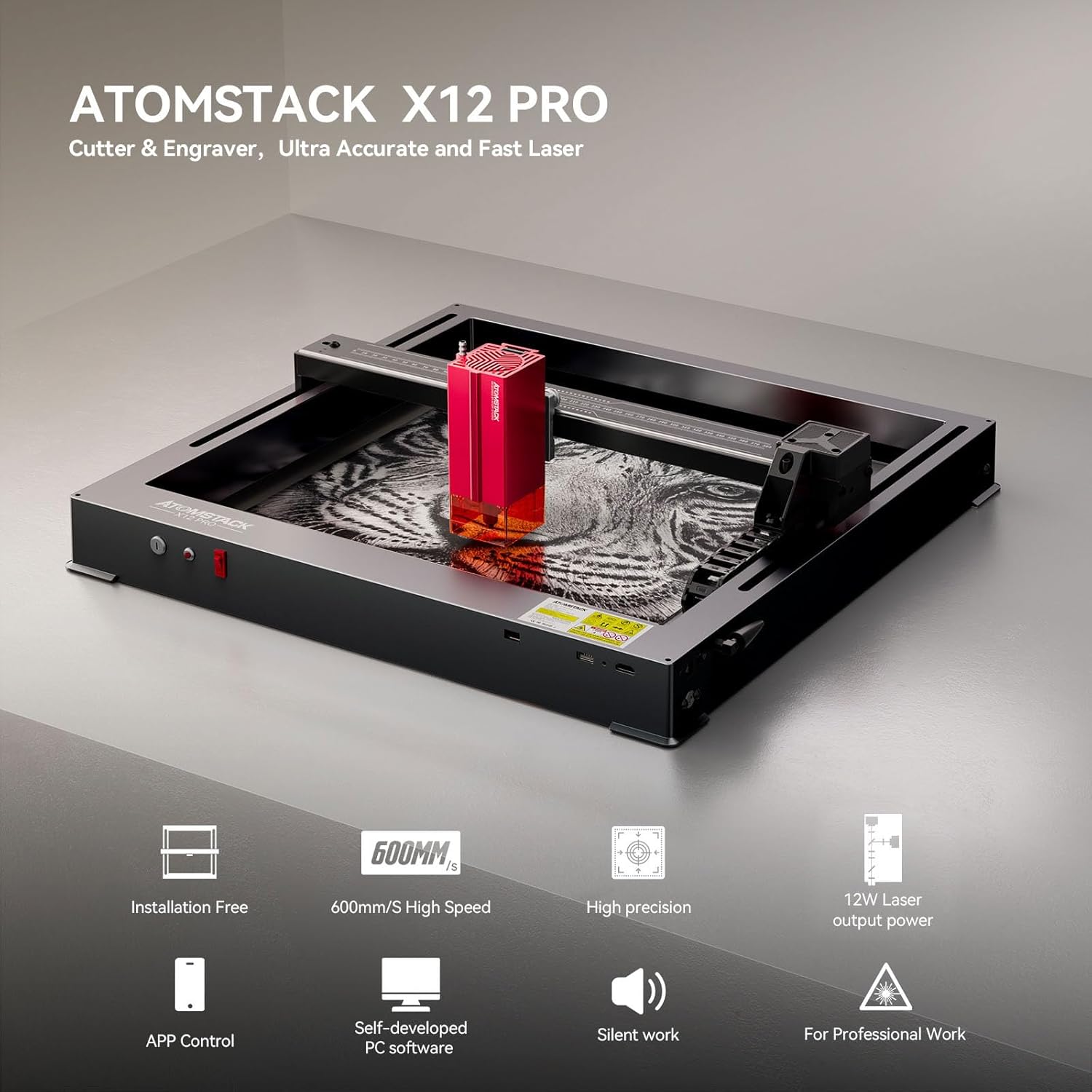
Image 4.1: An overview highlighting key features of the ATOMSTACK X12 Pro, including its installation-free setup, high-speed operation, precision, 12W laser output, and software control options.
4.2 Engraving and Cutting Capabilities
The X12 Pro is equipped with a 12W optical power laser, formed by combining two 6W lasers, resulting in an ultra-fine laser spot of 0.06x0.06mm. This allows for high-density laser processing.
- Engraving Speed: The maximum engraving speed can reach 600mm/s, providing efficient project completion.
- Cutting Thickness: Capable of cutting 3-12mm thick wooden boards or 5mm thick black acrylic in a single pass. With multiple passes, it can cut up to 15mm thick materials.
- Supported Materials: The machine can engrave and cut a wide range of materials including paper, wood (basswood, pine, paulownia, MDF), leather, acrylic, metal (mirror stainless steel), ceramic, and glass.

Image 4.2: Visual examples demonstrating the maximum cutting thickness achievable with the ATOMSTACK X12 Pro's 2nd generation blue laser on materials such as black acrylic, balsa, paulownia, MDF, basswood plywood, pine wood, stainless steel sheet, and vinyl.

Image 4.3: An illustration of the diverse materials compatible with the ATOMSTACK X12 Pro, such as basswood, acrylic, pine wood, paulownia, bamboo, and leather, being used for various crafting projects.
4.3 Power Failure Recovery
The ATOMSTACK X12 Pro includes an automatic power failure recovery system. This feature records the engraving position, allowing the machine to quickly relocate and continue engraving from where it stopped after a power interruption. This function must be activated from the ATOMSTACK App or an optional display board.
5. Maintenance
Regular maintenance ensures optimal performance and longevity of your laser engraver.
- Cleaning the Lens: Periodically clean the laser lens with a specialized lens cleaning solution and cloth to maintain laser power and precision.
- Cleaning the Machine: Keep the engraving area and machine frame free from dust, debris, and material residue. Use a soft brush or compressed air.
- Lubrication: Inspect the linear guide and other moving parts. Lubricate as recommended in the detailed product manual (if available) to ensure smooth operation.
- Cable Inspection: Regularly check all cables for wear or damage. Replace any damaged cables immediately.
For detailed maintenance procedures, refer to the comprehensive manual provided by ATOMSTACK or visit their official support website.
6. Troubleshooting
If you encounter issues with your ATOMSTACK X12 Pro, consider the following common troubleshooting steps:
- Machine Not Powering On: Ensure the power cable is securely connected to both the machine and a working power outlet. Check the power switch.
- Software Connection Issues: Verify that the USB cable is properly connected to both the engraver and your computer. Restart the software and the machine. Ensure correct drivers are installed.
- Laser Not Firing/Weak Output: Check the laser lens for cleanliness. Ensure laser power settings in the software are correct. Verify the laser module is securely attached.
- Inaccurate Engraving/Cutting: Check for loose belts or components. Ensure the material is securely fixed. Verify the focus is correctly set.
- Alarm Triggered: If the tilt alarm sounds, check the machine's stability and ensure it is on a level surface.
If problems persist after attempting these steps, contact ATOMSTACK customer support for further assistance.
7. Specifications
| Feature | Specification |
|---|---|
| Model | X12 Pro Laser Engraver |
| Brand | ATOMSTACK |
| Optical Output Power | 12000mW (12W) |
| Laser Class | Class 4 |
| Laser Spot Size | 0.06 x 0.06mm |
| Engraving Speed | Up to 600mm/s |
| Engraving Area | 365 x 305mm |
| Frame Material | Anodized Full Aluminum Alloy |
| Mechanical Precision | 0.02mm |
| Connectivity | USB, ATOMSTACK App |
| Compatible Software | Lightburn, LaserGRBL, ATOMSTACK App |
| Manufacturer | ATOMSTACK, Co, Ltd. |
| Date First Available | January 26, 2024 |
8. Warranty and Support
For information regarding the product warranty, please refer to the warranty card included with your purchase or visit the official ATOMSTACK website. Warranty terms and conditions may vary by region and retailer.
For technical support, product inquiries, or to access additional resources, please visit the official ATOMSTACK store or contact their customer service department:
- ATOMSTACK Official Store: https://www.amazon.com/stores/ATOMSTACKOfficial/page/DFF40961-DDCE-46AF-ACCE-FE62E9000DDA
- Refer to the contact information provided in your product packaging for direct support channels.


