
Introduction
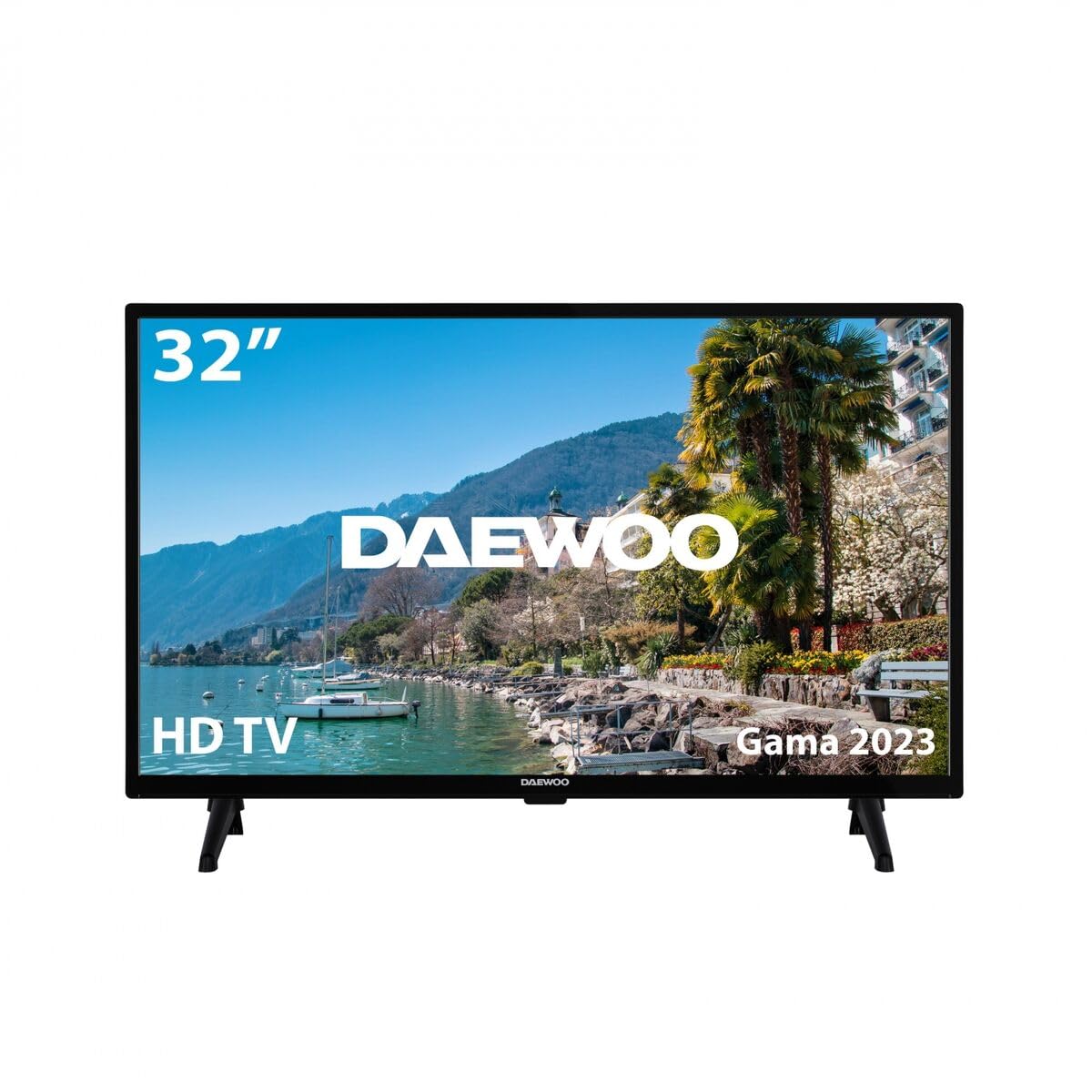
Thank you for purchasing the Daewoo 32DE05HL1 HD LED Smart TV. This user manual provides essential information for the safe and efficient operation of your new television. Please read this manual thoroughly before using the product and retain it for future reference. Following these instructions will ensure optimal performance and extend the lifespan of your device.
Important Safety Information
Always observe the following safety precautions to avoid electric shock, fire, or damage to the television.
- Power Source: Connect the TV only to an AC power outlet of the specified voltage. Ensure the power cord is not damaged or pinched.
- Ventilation: Do not block ventilation openings. Allow adequate space around the TV for proper airflow to prevent overheating.
- Water and Moisture: Do not expose the TV to rain or moisture. Do not place objects filled with liquids, such as vases, on the TV.
- Cleaning: Unplug the TV from the power outlet before cleaning. Use a soft, dry cloth. Do not use liquid cleaners or aerosol cleaners.
- Placement: Place the TV on a stable, level surface. Avoid placing it in direct sunlight or near heat sources. Keep it away from strong magnetic fields.
- Servicing: Do not attempt to service this product yourself. Refer all servicing to qualified service personnel.
Package Contents
Please check that all items are present and in good condition upon unpacking. If any items are missing or damaged, contact your retailer.
- Daewoo 32DE05HL1 HD LED Smart TV
- Remote Control
- Batteries for Remote Control (AAA x 2)
- TV Stand (2 pieces)
- Stand Screws
- Power Cord (EU Plug)
- User Manual (this document)
Setup
1. Unpacking
Carefully remove the TV from its packaging. It is recommended to keep the original packaging for future transport or servicing.
2. Installing the TV Stand
- Place the TV face down on a soft, clean surface (e.g., a blanket) to prevent screen damage.
- Align each stand piece with the corresponding slots on the bottom of the TV.
- Secure the stands using the provided screws. Ensure they are tightened firmly.
- Carefully lift the TV to an upright position and place it on a stable, level surface.
3. Wall Mounting (Optional)
This TV supports VESA wall mounts. For wall mounting, remove the stand and follow the instructions provided with your wall mount kit. It is recommended to seek professional installation for wall mounting.
4. Connecting Power
Connect the power cord to the TV's power input, then plug the other end into a suitable AC power outlet (EU plug type).
5. Connecting External Devices
Your TV features multiple ports for connecting external devices:
- HDMI Ports (x2): For high-definition audio and video devices like Blu-ray players, game consoles, or set-top boxes.
- USB Port: For connecting USB storage devices to play media files.
- Antenna/Cable Input: For connecting an antenna or cable TV signal.
- Audio Output: For connecting external audio systems.
Ensure all connections are secure before powering on the TV.
6. Initial Power On and First-Time Setup
After connecting power, press the Power button on the remote control or the TV. The TV will guide you through the first-time setup wizard, which includes:
- Language selection
- Country/Region selection
- Network connection (Wi-Fi setup)
- Channel scanning (for antenna/cable TV)
- Time zone settings
Operating Your TV
1. Remote Control Overview
The remote control allows you to access all functions of your Smart TV. Insert two AAA batteries into the remote control, ensuring correct polarity.
- Power Button: Turns the TV on or off.
- Number Buttons: Select TV channels directly.
- Volume Up/Down: Adjusts the sound level.
- Channel Up/Down: Changes TV channels sequentially.
- Input/Source: Selects the input source (HDMI1, HDMI2, USB, TV).
- Navigation Buttons (Up/Down/Left/Right/OK): Navigate menus and confirm selections.
- Back/Exit: Returns to the previous menu or exits the current menu.
- Smart TV Buttons: Dedicated buttons for popular apps like Netflix, Amazon Prime Video, or a Home button for the Smart TV interface.
2. Basic Functions
- Power On/Off: Press the Power button on the remote.
- Volume Adjustment: Use the VOL+ or VOL- buttons.
- Channel Selection: Use the CH+ or CH- buttons, or enter the channel number directly.
3. Selecting Input Source
To switch between connected devices (e.g., a game console on HDMI1, a media player on HDMI2, or a USB drive), press the Input or Source button on your remote control. A list of available inputs will appear on screen. Use the navigation buttons to select your desired source and press OK.
4. Smart TV Features
Your Daewoo Smart TV offers a range of internet-connected features. Ensure your TV is connected to a Wi-Fi network (see "Initial Power On and First-Time Setup" for network configuration).
- Accessing Apps: Use the dedicated app buttons on your remote (e.g., Netflix, Amazon Prime Video) or navigate to the Smart TV home screen to browse and launch installed applications.
- Web Browser: The integrated web browser allows you to surf the internet directly from your TV.
- App Store: Download and install additional applications from the TV's app store.
5. Settings Menu
Press the Menu or Settings button on your remote to access the TV's main settings. Here you can adjust:
- Picture Settings: Brightness, contrast, color, sharpness, picture mode (Standard, Dynamic, Movie, etc.).
- Sound Settings: Volume, equalizer, sound mode (Standard, Music, Movie, etc.).
- Network Settings: Wi-Fi connection, wired network setup.
- Channel Settings: Auto scan, manual scan, channel list.
- System Settings: Language, time, parental controls, software update.
Maintenance
1. Cleaning the TV
- Screen: Gently wipe the screen with a soft, lint-free cloth. For stubborn marks, slightly dampen the cloth with water or a specialized screen cleaner (apply to cloth, not directly to screen). Do not use alcohol, benzene, or abrasive cleaners.
- Cabinet: Wipe the cabinet with a soft, dry cloth.
- Always unplug the TV from the power outlet before cleaning.
2. Software Updates
To ensure optimal performance and access to the latest features, it is recommended to keep your TV's software updated. You can usually check for updates via the TV's settings menu (e.g., Settings > System > Software Update). Ensure the TV is connected to the internet during the update process.
Troubleshooting
Before contacting customer support, please refer to the following common issues and solutions:
| Problem | Possible Cause / Solution |
|---|---|
| No Power |
|
| No Picture, But Sound is Present |
|
| No Sound, But Picture is Present |
|
| Remote Control Not Working |
|
| Cannot Connect to Wi-Fi |
|
| Picture is Distorted or Pixilated |
|
Specifications
| Brand | Daewoo |
| Model Name | 32DE05HL1 |
| Manufacturer Model Number | S0454642 |
| Screen Size | 32 Inches (81.3 cm diagonal) |
| Resolution | 720p (HD) |
| Display Technology | LED |
| Refresh Rate | 60 Hz |
| Connectivity Technology | HDMI, USB, Wi-Fi |
| HDMI Ports | 2 |
| USB Ports | 1 |
| Audio Output Ports | 1 |
| Supported Internet Services | Amazon Prime Video, Browser, Netflix |
| Aspect Ratio | 16:9 |
| Product Dimensions (W x D x H) | 99 x 22 x 65 cm |
| Product Weight | 8 kg |
| Included Components | EU Plug (Power Cord) |
Warranty Information
Daewoo products are manufactured to high-quality standards and are warranted against manufacturing defects. The specific warranty period and terms may vary depending on your country of purchase and local regulations. Please refer to the warranty card included with your product or contact your retailer for detailed warranty information. Keep your purchase receipt as proof of purchase for warranty claims.
Customer Support
If you encounter any issues that cannot be resolved using the troubleshooting guide, or if you require further assistance, please contact Daewoo customer support or your authorized retailer. Have your product model number (32DE05HL1) and serial number ready when contacting support.
For the most up-to-date contact information, please visit the official Daewoo website or refer to the documentation provided with your TV.


