
Introduction
This manual provides essential information for setting up, operating, maintaining, and troubleshooting your LG gram 14-inch 2-in-1 Lightweight Laptop. Please read this manual thoroughly before using your device to ensure proper and safe operation.
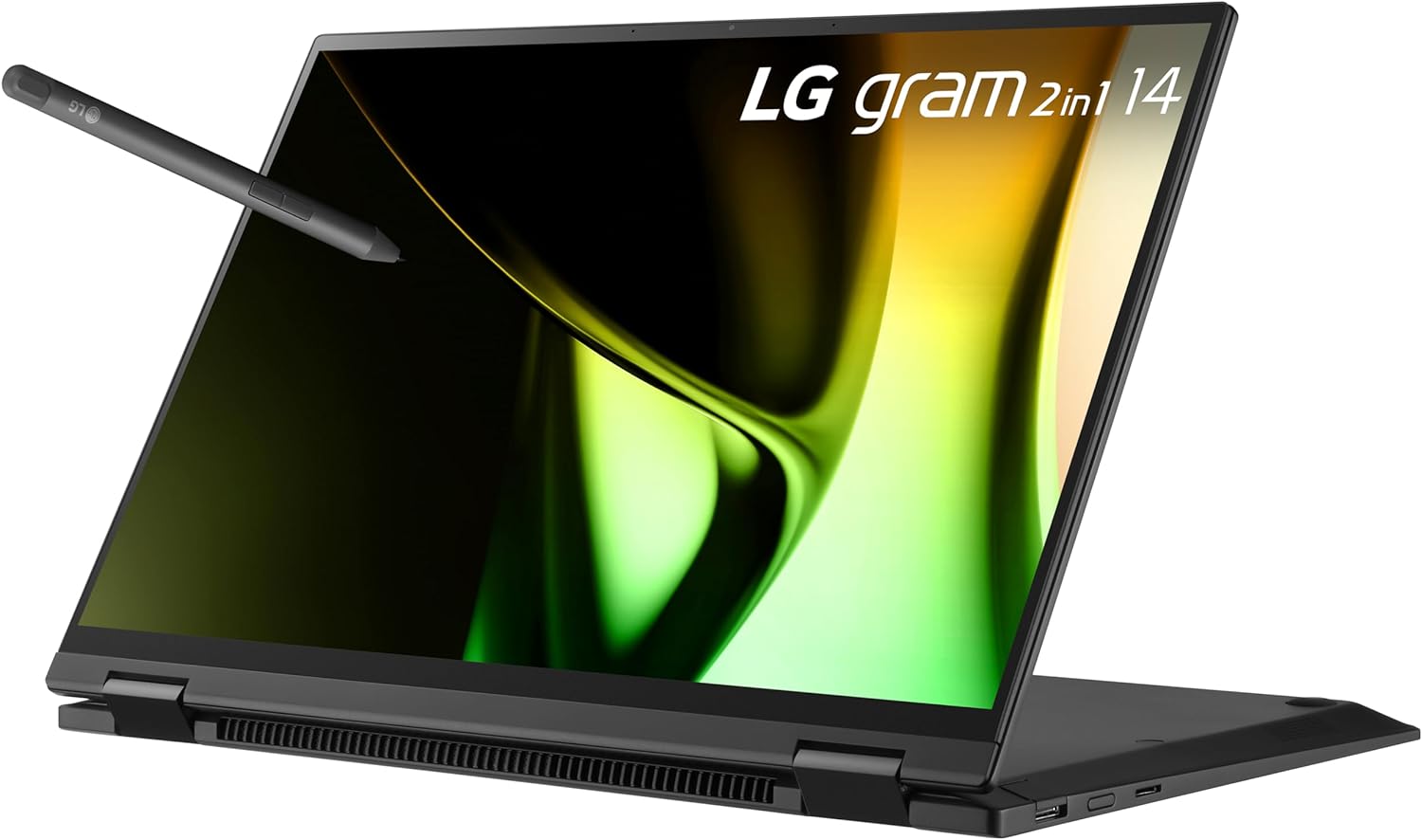
Image: LG gram 14-inch 2-in-1 laptop with stylus pen, showcasing its versatile design.
The LG gram 14-inch 2-in-1 laptop is designed for portability and versatility, featuring an Intel Evo Edition with an Intel Core Ultra 5 processor, 16GB RAM, and a 512GB SSD. It operates on Windows 11 Home and includes a responsive IPS touchscreen with a Wacom AES 2.0 stylus for enhanced interaction.
1. Setup
1.1 Unpacking and Initial Inspection
Carefully remove all components from the packaging. Verify that all items listed below are present and undamaged.
Included Components:
- LG gram 14-inch 2-in-1 Laptop
- Stylus Pen (Wacom AES 2.0)
- Power Adapter
1.2 Powering On and Initial Configuration
- Connect the power adapter to the laptop's charging port and a power outlet.
- Open the laptop lid. The device may power on automatically, or you may need to press the power button.
- Follow the on-screen instructions to complete the Windows 11 Home setup, including language selection, network connection, and user account creation.
1.3 Connecting Peripherals
Your LG gram laptop features various ports for connecting external devices:
- Thunderbolt 4 (USB Type-C): Two ports for high-speed data transfer, video output, and charging.
- USB 3.2: One port for connecting standard USB devices.
- Micro SD Card Slot: For expanding storage or transferring files from memory cards.

Image: Side view of the LG gram laptop highlighting the USB 4 Type-C (Thunderbolt 4), Micro SD Card Slot, and USB 3.2 ports.
1.4 Stylus Pen Setup
The included LG Stylus Pen (Wacom AES 2.0) offers precise input for drawing and writing. No specific setup is typically required beyond ensuring the pen has power (if applicable) and is within range of the screen.
2. Operating Instructions
2.1 2-in-1 Modes
Your LG gram laptop can be used in multiple configurations:
- Laptop Mode: Standard laptop configuration for typing and general use.
- Tent Mode: Fold the screen back to stand the laptop like a tent, ideal for presentations or media viewing.
- Stand Mode: Position the keyboard face down with the screen angled upwards, suitable for touch-based interactions.
- Tablet Mode: Fold the screen completely back against the keyboard for a full tablet experience.

Image: The LG gram laptop shown in its various 2-in-1 configurations, including laptop, tent, stand, and tablet modes.
2.2 Touchscreen and Stylus Usage
The 14-inch IPS touchscreen supports multi-touch gestures and precise input with the LG Stylus Pen. The pen utilizes Wacom AES 2.0 technology with 4,096 levels of pressure sensitivity for natural writing and drawing.
2.3 Windows 11 Features
The laptop comes pre-installed with Windows 11 Home, offering features designed for productivity and creativity. Utilize Copilot for AI-powered assistance, snap layouts for multitasking, and the redesigned Start menu for quick access to applications.
Video: This video demonstrates key features of Windows 11, including Copilot for summarizing documents and organizing plans, and the ability to switch to dark mode for a more comfortable viewing experience.
2.4 LG gram Link App
The LG gram Link app facilitates seamless integration with up to 10 devices across Android and iOS platforms. This allows for easy file sharing, collaborative screen viewing, and real-time communication between your LG gram and other devices. Installation of the LG gram Link app is required and can be downloaded from LG.com support.

Image: The LG gram Link app interface demonstrating how to share content and connect devices across different operating systems.
2.5 Battery Management
The LG gram is equipped with a 72Wh battery. To maximize battery life:
- Adjust screen brightness to a comfortable level.
- Close unused applications.
- Utilize power-saving modes in Windows settings.
- Avoid extreme temperatures.

Image: Illustration showing the LG gram laptop's long-lasting battery, enabling extended use for work and entertainment.
3. Maintenance
3.1 Cleaning Your Laptop
- Screen: Use a soft, lint-free cloth specifically designed for electronics. Dampen it slightly with water or a screen cleaner. Avoid harsh chemicals.
- Chassis and Keyboard: Use a soft, dry cloth. For stubborn dirt, a slightly damp cloth can be used, ensuring no moisture enters ports or openings.
- Ports: Use compressed air to gently clear dust from ports.
3.2 Software Updates
Regularly update your Windows operating system and device drivers to ensure optimal performance, security, and compatibility. Windows Update can be accessed through the Settings menu.
3.3 Battery Care
To prolong the lifespan of your laptop battery:
- Avoid fully discharging the battery frequently.
- Store the laptop in a cool, dry place if not used for extended periods.
- Do not expose the laptop to extreme heat or cold.
3.4 Durability
The LG gram laptop has passed seven MIL-STD-810H tests for durability, including resistance to vibration, high/low temperatures, and more. While robust, it is not indestructible. Avoid dropping the device or exposing it to excessive force or liquids.

Image: A woman holding the LG gram laptop, emphasizing its MIL-STD-810H military-grade durability against various environmental stresses.
4. Troubleshooting
This section addresses common issues you might encounter with your LG gram laptop.
4.1 General Issues
- Laptop not powering on: Ensure the power adapter is securely connected and the battery has sufficient charge. Try a different power outlet.
- Laptop not waking from sleep: Press the power button briefly. If unresponsive, perform a hard reset by holding the power button for several seconds until the device shuts down, then restart.
- No display: Connect an external monitor to check if the issue is with the laptop's screen. Restart the laptop.
- Slow performance: Close unnecessary applications, check for background processes, ensure sufficient free storage space, and run system updates.
- Wi-Fi or Bluetooth connectivity issues: Check if Wi-Fi/Bluetooth is enabled in Windows settings. Restart the laptop and your router/modem. Update wireless drivers.
4.2 Stylus Pen Issues
- Pen not responding: Ensure the pen is charged (if applicable). Check for any physical obstructions on the screen. Restart the laptop.
- Inaccurate input: Calibrate the touchscreen and pen settings in Windows.
For persistent issues not resolved by these steps, refer to the Support section for further assistance.
5. Specifications
| Feature | Specification |
|---|---|
| Brand | LG |
| Model Name | 14T90S-G.AAB4U1 |
| Screen Size | 14 Inches |
| Native Resolution | 1920 x 1200 pixels (WUXGA) |
| Display Type | IPS LCD Touchscreen |
| CPU Model | Intel Core Ultra 5 125H |
| Processor Speed | Up to 4.5 GHz |
| RAM Memory Installed Size | 16 GB LPDDR5 (6400 MHz) |
| Hard Disk Size | 512 GB SSD (Solid State) |
| Operating System | Windows 11 Home |
| Graphics Coprocessor | Intel HD Graphics 520 (Integrated) |
| Special Feature | Pen (Wacom AES 2.0 Stylus) |
| Connectivity Technology | USB, 802.11ax (Wi-Fi 6), Bluetooth |
| Total USB Ports | 3 (2x Thunderbolt 4, 1x USB 3.2) |
| Battery Energy Content | 72 Watt Hours (Lithium Ion) |
| Item Weight | 2.8 Pounds |
| Item Dimensions (L x W x Thickness) | 12.36" x 8.64" x 0.66" |
| Webcam Capability | Yes |
| Keyboard Description | Chiclet, QWERTY Layout |
Video: This video highlights the performance capabilities of the LG gram laptop, powered by the Intel Core Ultra processor, showcasing its ability to handle creative tasks and AI-accelerated graphics with a long-lasting battery.
6. Warranty Information
Your LG gram 14-inch 2-in-1 Laptop is covered by a 1-year warranty for parts and labor from the date of purchase. This warranty covers manufacturing defects and workmanship under normal use. It does not cover damage caused by misuse, accidents, unauthorized modifications, or external factors.
Please retain your proof of purchase for warranty claims. For detailed terms and conditions, refer to the warranty card included with your product or visit the official LG website.
7. Support
If you require further assistance, have questions, or encounter issues not covered in this manual, please contact LG Customer Support.
7.1 Online Resources
- Visit the official LG Support website for drivers, software downloads, FAQs, and additional troubleshooting guides.
- Check for updated versions of the LG gram Link app on LG's support page.
7.2 Contact Information
Refer to the contact information provided in your product packaging or on the official LG website for phone numbers, chat support, or service center locations in your region.