
SGIN SGIN-M17S
SGIN 17 inch Laptop User Manual
Model: SGIN-M17S
1. Introduction
Welcome to the user manual for your new SGIN 17 inch Laptop. This guide provides essential information to help you set up, operate, maintain, and troubleshoot your device. Please read this manual carefully before using your laptop to ensure proper function and safety.
1.1 Safety Information
- Do not expose the laptop to extreme temperatures, humidity, or direct sunlight.
- Avoid placing heavy objects on the laptop.
- Keep liquids away from the device to prevent electrical shock or damage.
- Use only the original power adapter provided with your laptop.
- Do not attempt to disassemble or repair the laptop yourself. Refer to qualified service personnel.
- Ensure proper ventilation during use to prevent overheating.
2. Product Overview
Familiarize yourself with the components and ports of your SGIN 17 inch Laptop.

Figure 2.1: Front view of the SGIN 17 inch Laptop, showcasing its large 17.3-inch display, full-size keyboard, and touchpad.
2.1 Components and Ports
Your laptop is equipped with various ports for connectivity and expansion.
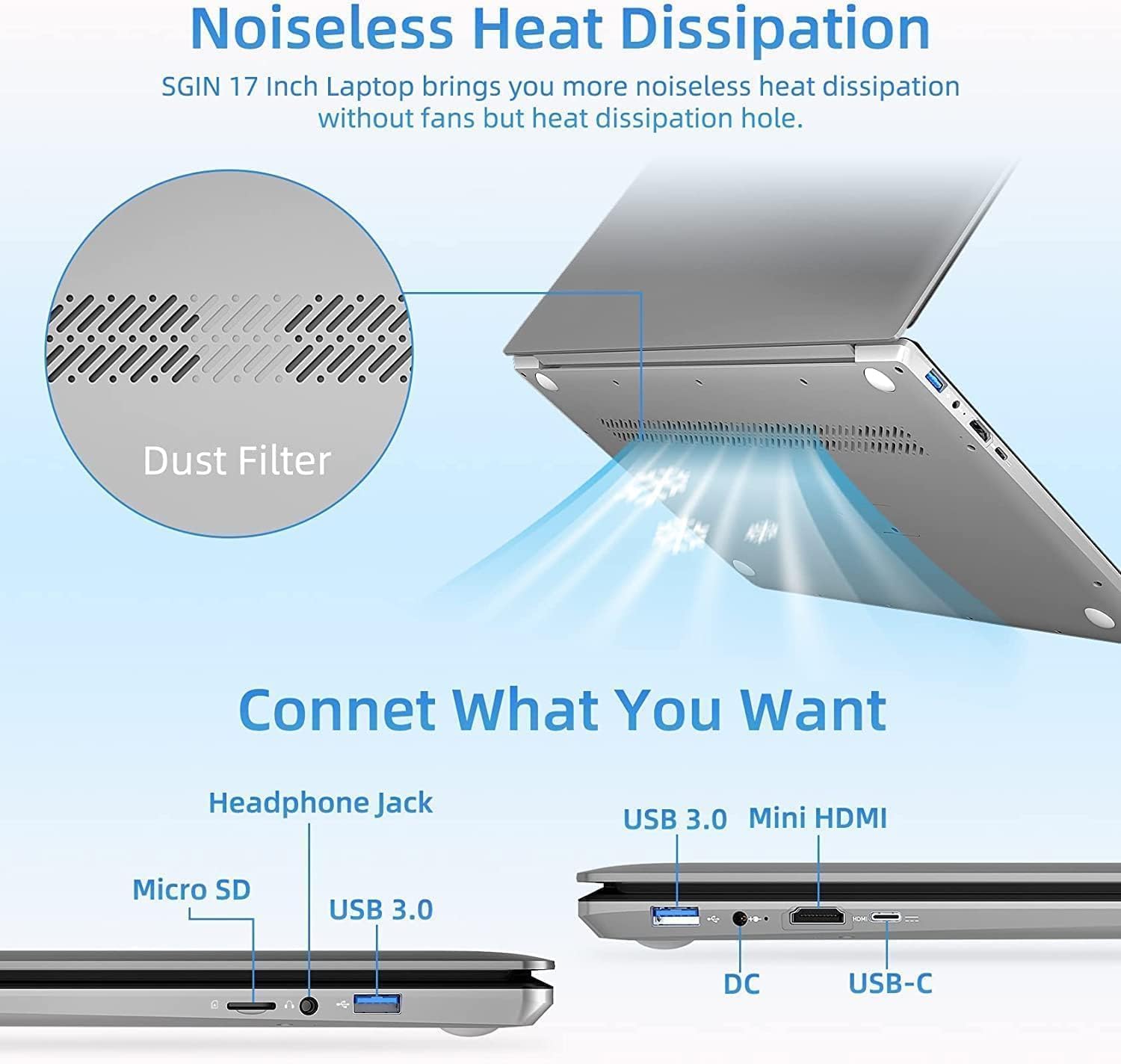
Figure 2.2: Side view of the SGIN 17 inch Laptop highlighting the various input/output ports including USB 3.0, USB-C, Mini HDMI, Headphone Jack, Micro SD card slot, and DC power input.
- Display: 17.3-inch Full HD (1920x1080) LED screen.
- Webcam: Integrated webcam for video calls and conferencing.
- Keyboard: Full-size keyboard with numeric keypad for comfortable typing.
- Touchpad: Multi-touch enabled touchpad for precise navigation.
- USB 3.2 Ports: For high-speed data transfer and connecting peripherals.
- Type-C Port: Versatile port for data, display, and power delivery.
- Mini HDMI Port: For connecting to external displays or projectors.
- Headphone Jack: For audio output to headphones or external speakers.
- Micro SD Card Slot: For expanding storage or transferring data from memory cards.
- DC-in Port: For connecting the power adapter to charge the laptop.
3. Setup
3.1 Initial Charging
Before first use, it is recommended to fully charge your laptop's battery. Connect the provided power adapter to the DC-in port on the laptop and then plug it into a power outlet. The charging indicator light will illuminate.
3.2 First Boot and Operating System Setup
- Press the power button to turn on the laptop.
- Follow the on-screen instructions to complete the initial setup of the Windows 8.1 operating system. This includes selecting your language, region, accepting terms, and setting up user accounts.
- Connect to a Wi-Fi network when prompted to enable internet access.
4. Operating Your Laptop
4.1 Power Management
- Turning On: Press the power button located on the keyboard deck.
- Turning Off: Click the Start button, then Power > Shut down.
- Sleep Mode: Click the Start button, then Power > Sleep, or close the laptop lid.
- Restart: Click the Start button, then Power > Restart.
4.2 Using the Keyboard and Touchpad

Figure 4.1: Close-up view of the SGIN 17 inch Laptop's full-size keyboard and integrated numeric keypad, designed for comfortable and efficient typing.
The laptop features a full-size keyboard for comfortable typing and a dedicated numeric keypad for data entry. The touchpad supports multi-touch gestures for intuitive navigation, including scrolling, zooming, and switching applications.
4.3 Connecting to Networks
To connect to a Wi-Fi network:
- Click the Wi-Fi icon in the system tray (bottom right corner of the screen).
- Select your desired network from the list.
- Enter the network security key (password) if prompted, then click Connect.
4.4 External Display Connection
Use the Mini HDMI port to connect your laptop to an external monitor or projector. Connect one end of a Mini HDMI cable to your laptop and the other end to the display device. You may need to adjust display settings in Windows to extend or duplicate your screen.
4.5 Data Transfer
Utilize the USB 3.2 ports for connecting external hard drives, USB flash drives, and other peripherals for fast data transfer. The Micro SD card slot allows for easy access to data on compatible memory cards.
5. Maintenance
5.1 Cleaning the Laptop
- Use a soft, lint-free cloth slightly dampened with water or a screen cleaner to clean the display.
- For the keyboard and chassis, use a soft, dry cloth. Avoid abrasive cleaners.
- Periodically use compressed air to clear dust from vents to maintain optimal cooling.
5.2 Battery Care

Figure 5.1: Illustration of the SGIN 17 inch Laptop's battery capacity (7.6V 8000mAh, 38Wh) and estimated usage time (up to 8 hours of video playback).
- To prolong battery life, avoid fully discharging the battery frequently.
- Store the laptop in a cool, dry place if not used for extended periods.
- It is normal for battery capacity to decrease over time with usage.
5.3 Storage and Handling
When transporting your laptop, use a protective sleeve or bag to prevent scratches and impacts. Avoid exposing the laptop to strong magnetic fields.
6. Troubleshooting
This section addresses common issues you might encounter and provides basic solutions.
| Problem | Possible Cause | Solution |
|---|---|---|
| Laptop does not power on. | Battery is drained or power adapter is not connected properly. | Connect the power adapter and ensure it's plugged into a working outlet. Allow it to charge for a few minutes before attempting to power on again. |
| Display is blank or flickering. | Incorrect display settings, loose cable (if external monitor), or driver issue. | Press Fn + F7 (or similar function key) to cycle through display modes. Restart the laptop. Update graphics drivers if possible. |
| Wi-Fi connection issues. | Wi-Fi adapter off, incorrect password, or router issue. | Ensure Wi-Fi is enabled (Fn + F5 or check settings). Re-enter Wi-Fi password. Restart your router and laptop. |
| Laptop is running slow. | Too many applications open, low storage space, or malware. | Close unnecessary applications. Free up disk space. Run a virus scan. |
If the problem persists after trying these solutions, please contact customer support.
7. Technical Specifications
Detailed specifications for your SGIN 17 inch Laptop (SGIN-M17S).

Figure 7.1: Diagram illustrating the Intel Core i3-5005U Processor, which powers the SGIN 17 inch Laptop, providing efficient performance.
| Feature | Specification |
|---|---|
| Model Name | SGIN-M17S |
| Screen Size | 17.3 Inches |
| Screen Resolution | 1920 x 1080 pixels (Full HD) |
| Processor | Intel Core i3-5005U (2.4 GHz) |
| RAM | 4 GB DDR4 SDRAM |
| Hard Drive | 128 GB SSD (NVMe interface) |
| Graphics Coprocessor | Intel HD Graphics 5500 |
| Operating System | Windows 8.1 |
| Wireless Type | 802.11b Wi-Fi |
| Battery | 1 Lithium Ion battery (8000Wh, 38Wh, up to 8 hours video play) |
| Item Weight | 6.34 pounds |
| Product Dimensions | 17.3 x 10 x 0.6 inches |
8. Warranty and Support
8.1 Warranty Information
Your SGIN 17 inch Laptop comes with a 1-year warranty from the date of purchase. This warranty covers manufacturing defects and malfunctions under normal use. It does not cover damage caused by misuse, accidents, unauthorized repairs, or natural disasters.
Please retain your proof of purchase for warranty claims.
8.2 Customer Support
For technical assistance, warranty claims, or any other inquiries, please contact SGIN customer support through the official channels provided at the time of purchase or on the SGIN official website. When contacting support, please have your laptop's model number (SGIN-M17S) and purchase details ready.
Ask a question about this manual
Ask about setup, troubleshooting, compatibility, parts, safety, or missing instructions. Manuals+ will review the question and use this page’s manual context to help answer it.