1. Introduction
This manual provides essential information for the safe and efficient use of your Metz MTD7000Z 40-inch Full HD Smart TV. Please read these instructions thoroughly before operating the device and retain them for future reference. This television combines Full HD resolution with Google TV, offering a comprehensive entertainment experience.
2. What's in the Box
Upon unpacking, ensure all components are present and undamaged. The package should contain:
- TV Unit
- Remote Control
- User Manual
- 2 x AAA Batteries
- Power Cable
- 4 x Screws
- 2 x Support Bases

Image: Metz MTD7000Z TV with dimensions and a list of included accessories.
3. Setup
3.1 Assembling the Stand
- Carefully place the TV screen-down on a soft, flat surface to prevent damage.
- Align the support bases with the corresponding screw holes on the bottom of the TV.
- Secure the bases using the provided screws. Ensure they are tightened firmly.
3.2 Connecting Power and Antennas
- Connect the power cable to the TV's power input and then to a wall outlet.
- Connect your antenna or cable to the DVB-C/T2/S2 input on the TV.
3.3 Initial Power On and Google TV Setup
- Press the power button on the TV or remote control to turn on the TV.
- Follow the on-screen instructions to complete the initial setup, including language selection, network connection (Wi-Fi or Ethernet), and Google account login for Google TV features.
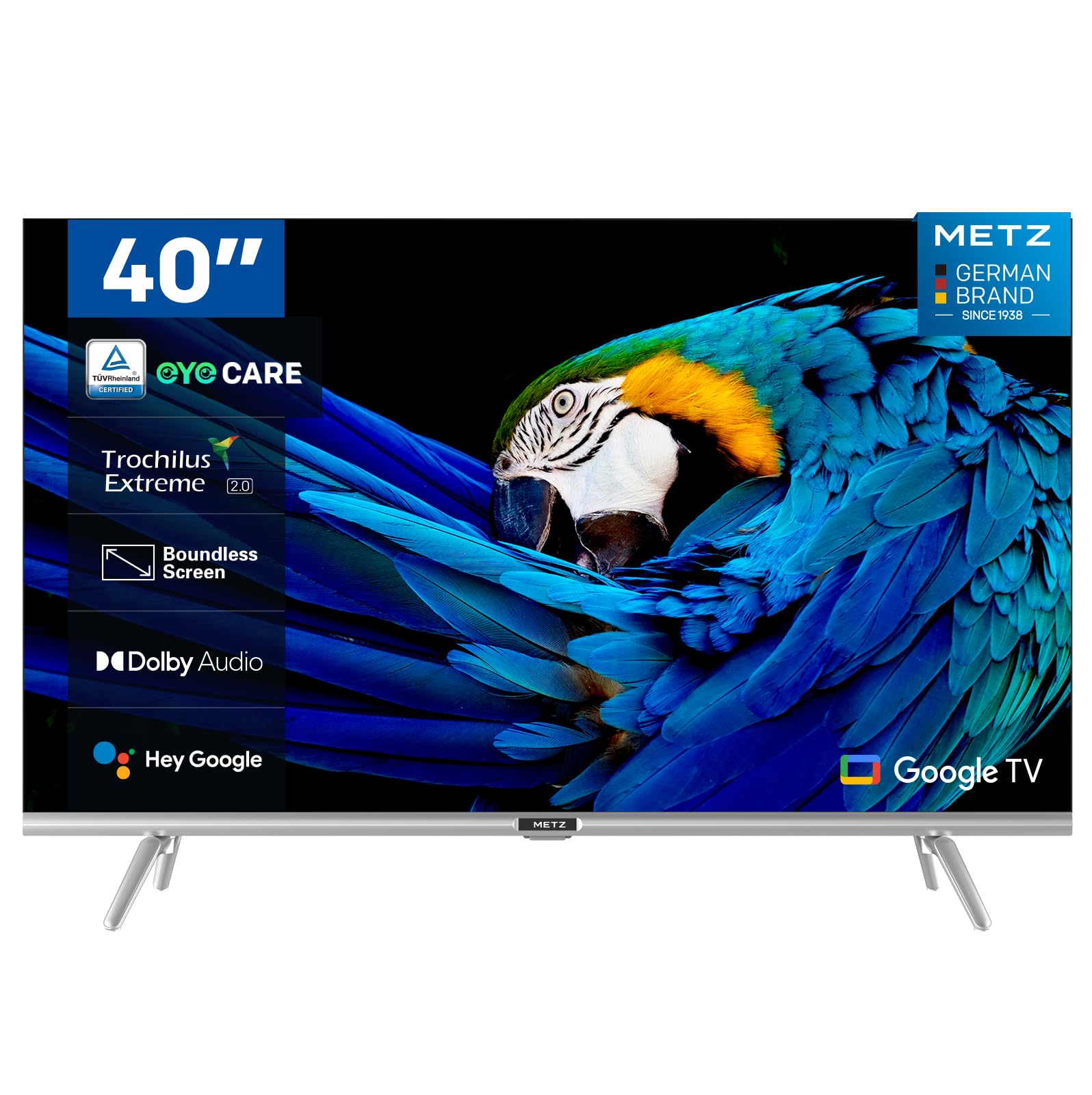
Image: Front view of the Metz MTD7000Z 40-inch Full HD Smart TV.
4. Key Features
- Full HD Resolution with HDR10: The Metz MTD7000Z series features Direct LED technology and a 1920x1080 resolution, delivering sharp and realistic images. HDR10 enhances contrast between bright and dark scenes for a more immersive visual experience.

Image: Visual comparison demonstrating improved contrast with HDR10 on the TV.
- Google TV with Voice Control: This TV utilizes Google TV, providing an intuitive interface and integrated Google Assistant for easy voice control. Access a vast library of apps and content.

Image: The Google TV home screen displaying various applications.
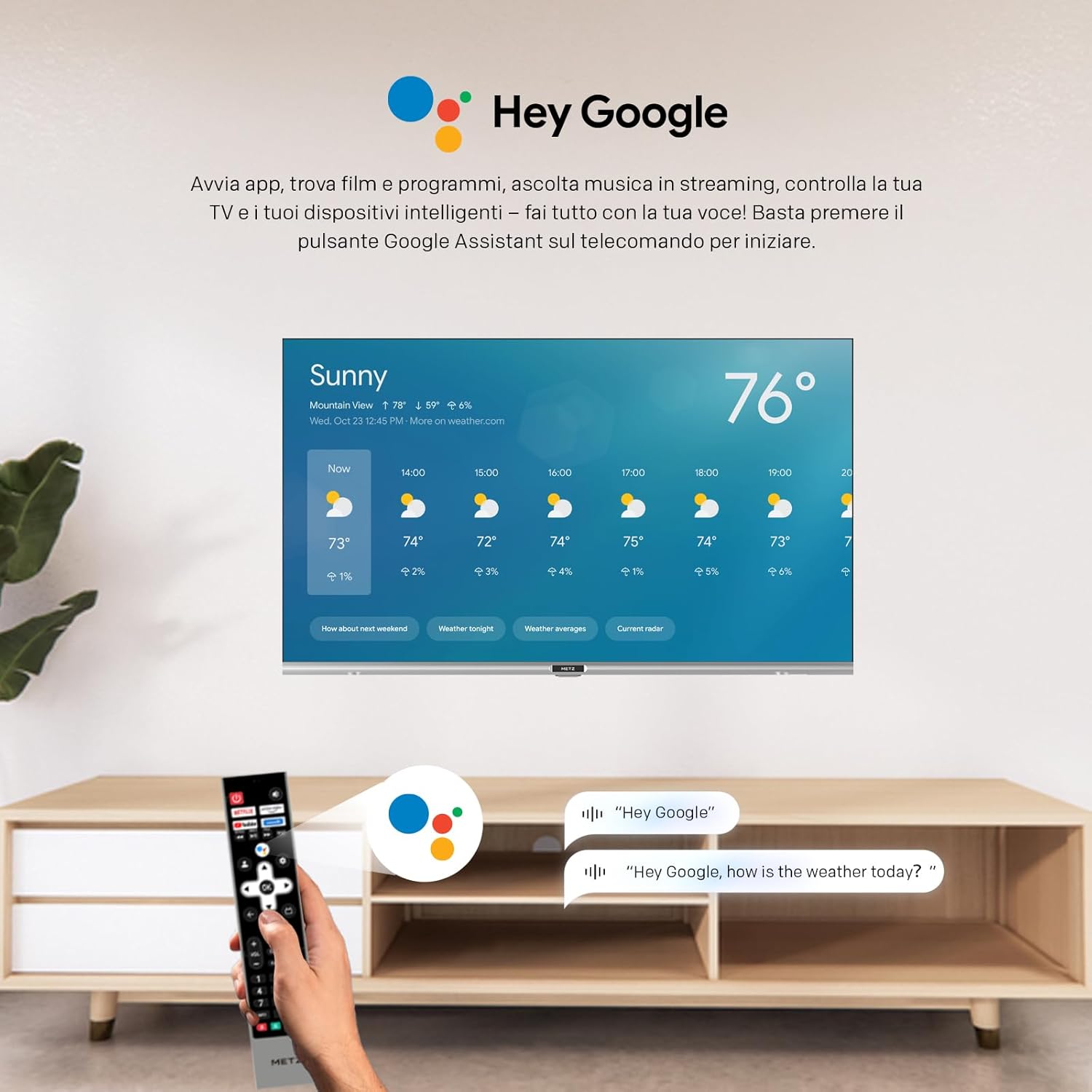
Image: A user using voice commands with the 'Hey Google' feature on the TV.
- Superior Audio Quality: Equipped with two 8W speakers, this smart TV offers excellent audio quality. Dolby Audio and DTS Studio Sound provide an immersive sound experience.
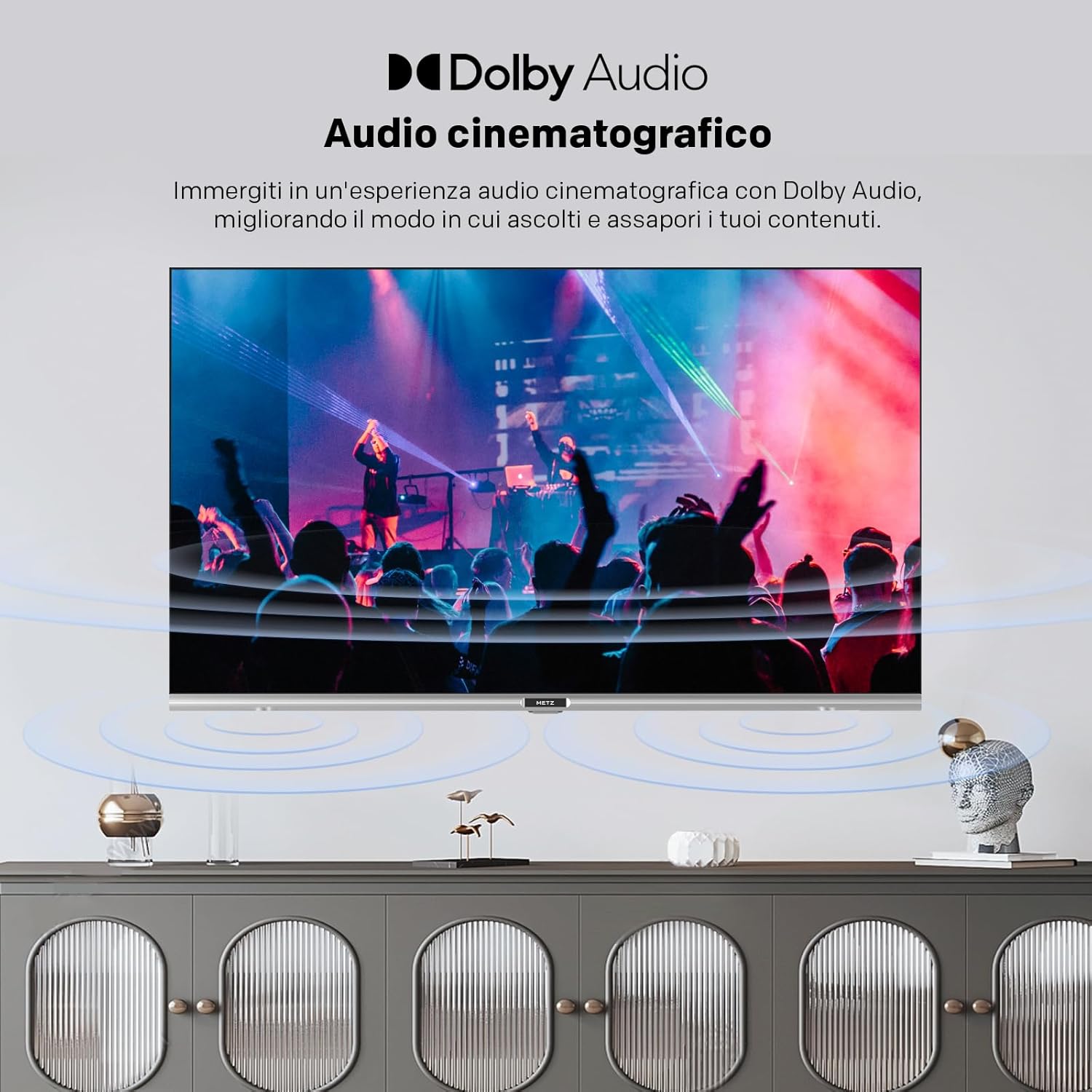
Image: Illustration of cinematic audio experience with Dolby Audio.
- Stable Connectivity: Dual-band Wi-Fi (2.4GHz & 5GHz) ensures a fast and stable internet connection. Bluetooth 5.0 enhances remote control responsiveness and voice control, facilitating connection with other wireless devices.
- Elegant Design: A sophisticated design with a borderless screen, silver decorative bar, and modern lines. The refined touch of Metz integrates perfectly into elegant interiors.
- Eye Care Features: Includes Flicker-Free technology and Low Blue Light emission to reduce eye strain during prolonged viewing.

Image: Demonstrating the flicker-free display of the MTD7000Z.

Image: Explanation of reduced blue light emission for eye comfort.
5. Operating Instructions
5.1 Remote Control Functions
The remote control allows you to navigate the Google TV interface, change channels, adjust volume, and access various smart features. Familiarize yourself with the button layout for optimal use.
5.2 Navigating Google TV
The Google TV home screen provides personalized recommendations and quick access to your favorite streaming services and apps. Use the directional buttons on your remote to browse content and select applications.
5.3 Channel Tuning
After connecting your antenna or cable, access the TV settings to perform an automatic channel scan. This will detect and store all available digital and analog channels.
6. Connectivity
The Metz MTD7000Z offers a variety of ports for connecting external devices:
- HDMI: Connect Blu-ray players, gaming consoles, and other HDMI-enabled devices. The TV features 2 HDMI ports.
- USB: Use the 2 USB ports to connect USB drives for media playback or to power compatible devices.
- S/PDIF: For digital audio output to soundbars or home theater systems.
- LAN: For a wired internet connection, providing stable network access.
- AV IN: For connecting older devices using composite video and stereo audio cables.
- Bluetooth 5.0: Connect wireless headphones, speakers, or other Bluetooth accessories.
- Wi-Fi (2.4GHz & 5GHz): For wireless internet connectivity.

Image: Overview of available input/output ports on the TV.
7. Specifications
| Feature | Specification |
|---|---|
| Brand | Metz |
| Model | 40MTD7000Z |
| Screen Size | 40 Inches (100 cm) |
| Display Technology | LED-LCD, Direct LED |
| Resolution | 1080p Full HD (1920x1080 pixels) |
| Refresh Rate | 60 Hz |
| Operating System | Android (Google TV) |
| HDR Support | HDR10 |
| Audio Technology | Dolby Audio, DTS Studio Sound |
| Speaker Wattage | 2 x 8W |
| Connectivity | Wi-Fi (2.4GHz & 5GHz), Bluetooth 5.0, 2x HDMI, 2x USB, S/PDIF, LAN, AV In |
| Tuner Technology | DVB-C/T2/S2 |
| Dimensions (with stand) | 72.4 x 20.6 x 56.8 cm |
| Weight | 5.2 kg |
| Viewing Angle | 178 Degrees |
| Power Consumption | 39 watts (39 kWh/1000h) |

Image: Energy label for the Metz MTD7000Z TV.
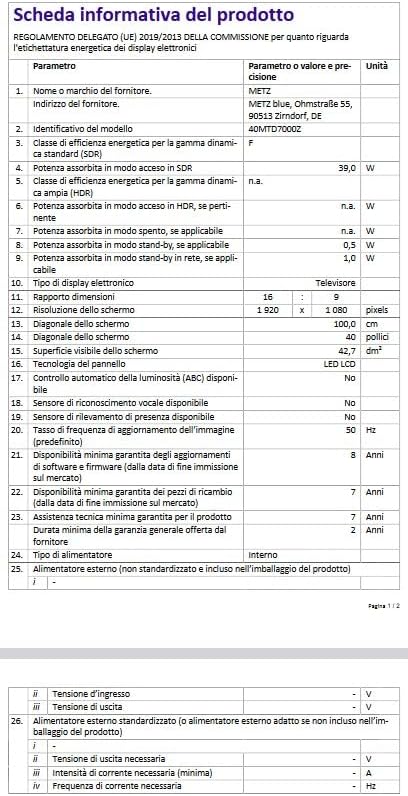
Image: Product information sheet with detailed technical data.
8. Troubleshooting
8.1 No Power
- Ensure the power cable is securely connected to both the TV and the wall outlet.
- Check if the wall outlet is functioning by plugging in another device.
- Press the power button on the TV itself, not just the remote, to rule out remote issues.
8.2 No Picture or Poor Picture Quality
- Verify that the correct input source (HDMI, AV, etc.) is selected.
- Check all cable connections (HDMI, antenna) for looseness or damage.
- If using an antenna, ensure it is properly positioned and perform a channel scan.
- Adjust picture settings (brightness, contrast, color) in the TV menu.
8.3 No Sound or Poor Sound Quality
- Increase the volume on both the TV and any connected external audio devices.
- Check audio cable connections.
- Ensure the TV is not muted.
- If using external speakers, ensure they are powered on and correctly configured.
8.4 Remote Control Not Working
- Replace the batteries in the remote control.
- Ensure there are no obstructions between the remote and the TV's IR sensor.
- If it's a Bluetooth remote, ensure it's paired correctly.
8.5 Network Connection Issues
- Restart your router and modem.
- Check Wi-Fi password and ensure the TV is within range of your router.
- If using a wired connection, ensure the Ethernet cable is securely plugged in.
9. Maintenance
9.1 Cleaning the Screen
- Always unplug the TV before cleaning.
- Use a soft, lint-free cloth (e.g., microfiber) to gently wipe the screen.
- For stubborn marks, lightly dampen the cloth with water or a specialized screen cleaner. Never spray cleaner directly onto the screen.
- Avoid using abrasive cleaners, alcohol, benzene, or thinners, as these can damage the screen.
9.2 Cleaning the Cabinet
- Wipe the TV cabinet with a soft, dry cloth.
- Do not use any liquid or spray cleaners on the cabinet.
9.3 Ventilation
- Ensure adequate ventilation around the TV to prevent overheating.
- Do not block ventilation openings with items like newspapers, tablecloths, or curtains.
10. Warranty and Support
Your Metz MTD7000Z Smart TV comes with a manufacturer's warranty. Please refer to the warranty card included in your packaging for specific terms and conditions, including the warranty period and coverage details.
For technical support, service, or further assistance, please contact Metz customer service or visit the official Metz website. Contact information can typically be found in the warranty documentation or on the manufacturer's website.