
Introduction
Thank you for choosing the NetumScan Handheld USB 2D Barcode Scanner Reader. This device is designed for efficient and accurate scanning of both 1D and 2D barcodes from various surfaces, including paper and digital screens. This manual provides essential information for proper setup, operation, and maintenance to ensure optimal performance and longevity of your scanner.
Product Overview
The NetumScan Handheld USB 2D Barcode Scanner Reader is a versatile tool for various applications such as retail, inventory management, and mobile payment processing. It features a robust design and advanced decoding capabilities.
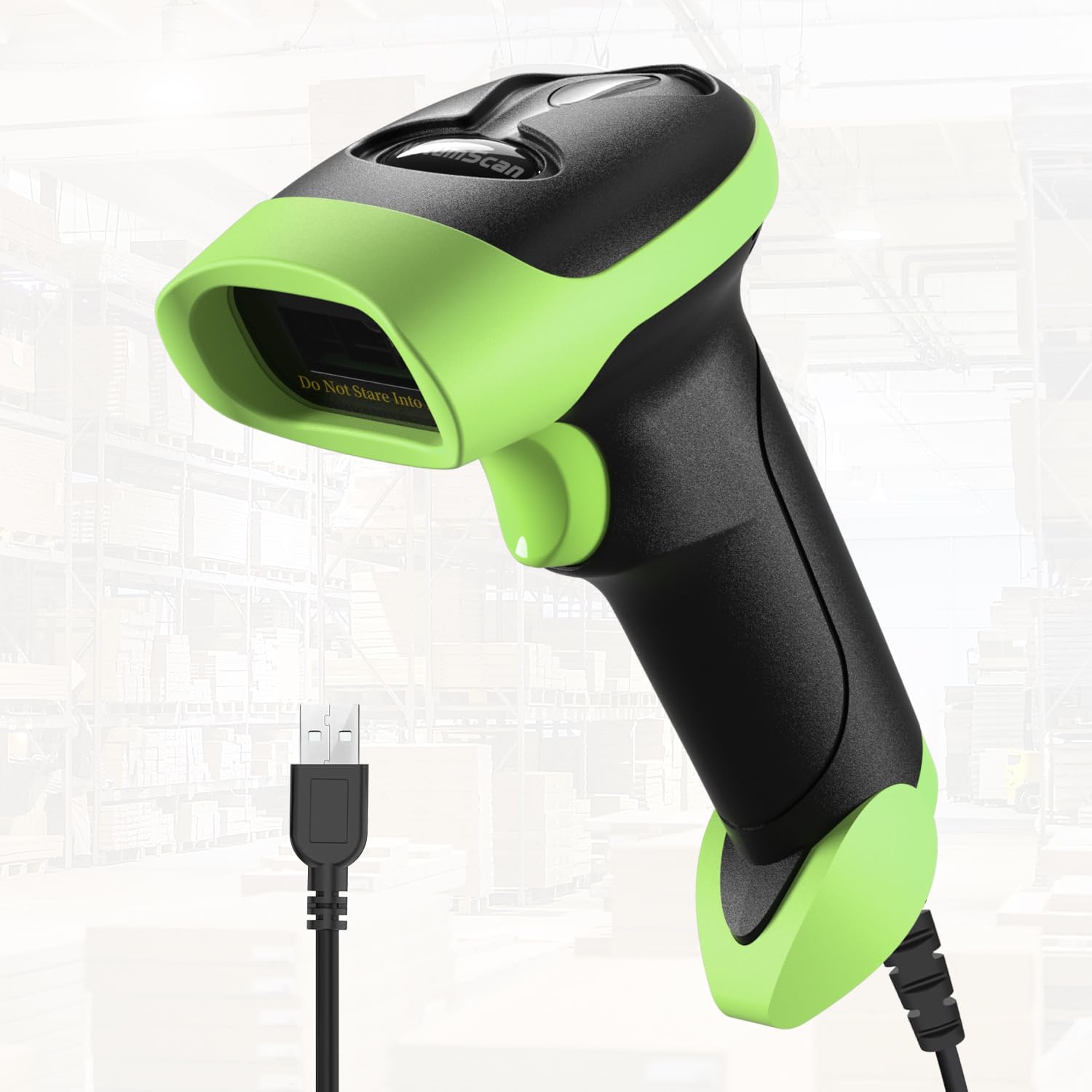
Image: NetumScan Handheld USB 2D Barcode Scanner Reader, showcasing its ergonomic design and integrated USB cable.
Setup Instructions
The NetumScan barcode scanner is designed for plug-and-play functionality, requiring no driver installation for most operating systems.
- Connect the Scanner: Insert the USB cable of the scanner into an available USB port on your computer (desktop or laptop).
- System Recognition: Your operating system (Windows, macOS, Linux) will automatically detect and install the necessary device drivers. This process usually takes a few seconds.
- Ready for Use: Once the system indicates that the device is ready, open any text-editing software (e.g., Notepad, Word, Excel) or a compatible application, place the cursor where you want the scanned data to appear, and begin scanning.

Image: Illustration of the scanner's compatibility with various devices (PC, Laptop) and operating systems (Windows, Mac OS, Linux).
The scanner operates as a keyboard wedge, meaning scanned data is input directly as if typed on a keyboard.
Operating the Scanner
Scanning Capabilities
The NetumScan scanner is equipped with an upgraded CMOS sensor and a 32-bit CPU, enabling it to quickly and accurately read a wide range of 1D and 2D barcodes at speeds up to 300 scans per second. It can effectively capture barcodes from both printed materials and digital screens, even if they are smudged, damaged, fuzzy, or reflective.
- 1D Barcodes: UPC, EAN, Code128, Code39, Code11, Codabar, Interleaved 2 of 5, etc.
- 2D Barcodes: PDF417 (e.g., driver's license), Data Matrix, QR Code, Micro QR, Aztec code, etc.

Image: The scanner's ability to decode various barcode types, including frayed, folded, profiled, 1D, 2D, and color barcodes.
Scanning Modes
The scanner supports three distinct scanning modes to suit different operational needs:
- Key Trigger Mode: Press and hold the trigger button to activate the scan beam. Release the button to stop scanning. This is ideal for precise, single-item scanning.
- Auto-Induction Mode: The scanner automatically detects a barcode within its field of view and scans it without requiring a trigger press. This mode is suitable for hands-free operation or when scanning multiple items quickly.
- Continuous Mode: The scan beam remains active continuously, scanning any barcode that passes through its field. This mode is useful for high-volume scanning environments.

Image: Visual representation of the three available scanning modes: Key Trigger, Continuous Scan, and Auto-induction.
To switch between scanning modes or configure other settings, refer to the comprehensive booklet of setup barcodes included with your scanner. Scan the appropriate configuration barcode to change the scanner's behavior.
Scanning from Screens
The scanner is capable of reading barcodes directly from digital displays, such as smartphone screens or computer monitors. Ensure the screen brightness is sufficient for optimal scanning performance.

Image: The scanner in use, quickly capturing a 1D or 2D barcode displayed on a mobile phone screen.

Image: A close-up of the scanner reading a payment QR code from a smartphone display.

Image: Demonstrates the scanner's capability to read barcodes from both physical paper labels and digital screens.
Maintenance
Proper care and maintenance will extend the life of your NetumScan barcode scanner.
- Cleaning: Use a soft, dry cloth to clean the scanner's exterior. For the scanning window, use a soft, lint-free cloth lightly dampened with a mild, non-abrasive cleaner. Avoid harsh chemicals or abrasive materials that could scratch the window.
- Protection: The scanner features a professional anti-shock silicone design and an IP54 rating, providing protection against dust, moisture, and drops from up to 6.56 feet (2 meters). While robust, avoid unnecessary impacts or exposure to extreme conditions.
- Storage: Store the scanner in a clean, dry environment when not in use.

Image: The scanner's anti-shock design, highlighting its durability against drops from 6.6 feet (2 meters) onto concrete.
Troubleshooting
If you encounter issues with your NetumScan barcode scanner, refer to the following common problems and solutions:
| Problem | Possible Cause | Solution |
|---|---|---|
| Scanner does not power on or respond. | USB cable not properly connected or faulty USB port. | Ensure the USB cable is securely plugged into both the scanner and the computer. Try a different USB port or computer. |
| Scanned data does not appear or is incorrect. | Cursor not in the correct input field; incorrect scanning mode; damaged barcode. | Ensure the cursor is active in the desired input field. Check the scanning mode (Key Trigger, Auto-induction, Continuous). Try scanning a different, known-good barcode. Ensure the barcode is flat and clearly visible. |
| Scanner disconnects frequently. | Loose USB connection; power fluctuations; system conflict. | Verify the USB connection is secure. Try connecting to a different USB port, preferably a direct port on the motherboard for desktops. Ensure your computer's power settings do not turn off USB devices to save power. |
| Cannot scan certain barcode types. | Barcode type is disabled by default or unsupported. | Refer to the included setup barcode booklet to enable specific barcode symbologies. While the scanner supports a wide range, some obscure types might require configuration. |
| Slow scanning response between multiple scans. | System processing delay; software limitations. | This can sometimes be normal depending on the host system's processing speed or the application used. Ensure your computer meets the minimum system requirements for your application. For high-volume, rapid scanning, consider using Continuous Mode if appropriate. |
For advanced configuration or persistent issues, consult the detailed setup barcode booklet provided with your scanner or contact NetumScan customer support.
Specifications
| Model | B0CT8KN5NB |
| Brand | NetumScan |
| Connectivity Technology | USB Cable (Wired) |
| Power Source | Corded Electric (via USB) |
| Compatible Devices | Desktop, Laptop |
| Supported Operating Systems | Windows, Linux, Mac OS |
| Scanning Speed | Up to 300 scans/second |
| Processor | 32-bit CPU |
| Sensor Type | CMOS |
| Barcode Compatibility | 1D: UPC, EAN, Code128, Code39, Code11, Codabar, Interleaved 2 of 5, etc. 2D: PDF417, Data Matrix, QR Code, Micro QR, Aztec code, etc. |
| Durability | Anti-shock silicone design, IP54 rated (dust and moisture protection), withstands drops from 6.56 ft (2m). |
| Item Weight | 8.4 ounces |
| Package Dimensions | 7.48 x 4.25 x 3.39 inches |
Warranty and Support
For information regarding the product warranty, please refer to the warranty card included in the product packaging or contact the seller directly. NetumScan is committed to providing quality products and customer satisfaction.
If you require technical assistance or have questions not covered in this manual, please contact NetumScan customer support through the official website or the retailer from whom you purchased the product.


