
1. Introduction
This manual provides essential instructions for the safe and efficient operation of your Bewinner A4 Thermal Printer. This portable, inkless printer utilizes thermal technology to produce high-quality prints from your mobile devices. Please read this manual thoroughly before use and retain it for future reference.
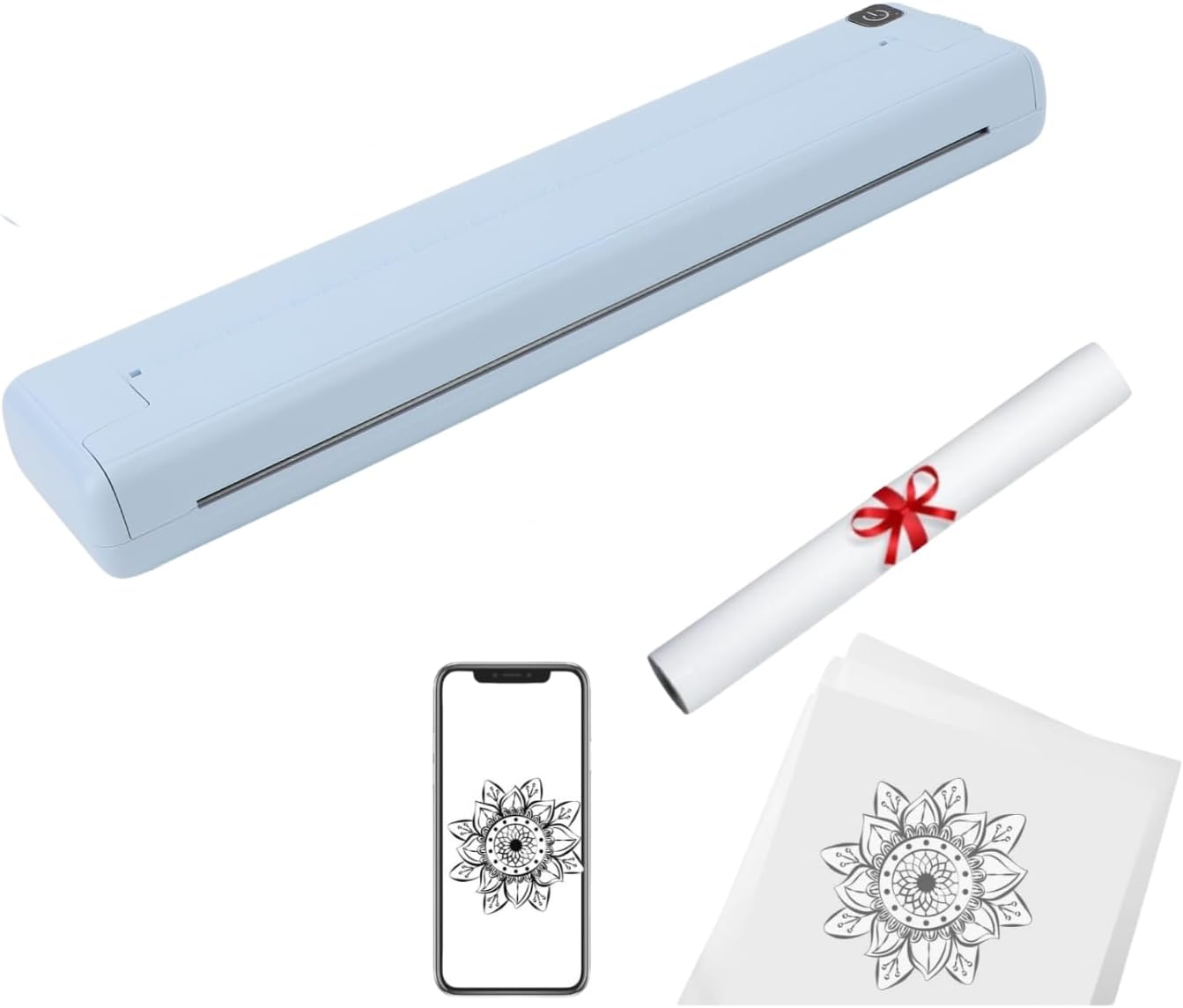
The Bewinner A4 Thermal Printer, showcasing its compact design and a roll of thermal paper, ready for use.
2. Safety Information
- Do not charge or use the printer in hot, humid, or dusty environments.
- Always charge the device using a 5V/2A power adapter.
- Avoid direct contact with the print head immediately after printing, as it may be hot.
- Insert the charging cable carefully to prevent excessive force from damaging the interface.
3. Package Contents
Verify that all items listed below are included in your package:
- 1 x Portable Wireless Printer (Host)
- 1 x Charging Cable
- 1 x User Manual

The Bewinner A4 Thermal Printer along with its USB charging cable, as typically included in the package.
4. Product Overview
Familiarize yourself with the main components of your printer:
- Feed Hole: Where thermal paper is inserted.
- Power Switch: Used to turn the printer on and off.
- Charging Port: Type-C port for connecting the charging cable.
- Exit Hole: Where printed paper exits the device.
- Open Button: Releases the cover for paper loading or jam clearance.

The printer in operation, demonstrating paper feeding and wireless connectivity.

The printer in a typical portable setup, printing a document next to a laptop.
5. Setup
5.1. Charging the Printer
Connect the provided USB charging cable to the printer's Type-C charging port and a 5V/2A power adapter. The red pilot lamp indicates charging. A full charge takes approximately 1.5 hours.
5.2. Loading Thermal Paper
- Press the cover release button to open the flap assembly.
- Insert the thermal paper into the feed hole, ensuring it is aligned correctly.
- Gently push the paper until the printer mechanism grips it.
- Close the flap assembly securely.
Important: Do not force the paper, as this may damage the printer. Use thermal paper with a width of 210mm or 218mm.
6. Application Installation
To use the printer with your smartphone, you need to install the 'iPrint' application:
- For Apple iOS users: Search for "iPrint" in the App Store and download the application.
- For Android users: Search for "iPrint" in the Google Play Store and download the application.
7. Bluetooth Connection
Follow these steps to connect your printer via Bluetooth:
- Ensure your printer is powered on (indicator light is steady).
- Enable Bluetooth on your mobile phone.
- Open the 'iPrint' application.
- Within the app, navigate to the "Select Device" section or similar option.
- Click on the Bluetooth name of your printer, typically displayed as "GT08".
- If the device is not shown, click the "Refresh" button within the app and try again.

The iPrint application interface on a smartphone, showing the device selection screen.
8. Operating Instructions
8.1. Power On/Off
- Power On: Long press the power button for approximately 3 seconds until the indicator light illuminates.
- Shutdown: Long press the power button for approximately 3 seconds until the indicator light turns off. The printer will automatically shut down after 30 minutes of inactivity.
8.2. Printing
Once connected via Bluetooth and with paper loaded, you can initiate printing from the 'iPrint' application. Select the document or image you wish to print and follow the on-screen prompts within the app.

A close-up of the printer producing a document, demonstrating the clarity of the 200 DPI thermal print.
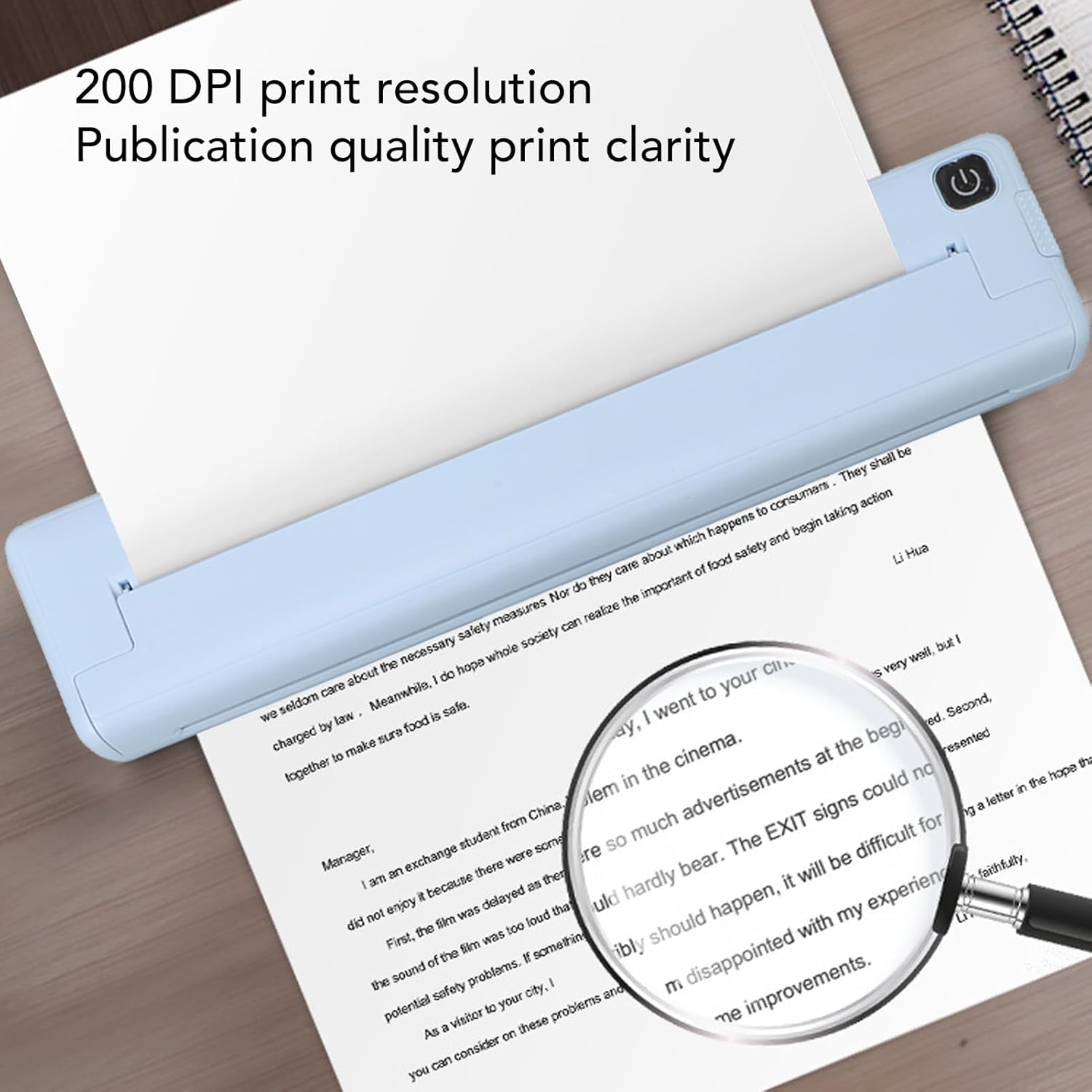
A magnifying glass inspecting a printed document, illustrating the 200 DPI resolution and print quality.
9. Maintenance
9.1. Cleaning the Print Head
If print quality degrades or words appear faded, the print head may be smudged. Gently wipe the print head with an alcohol wipe to clean it. Ensure the printer is off and cooled down before cleaning.
10. Troubleshooting
- Q: No device is found when I add a device to the APP?
A: Please check if the device is turned on and ensure Bluetooth is working on your phone. - Q: What can I do if my device cannot print?
A: Confirm that your mobile phone's Bluetooth is enabled and that no other devices are connected to the printer. Check if thermal paper is jammed. If the print head is overheating, wait for it to cool down before attempting to print again. - Q: Why is the printout all white, with no content?
A: This may be due to incorrect installation of the print head. Please refer to the instructions for reinstalling the print head or paper. - Q: Why do the printed words fade?
A: Check if the device has low power. Also, the print head might be covered with smudges; wipe it gently with an alcohol wipe.
11. Specifications
| Feature | Detail |
|---|---|
| Product Dimensions | 1.2"D x 2.3"W x 10.4"H (30mm x 58mm x 265mm) |
| Net Product Weight | 475g (1.05 lbs) |
| Printing Technology | Thermal |
| Print Resolution | 200 dpi |
| Connectivity | Bluetooth 4.0 |
| Compatible Devices | iOS, Android Smartphones, PC |
| Maximum Media Size | A4 (210mm or 218mm width) |
| Input Voltage | DC 5V/2A |
| Battery Capacity | 1000mAh |
| Charging Time | Approx. 1.5 hours |
| Continuous Printing | Up to 90 sheets of A4 thermal paper |
| Automatic Shutdown | After 30 minutes of inactivity |
| Standby Time | Up to 30 days |
| Charging Interface | Type-C |

Detailed dimensions of the Bewinner A4 Thermal Printer.
12. Warranty and Support
This product comes with a limited warranty. For specific warranty terms and conditions, please refer to the documentation provided with your purchase or contact Bewinner customer support. For technical assistance or further inquiries, please visit the official Bewinner website or contact their customer service channels.