
Bouncepad BP-CLK
Contents
Bouncepad Click iPad POS Stand & Docking Station User Manual
Model: BP-CLK
Introduction
The Bouncepad Click is a versatile and secure stand designed for iPads and other tablets, ideal for point-of-sale (POS) systems, reception areas, and various business environments. It offers quick access to your device while ensuring its security and maintaining an organized workspace. This manual provides detailed instructions for the setup, operation, and maintenance of your Bouncepad Click stand.

What's in the Box
Please check the package contents to ensure all items are present:
- Mounting Puck
- Lock and Pair of Keys
Setup Instructions
Follow these steps to set up your Bouncepad Click stand:
- Prepare the Surface: Ensure the countertop or surface where the stand will be placed is clean and dry.
- Choose Mounting Method:
- Micro-Suction Base (No Drilling): For a sturdy setup without drilling, place the stand directly onto a smooth, non-porous surface. The micro-suction base will firmly hold it in place.
- Permanent Mounting (Drilling): For enhanced security, the stand can be mounted to your countertop or wall. Use appropriate hardware (not included) and follow standard drilling procedures to secure the mounting puck.
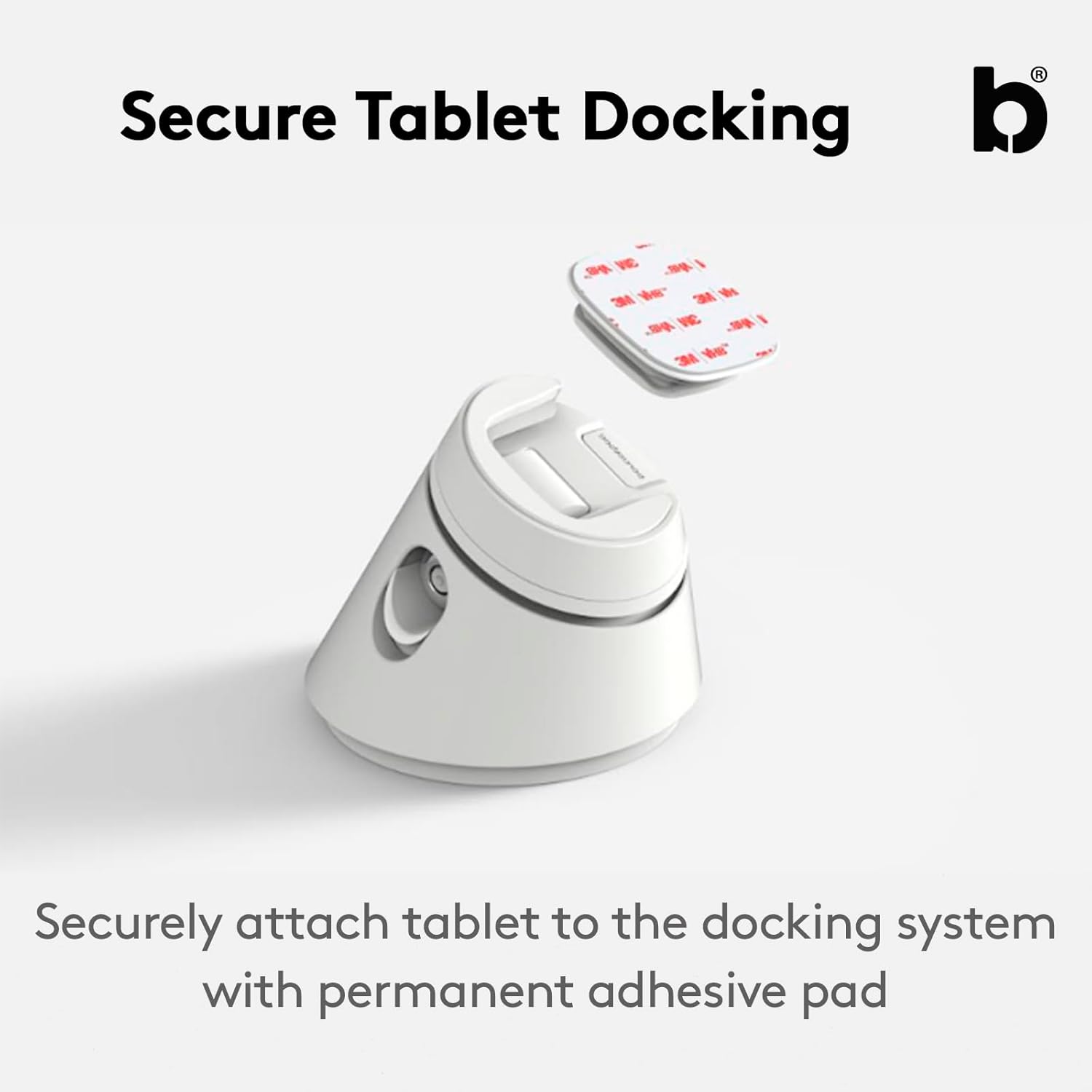
- Attach Tablet to Mounting Puck: Securely attach your tablet to the mounting puck using the provided permanent adhesive pad. Ensure the tablet is centered and firmly pressed onto the pad for a strong bond.
- Dock the Tablet: Align the tablet (with the attached mounting puck) with the docking station. Press down until you hear a "click," indicating it is securely docked.
Operating Instructions
Learn how to effectively use your Bouncepad Click stand:
- Docking and Undocking:
- To dock, simply align your tablet with the stand and press until it clicks into place.
- To undock, press the quick-release button located on the stand and lift the tablet.
- Security Features:
- Lock and Key System: Use the provided key to engage the robust lock, disabling the quick-release button and securing your tablet in place.
- Kensington Lock Compatibility: For additional anti-theft security, the Bouncepad Click is compatible with a Kensington Lock (not included). Attach a Kensington Lock to the designated slot on the stand.
- 340° Rotating Base: The stand features a 340° rotating base, allowing you to easily share your screen or adjust the viewing angle. Simply rotate the tablet to your desired position.
- Cable Management: Utilize the integrated cable management system to keep charging cables neat and organized, even when the device is undocked.


Maintenance
To ensure the longevity and optimal performance of your Bouncepad Click stand, follow these maintenance guidelines:
- Cleaning: Wipe the stand with a soft, damp cloth. Avoid using abrasive cleaners or solvents, as these can damage the finish.
- Adhesive Pad: If the permanent adhesive pad needs to be replaced or re-secured, ensure the surface is clean and dry before applying a new adhesive.
- Moving the Stand: If using the micro-suction base, lift the stand carefully to break the suction before moving it to a new location. Avoid dragging it across surfaces.
Troubleshooting
If you encounter any issues with your Bouncepad Click stand, refer to the following common solutions:
- Tablet Not Docking Securely:
- Ensure the mounting puck is correctly attached to the tablet and aligned with the docking mechanism.
- Check for any obstructions in the docking slot.
- Stand Not Stable (Micro-Suction Base):
- Verify that the surface is clean, smooth, and dry. Dust or moisture can reduce suction.
- Press down firmly on the stand to engage the micro-suction.
- Quick Release Button Not Working:
- Check if the lock is engaged. If so, use the key to unlock it.
- Ensure no debris is obstructing the button mechanism.
Specifications
| Feature | Detail |
|---|---|
| Brand | Bouncepad |
| Model Name | Bouncepad Click |
| Model Number | BP-CLK |
| Color | Black |
| Compatible Devices | Tablets, iPads (Universal Compatibility) |
| Mounting Type | Tabletop (Micro-suction or Permanent Mount) |
| Special Features | Swivel (340° Rotation), Lock and Key System, Kensington Lock Compatible, Cable Management |
| Item Dimensions | 4.92 x 4.33 x 4.92 inches |
| Item Weight | 0.7 g |
| Material | Aluminum, Plastic |
| GTIN | 05056353330160 |
Warranty Information
The Bouncepad Click iPad POS Stand & Docking Station comes with a 1-Year Warranty from the date of purchase. This warranty covers manufacturing defects and ensures the product functions as intended under normal use. Please retain your proof of purchase for warranty claims.
Support
For further assistance, technical support, or to inquire about replacement parts, please visit the official Bouncepad Store or contact their customer service:
- Online Store: Bouncepad Store on Amazon
- Manufacturer: Bouncepad
Documents and downloads
Ask a question about this manual
Ask about setup, troubleshooting, compatibility, parts, safety, or missing instructions. Manuals+ will review the question and use this page’s manual context to help answer it.