
1. Introduction
Thank you for purchasing the Wanbo X2 Pro Projector. This manual provides essential information for the safe and efficient operation of your device. Please read it thoroughly before use and retain it for future reference.
The Wanbo X2 Pro is a high-definition projector designed for home entertainment, offering 450 ANSI lumens brightness and 1280 x 720 pixel resolution, with integrated Wi-Fi connectivity for versatile media playback.
2. Safety Information
- Do not look directly into the projector lens when the lamp is on.
- Ensure proper ventilation around the projector to prevent overheating. Do not block ventilation openings.
- Use only the power adapter supplied with the projector.
- Keep the projector away from water, moisture, and flammable materials.
- Avoid placing the projector on unstable surfaces.
- Do not attempt to disassemble or repair the projector yourself. Contact qualified service personnel for assistance.
- Unplug the projector during lightning storms or when unused for extended periods.
3. Package Contents
Please check that all items are present in the package:
- Wanbo X2 Pro Projector
- Power Adapter
- Remote Control
- User Manual (this document)
4. Product Overview
4.1 Front View

Figure 1: Front view of the Wanbo X2 Pro Projector. The large circular lens is prominently featured on the left, with the 'wanbo' brand logo and an indicator light on the right side of the front panel.
The front of the projector features the main projection lens and the Wanbo brand logo. An infrared receiver for the remote control may also be located here.
4.2 Side View (Ventilation)
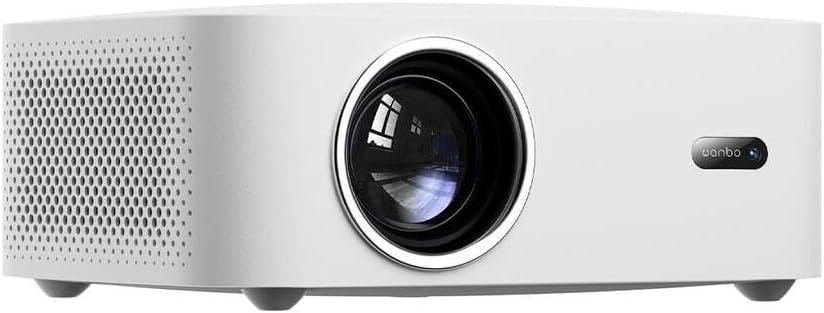
Figure 2: Side view of the Wanbo X2 Pro Projector. This image shows the left side of the projector, featuring a large area of ventilation grilles designed to dissipate heat, ensuring stable operation.
The sides of the projector are equipped with ventilation grilles to ensure adequate airflow and prevent overheating during operation. Do not obstruct these vents.
4.3 Rear View (Ports)

Figure 3: Rear view of the Wanbo X2 Pro Projector. This panel includes multiple connectivity options: USB ports, HDMI ports, an AV input, a 3.5mm audio output, and the power input socket. An infrared receiver for the remote control is also visible.
The rear panel provides various connectivity options:
- USB Ports: For connecting USB storage devices (e.g., flash drives) to play media files.
- HDMI Ports: For connecting external devices such as laptops, gaming consoles, or Blu-ray players.
- AV Input: For connecting older devices using a composite video and stereo audio cable.
- Audio Output (3.5mm): For connecting external speakers or headphones.
- Power Input: For connecting the power adapter.
- IR Receiver: For receiving signals from the remote control.
5. Setup
5.1 Placement
Place the projector on a stable, flat surface. Ensure there is sufficient space around the projector for proper ventilation (at least 30 cm from walls or other objects). The ideal projection distance depends on the desired screen size.
5.2 Power Connection
- Connect the power adapter to the Power Input port on the rear of the projector.
- Plug the other end of the power adapter into a suitable electrical outlet.
- The power indicator light on the projector will illuminate.
5.3 Connecting External Devices
- HDMI: Connect an HDMI cable from your source device (e.g., laptop, game console) to one of the HDMI ports on the projector.
- USB: Insert a USB flash drive into a USB port to access media files directly.
- AV: Use an AV cable to connect older devices.
- Audio Out: Connect external speakers or headphones to the 3.5mm audio output jack if desired.
5.4 Initial Power-On and Focus Adjustment
- Press the power button on the projector or the remote control to turn on the device.
- Once the projector starts, a startup screen will appear.
- Adjust the focus ring around the lens (if manual) or use the remote control (if auto-focus) until the projected image is clear and sharp.
5.5 Keystone Correction
If the projected image appears trapezoidal (wider at the top or bottom), use the keystone correction function. This can usually be found in the projector's settings menu or via a dedicated button on the remote control. Adjust until the image is rectangular.
6. Operating
6.1 Remote Control
The remote control allows you to navigate the projector's interface, select input sources, adjust volume, and access settings. Ensure batteries are correctly inserted.
6.2 Input Source Selection
Press the "Source" or "Input" button on the remote control to cycle through available input sources (e.g., HDMI 1, HDMI 2, AV, USB, Wi-Fi/Smart features). Select the desired source.
6.3 Picture and Audio Settings
Access the projector's main menu to adjust picture settings (brightness, contrast, color, aspect ratio) and audio settings (volume, sound mode).
6.4 Wi-Fi Connection
- Navigate to the "Settings" menu.
- Select "Network" or "Wi-Fi Settings".
- Enable Wi-Fi and select your desired network from the list.
- Enter the Wi-Fi password if prompted.
- Once connected, you can access online content or screen mirroring features.
6.5 Screen Mirroring / Casting
The Wanbo X2 Pro supports screen mirroring from compatible smartphones or tablets. Refer to the projector's on-screen instructions or your device's casting features (e.g., Miracast, AirPlay) for detailed steps.
7. Maintenance
7.1 Cleaning the Lens
Use a soft, lint-free cloth specifically designed for optical lenses. Gently wipe the lens surface. Do not use abrasive cleaners or excessive force, as this can scratch the lens.
7.2 Cleaning the Projector Body
Wipe the exterior of the projector with a soft, dry cloth. For stubborn marks, a slightly damp cloth can be used, followed by a dry cloth. Avoid using harsh chemicals.
7.3 Ventilation
Regularly check and clean the ventilation grilles to ensure they are free from dust and debris. Blocked vents can lead to overheating and reduced projector lifespan.
7.4 Storage
When not in use for extended periods, store the projector in a cool, dry, dust-free environment. Consider using a protective cover to prevent dust accumulation.
8. Troubleshooting
| Problem | Possible Cause | Solution |
|---|---|---|
| No image projected |
|
|
| Image is blurry |
|
|
| Image is trapezoidal |
|
|
| No sound |
|
|
9. Specifications
| Feature | Detail |
|---|---|
| Brand | Wanbo |
| Model Name | X2 Pro |
| Model Number | WANBOX2PRO |
| Brightness | 450 ANSI Lumens |
| Resolution | 1280 x 720 pixels (HD) |
| Connectivity | Wi-Fi, HDMI, USB, AV, 3.5mm Audio Out |
| Power Consumption | 5 Watts (Light Source Power) |
| Color | White |
10. Warranty and Support
The Wanbo X2 Pro Projector comes with a standard manufacturer's warranty. Please refer to the warranty card included in your package for specific terms and conditions, including the warranty period and coverage details.
For technical support, troubleshooting assistance beyond this manual, or warranty claims, please contact Wanbo customer service. Contact information can typically be found on the official Wanbo website or on your product packaging.
Please have your model number (WANBOX2PRO) and purchase information ready when contacting support.


